
VANBAR F99
VANBAR 10.26-inch Android Portable Navigation System
Model: F99
User Manual
1. Introduction
Thank you for purchasing the VANBAR 10.26-inch Android Portable Navigation System. This device is designed to enhance your driving experience with advanced features, including an Android 14 operating system, a powerful 8-core CPU, and ample memory for smooth operation. It integrates navigation, multimedia entertainment, and driving assistance functions into a single, easy-to-use unit.
This manual provides detailed instructions on how to set up, operate, and maintain your device. Please read it thoroughly before use to ensure proper functionality and safety.
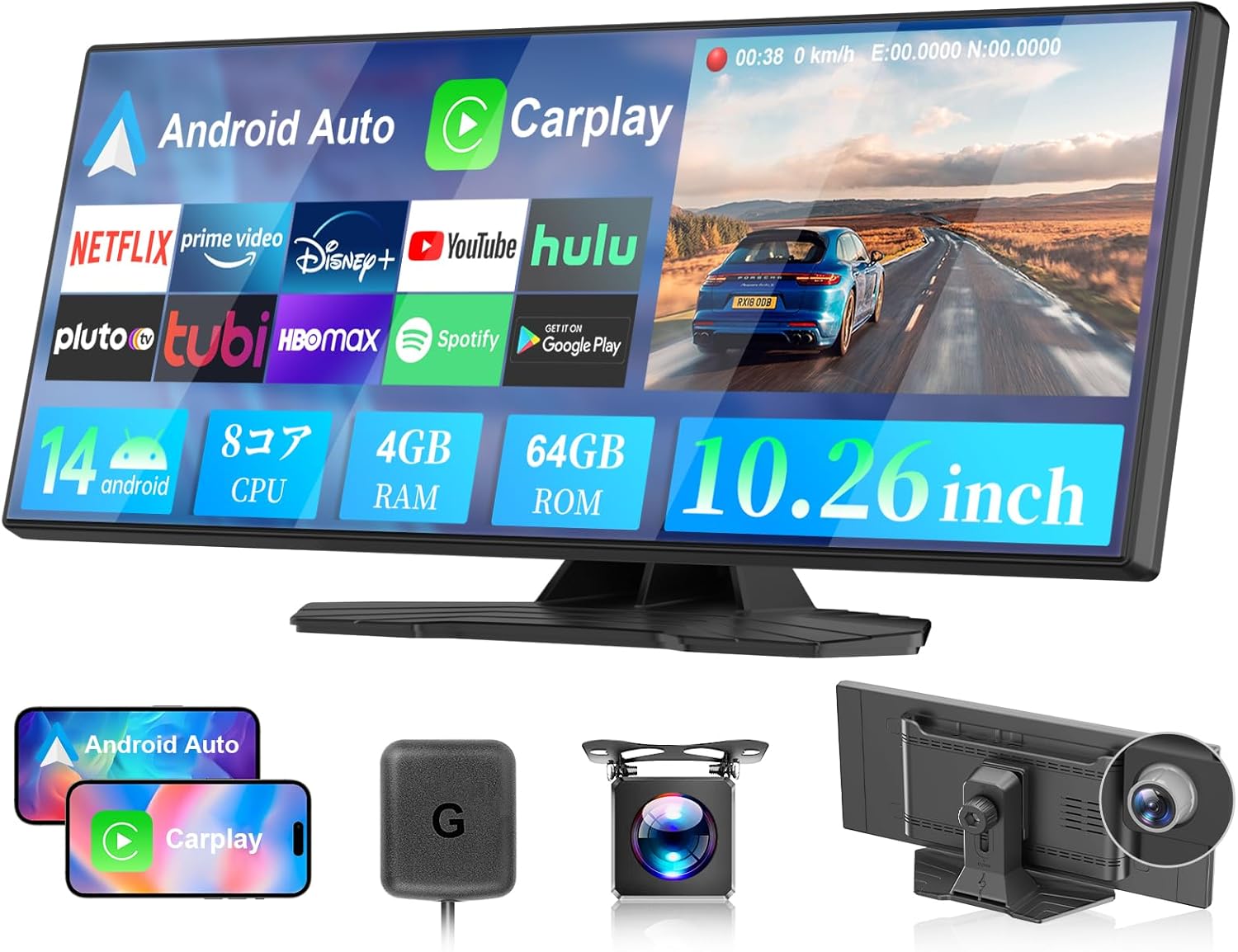
Figure 1: VANBAR 10.26-inch Android Portable Navigation System
This image shows the main unit of the VANBAR 10.26-inch Android Portable Navigation System, highlighting its large display and sleek design. It also displays smaller images of the included accessories: two smartphones demonstrating Android Auto and CarPlay connectivity, a GPS antenna, a front camera, and the rear view of the main unit with a camera.
2. Setup and Installation
The VANBAR portable navigation system is designed for easy installation without the need for complex wiring or embedding. It is compatible with various car models.
2.1 Package Contents
Before installation, please verify that all components are included in your package:
- Main Audio Unit
- Packaging Box
- GPS Antenna
- Car Charger
- AUX Data Cable
- Rear Camera
- Instruction Manual

Figure 2: Included Accessories and Certifications
This image displays the various components included in the product package, such as the main unit, GPS antenna, car charger, AUX cable, rear camera, and instruction manual. It also shows product certifications on the right.
2.2 Installation Steps
Installation can be completed in approximately 3 minutes:
- Prepare the Dashboard: Ensure the dashboard surface is clean and dry where you intend to mount the device.
- Attach the Mount: Peel off the protective film from the strong 3M adhesive tape on the bottom of the device's stand.
- Secure the Device: Firmly press the device onto the dashboard to ensure a secure attachment.
- Connect Power: Plug the included car charger into your vehicle's cigarette lighter socket. Do not force the power cable; use only the provided cigarette adapter.
- Connect GPS Antenna: Attach the GPS antenna to the designated port on the device.
- Install Rear Camera (Optional): If using the rear camera, connect it to the device and route the cable appropriately. The rear camera is a standard accessory and does not require separate purchase.

Figure 3: Easy Installation Steps
This diagram illustrates the four simple steps for installing the device: peeling the adhesive, attaching the unit to the dashboard, connecting the power via the cigarette lighter, and positioning the GPS antenna.
3. Operating Instructions
The VANBAR navigation system offers a wide range of functions to enhance your driving and entertainment experience.
3.1 Android 14 System & Performance
Equipped with the latest Android 14 system, an 8-core CPU, 4GB RAM, and 64GB ROM, the device ensures fast and stable operation. Connect to Wi-Fi to access online maps and download various entertainment apps from the Google Play Store, including YouTube, Netflix, and Prime Video.

Figure 4: Android 14 System Overview
This image highlights the key specifications of the device, including its 10.26-inch screen, 1920x720 pixel resolution, Android 14 OS, 8-core CPU, 4GB RAM, and 64GB ROM. It also shows various app icons like Google Maps, Google Play, TikTok, YouTube, Hulu, Netflix, TVer, and Prime Video, indicating app download capabilities.

Figure 5: Android 14 System and App Compatibility
This image emphasizes the device's Android 14 system, allowing users to download apps like YouTube, Netflix, Hulu, and TVer. It also shows a navigation screen with map details and a car interior view, illustrating the device's integration into the vehicle environment.
3.2 Wireless CarPlay & Android Auto (3-in-1 System)
Connect your smartphone wirelessly to access navigation, calls, music, and weather apps directly on the display. The system supports voice control via Siri and Google Assistant for hands-free operation, enhancing driving safety. This product is designed for wireless connection only.
- Wireless Connectivity: Seamlessly connect your smartphone without cables.
- Voice Control: Use Siri or Google Assistant for navigation, calls, and more.
- Wireless Mirroring: Display videos and articles from your smartphone on the 10.26-inch screen. Note: Some video apps may not be supported due to copyright protection.

Figure 6: Wireless CarPlay and Android Auto Functionality
This image illustrates the wireless CarPlay and Android Auto features, showing smartphone interfaces for navigation, calls, and music displayed on the unit. It also highlights voice control integration and wireless mirroring capabilities, allowing smartphone content to be displayed on the larger screen.

Figure 7: 3-in-1 System Capabilities
This image showcases the device's 3-in-1 functionality, including wireless CarPlay, Android Auto, and mirroring. It emphasizes the ability to enjoy YouTube videos and other content, along with icons representing various features like FM transmission, GPS, 12V/24V compatibility, backup linkage, and Bluetooth calls/music.
3.3 Drive Recorder Function
The device features front and rear cameras for simultaneous recording, providing comprehensive driving safety support. The front camera can rotate 180°, allowing flexible recording of both the road ahead and the car interior.
- Simultaneous Recording: Records both front and rear views.
- Flexible Front Camera: 180° rotation for versatile recording angles.
- MicroSD Card: A microSD card is required for recording. A 64GB card may be available for free through a campaign; please refer to the last page of the instruction manual for contact details.
- Loop Recording: Automatically overwrites the oldest files when the card is full.

Figure 8: Drive Recorder Function with Dual Camera Recording
This image illustrates the drive recorder function, emphasizing simultaneous recording from both front and rear cameras. It shows a car from an aerial view with 145-degree recording angles for both front and rear, along with images of cars from the front and rear, indicating comprehensive coverage.

Figure 9: Convenient Loop Recording
This image explains the loop recording feature, showing that video segments are saved as files and continuously recorded without missing a second. It also indicates that the oldest files are automatically overwritten when the card capacity is full. Icons for front/rear simultaneous recording, loop recording, and high image quality are displayed.
3.4 Bluetooth Connectivity
With the latest Bluetooth 5.0, enjoy stable calls and music playback without connection drops.
3.5 Parking Assist Function
When parking, the monitor automatically switches to the rear camera view when the car is put into reverse gear. This helps in checking blind spots and obstacles, supporting safe and smooth parking.

Figure 10: Backup Camera Assist
This image demonstrates the backup camera assist feature, showing a driver backing up while the monitor displays the rear camera view with parking guidelines. It highlights that the rear camera is included as a standard accessory, making parking easier and safer.
3.6 Multimedia Features
In addition to the main unit speaker, the device supports FM transmission, in-car Bluetooth, and AUX output. You can play high-quality music and navigation audio through your car stereo. It features a wide-viewing-angle IPS touch panel with 1920x720 high resolution for vivid and bright display from any angle. Equipped with a USB port and MicroSD card slot (supports up to 128GB) for offline media playback.

Figure 11: Multimedia Features and Audio Output Options
This image illustrates various multimedia features, including split-screen display for YouTube and Google Maps. It also shows different audio output methods: AUX cable, Bluetooth connection, FM transmission, and the main unit's built-in speaker, allowing users to customize their in-car audio experience.
3.7 Split Screen Function
The split-screen display function allows you to easily perform two tasks simultaneously, such as displaying navigation routes and music playback on the same screen, or combining video entertainment and instant messaging without interference.

Figure 12: Split Screen Display Function
This image demonstrates the split-screen display feature, showing two applications running simultaneously on the screen, such as a video player and a navigation map. It highlights the convenience of multitasking without switching between apps, and also mentions Bluetooth 5.0 for stable connections.
4. Maintenance
4.1 System Updates (OTA)
The system supports online (OTA) updates, allowing you to always maintain the latest firmware version. You can monitor the update progress, and you will be automatically notified when the update is complete.

Figure 13: System Update Notification
This image shows a notification indicating that a new version has been found, along with a list of updates such as Huawei HiCar connection, drive recorder window optimization, split screen optimization, and shortcut icon switching. It advises users to contact customer service for upgrade procedures.
4.2 Data Management
To ensure optimal performance, regularly delete unnecessary data from the device, especially if storage becomes insufficient, as this can affect app functionality.
5. Troubleshooting
This section addresses common issues you might encounter with your device.
5.1 Connectivity Issues (Wi-Fi/Bluetooth)
If Wi-Fi and Bluetooth cannot connect, please restart the device.

Figure 14: Troubleshooting Connectivity Issues
This image provides a troubleshooting tip: if Wi-Fi and Bluetooth cannot connect, restart the device. It shows a device screen with Wi-Fi and Bluetooth icons, and a text box with the troubleshooting advice.
5.2 Slow Operation
Operation may be slow depending on the communication environment. Ensure a stable Wi-Fi connection. Also, if storage is insufficient, apps may not function correctly; regularly delete unnecessary data.
5.3 iPhone Tethering Disconnection
When using an iPhone, please note that tethering may be automatically disconnected after about 90 seconds if the "Personal Hotspot" screen is not open on your iPhone.
For any initial defects or issues during use, please contact customer service.6. Specifications
| Feature | Specification |
|---|---|
| Brand | VANBAR |
| Product Model Number | F99 |
| Color | Black |
| Size | 10.26 inches |
| Product Dimensions | 2.5 x 26 x 15 cm |
| Item Weight | 800 g |
| Compatible Devices | Android Smartphones, iPhones, Car Audio Systems |
| Connectivity Technology | Bluetooth |
| Other Functions | Android Auto compatible, CarPlay compatible, Equalizer function, Touch panel, Built-in speaker |
| Battery Usage | No |
| Included Accessories | Audio Main Unit |

Figure 15: Product Dimensions and Slim Design
This image provides detailed dimensions of the display monitor, stand, and cameras, highlighting the ultra-thin 1cm design of the unit. It also shows the 180-degree rotatable front camera and the rear camera.
7. Warranty and Support
For any initial defects or issues encountered during use, please feel free to contact our customer service. Our team is dedicated to providing prompt and helpful assistance.
7.1 Contact Information
Please refer to the last page of the instruction manual for detailed contact information.
You can also reach us via:
- LINE Official: @645cthlb
Ask a question about this manual
Ask about setup, troubleshooting, compatibility, parts, safety, or missing instructions. Manuals+ will review the question and use this page’s manual context to help answer it.