
SIXWIN 4G+64G New 8Core
SIXWIN 8 Core Qualcomm Android Car Stereo User Manual
Model: 4G+64G New 8Core for Hyundai Elantra (2011-2013)
1. Introduction
Thank you for choosing the SIXWIN 8 Core Qualcomm Android Car Stereo. This manual provides detailed instructions for the installation, operation, and maintenance of your new car stereo system. Designed specifically for Hyundai Elantra models from 2011 to 2013, this unit features a 9-inch touch screen with advanced functionalities including wireless CarPlay, Android Auto, GPS navigation, Bluetooth 5.1, and a built-in cooling fan for optimal performance.
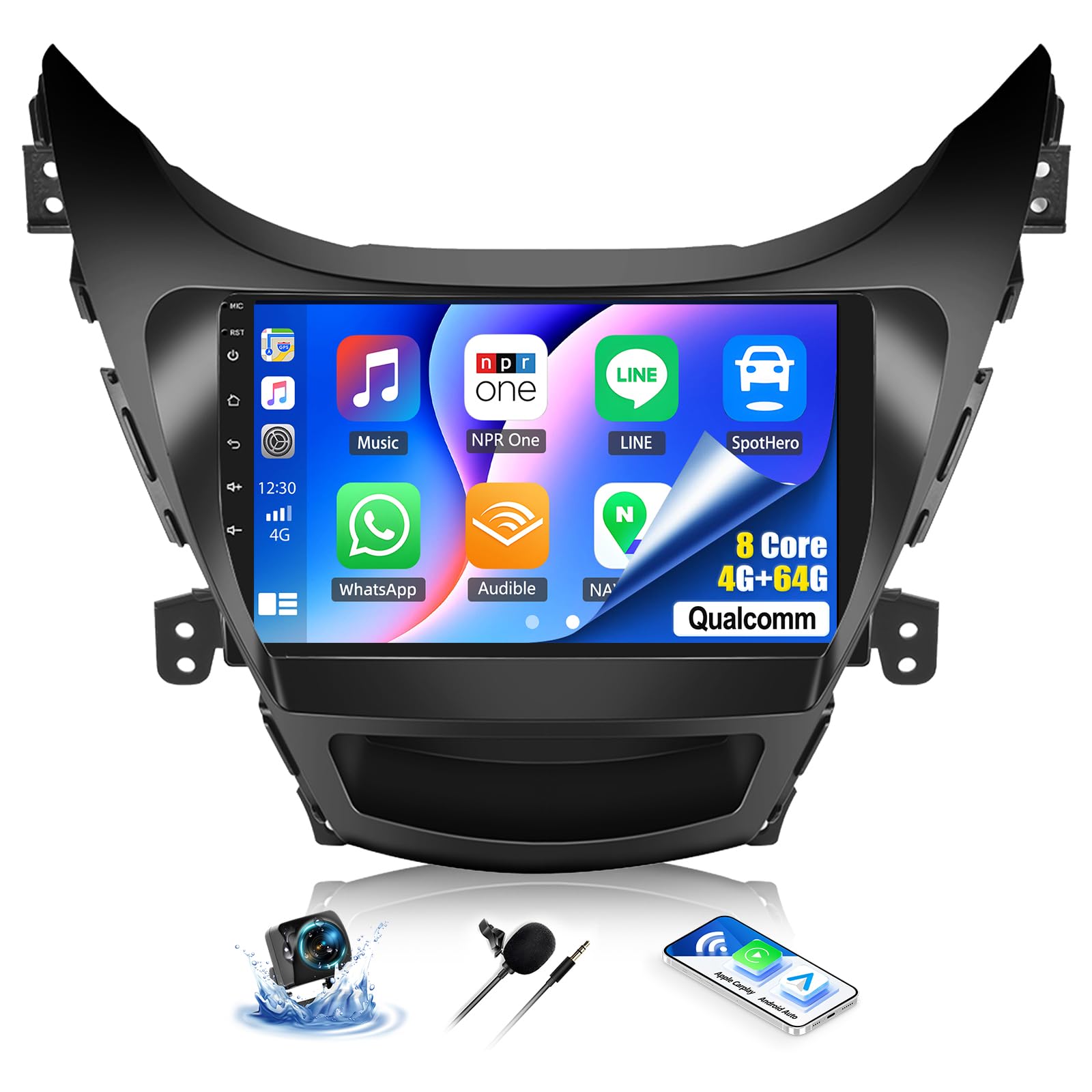
Figure 1.1: Main unit of the SIXWIN Android Car Stereo.
2. Safety Information
Please read all safety instructions carefully before installation and operation. Failure to follow these instructions may result in injury or damage to the device or vehicle.
- Professional Installation Recommended: Due to the complexity of car electrical systems, professional installation is highly recommended.
- Disconnect Battery: Always disconnect the vehicle's negative battery terminal before beginning any electrical work to prevent short circuits and damage.
- Wiring: Ensure all wiring connections are secure and properly insulated to prevent electrical hazards.
- Driving Safety: Do not operate the device in a way that distracts you from driving. Always prioritize road safety.
- Temperature: Avoid exposing the unit to extreme temperatures or direct sunlight for prolonged periods.
- Moisture: Keep the unit away from water and excessive moisture.
3. Package Contents
Verify that all items listed below are included in your package:
- Car Radio Unit
- Dash Kit (for Hyundai Elantra 2011-2013)
- USB Cable
- GPS Antenna
- Rear Camera Input Cable
- Radio Adapter Cable
- Radio Antenna
- RCA Cable
- User Manual
- Microphone
- Rear Camera
- Power Cable
- Installation Tool
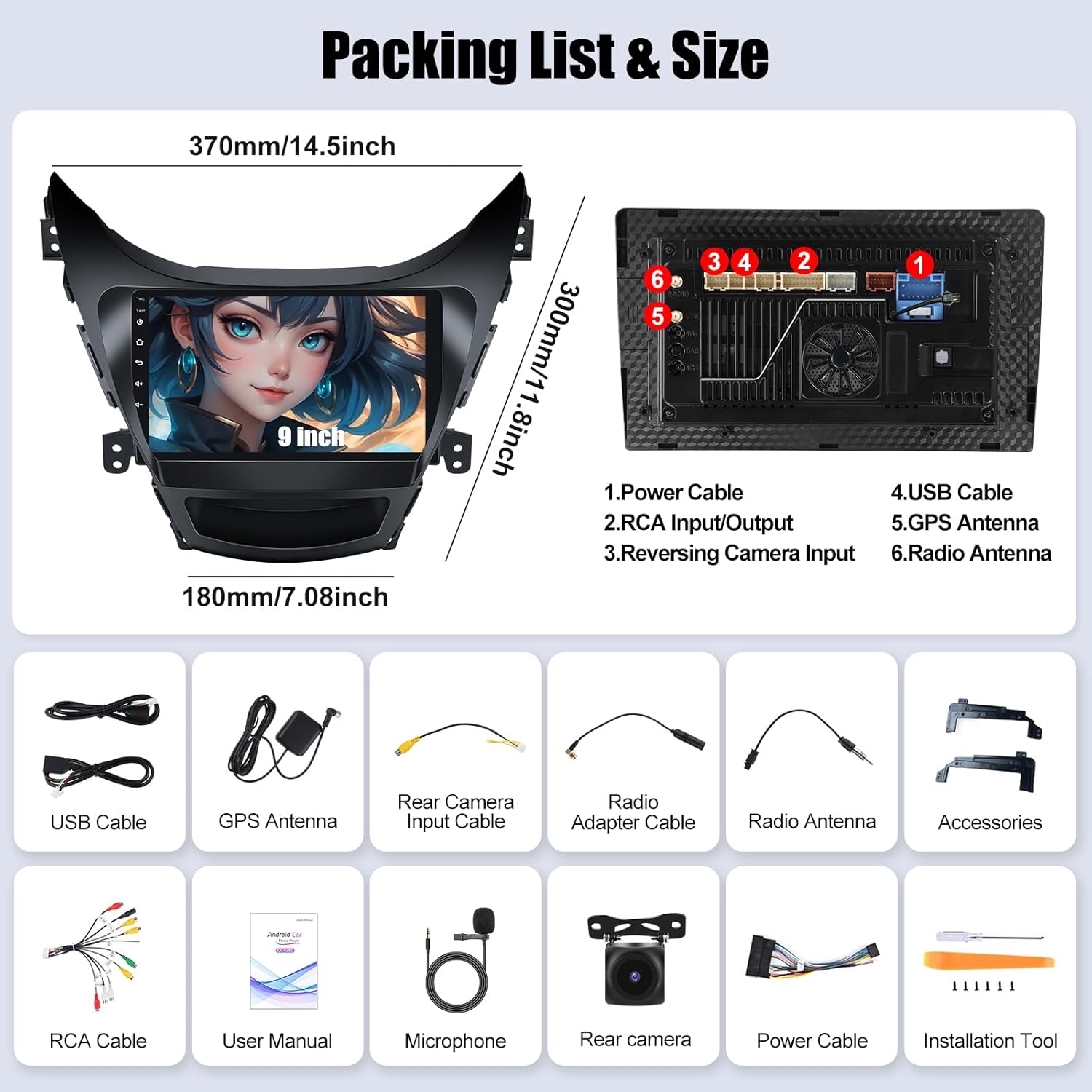
Figure 3.1: Diagram showing the included components and unit dimensions.
4. Key Features
Your SIXWIN Android Car Stereo is equipped with a range of features to enhance your driving experience:
- 8 Core Qualcomm Android 13: Powerful processor for smooth performance.
- 4G+64G Memory: Ample RAM and storage for apps and data.
- Bluetooth 5.1: For stable hands-free calling and audio streaming.
- 3D Car Model Showcase: Customizable on-screen car model display.
- Built-in Cooling Fan: Ensures stable operation and prevents overheating.
- Weather Forecast: Integrated weather information display.
- Intelligent Voice Control: Access functions using voice commands.
- Wireless CarPlay & Android Auto: Seamless smartphone integration.
- Mirror Link: Display your phone screen on the stereo (Note: Not compatible with Samsung devices).
- FM/RDS Radio: High-quality radio reception with RDS information.
- GPS Navigation: Supports online and offline navigation with pre-installed apps like Here We Go.
- WiFi Connectivity: For online services and app downloads.
- Steering Wheel Control: Compatible with vehicle's steering wheel buttons.
- Backup Camera Support: Automatic display of rear view when reversing.
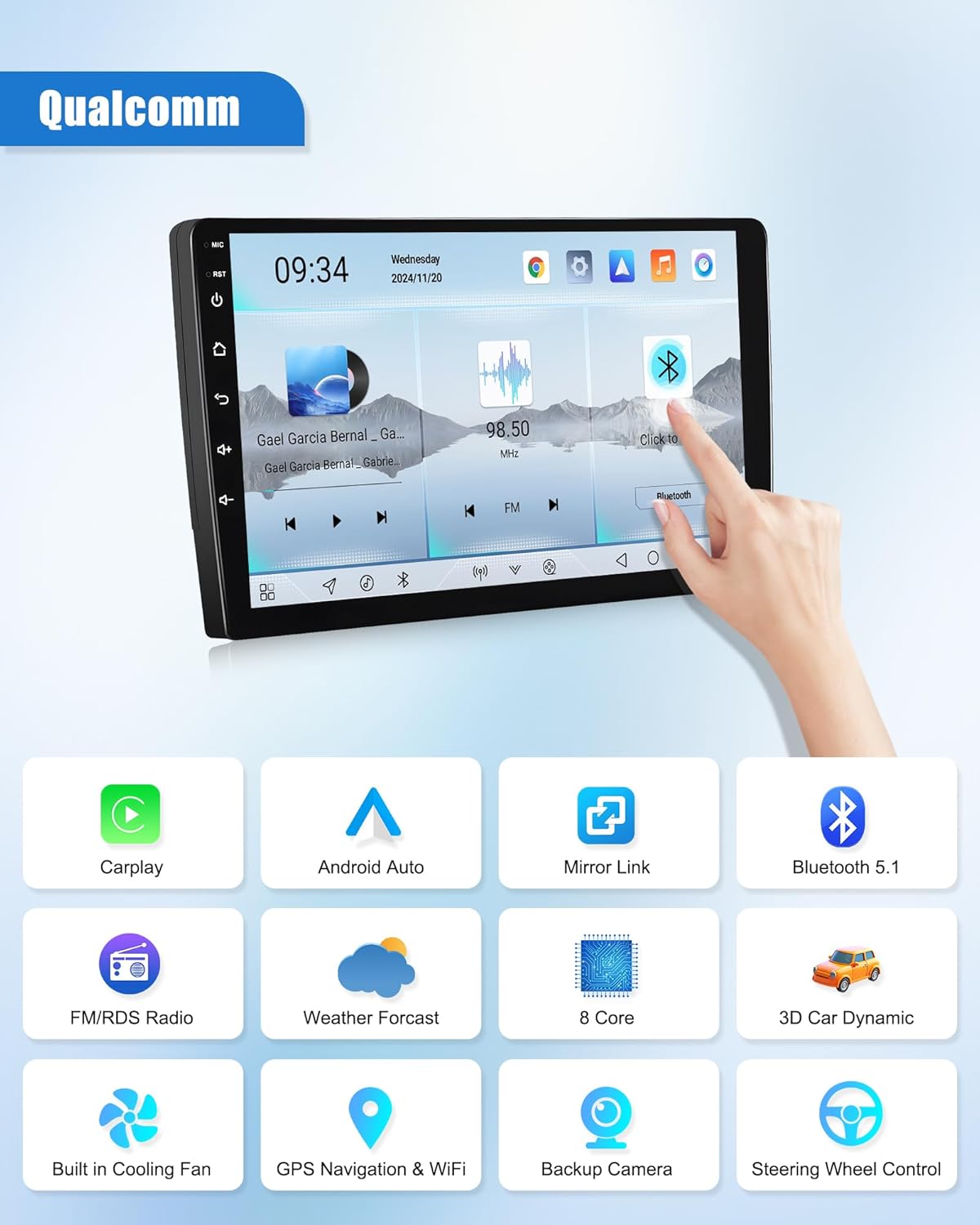
Figure 4.1: Overview of the main features of the car stereo.
5. Installation Guide
This section outlines the general steps for installing your SIXWIN Android Car Stereo. It is highly recommended to seek professional assistance for installation if you are not familiar with car electronics.
5.1 Pre-Installation Steps
- Disconnect Battery: Before starting, disconnect the negative terminal of your vehicle's battery to prevent electrical damage.
- Remove Old Unit: Carefully remove the existing car radio and dash panels. Use appropriate trim removal tools to avoid scratching your vehicle's interior.
- Inspect Wiring: Examine the existing wiring harness. If your car has an amplifier control cable, it must be pulled out separately and connected to the ACC power line of the new unit to ensure sound output.

Figure 5.1: Example of the car stereo installed in a Hyundai Elantra dashboard.
5.2 Connecting the Cables
Refer to the wiring diagram provided with your unit for specific connections. General connections include:
- Power Cable: Connect the main power harness.
- USB Cable: For external USB devices.
- RCA Input/Output: For external audio/video devices.
- Reversing Camera Input: Connect the included backup camera.
- GPS Antenna: Mount the GPS antenna in a location with a clear view of the sky.
- Radio Antenna: Connect the vehicle's radio antenna.
- Microphone: Connect the external microphone for improved call quality.
5.3 Mounting the Unit
- Secure the new car stereo unit into the dash opening using the provided dash kit and screws.
- Carefully reattach all removed dash panels, ensuring they snap into place correctly.
- Reconnect the vehicle's negative battery terminal.
6. Initial Setup
After installation, power on the unit and follow these initial setup steps:
- Language and Time: Set your preferred language, time zone, and date.
- Wi-Fi Connection: Go to Settings > Network & Internet > Wi-Fi and connect to your home or mobile hotspot for internet access.
- GPS Calibration: Ensure the GPS antenna is properly installed. The system will automatically acquire satellite signals.
- Steering Wheel Control Learning: Navigate to Settings > Steering Wheel Control. Follow the on-screen instructions to map your vehicle's steering wheel buttons to the stereo functions.
7. Operating Instructions
7.1 Wireless CarPlay & Android Auto
Connect your smartphone wirelessly to access navigation, music, calls, and more directly on the car stereo screen.
- For CarPlay: Ensure Wi-Fi and Bluetooth are enabled on your iPhone. On the car stereo, open the "CarPlay" app. Select your iPhone from the list of available devices to connect.
- For Android Auto: Ensure Wi-Fi and Bluetooth are enabled on your Android phone. On the car stereo, open the "Android Auto" app. Select your Android phone from the list of available devices to connect.
- Voice Control: Use Siri or Google Assistant for hands-free operation.
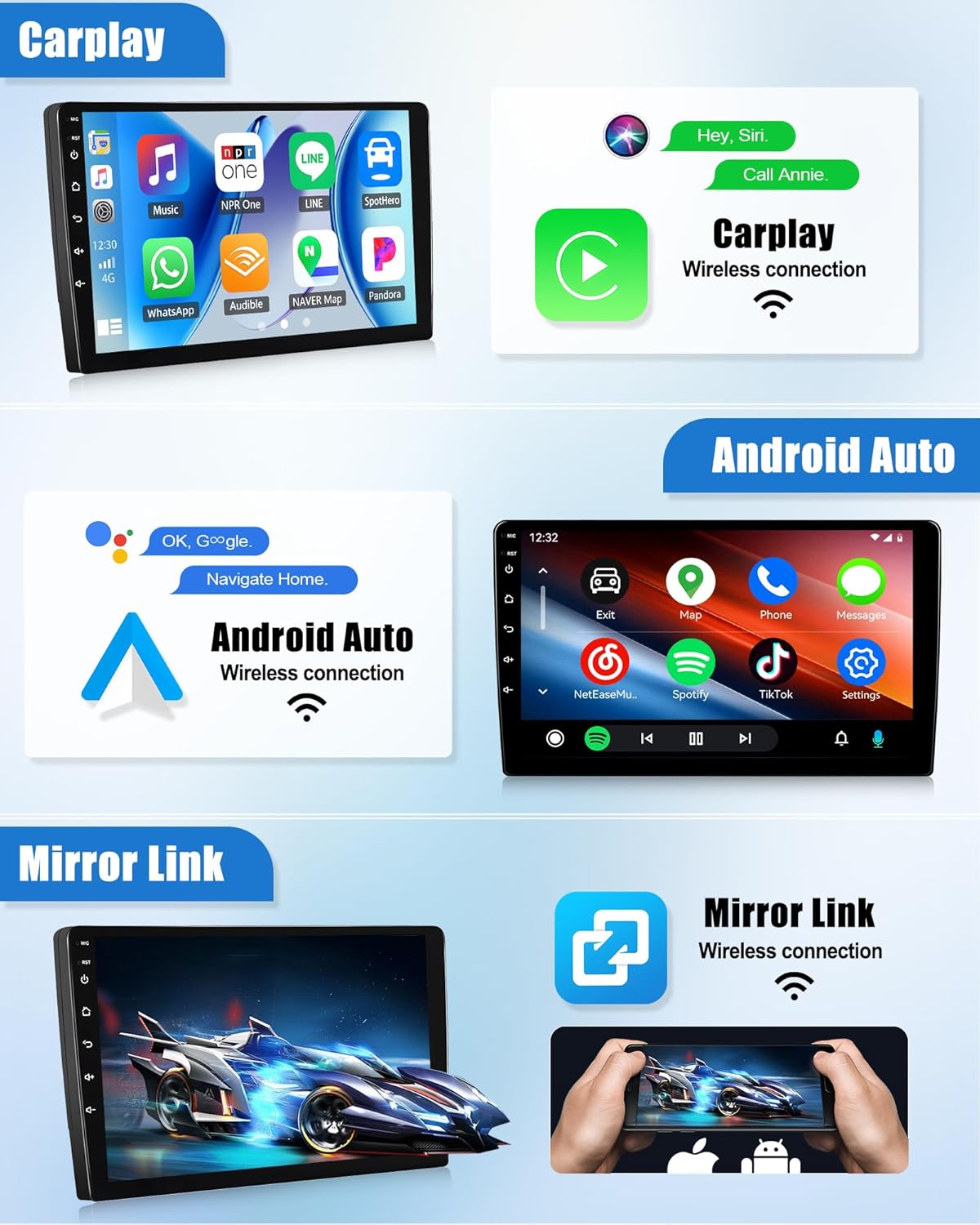
Figure 7.1: CarPlay, Android Auto, and Mirror Link interfaces.
7.2 GPS Navigation
The unit supports both online and offline navigation.
- Online Navigation: Connect to Wi-Fi and use pre-installed map applications or download your preferred navigation apps from the app store.
- Offline Navigation: The "Here We Go" app is pre-installed. Download necessary offline map data for your region to navigate without an internet connection.
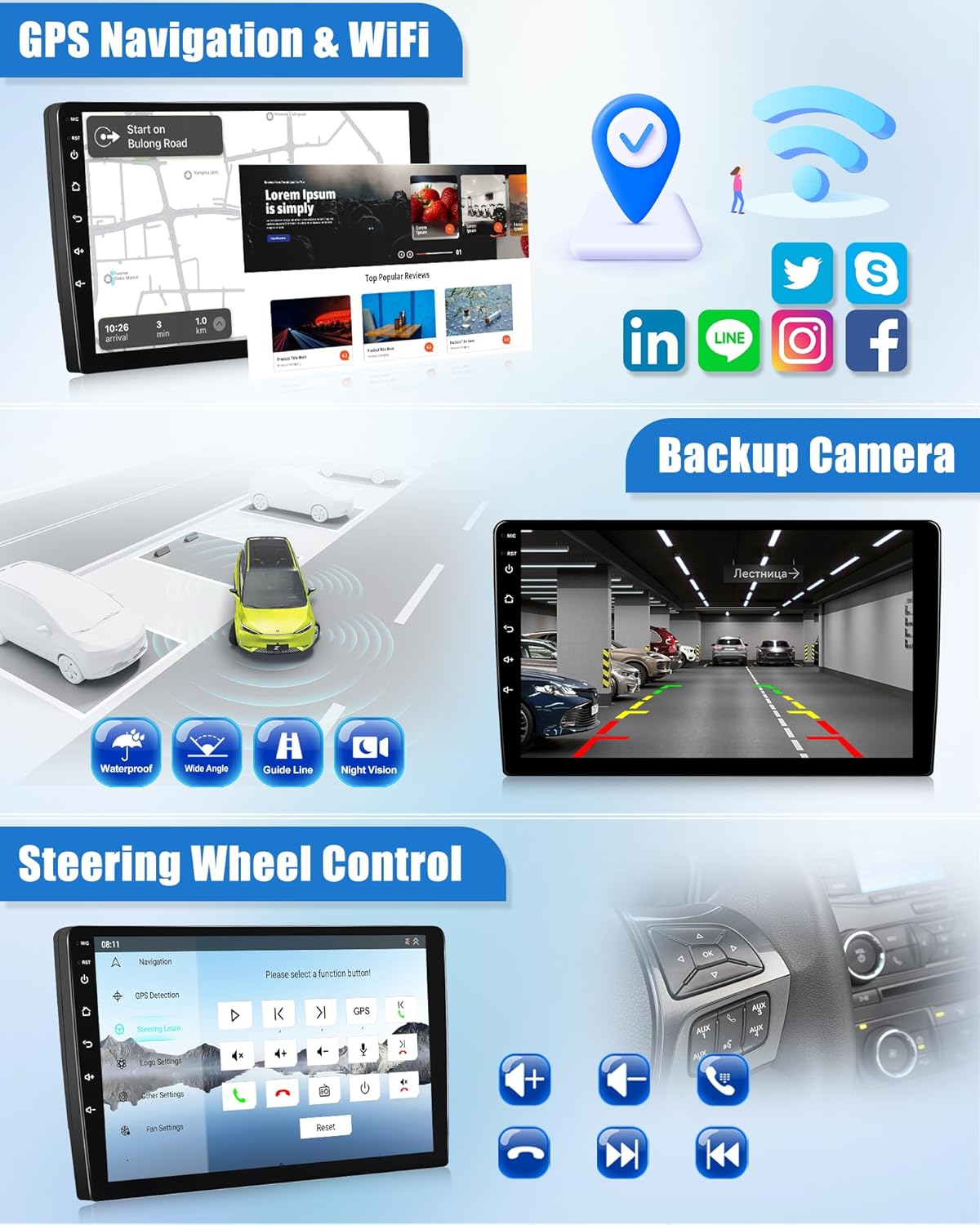
Figure 7.2: GPS Navigation interface.
7.3 Bluetooth 5.1
Pair your phone via Bluetooth for hands-free communication and audio playback.
- Pairing: Go to Settings > Bluetooth. Enable Bluetooth on your phone and search for the car stereo. Select the stereo and confirm the pairing code.
- Hands-Free Calling: Make and receive calls directly from the stereo screen. Your phonebook can be downloaded for easy access.
- Bluetooth Music: Stream audio from your phone to the car stereo.

Figure 7.3: Bluetooth 5.1 interface for calls and music.
7.4 FM/RDS Radio
Access your favorite radio stations with clear reception.
- Scanning: Use the scan function to find available stations.
- Presets: Save your preferred stations for quick access.
- RDS: Radio Data System displays station information like song title or artist where available.

Figure 7.4: FM/RDS Radio interface.
7.5 Backup Camera
When the vehicle is shifted into reverse, the unit will automatically display the rear camera feed, aiding in safer parking and maneuvering.
Figure 7.5: Backup camera display with parking guidelines.
7.6 Other Functions
- 3D Car Model Display: Customize the appearance of the on-screen car model via settings.
- Weather Forecast: Access local weather information through the dedicated app.
- Cooling Fan: The built-in cooling fan operates automatically to maintain optimal device temperature, ensuring stable performance.
- Customizable UI: Personalize the user interface with various themes and color options.
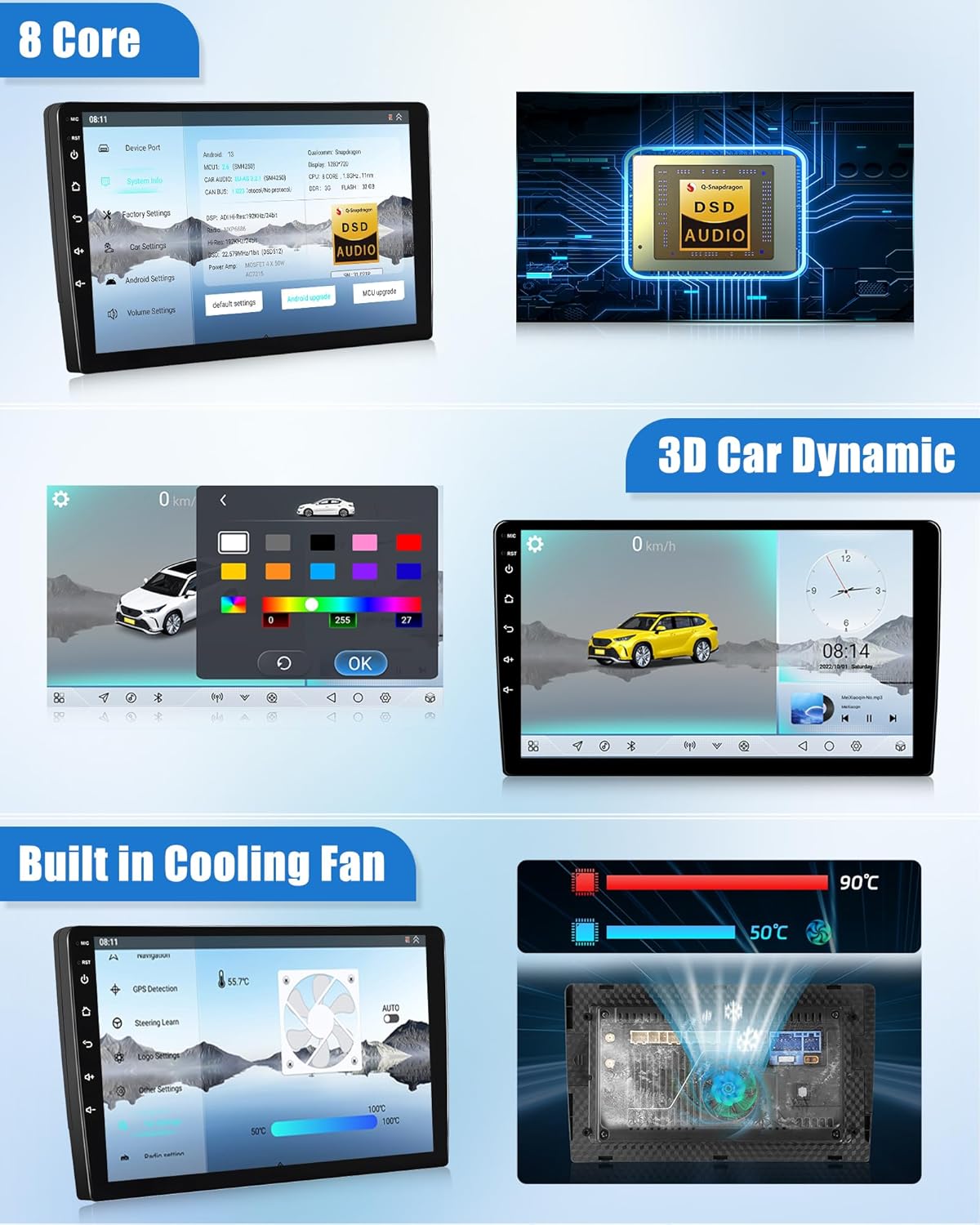
Figure 7.6: 3D Car Model and Cooling Fan interface.
8. Maintenance
Proper maintenance ensures the longevity and optimal performance of your car stereo.
- Cleaning: Use a soft, dry cloth to clean the screen and unit. Avoid abrasive cleaners or solvents.
- Software Updates: Periodically check for software updates via the system settings to ensure you have the latest features and bug fixes. A stable internet connection is required for updates.
- Avoid Liquids: Do not spill liquids on the unit.
- Extreme Temperatures: Avoid leaving the unit in direct sunlight or extremely cold conditions for extended periods.
9. Troubleshooting
If you encounter issues with your SIXWIN Android Car Stereo, refer to the following common problems and solutions:
| Problem | Possible Cause | Solution |
|---|---|---|
| No Power | Loose power connection, blown fuse. | Check power cables and fuse. Ensure battery is connected. |
| No Sound | Incorrect wiring, amplifier cable not connected (if applicable). | Verify all audio connections. Ensure amplifier control cable is connected to ACC if your car requires it. |
| Touch Screen Unresponsive | Software glitch, screen calibration issue. | Restart the unit. If issue persists, perform a factory reset (refer to settings). |
| CarPlay/Android Auto Not Connecting | Bluetooth/Wi-Fi off, phone compatibility, app issues. | Ensure Bluetooth and Wi-Fi are on for both devices. Restart phone and stereo. Check phone compatibility. |
| GPS Signal Lost | GPS antenna obstruction or faulty connection. | Ensure GPS antenna has a clear view of the sky and is securely connected. |
If the problem persists after trying these solutions, please contact customer support.
10. Specifications
| Feature | Detail |
|---|---|
| Brand | SIXWIN |
| Model | 4G+64G New 8Core |
| Operating System | Android 13 |
| Processor | 8 Core Qualcomm |
| Memory Storage Capacity | 64 GB |
| RAM | 4 GB |
| Screen Size | 9 Inches |
| Display Type | LCD |
| Touch Screen Type | Capacitive |
| Connectivity Technology | Wi-Fi, Bluetooth 5.1 |
| Supported Navigation System | GPS (Worldwide Map Type) |
| Compatible Vehicle Type | Hyundai Elantra (2011, 2012, 2013) |
| Audio Output Mode | Stereo |
| Control Method | Touch, Voice |
| Product Dimensions | 1"L x 1"W x 1"H (Approximate, refer to diagram for exact dash kit dimensions) |
| Item Weight | 1.84 Kilograms |
11. Warranty and Support
Your SIXWIN Android Car Stereo comes with a 1-year warranty from the date of purchase, covering manufacturing defects.
For technical assistance, troubleshooting, or warranty claims, please contact SIXWIN customer support:
Email: sixwin_vip@163.com
Please provide your product model and purchase details when contacting support for faster service.

Figure 11.1: SIXWIN customer support is available to assist you.
Related documents4G+64G New 8Core

Ask a question about this manual
Ask about setup, troubleshooting, compatibility, parts, safety, or missing instructions. Manuals+ will review the question and use this page’s manual context to help answer it.