
Introduction
This manual provides detailed instructions for the setup, operation, maintenance, and troubleshooting of your MSI Pro DP180 Desktop. The MSI Pro DP180 is a high-performance desktop computer designed for demanding tasks, featuring an Intel Core i7-14700F processor, NVIDIA GeForce RTX 5070 graphics, 32GB DDR5 memory, and a 2TB NVMe SSD. Please read this manual thoroughly before using your new system to ensure optimal performance and longevity.
Setup Guide
1. Unboxing and Contents Verification
Carefully remove all components from the packaging. Ensure the following items are present:
- MSI Pro DP180 Desktop Unit
- Keyboard
- Mouse
- Power Cable
- User Manual (this document)
2. Connecting Peripherals
Before powering on the desktop, connect your essential peripherals.
- Monitor: Connect your monitor to the graphics card's display outputs (HDMI or DisplayPort) located at the rear of the desktop.
- Keyboard and Mouse: Connect the keyboard and mouse to the available USB ports on the front or rear of the desktop.
- Power: Connect the power cable to the power input on the rear of the desktop and then to a wall outlet.
- Network (Optional): For a wired connection, connect an Ethernet cable to the LAN port on the rear. For wireless, ensure the Wi-Fi antennas are properly connected if external.

Figure 1: Rear view of the MSI Pro DP180 Desktop, highlighting the various connectivity ports including HDMI, DisplayPort, USB, audio jacks, and the power input.

Figure 2: Front view of the MSI Pro DP180 Desktop, displaying the power button, audio jacks, USB ports, and an SD card reader for convenient access.
3. Initial Power On
Press the power button located on the front panel of the desktop. The system will begin the boot process. Follow the on-screen instructions to complete the Windows 11 Pro setup, including language selection, network configuration, and user account creation.
Operating Instructions
Power Management
- Power On: Press the power button on the front panel.
- Shut Down: Click the Start button in Windows, then select Power > Shut down.
- Restart: Click the Start button in Windows, then select Power > Restart.
- Sleep: Click the Start button in Windows, then select Power > Sleep.
Connectivity
- Wi-Fi 6E: The desktop supports Wi-Fi 6E (AX 211) for high-speed wireless internet. Connect to your preferred Wi-Fi network through Windows settings.
- Bluetooth: Integrated Bluetooth allows connection to wireless peripherals such as headphones, speakers, and game controllers.
- USB Ports: Utilize the various USB 2.0 and USB 3.0 ports for connecting external devices like external hard drives, flash drives, and other accessories.
Optical Drive Usage
The MSI Pro DP180 Desktop includes an optical drive for reading and writing CDs and DVDs.
- Opening the Tray: Press the eject button on the optical drive bezel to open the disc tray.
- Inserting a Disc: Place the disc label-side up onto the tray and gently push the tray back into the drive until it clicks.
- Ejecting a Disc: Press the eject button again, or right-click the optical drive icon in 'This PC' and select 'Eject'.
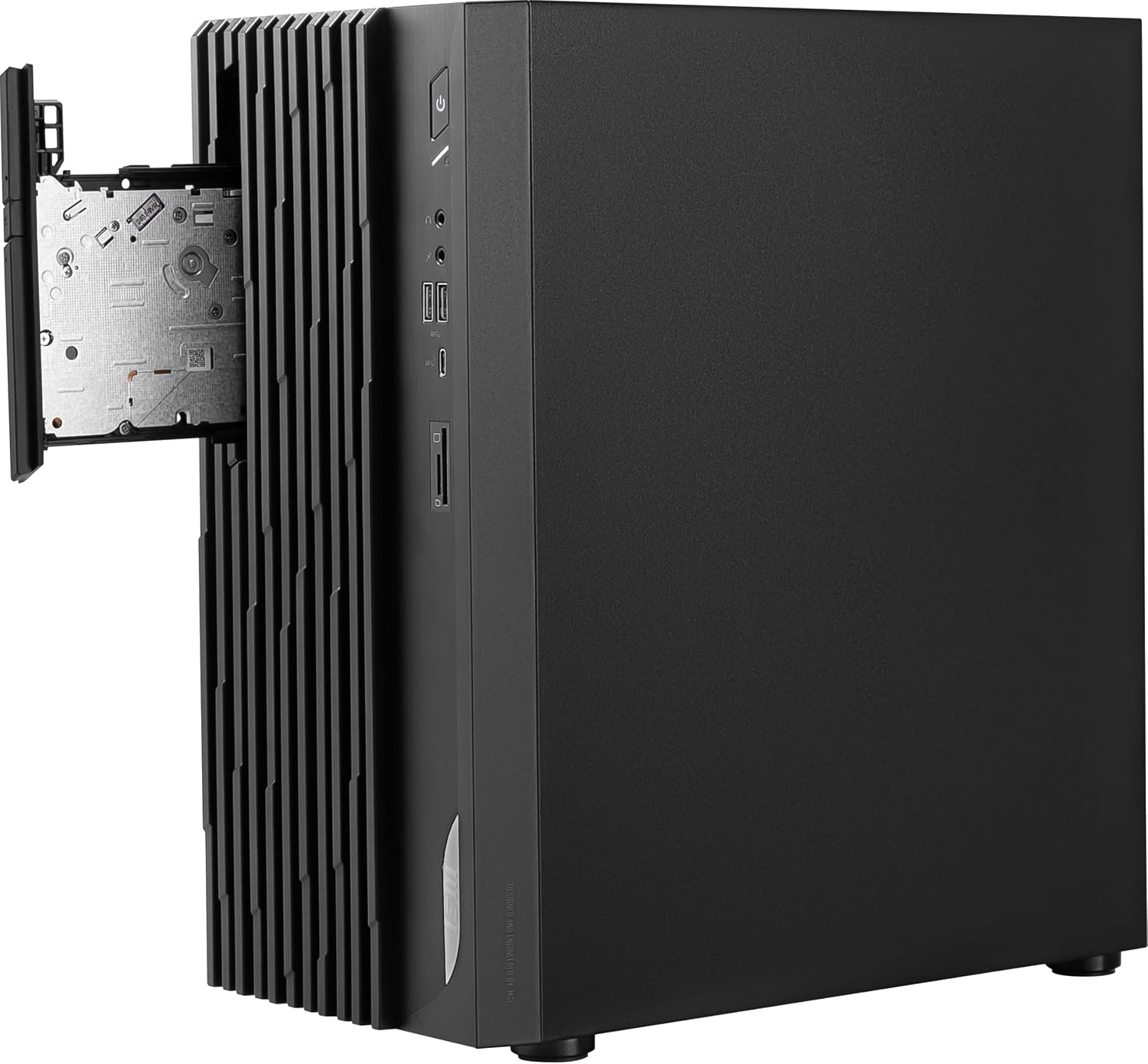
Figure 3: The MSI Pro DP180 Desktop with its optical drive tray extended, ready for disc insertion or removal.
Maintenance
Regular maintenance helps ensure the longevity and optimal performance of your desktop.
Cleaning
- Exterior: Use a soft, dry, lint-free cloth to wipe down the exterior surfaces. For stubborn marks, slightly dampen the cloth with water. Avoid harsh chemicals.
- Ventilation: Periodically check the ventilation grilles for dust buildup. Use compressed air to gently clear dust from the vents to ensure proper airflow and prevent overheating. Ensure the system is powered off and unplugged before cleaning.

Figure 4: Side view of the MSI Pro DP180 Desktop, illustrating the mesh panel designed for optimal ventilation and airflow.
Software Updates
Keep your operating system (Windows 11 Pro) and drivers updated. Regular updates provide security patches, performance improvements, and new features.
- Windows Updates: Go to Settings > Windows Update and check for updates regularly.
- Driver Updates: Visit the official MSI website for the Pro DP180 model to download the latest drivers for your graphics card, chipset, and other components.
Internal Component Access (Advanced Users)
For advanced users wishing to inspect or upgrade components like RAM or the NVMe SSD, the side panel can be removed. Ensure the system is powered off and unplugged before opening the chassis. Refer to the internal layout for component identification.

Figure 5: Internal view of the MSI Pro DP180 Desktop, revealing the organized layout of components including the motherboard, CPU cooler, graphics card, and storage drives.
Troubleshooting
This section addresses common issues you might encounter with your MSI Pro DP180 Desktop.
No Power
- Ensure the power cable is securely connected to both the desktop and the wall outlet.
- Verify the power outlet is functional by plugging in another device.
- Check the power supply switch on the rear of the desktop (if present) is in the 'ON' position.
No Display on Monitor
- Confirm the monitor is powered on and its input source is correctly selected (e.g., HDMI 1, DisplayPort).
- Ensure the display cable is firmly connected to both the desktop's graphics card output and the monitor.
- Try a different display cable or monitor if available.
Network Connectivity Issues
- Wired: Check if the Ethernet cable is properly connected and the router/modem is working.
- Wireless: Verify Wi-Fi is enabled in Windows settings. Restart your router/modem. Ensure you are connecting to the correct network with the correct password.
System Slowdown or Freezing
- Close unnecessary applications running in the background.
- Check Task Manager (Ctrl+Shift+Esc) for high CPU, RAM, or disk usage.
- Ensure your system drivers and Windows are up to date.
- Run a virus and malware scan.
If you continue to experience issues, please refer to the support section or visit the MSI official website for further assistance.
Technical Specifications
| Feature | Specification |
|---|---|
| Model | PRO DP180 14ANVP-1002US |
| Processor | Intel Core i7-14700F (2.1 GHz) |
| Graphics Coprocessor | NVIDIA GeForce RTX 5070 |
| RAM | 32 GB DDR5 (6000 MHz) |
| Storage | 2 TB NVMe SSD |
| Operating System | Windows 11 Pro |
| Wireless Connectivity | 802.11ax (Wi-Fi 6E), Bluetooth |
| USB Ports | 4 x USB 2.0, 1 x USB 3.0 (additional ports may be present on rear I/O) |
| Max Screen Resolution | 3840 x 2160 |
| Dimensions (LxWxH) | 6.61 x 12.72 x 14.53 inches |
| Item Weight | 16.74 pounds |
| Color | Black |
Warranty Information
MSI products typically come with a limited warranty covering defects in materials and workmanship. The specific terms and duration of your warranty may vary by region and product. Please retain your proof of purchase. For detailed warranty information, including coverage, limitations, and how to make a claim, please refer to the warranty card included with your product or visit the official MSI website.
Customer Support
For technical assistance, driver downloads, FAQs, and further support, please visit the official MSI support website:
You may also find helpful resources and community forums on the MSI brand store page on Amazon:


