
Introduction
Welcome to the UranHub G30 Drone user manual. This guide provides essential information for the safe operation, setup, maintenance, and troubleshooting of your G30 4K camera drone. Please read this manual thoroughly before operating the drone to ensure a safe and enjoyable flight experience.

The UranHub G30 drone offers a range of features including a 4K camera, extended flight time, and advanced positioning systems for an enhanced flying experience.
Safety Guidelines
Adhering to these safety guidelines is crucial for preventing accidents and ensuring legal compliance.
- Pre-Flight Check: Always inspect the drone, propellers, and battery before each flight.
- Weather Conditions: Do not fly in strong winds, rain, snow, or fog.
- Line of Sight: Maintain visual line of sight with the drone at all times.
- Obstacles: Avoid flying near people, animals, buildings, trees, and power lines.
- Restricted Airspace: Do not fly in no-fly zones, near airports, or over private property without permission.
- Battery Safety: Use only approved batteries and chargers. Do not overcharge or puncture batteries.
- FAA Regulations: The UranHub G30 weighs under 249g and is exempt from FAA registration requirements in the United States. However, always check local regulations before flying in any region.
Package Contents
Verify that all items are present in your package:
- UranHub G30 Drone
- Remote Controller
- Flight Battery (High-capacity 2000mAh)
- USB Charging Cable
- Spare Propellers (2 sets)
- Propeller Screws
- Screwdriver
- User Manual
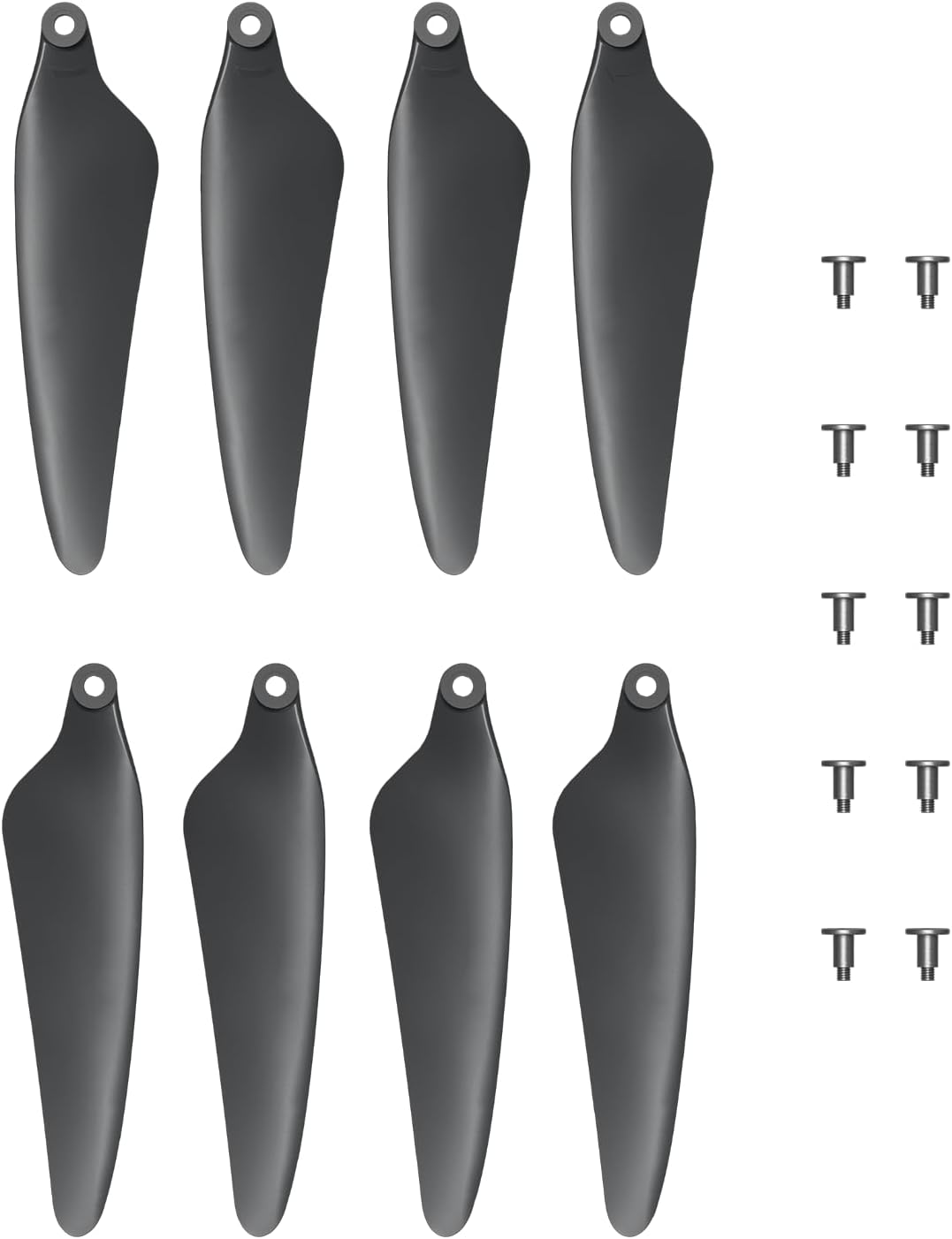
The package includes two sets of spare propellers and screws for replacement.
Setup
1. Battery Charging and Installation
- Charge the flight battery using the provided USB charging cable until fully charged. The battery features built-in overcharge and short-circuit protection.
- Insert the fully charged battery into the drone's battery compartment, ensuring it clicks securely into place.

The high-capacity 2000mAh battery provides up to 31 minutes of flight time.
2. Propeller Installation
- Unfold the drone arms.
- Identify the correct propellers (marked A or B) for each motor. Match A propellers to A motors and B propellers to B motors.
- Place the propeller onto the motor shaft and secure it with the provided screws using the screwdriver. Ensure propellers are firmly attached but not overtightened.

Proper propeller installation is essential for stable flight.

Ensure all propellers are correctly oriented and secured before flight.
3. Remote Controller Setup
- Install batteries (not included) into the remote controller.
- Power on the remote controller.
- Power on the drone. The drone and controller will automatically pair. Refer to the controller's specific manual for detailed pairing instructions if needed.
4. App Installation and Connection
- Download the official UranHub drone app from your device's app store.
- Connect your smartphone to the drone's Wi-Fi network (5G FPV transmission).
- Open the app to view the live camera feed and access advanced flight features.
Operating Instructions
1. Pre-Flight Checklist
- Drone battery fully charged and installed.
- Remote controller batteries installed and powered on.
- Propellers correctly installed and secured.
- Drone arms unfolded.
- App connected and live feed visible.
- GPS signal acquired (indicated by solid GPS light on drone/app).
- Clear flying area, free from obstacles and people.
2. Takeoff and Landing
- One-Click Takeoff: Press the One-Click Takeoff button on the remote controller or in the app. The drone will automatically ascend to a safe hovering altitude.
- Manual Takeoff: Push both control sticks down and outwards to start the motors. Slowly push the left stick up to ascend.
- One-Click Landing: Press the One-Click Landing button. The drone will automatically descend and land gently.
- Manual Landing: Slowly pull the left stick down to descend. Once landed, push both control sticks down and inwards to stop the motors.
3. Flight Modes and Features
The UranHub G30 features a GPS and Optical Flow Positioning System for stable and precise hovering.
- Beginner Mode: Recommended for new pilots, offering simplified controls and limited speed.
- GPS Follow Mode: The drone intelligently tracks your movements, capturing dynamic footage hands-free.
- Interest Point: The drone will circle a designated point of interest.
- Route Rule (Waypoint Flight): Plan a flight path on the app map, and the drone will follow it automatically.
- Rocket Fly: The drone ascends vertically while recording.
- Altitude Hold: Maintains a stable altitude, allowing you to focus on direction and camera.
- Adjustable Speed Modes: Switch between different speed settings to match your flying skill and environment.

The drone's GNSS technology enables precise positioning, 'Return to Home' functions, and 'GPS Follow' mode.
4. Camera Operation
The G30 drone is equipped with a 4K UHD camera featuring a 12MP Sony CMOS sensor for high-resolution photos and videos (3840 x 2160).
- Adjustable Lens: The camera lens can be adjusted 90° via the remote controller or app to capture various angles.
- Anti-Shake Technology: An anti-shake mount minimizes vibrations for smooth image and video capture.
- Photo/Video Capture: Use the dedicated buttons on the remote controller or the app interface to take photos or start/stop video recording.

The 4K camera with a 90° adjustable lens provides exceptional image performance.
5. Emergency Procedures
- Low Battery Return: The drone will automatically initiate a return to home when the battery level is critically low.
- Signal Loss Return: If the connection between the drone and controller is lost, the drone will automatically return to its takeoff point.
- One-Key Return: Press the One-Key Return button on the controller to manually command the drone to return to its takeoff point.
Maintenance
- Cleaning: Use a soft, dry cloth to clean the drone body and camera lens. Avoid using liquids or solvents.
- Propeller Replacement: Regularly inspect propellers for damage (cracks, bends). Replace damaged propellers immediately using the spare sets provided. Refer to the "Propeller Installation" section for guidance.
- Battery Care: Store batteries in a cool, dry place. Do not store fully charged or completely depleted batteries for extended periods. Charge batteries to about 50-60% for long-term storage.
- Motor Inspection: Periodically check motors for any debris or obstructions.
- Storage: When not in use, fold the drone arms and store it in a protective case or its original packaging to prevent damage.
Troubleshooting
| Problem | Possible Cause | Solution |
|---|---|---|
| Drone does not power on. | Battery not charged or improperly installed. | Ensure battery is fully charged and correctly inserted. |
| Drone unstable during flight. | Propellers damaged or incorrectly installed; drone not calibrated. | Check and replace damaged propellers. Perform IMU calibration via the app. Ensure GPS signal is strong. |
| No live video feed. | Phone not connected to drone's Wi-Fi; app not open. | Connect phone to the drone's 5G Wi-Fi network. Open the UranHub app. |
| Drone flies away or loses signal. | Flying beyond range; strong interference; low battery. | Fly within visible range. Avoid areas with strong electromagnetic interference. Ensure battery is sufficient. Drone has automatic return functions for low battery/signal loss. |
| Camera image blurry. | Lens dirty; anti-shake mount not functioning; drone vibrations. | Clean the camera lens. Check for propeller damage causing excessive vibration. |
Specifications
- Model: UranHub G30
- Camera: 4K UHD (3840 x 2160), 12MP Sony CMOS Sensor, 90° Adjustable Lens, Anti-Shake Technology
- Flight Time: Up to 31 minutes (with 2000mAh battery)
- Positioning System: GPS and Optical Flow Positioning
- Transmission: 5G FPV
- Weight: Under 249g (FAA registration exempt)
- Flight Features: Beginner Mode, GPS Follow Mode, Interest Point, Route Rule, Rocket Fly, Altitude Hold, Adjustable Speed Modes, One-Key Takeoff/Landing, Low Battery Return, Signal Loss Return, One-Key Return.
Warranty and Support
For warranty information and technical support, please refer to the official UranHub website or contact their customer service. Keep your purchase receipt as proof of purchase.
Visit the UranHub Store on Amazon for more information and support resources.


