
1. Introduction
The Acer OHR121 True Wireless Bluetooth Earbuds are designed to provide a high-quality audio experience with convenience and comfort. Featuring Bluetooth 5.0 connectivity, 13mm speaker drivers, and IPX4 water resistance, these earbuds are suitable for various activities, from listening to music to making calls on the go.
2. Package Contents
Please check the package for the following items:
- Acer OHR121 True Wireless Earbuds
- Wireless Charging Case
- User Manual
- Ear Tips (various sizes)
- USB Type-C Charging Cable (not explicitly listed but standard for Type-C charging)
3. Product Overview
The Acer OHR121 earbuds offer a sleek, in-ear design for a secure and comfortable fit. The compact charging case provides portability and extends battery life.
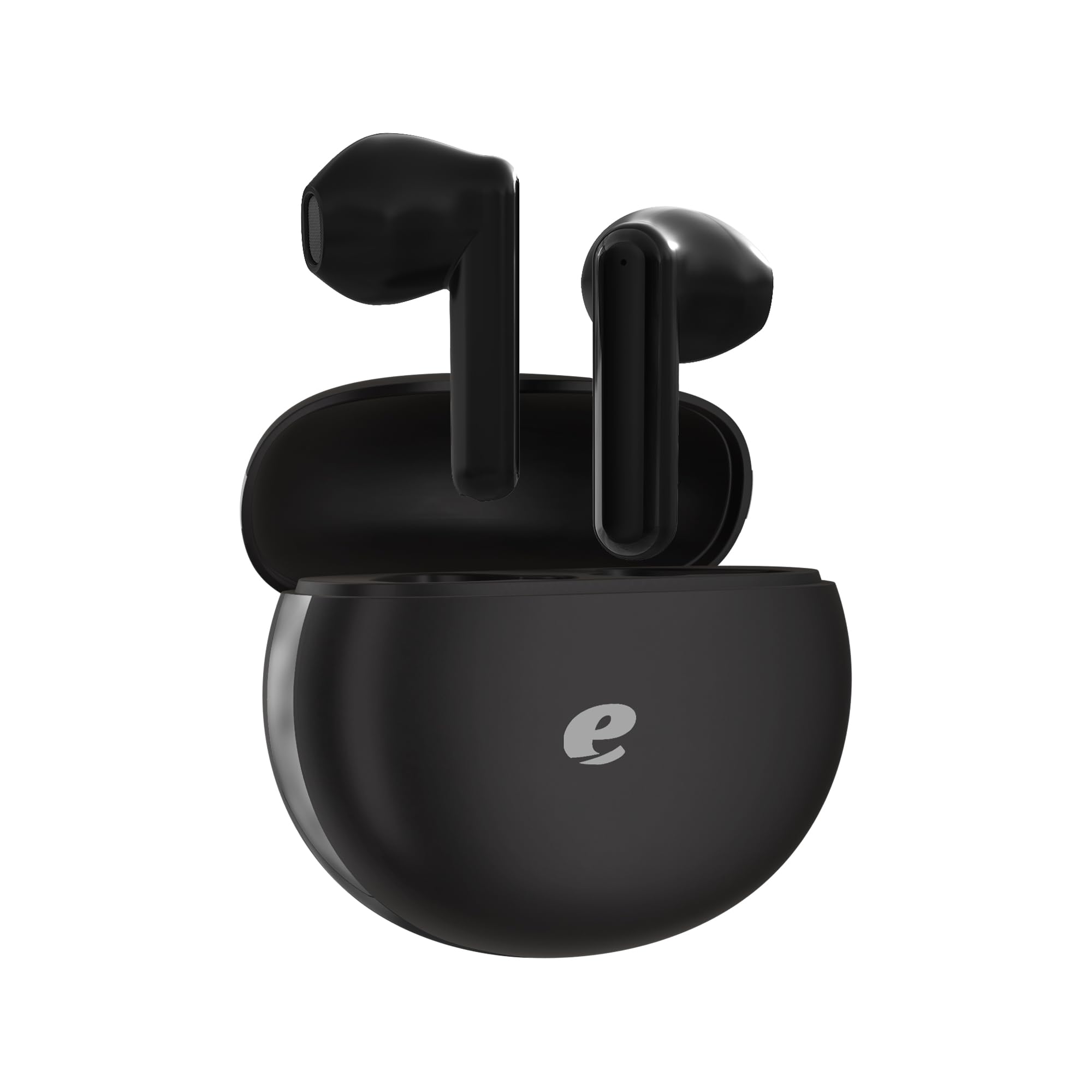
Image: Acer OHR121 True Wireless Earbuds and Charging Case. This image shows the black earbuds placed inside their matching black charging case, illustrating their compact design.
4. Setup
4.1 Charging the Earbuds and Case
- Place the earbuds into the charging case, ensuring they are correctly seated.
- Connect the USB Type-C charging cable to the charging port on the case and plug the other end into a compatible USB power source.
- The indicator lights on the case will show the charging status. Once fully charged, the lights will indicate completion or turn off.
It is recommended to fully charge the earbuds and case before first use.
4.2 Pairing with a Bluetooth Device
- Open the charging case. The earbuds will automatically enter pairing mode, indicated by a flashing LED light on the earbuds.
- On your device (smartphone, tablet, laptop), enable Bluetooth.
- Search for available Bluetooth devices and select "Acer OHR121" from the list.
- Once connected, the earbud indicator lights will stop flashing or change to a solid color, and you will hear an audible confirmation.
- The earbuds will automatically reconnect to the last paired device when taken out of the case, if Bluetooth is enabled on the device.
5. Operating Instructions
The Acer OHR121 earbuds feature touch controls for easy management of audio and calls.
5.1 Music Control
- Play/Pause: Single tap on either earbud.
- Next Track: Double tap on the right earbud.
- Previous Track: Double tap on the left earbud.
- Volume Up: Triple tap on the right earbud.
- Volume Down: Triple tap on the left earbud.
5.2 Call Management
- Answer/End Call: Single tap on either earbud.
- Reject Call: Press and hold either earbud for 2 seconds.
5.3 Voice Assistant
- Activate Voice Assistant: Press and hold either earbud for 3 seconds.
6. Maintenance
To ensure the longevity and optimal performance of your Acer OHR121 earbuds, follow these maintenance guidelines:
- Cleaning: Regularly clean the earbuds and charging case with a soft, dry, lint-free cloth. Avoid using harsh chemicals or abrasive materials.
- Water Resistance: The earbuds are IPX4 water-resistant, meaning they can withstand splashes and sweat. Do not submerge them in water or expose them to heavy rain. Ensure they are dry before placing them back in the charging case.
- Storage: Store the earbuds in their charging case when not in use to protect them from dust and damage. Keep them in a cool, dry place away from extreme temperatures.
- Charging: Use the provided USB Type-C cable for charging. Avoid using damaged cables or chargers.
7. Troubleshooting
If you encounter issues with your Acer OHR121 earbuds, try the following solutions:
| Problem | Solution |
|---|---|
| Earbuds do not turn on. | Ensure the earbuds and charging case are fully charged. Place earbuds in the case and close it, then open again. |
| Earbuds do not pair with device. | Make sure Bluetooth is enabled on your device. Turn off and on your device's Bluetooth. Forget "Acer OHR121" from your device's Bluetooth list and try pairing again. Ensure earbuds are in pairing mode (flashing LED). |
| Only one earbud is working. | Place both earbuds back into the charging case, close the lid, wait a few seconds, then open the lid again. This often resets the connection between the two earbuds. Ensure both earbuds are charged. |
| Low sound quality or no sound. | Check the volume level on both your device and the earbuds. Ensure the earbuds are clean and free of debris. Try different ear tip sizes for a better seal. |
| Charging issues. | Ensure the charging cable is securely connected. Try a different USB port or power adapter. Clean the charging contacts on the earbuds and inside the case. |
8. Specifications
| Feature | Specification |
|---|---|
| Model Name | OHR121 |
| Brand | Acer |
| Color | Black |
| Form Factor | In-ear |
| Connectivity Technology | Wireless (Bluetooth) |
| Bluetooth Version | 5.0 |
| Bluetooth Range | 10 meters |
| Driver Type | Dynamic Driver |
| Driver Size | 13 mm |
| Frequency Response | 20 Hz - 20,000 Hz |
| Impedance | 32 Ohm |
| Sensitivity | 3 dB |
| Noise Control | Passive Noise Cancellation |
| Water Resistance Rating | IPX4 (Water Resistant) |
| Control Type | Touch Control |
| Compatible Devices | Smartphones, Tablets, Laptops, Bluetooth-enabled devices |
| Material | Plastic |
9. Warranty and Support
9.1 Warranty Information
The Acer OHR121 True Wireless Bluetooth Earbuds come with a one-year warranty from the date of purchase. This warranty covers manufacturing defects and malfunctions under normal use. Please retain your proof of purchase for warranty claims.
The warranty does not cover damage caused by misuse, accidents, unauthorized modifications, or failure to follow the instructions in this manual.
9.2 Customer Support
For technical assistance, warranty claims, or further inquiries, please contact Acer customer support through their official website or the contact information provided with your product packaging.


