
TP-Link Tapo C232
TP-Link Tapo C232 Smart Pan/Tilt AI Home Security Camera User Manual
Model: Tapo C232
Product Overview
The TP-Link Tapo C232 is a versatile smart pan/tilt AI home security camera designed for comprehensive indoor surveillance. It offers high-resolution video, advanced night vision, two-way audio, and intelligent detection features to keep your home secure and connected.

Front view of the Tapo C232 camera, showing the lens and indicator light.
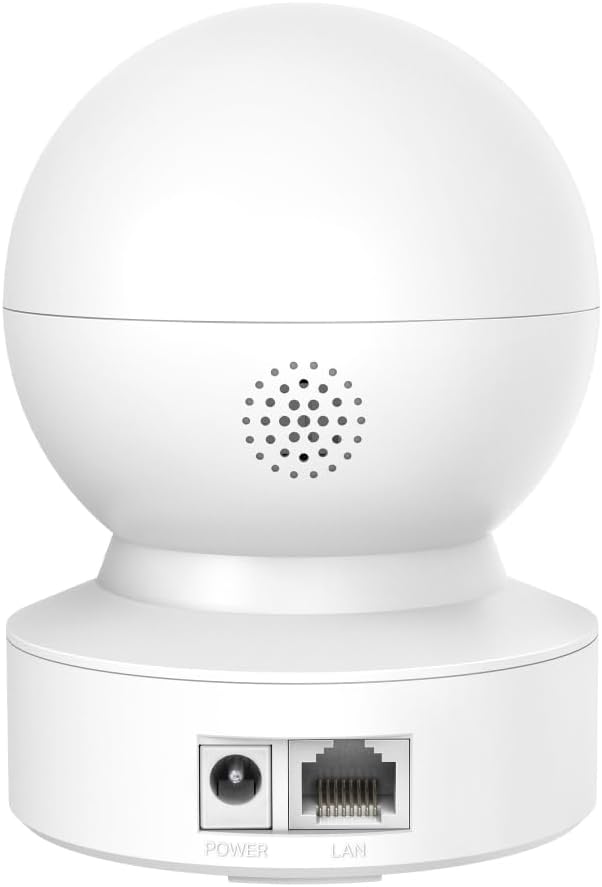
Rear view of the Tapo C232 camera, highlighting the power input and Ethernet (LAN) port.
Key features include 3K 5MP QHD video resolution, 360° horizontal and 110° vertical pan/tilt capabilities, advanced night vision up to 40 feet, and smart AI detection for persons, pets, and baby cries. It supports both wireless (Wi-Fi) and wired (Ethernet) connections, and offers local storage via microSD card (up to 512GB).
Package Contents
Verify that all components are present in the package:
- 1 x TP-Link Tapo Smart Pan/Tilt AI Detection Home Security Night Vision Camera (Tapo C232)
- Power Adapter
- Mounting Screws
- Mounting Template
- Quick Start Guide
Setup Guide
1. Download the Tapo App
Search for "Tapo" in the Apple App Store or Google Play Store, or scan the QR code provided in the Quick Start Guide to download the app.
2. Power On the Camera
Connect the camera to a power outlet using the provided power adapter. Wait for the LED indicator to blink red and green, indicating it's ready for setup.
3. Add Camera in Tapo App
Open the Tapo app, log in or create a TP-Link ID. Tap the "+" icon in the top right corner to add a new device. Select your Tapo C232 model and follow the on-screen instructions to connect it to your Wi-Fi network or via Ethernet cable.
For Wi-Fi connection, ensure your phone is connected to the 2.4 GHz Wi-Fi network. For wired connection, plug an Ethernet cable from your router to the camera's LAN port.

The Tapo C232 supports both Ethernet and Wi-Fi connections for flexible installation.
4. Mount the Camera (Optional)
The camera can be placed on a tabletop or mounted to a ceiling/wall. Use the provided mounting template and screws for secure installation. Ensure the camera is positioned to cover the desired area.
Operating Instructions
Live View and Pan/Tilt Control
From the Tapo app dashboard, tap on your camera to access the live view. Use the on-screen joystick or swipe gestures to pan (move horizontally 360°) and tilt (move vertically 110°) the camera lens to adjust the viewing angle.
The camera offers extensive pan and tilt capabilities for comprehensive area coverage.
Two-Way Audio
Tap the microphone icon in the live view to speak through the camera's built-in speaker. This allows for real-time communication with individuals near the camera. The camera also has a built-in microphone to capture audio from the environment.

Utilize the two-way audio feature to communicate directly through the camera.
Night Vision
The Tapo C232 automatically switches to advanced night vision mode in low-light conditions, providing clear black and white video up to 40 feet (12 meters). This ensures continuous monitoring even in complete darkness.

Advanced night vision provides clear surveillance in low-light environments.
Motion Detection and Notifications
Configure motion detection settings within the Tapo app. You can customize activity zones to focus on specific areas and receive instant notifications on your smartphone when motion is detected. The camera also features smart AI detection for persons, pets, and baby cries.

Define custom activity zones to receive targeted motion alerts.
Local Storage
Insert a microSD card (up to 512GB, not included) into the camera's card slot for continuous recording or event-triggered recordings. Manage recordings and playback through the Tapo app.
Maintenance
Cleaning the Camera
To clean the camera lens and body, use a soft, dry cloth. Avoid using liquid cleaners or abrasive materials, as they may damage the camera. Ensure the camera is powered off before cleaning.
Firmware Updates
Regularly check for firmware updates through the Tapo app. Keeping your camera's firmware up-to-date ensures optimal performance, security, and access to new features.
Storage Management
If using a microSD card for local storage, periodically review and manage your recordings. You can format the microSD card via the Tapo app if needed, which will erase all stored data.
Troubleshooting
Camera Offline
- Check if the camera is powered on and the power adapter is securely connected.
- Ensure your Wi-Fi router is working correctly and the camera is within Wi-Fi range.
- If connected via Ethernet, verify the cable connection.
- Restart the camera by unplugging and replugging the power adapter.
- Restart your Wi-Fi router.
Cannot Connect to Wi-Fi
- Ensure you are connecting to a 2.4 GHz Wi-Fi network. The Tapo C232 does not support 5 GHz Wi-Fi.
- Verify the Wi-Fi password entered is correct.
- Move the camera closer to your Wi-Fi router to improve signal strength.
- Reset the camera to factory defaults (refer to the Quick Start Guide for specific instructions) and try the setup process again.
Poor Video Quality
- Check your internet connection speed. A stable and fast connection is required for high-resolution streaming.
- Ensure the camera lens is clean and free from dust or smudges.
- Adjust the video quality settings in the Tapo app if your network bandwidth is limited.
Specifications
| Feature | Detail |
|---|---|
| Model | Tapo C232 |
| Video Resolution | 3K 5MP QHD (2880p) |
| Pan/Tilt Range | 360° Horizontal, 110° Vertical |
| Night Vision Range | Up to 40 feet (12 meters) |
| Connectivity | Wi-Fi (2.4 GHz), Ethernet |
| Storage | MicroSD card (up to 512GB) |
| Audio | Two-Way Audio (Built-in Microphone & Speaker) |
| AI Detection | Person Detection, Baby Cry Recognition, Motion Tracking |
| Power Source | Corded Electric |
| Dimensions (L x W x H) | 11.26 x 8.2 x 8.2 cm |
| Weight | 370 Grams |
| Indoor/Outdoor Usage | Indoor |
Warranty Information
TP-Link products typically come with a limited warranty. For specific warranty terms and conditions applicable to your Tapo C232 camera, please refer to the warranty card included in your product packaging or visit the official TP-Link website for detailed information.
Please retain your proof of purchase for warranty claims.
Support
For technical support, troubleshooting assistance, or further inquiries, please contact TP-Link customer support through their official website or the contact information provided in your product documentation.
TP-Link Official Website: www.tp-link.com
You can also find FAQs and community forums on the TP-Link support page for common issues and solutions.
Related documentsTapo C232


Ask a question about this manual
Ask about setup, troubleshooting, compatibility, parts, safety, or missing instructions. Manuals+ will review the question and use this page’s manual context to help answer it.