
Introduction
This manual provides comprehensive instructions for the ARCCTV C3 Solar Security Camera. This device is designed for outdoor surveillance, featuring a built-in solar panel for continuous power, 4MP resolution, PIR motion detection, and dual-band Wi-Fi connectivity. Please read this manual thoroughly before installation and operation to ensure proper use and optimal performance.
Product Overview
Package Contents
- ARCCTV C3 Solar Security Camera (Quantity may vary based on pack size)
- Mounting Bracket
- Screws and Wall Plugs
- USB Charging Cable
- User Manual
Camera Components
Familiarize yourself with the main components of your ARCCTV C3 camera:

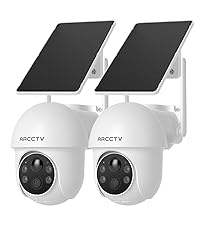
Image showing two ARCCTV C3 Solar Security Cameras, highlighting the integrated solar panel, camera lens, and motion sensor.

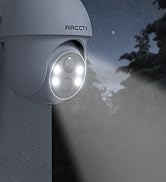
Close-up view of the camera's front, detailing the 4MP lens, LED lights for night vision, and the PIR motion sensor.
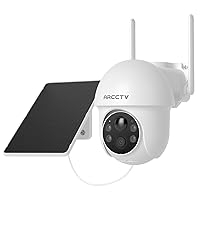
- Solar Panel: Integrated on top for continuous battery charging.
- Camera Lens: 4MP resolution for clear video capture.
- PIR Motion Sensor: Detects human and animal movement.
- Infrared LEDs: For black and white night vision.
- Spotlights: For color night vision and deterrence.
- Microphone: For audio input.
- Speaker: For two-way audio communication and siren.
- USB Charging Port: For initial charging or manual charging.
- MicroSD Card Slot: For local video storage (card not included).
Setup Instructions
1. Initial Charging
Before first use, fully charge the camera battery using the provided USB charging cable. Connect the cable to the camera's USB port and a standard 5V/1A USB power adapter (not included). The charging indicator will show the battery status. The integrated solar panel will maintain the charge after installation, but an initial full charge ensures optimal performance.
2. App Installation and Account Creation
Download the ARCCTV mobile application from your smartphone's app store (available for iOS and Android). Follow the on-screen prompts within the app to create a new user account and log in.
3. Device Pairing
A smartphone screen displaying the ARCCTV app's Wi-Fi setup interface, prompting for network name and password.
- Open the ARCCTV app and tap 'Add Device' or the '+' icon.
- Select your camera model from the list.
- Follow the in-app instructions to connect the camera to your Wi-Fi network. Ensure your smartphone is connected to the same Wi-Fi network (supports both 2.4GHz and 5GHz bands).
- The camera will automatically select the optimal Wi-Fi band for connection.
- Once connected, you can name your camera and complete the setup process.
4. Mounting the Camera

A person installing the ARCCTV C3 camera on an outdoor wall, demonstrating the ease of installation.
- Location Selection: Choose a suitable outdoor location with good Wi-Fi signal strength and direct sunlight exposure for the solar panel. Avoid areas with heavy shade.
- Installation: Use the provided mounting bracket, screws, and wall plugs to securely attach the camera to a wall, fence, or pole.
- Positioning: Adjust the camera angle to cover the desired surveillance area. Ensure the PIR motion sensor has a clear line of sight to the area you wish to monitor.
Operating Instructions
Live View and Recording
Access the live video feed of your camera through the ARCCTV app. The camera records in 4MP (2560x1440p) resolution. Recordings are primarily triggered by motion detection events.
Night Vision

A split image demonstrating the camera's day vision (left) and enhanced night vision (right) capabilities, showing clear visibility in low light.
The camera features advanced IR night vision, providing clear black and white video up to 33 feet in complete darkness. An optional color night mode, activated by the built-in spotlights, delivers vivid nighttime images when sufficient light is available or motion is detected.
Motion Detection and Alerts

An image depicting a security camera detecting a person, illustrating the instant alert feature with siren warning and two-way audio.
The integrated PIR motion sensor detects human and animal activity, sending instant push notifications to your smartphone. You can customize motion detection zones and sensitivity settings within the ARCCTV app to minimize false alerts.
Two-Way Audio

A person using a tablet to communicate via the camera's two-way audio feature, showing a live video call interface.
Utilize the two-way audio feature via the ARCCTV app to communicate with individuals near the camera. This allows for direct interaction, such as speaking to delivery personnel or deterring unwanted visitors.
Storage Options
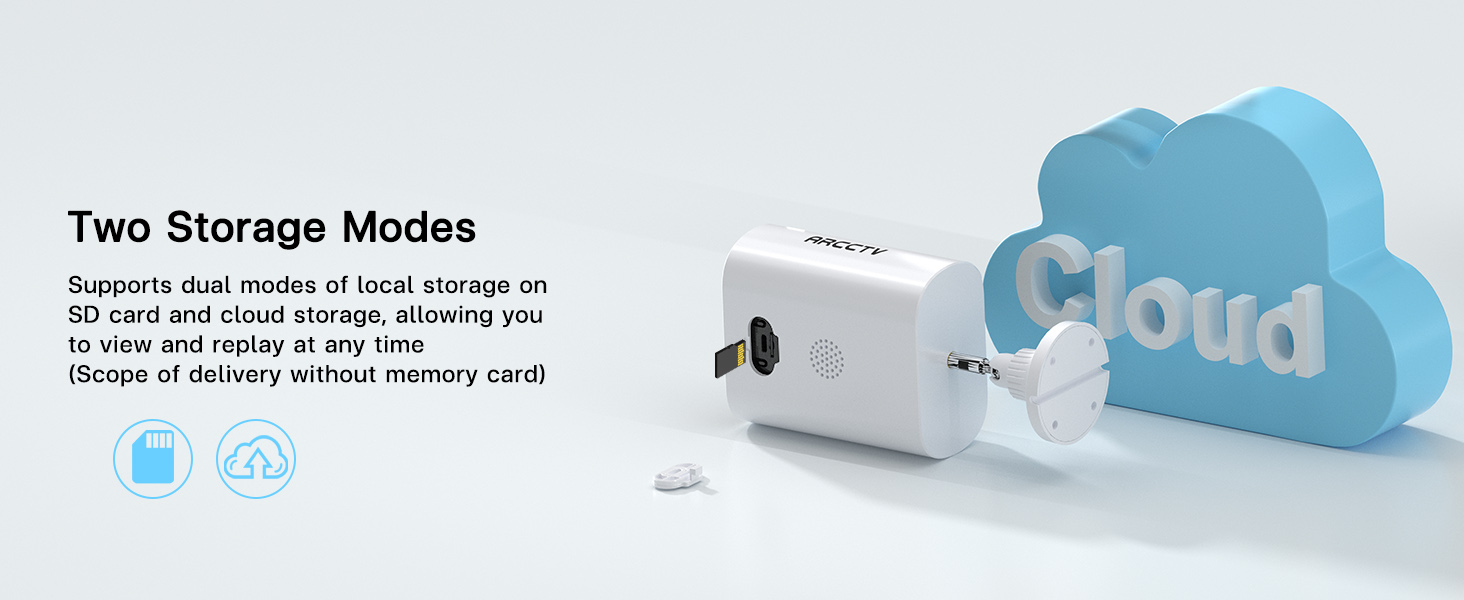
A close-up of the camera's side, showing the slot for a microSD card, indicating local storage capability.
An illustration showing the camera connected to a cloud icon, representing the cloud storage option for recorded footage.
The camera supports two storage modes:
- Local Storage: Insert a microSD card (up to 128GB, not included) into the designated slot for local recording.
- Cloud Storage: An optional cloud storage service is available via subscription for secure, off-site storage of your footage.
Shared Access
A smartphone screen displaying live camera footage, surrounded by icons representing multiple users, indicating shared access functionality.
You can share camera access with family members or trusted individuals through the ARCCTV app, allowing multiple users to view live feeds and recorded surveillance simultaneously.
Maintenance
Solar Panel Care
Periodically clean the surface of the integrated solar panel to ensure maximum charging efficiency. Remove any dust, dirt, leaves, or debris that may obstruct sunlight. Use a soft, damp cloth for cleaning.
Battery Management
While the solar panel provides continuous power, prolonged periods of low sunlight, heavy cloud cover, or high motion activity may lead to battery depletion. Monitor battery levels through the ARCCTV app. If the battery level becomes critically low, manually charge the camera using the USB port.
Weather Resistance

A split image showing the camera in rainy and sunny conditions, illustrating its weatherproof design and ability to withstand extreme temperatures.
The camera is designed with weatherproof construction to withstand outdoor conditions, including temperatures from -4°F to 122°F. Ensure all covers and seals are securely closed after accessing ports (e.g., USB, microSD slot) to maintain water resistance.
Troubleshooting
Camera Not Charging
- Ensure the solar panel is exposed to direct sunlight for several hours daily.
- Clean the solar panel surface if it is dirty or obstructed.
- If the issue persists, charge the camera manually using the USB cable.
Wi-Fi Connectivity Issues
- Verify your Wi-Fi network is operational and the camera is within range of your router.
- Ensure you are connecting to a 2.4GHz or 5GHz network.
- Restart your Wi-Fi router and the camera, then attempt to reconnect.
- If necessary, reset the camera and re-pair it with the app.
Motion Detection Not Working
- Check the motion detection settings in the ARCCTV app; ensure it is enabled and sensitivity is adjusted appropriately.
- Ensure there are no physical obstructions blocking the PIR sensor.
- Test the detection by walking in front of the camera.
Poor Video Quality
- Clean the camera lens with a soft, lint-free cloth.
- Check your Wi-Fi signal strength in the app; a weak signal can affect streaming quality.
- For night vision, ensure no strong light sources are directly facing the camera, as this can cause glare.
Specifications
| Feature | Specification |
|---|---|
| Model Name | C3 |
| Indoor/Outdoor Usage | Outdoor |
| Power Source | Battery Powered & Solar Powered |
| Connectivity Protocol | Wi-Fi (2.4GHz & 5GHz Dual Band) |
| Video Capture Resolution | 1440p (4MP) |
| Viewing Angle | 130 Degrees |
| Item Dimensions (L x W x H) | 7.8 x 6.2 x 4.3 inches |
| Item Weight | 2.05 pounds (0.93 Kilograms) |
| Flash Memory Supported Size Maximum | 128 GB (MicroSD card) |
| Audio Visual Recording Capabilities | Audio & Video |
| Special Feature | 2-Way Audio |
| Batteries | 1 A battery required (included) |
| Operating Temperature Range | -4°F to 122°F |
Warranty and Support
For detailed warranty information, technical assistance, and customer support, please visit the official ARCCTV website or contact customer service directly through the ARCCTV mobile application. Please retain your purchase receipt for warranty claims.


