
1. Introduction
The Ajblg Air Tracker Tags are Bluetooth-enabled item finders designed to help you locate your belongings quickly and efficiently. These tags integrate seamlessly with the Apple Find My network, leveraging millions of iOS devices worldwide to assist in tracking. This product is compatible exclusively with iOS devices (iPhone, iPad, Mac) and does not support Android devices. Each tag features a replaceable battery and is built with IP67 water resistance for durability.
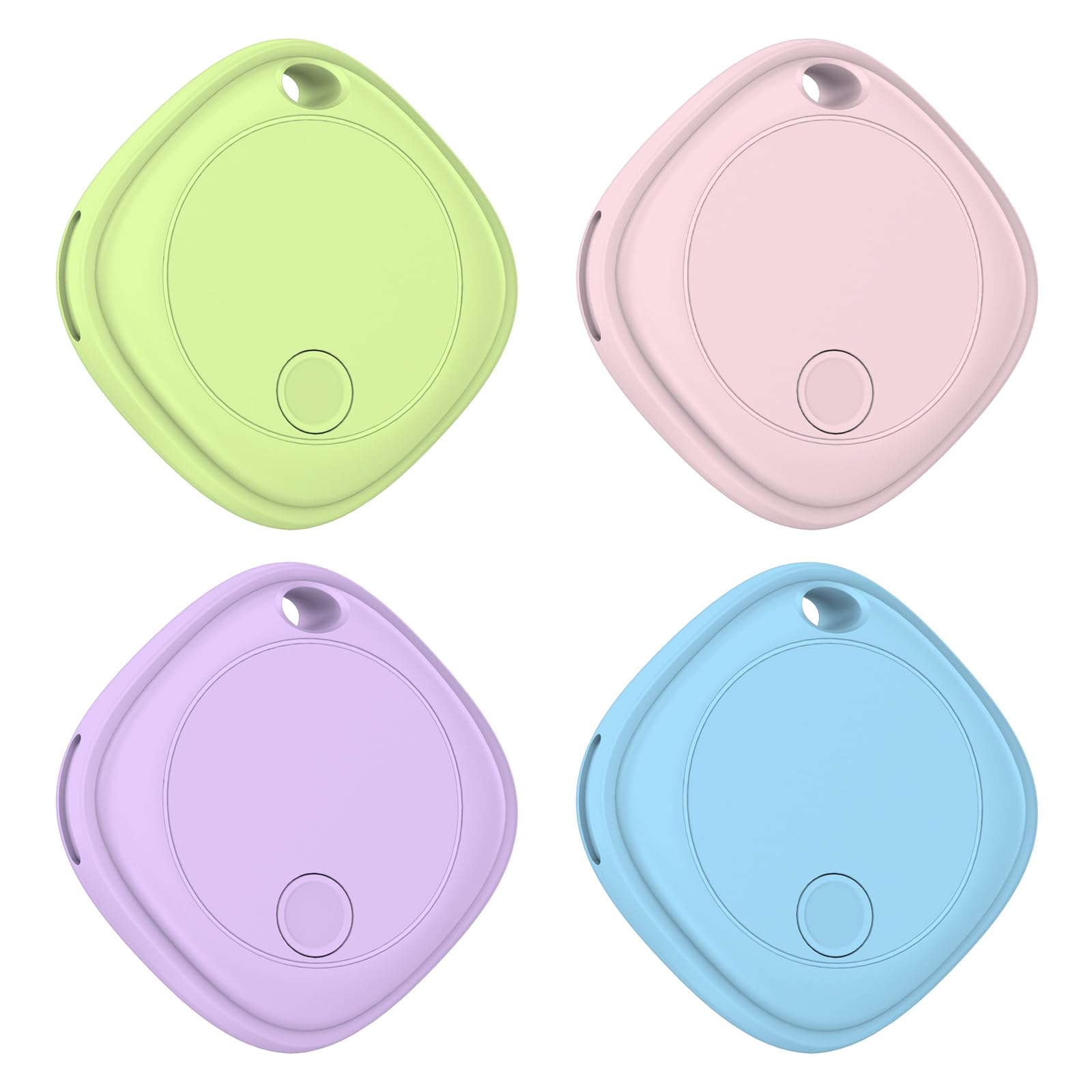
Image 1: Ajblg Air Tracker Tag with iPhone displaying the Find My app interface.
2. What's in the Box
- Ajblg Air Tracker Tags (4-Pack)
- CR2032 Batteries (pre-installed in each tag)
- Keyrings/Lanyards (included for easy attachment)
- User Manual

Image 2: Four Ajblg Air Tracker Tags in various colors, as they appear in packaging.
3. Specifications
- Model Number: BF16-1US-BPPG
- Dimensions: 3.45 cm (1.35 inches) length x 3.45 cm (1.35 inches) width x 0.95 cm (0.37 inches) thickness
- Item Weight: 10 g (0.35 ounces) per tag
- Battery: 1 x CR2032 coin cell battery (included, replaceable)
- Battery Life: Up to 2 years
- Connectivity: Bluetooth (up to 200ft/60m range)
- Water Resistance: IP67 (dust and water resistant)
- Control Method: Apple Find My App
- Alarm Volume: 80-100 dB
4. Setup
4.1 Powering On/Off
To power on the device, press and hold the button on the tag for 2 seconds until you hear a beep. To power off, press and hold the button until you hear one beep, followed by two consecutive beeps, and then three consecutive beeps.
Video 1: This video demonstrates the assembly of the tracker, attaching it to keys and bags, and the quick connection process with the Apple Find My app, including playing a ringtone.
4.2 Pairing with Apple Find My
- Ensure your iOS device's Bluetooth is turned on.
- Open the Find My app on your iPhone or iPad.
- Tap on the Items tab.
- Tap Add Item, then select Other Supported Item.
- Press the button on the Air Tracker Tag once. Your device will detect the tag.
- Tap Connect when the tag appears on your screen.
- Follow the on-screen prompts to complete the pairing process.

Image 3: Visual guide illustrating the simple matching process of the Air Tracker Tag with the Apple Find My app.
4.3 Renaming and Emoji
During the pairing process, you will be prompted to name your Air Tracker Tag and choose an emoji to represent it. This helps you easily identify your items on the Find My map.
Video 2: This video provides an honest review of the Bluetooth Tracker, demonstrating the pairing process with the Apple Find My app and the functionality of playing a sound to locate the tag.
5. Operating Instructions
5.1 Find Nearby (Play Sound)
When your Air Tracker Tag is within Bluetooth range (up to 200ft/60m), you can use the Find My app to play a loud sound (80-100 dB) from the tag. This helps you pinpoint the exact location of your item if it's nearby, such as under a couch cushion or in another room.

Image 4: The Air Tracker Tag is shown emitting sound waves, with an iPhone displaying the 'Play Sound' feature in the Find My app.
5.2 Find Far Away (Find My Network)
If your item is lost outside the Bluetooth range, the Apple Find My network comes into play. Hundreds of millions of iOS devices globally anonymously and securely detect your tag's location. The Find My app will then show you the last known location on a map, allowing you to navigate towards it. Your privacy is protected as the location data is encrypted.

Image 5: An iPhone screen shows a map with various item icons, demonstrating the global positioning capabilities of the Find My network.
5.3 Left-Behind Remind & Lost Mode
The Find My app can notify you immediately if you leave an item behind and disconnect from its Bluetooth connection. You can also activate 'Lost Mode' for your tag. If another iOS device user comes within range of your lost tag, you will receive an updated location, and they can view your contact information (if you've provided it) to help return the item.

Image 6: A hand holds an Ajblg Air Tracker Tag while an iPhone displays a 'Lost Mode' notification, indicating the item has been marked as lost.
5.4 Sharing Items
You can share the location of your Air Tracker Tag with up to 5 other Apple devices. This feature is useful for families or groups who need to keep track of shared items. Ensure all devices are updated to iOS 17 or later for optimal sharing functionality.

Image 7: An illustration depicts multiple users connected to a single Air Tracker Tag on a map, demonstrating the item sharing feature within the Find My app.
6. Maintenance
6.1 Battery Replacement
The Ajblg Air Tracker Tag uses a replaceable CR2032 coin cell battery, offering up to 2 years of battery life. When the battery is low, the Find My app will notify you. To replace the battery:
- Gently remove the back cover of the tag.
- Carefully take out the old CR2032 battery.
- Insert a new CR2032 battery with the positive (+) side facing up.
- Replace the back cover, ensuring it is securely closed to maintain water resistance.

Image 8: A three-step visual guide demonstrates the simple process of replacing the battery in the Air Tracker Tag.
6.2 Water Resistance
The Air Tracker Tag is rated IP67 for dust and water resistance. This means it can withstand splashes, rain, and brief submersion in water (up to 1 meter for 30 minutes). Ensure the battery cover is properly sealed after replacement to maintain its water-resistant properties.
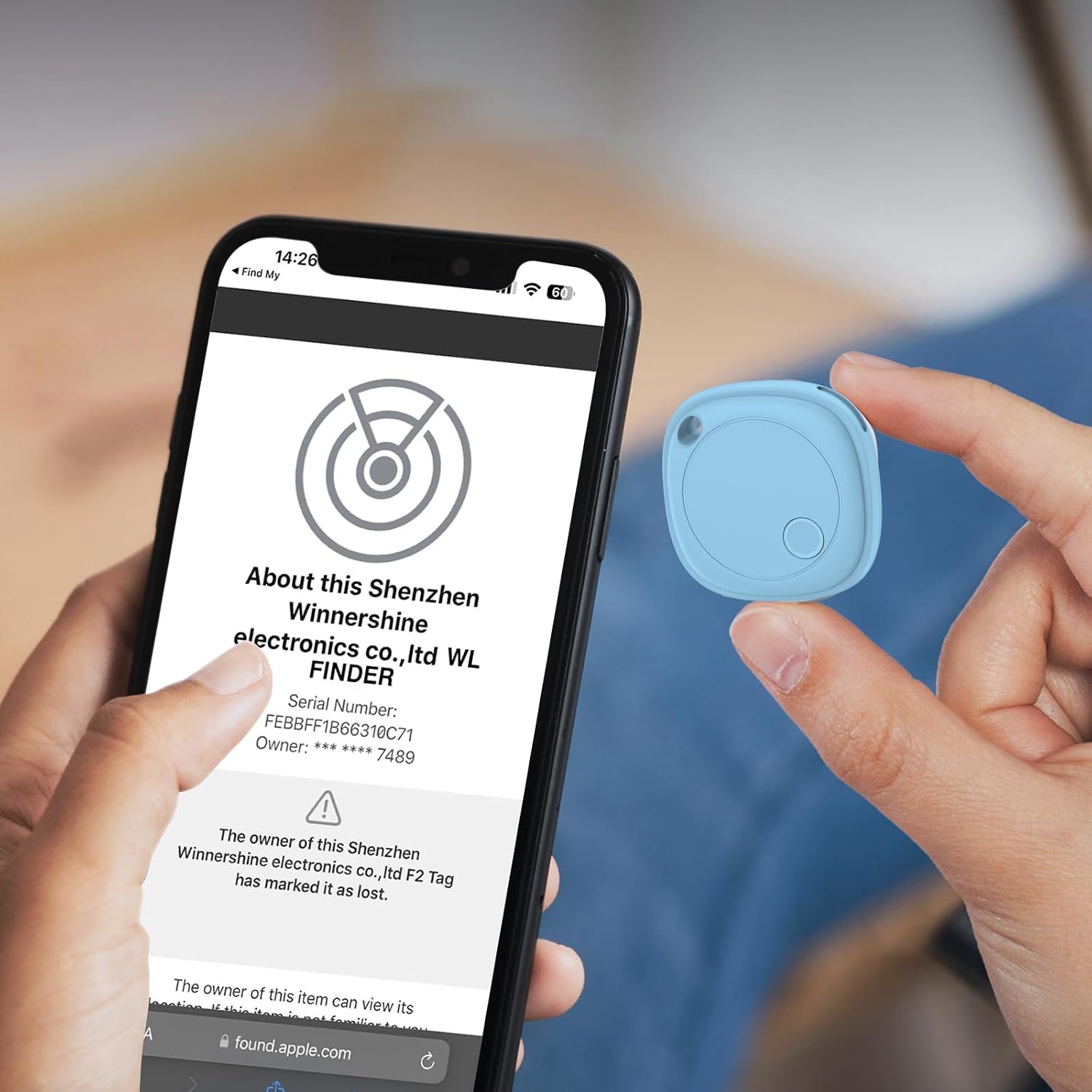
Image 9: An Ajblg Air Tracker Tag is shown attached to a cyclist's gear, highlighting its IP67 waterproof capability during outdoor activity.
7. Troubleshooting
7.1 Tag Not Pairing
- Ensure Bluetooth is enabled on your iOS device.
- Make sure the tag is powered on (press and hold the button for 2 seconds).
- Bring the tag closer to your iOS device.
- Check if the battery needs replacement.
- If the tag was previously paired to another device, ensure it has been removed from that device's Find My app.
Video 3: This video demonstrates how to reconnect the locator, which can be helpful if the tag is not pairing or has lost connection.
7.2 No Sound from Tag
- Ensure the tag is within Bluetooth range of your iOS device.
- Check the battery level in the Find My app; a low battery might affect sound output.
- Verify that the 'Play Sound' function is activated in the Find My app.
7.3 Inaccurate Location
- Location accuracy depends on the density of iOS devices in the area. In remote areas, updates might be less frequent.
- Ensure your iOS device has a stable internet connection (Wi-Fi or cellular data) to receive location updates from the Find My network.
8. Safety Information
- Keep the device out of reach of small children and pets to prevent accidental ingestion of small parts or batteries.
- Do not attempt to disassemble or modify the device beyond battery replacement.
- Avoid exposing the device to extreme temperatures or direct sunlight for prolonged periods.
- Dispose of batteries and the device according to local regulations.
9. Warranty & Support
The Ajblg Air Tracker Tags are designed for durability and come with a battery life of up to 2 years. For specific warranty details and terms, please refer to the product packaging or contact the seller directly. For technical support or inquiries, please use the contact information provided with your purchase or on the product packaging.