
Introduction
Welcome to the VAIO TL12 Tablet user manual. This guide provides essential information to help you set up, operate, and maintain your new device. The VAIO TL12 combines the performance of a notebook with the portability of a tablet, featuring an AMOLED display, a powerful Octa-Core processor, and the Android 15 operating system with integrated Gemini AI.
Package Contents
Ensure all items are present in your VAIO TL12 package:
- VAIO TL12 Tablet
- Smart Keyboard
- VAIO Pen (Active Stylus)
- Protective Cover
- Charger
- USB-C Cable
- Quick Start Guide
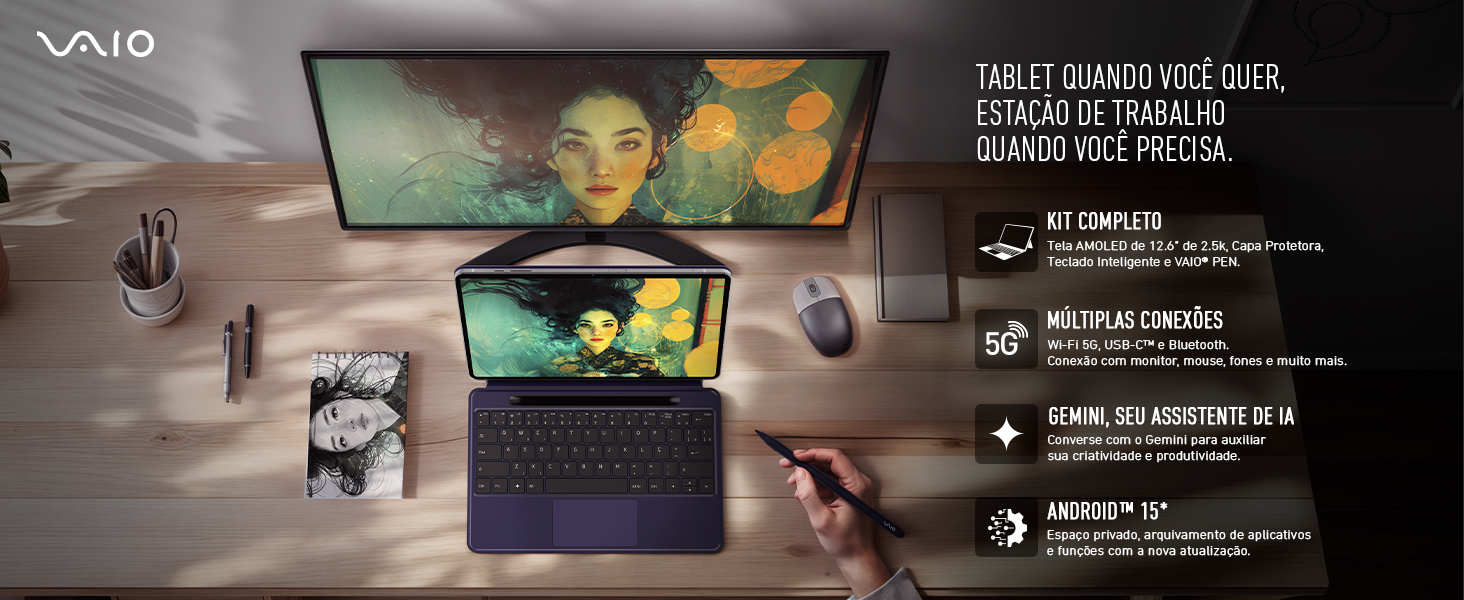
Image: The VAIO TL12 Tablet, Smart Keyboard, and VAIO Pen, illustrating the complete package contents.
Product Overview
Tablet Components
Familiarize yourself with the physical components of your VAIO TL12 Tablet:
- AMOLED Display: 12.6-inch 2.5K resolution screen.
- Front Camera: 12MP for video calls and selfies.
- Rear Camera: 13MP for high-quality photos and videos.
- Power Button: Located on the side for turning the device on/off and locking/unlocking the screen.
- Volume Buttons: Adjust audio levels.
- USB-C Ports: For charging, data transfer, and connecting peripherals.
- SIM Card / Memory Card Tray: Insert your 5G SIM card and/or a microSD card for expanded storage.
- Smart Keyboard Connector (POGO Pin): Magnetic connector for the Smart Keyboard.
- Speakers: Integrated audio output.

Image: Side view of the VAIO TL12 Tablet highlighting the USB-C ports and speakers.

Image: Side view of the VAIO TL12 Tablet indicating the power button, volume controls, SIM card/memory card tray, and the smart keyboard connector.
Setup
1. Initial Power On
- Press and hold the Power Button on the side of the tablet until the VAIO logo appears.
- Follow the on-screen prompts to select your language, connect to a Wi-Fi network, and set up your Google account.
2. Attaching the Smart Keyboard
The Smart Keyboard connects magnetically to the tablet via the POGO Pin connector:
- Align the tablet's bottom edge with the keyboard's magnetic connector.
- The magnets will snap the tablet into place, establishing a secure connection.
- The keyboard will be automatically recognized by the tablet.
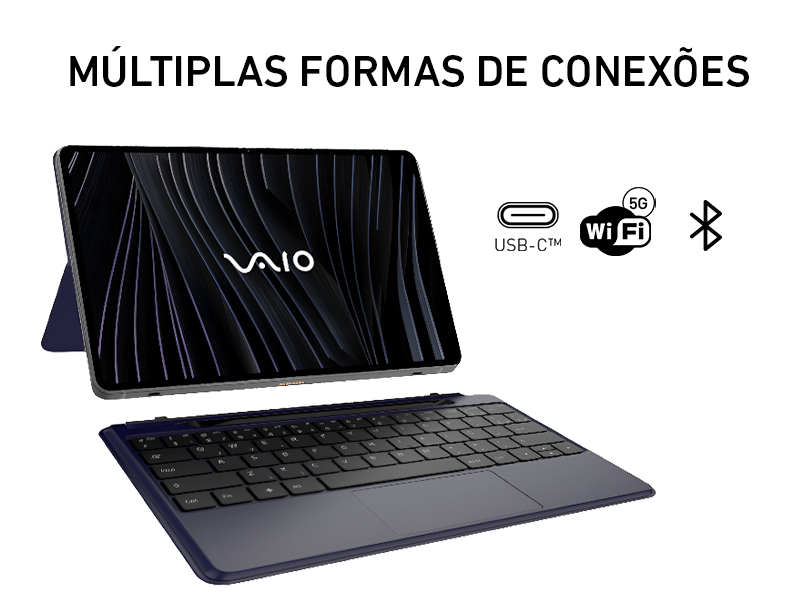
Image: The VAIO TL12 Tablet with its Smart Keyboard attached, demonstrating the adjustable viewing angles from 30 to 60 degrees.
3. Using the VAIO Pen
The VAIO Pen is an active stylus that offers precise input:
- The VAIO Pen is rechargeable. Ensure it is charged before first use.
- Simply touch the pen to the screen to interact. It supports pressure sensitivity for drawing and writing.
- The pen features palm rejection, allowing you to rest your hand on the screen while writing or drawing.

Image: The VAIO Pen shown with a vibrant digital stroke, symbolizing its capability for creative tasks.
Operating Instructions
Basic Tablet Navigation
- Tap: Select an item or open an app.
- Swipe: Navigate through screens or scroll content.
- Pinch-to-Zoom: Enlarge or reduce content on the screen.
- Long Press: Access contextual menus or move icons.
Using the Smart Keyboard
When connected, the Smart Keyboard transforms your tablet into a productive workstation:
- Typing: Use the physical keys for efficient text input.
- Trackpad: Navigate the interface with the integrated trackpad.
- Gemini Key: Press the dedicated Gemini key to quickly access Google's AI assistant for tasks, content generation, and searches.
Connectivity
The VAIO TL12 offers multiple connectivity options:
- Wi-Fi: Connect to wireless networks for internet access. Go to Settings > Network & internet > Wi-Fi.
- 5G: Insert a 5G-enabled SIM card into the tray for mobile data connectivity.
- Bluetooth: Pair with wireless headphones, speakers, or other Bluetooth devices. Go to Settings > Connected devices > Connection preferences > Bluetooth.
- USB-C: Use the USB-C ports for charging, connecting to a computer, or expanding functionality with a USB-C hub (for external displays, mouse, or keyboard).

Image: Icons representing Bluetooth, Wi-Fi 5G, and USB-C connectivity options available on the tablet.
Camera Usage
Capture photos and videos using the integrated cameras:
- Open the Camera app from your home screen or app drawer.
- Switch between the Front (12MP) and Rear (13MP) cameras as needed.
- Tap the shutter button to take a photo or start/stop video recording.
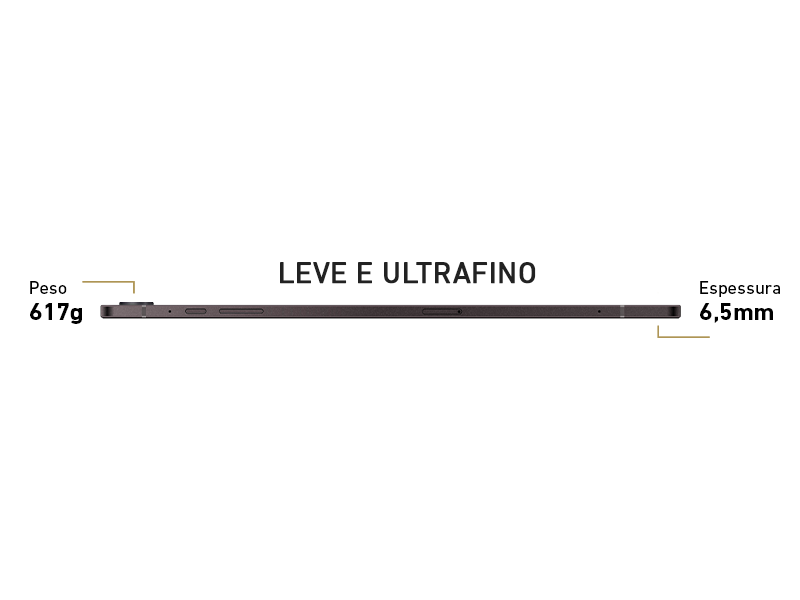
Image: The VAIO TL12 Tablet screen showing a video conference, emphasizing the functionality of its 12MP front and 13MP rear cameras.
Android 15 and Gemini AI
Your VAIO TL12 runs on Android 15, offering a modern and secure user experience. The integrated Gemini AI assistant enhances productivity:
- Access Gemini via the dedicated key on the Smart Keyboard or through the app.
- Use voice commands or text input to ask questions, generate content, summarize information, and organize tasks.
- Benefit from AI-powered features for translation, image recognition, and more.

Image: Logos for Android 15 and Gemini, signifying the tablet's advanced operating system and AI capabilities for increased productivity.
Maintenance
Battery Care
- To prolong battery life, avoid fully discharging the battery frequently.
- Charge the tablet using the provided charger and USB-C cable.
- Avoid exposing the tablet to extreme temperatures, as this can degrade battery performance.
Image: A woman smiling while using the VAIO TL12 Tablet outdoors, suggesting the tablet's 10,090 mAh battery is ideal for daily use.
Cleaning
- Use a soft, lint-free cloth to clean the screen and body of the tablet.
- For stubborn smudges, slightly dampen the cloth with water or a screen-cleaning solution.
- Avoid using harsh chemicals or abrasive materials.
Software Updates
- Regularly check for and install system updates to ensure optimal performance, security, and access to new features.
- Go to Settings > System > System update to check for available updates.
Troubleshooting
Tablet Not Turning On
- Ensure the battery is charged. Connect the charger and wait a few minutes before attempting to power on again.
- Press and hold the Power Button for at least 10-15 seconds to perform a forced restart.
Connectivity Issues (Wi-Fi/Bluetooth)
- Toggle Wi-Fi or Bluetooth off and on in the Quick Settings panel or Settings app.
- Restart the tablet.
- For Wi-Fi, restart your router.
- For Bluetooth, ensure the device you are trying to connect to is in pairing mode and within range.
Smart Keyboard Not Responding
- Ensure the keyboard is securely attached to the POGO Pin connector. Detach and reattach it.
- Clean the POGO Pin connectors on both the tablet and the keyboard with a dry, soft cloth to remove any dust or debris.
- Restart the tablet.
VAIO Pen Not Working
- Ensure the VAIO Pen is charged.
- Check if the pen's tip is clean and undamaged.
- Restart the tablet.
Specifications
| Feature | Detail |
|---|---|
| Operating System | Android 15 |
| Display | 12.6-inch AMOLED, 2.5K Resolution (248 PPI) |
| Processor | UNISOC T820 Octa-Core (up to 2.7GHz), 8 TOPS NPU |
| RAM | 8 GB |
| Storage | 256 GB (expandable via memory card) |
| Rear Camera | 13 MP |
| Front Camera | 12 MP |
| Battery | 10,090 mAh |
| Wireless Technology | 5G, Wi-Fi AC, Bluetooth |
| Connectivity | USB-C |
| Dimensions (Tablet) | 18.4 x 28.5 x 0.68 cm |
| Weight (Tablet) | 617 g |
| Color | Black |
| Included Components | VAIO Pen, Protective Cover, Charger, Smart Keyboard |
Image: A detailed diagram of the UNISOC T820 processor, emphasizing its 8 TOPS NPU for AI operations.
Warranty and Support
For warranty information and technical support, please refer to the warranty card included in your product packaging or visit the official VAIO support website. Keep your proof of purchase for warranty claims.


