
1. Introduction
Thank you for choosing the Anmite 14-inch Portable Monitor. This device is designed to enhance your productivity and entertainment experience by providing an additional display for laptops, gaming consoles, and smartphones. Its lightweight and slim design makes it ideal for travel and mobile use. This manual provides essential information for setting up, operating, and maintaining your monitor.
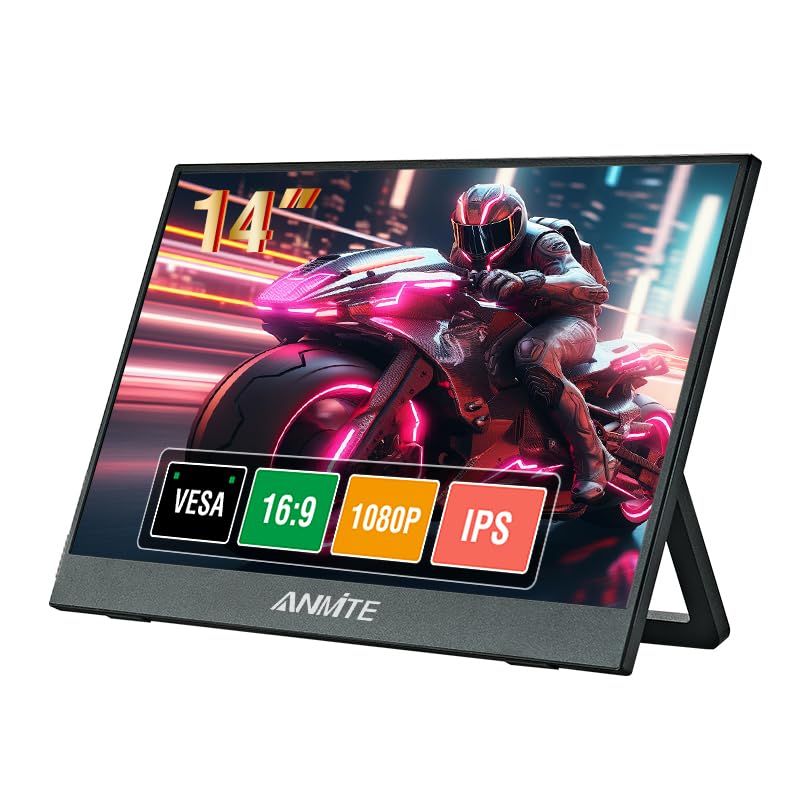
Image 1.1: The Anmite 14-inch Portable Monitor, showcasing its display capabilities and key features.
2. Package Contents
Please verify that all items listed below are included in your package. If any items are missing or damaged, please contact customer support.
- Anmite Portable Monitor x 1
- Mini-HDMI to HDMI cable x 1
- Type-C to Type-C cable x 1
- Type-C to USB-A cable x 1
- User Guide x 1
3. Product Features
The Anmite 14-inch Portable Monitor offers a range of features designed for versatility and performance:
- IPS FHD LED Screen: Delivers stunning 1920x1080 resolution at 60Hz with excellent color reproduction and wide 178° viewing angles.
- Versatile Connectivity: Equipped with Type-C (USB-C) and Mini HDMI ports for high-definition video signal transmission.
- Portable Design: With a thickness of 0.39 inches and a weight of 1.76 pounds, it is lightweight and easy to carry, serving as a mobile or dual screen.
- Integrated Speakers: Built-in dual speakers provide audio output, complemented by a 3.5mm audio interface for external headphones or speakers.
- Durable Build: Features a metal enclosure for enhanced durability.
4. Setup
Follow these steps to set up your Anmite portable monitor:
4.1 Connecting to a Device
The monitor supports two primary connection methods:
- Type-C (USB-C) Connection: Use the provided Type-C to Type-C cable. Connect one end to the monitor's full-function Type-C port and the other end to a full-function Type-C port on your laptop, smartphone, or gaming device. This single cable can transmit video, audio, and power. Note: Ensure your device's Type-C port supports video output (DisplayPort Alternate Mode). If it only supports charging, this connection will not work for display.
- HDMI Connection: Use the provided Mini-HDMI to HDMI cable. Connect the Mini-HDMI end to the monitor and the HDMI end to your device (e.g., laptop, desktop, game console). For power, connect the monitor's Type-C power input port to a power adapter (not included) or a USB-A port on your device using the Type-C to USB-A cable.
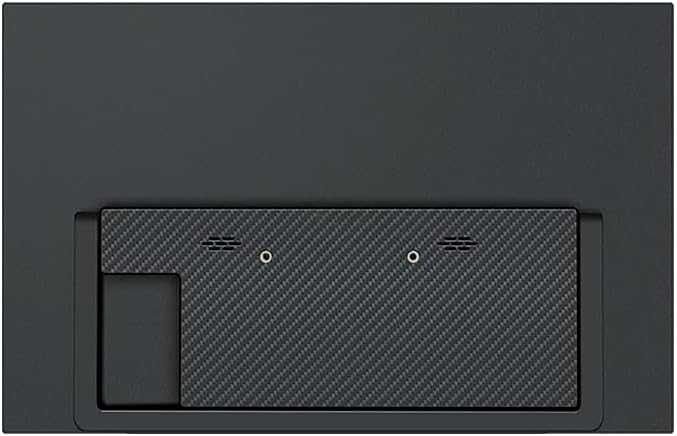
Image 4.1: Rear view of the monitor, illustrating the various input ports for connectivity.
4.2 Powering the Monitor
The monitor can be powered via a full-function Type-C connection from your device or by connecting a separate power source to the monitor's dedicated Type-C power input port using the Type-C to USB-A cable and a compatible USB power adapter (5V/2A or higher recommended).
4.3 Positioning the Monitor
The monitor features an integrated kickstand for easy desktop placement. Adjust the kickstand to achieve your desired viewing angle. The monitor also supports VESA mounting (7.5cm x 7.5cm) for alternative installation options.

Image 4.2: The monitor positioned with its integrated kickstand for desktop use.

Image 4.3: Detail of the VESA mounting holes on the rear of the monitor.
5. Operating
Once connected and powered, the monitor should automatically detect the input signal. If not, you may need to manually select the input source via the On-Screen Display (OSD) menu.
5.1 On-Screen Display (OSD) Menu
The OSD menu allows you to adjust various display settings. Typically, buttons on the side or back of the monitor are used to navigate and select options. Common adjustments include:
- Brightness/Contrast: Adjust the display's luminance and contrast levels.
- Volume: Control the output volume of the built-in speakers or connected headphones.
- Color Settings: Modify color temperature, hue, and saturation.
- Input Source: Manually select between Type-C and HDMI inputs.
- Aspect Ratio: Choose between 16:9 or other available aspect ratios.
5.2 Using as a Second Screen
When connected to a laptop or desktop, you can configure the monitor as an extended display or mirror your primary screen. These settings are typically managed within your operating system's display settings (e.g., Windows Display Settings, macOS System Preferences).
5.3 Gaming Experience
Connect your gaming console (Xbox, PS4, Nintendo Switch, etc.) via HDMI or a full-function Type-C cable. The 1080P FHD resolution and 60Hz refresh rate provide a clear and responsive gaming experience.
6. Maintenance
Proper care and maintenance will extend the life of your monitor.
- Cleaning the Screen: Gently wipe the screen with a soft, lint-free cloth. For stubborn marks, slightly dampen the cloth with water or a non-abrasive screen cleaner. Avoid using alcohol-based cleaners or harsh chemicals.
- Cleaning the Casing: Use a soft, dry cloth to clean the monitor's metal enclosure.
- Storage: When not in use for extended periods, store the monitor in a cool, dry place, preferably in its original packaging or a protective sleeve to prevent dust and scratches.
- Avoid Liquids: Keep the monitor away from liquids and excessive moisture.
7. Troubleshooting
If you encounter issues with your Anmite portable monitor, refer to the following common problems and solutions:
- No Display/No Signal:
- Ensure all cables (video and power) are securely connected.
- Verify that your device's Type-C port supports video output if using a Type-C connection.
- Try a different cable or port on your source device.
- Manually select the input source via the OSD menu.
- Ensure the monitor is receiving adequate power.
- Flickering Screen:
- Check cable connections for looseness.
- Ensure the monitor is receiving stable power.
- Reduce the display resolution or refresh rate on your source device.
- No Sound:
- Increase the volume on both the monitor (via OSD) and your source device.
- Ensure the correct audio output device is selected on your source device.
- Test with headphones connected to the monitor's 3.5mm audio jack.
- Image is Too Dark/Bright:
- Adjust brightness and contrast settings through the OSD menu.
If the problem persists after trying these solutions, please contact Anmite customer support.
8. Specifications
Detailed technical specifications for the Anmite 14-inch Portable Monitor (Model A140W03):

Image 8.1: Physical dimensions of the Anmite 14-inch Portable Monitor.
| Feature | Specification |
|---|---|
| Model Number | A140W03 |
| Screen Size | 14 inch |
| Panel Type | IPS |
| Resolution | 1920 x 1080 (FHD) |
| Aspect Ratio | 16:9 |
| Refresh Rate | 60Hz |
| Display Color | 16.7M |
| Contrast Ratio | 1000:1 |
| Brightness | 250cd/m² |
| Visual Angle | H:178° V:178° |
| Input Interface | Mini-HDMI, Type-C (Full Function), Type-C (Power) |
| Output Interface | 3.5mm Audio Jack |
| Speakers | Built-in (1W*2) |
| Net Weight | 650g (1.43 lbs) |
| Dimensions | 320 x 203 x 6-13 mm (12.59 x 7.99 x 0.23-0.51 inches) |
| VESA Mount | 7.5cm x 7.5cm |
9. Warranty and Support
For warranty information or technical assistance, please refer to the warranty card included in your package or visit the official Anmite website. You may also contact Anmite customer support directly for further assistance with product issues or inquiries.


