
Introduction
This manual provides detailed instructions for the setup, operation, maintenance, and troubleshooting of your TECKNET Wireless Mouse (Model TK-MS029). Please read this manual thoroughly before using the product to ensure proper functionality and to maximize your user experience.
Package Contents
- Rechargeable Mouse
- USB-A to USB-C Charging Cable
- USB-A Receiver (stored in the mouse)
Setup
1. Powering On the Mouse
Locate the ON/OFF switch on the bottom of the mouse and slide it to the 'ON' position. The mouse will light up, indicating it is powered on.
2. Connecting to Devices
The TECKNET Wireless Mouse supports three connection modes: two Bluetooth (BT5.3/5.0) connections and one 2.4GHz USB-A connection. You can connect up to three devices simultaneously and switch between them.
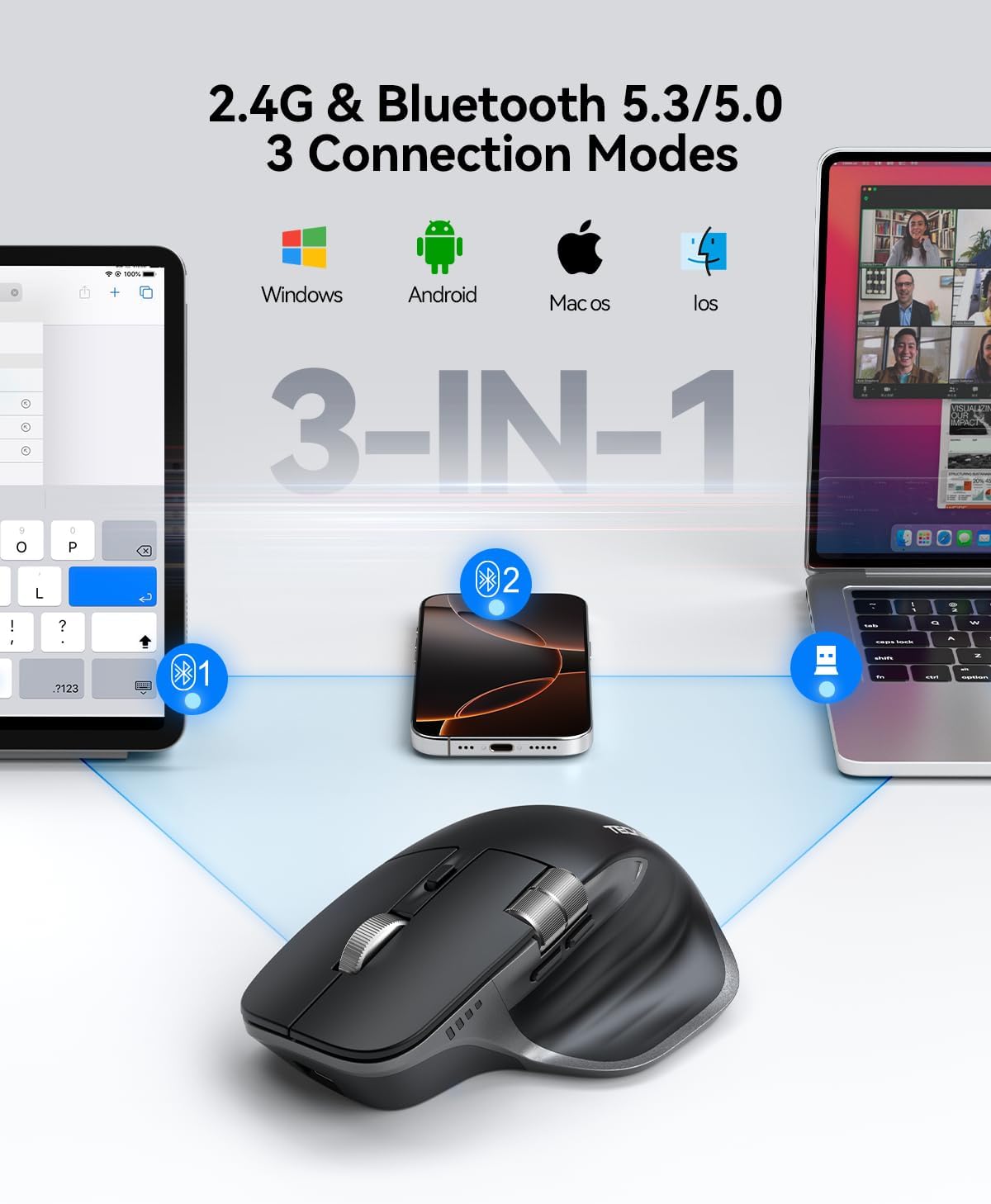
Image: The mouse can connect to Windows, Android, MacOS, and iOS devices via 2.4G or Bluetooth 5.3/5.0.
2.1. 2.4GHz USB-A Connection
- Locate the USB-A receiver stored in the compartment on the bottom of the mouse.
- Plug the USB-A receiver into an available USB-A port on your computer.
- The mouse should automatically connect. No additional software is required.

Image: The USB-A receiver is conveniently stored in a dedicated slot on the mouse's underside.
2.2. Bluetooth Connection (BT5.3/5.0)
The mouse supports two separate Bluetooth connections (BT1 and BT2).
- On the bottom of the mouse, press the Bluetooth pairing button to select either BT1 or BT2. The corresponding LED indicator will blink.
- On your device (laptop, tablet, etc.), go to Bluetooth settings and search for available devices.
- Select "TECKNET Mouse" from the list to pair. The LED indicator will stop blinking once connected.
- Repeat for a second Bluetooth device using the other BT channel (BT1 or BT2).
Video: Demonstration of connecting the TECKNET Wireless Mouse via Bluetooth, highlighting its ease of setup.
Video: A quick guide on how to plug and play the TECKNET Wireless Mouse, showcasing its immediate functionality.
Video: An unboxing and setup review of the TECKNET Wireless Mouse, detailing the simple steps to get started.
Operating Instructions
1. Button Functions
- Left/Right Click: Standard mouse functions.
- Scroll Wheel: For vertical scrolling.
- Side Scroll Wheel: Located on the side, allows for effortless horizontal scrolling in applications like spreadsheets or web pages. (Note: Side scroll wheel not supported on macOS).
- Forward/Backward Buttons: Navigate web pages or documents forward and backward.
- DPI Button: Adjusts mouse sensitivity.

Image: The mouse features dedicated buttons for forward, backward, and side-scrolling for enhanced navigation.
2. DPI Adjustment
The mouse offers 6 adjustable DPI settings (4800/3200/2400/1600/1200/800) for precise control. Press the DPI button to cycle through the settings. The LED indicator will show the selected DPI by the number of blinks.
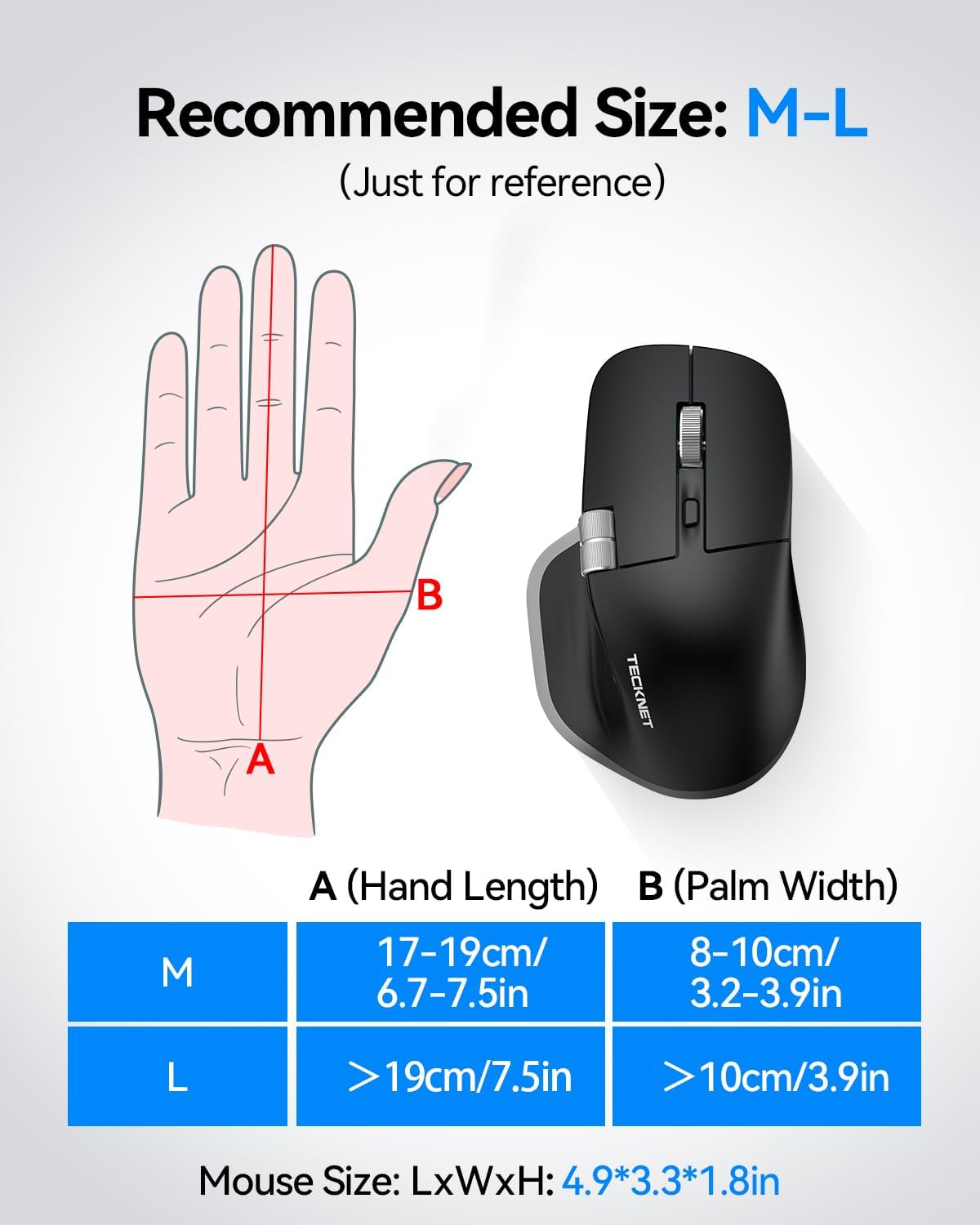
Image: Visual representation of the 6 adjustable DPI levels, ranging up to 4800 DPI, for customized cursor speed.
3. Ergonomic Design
The mouse features an asymmetrical contour design with side finger rests and a tilted design to provide a comfortable grip and reduce wrist strain during prolonged use.
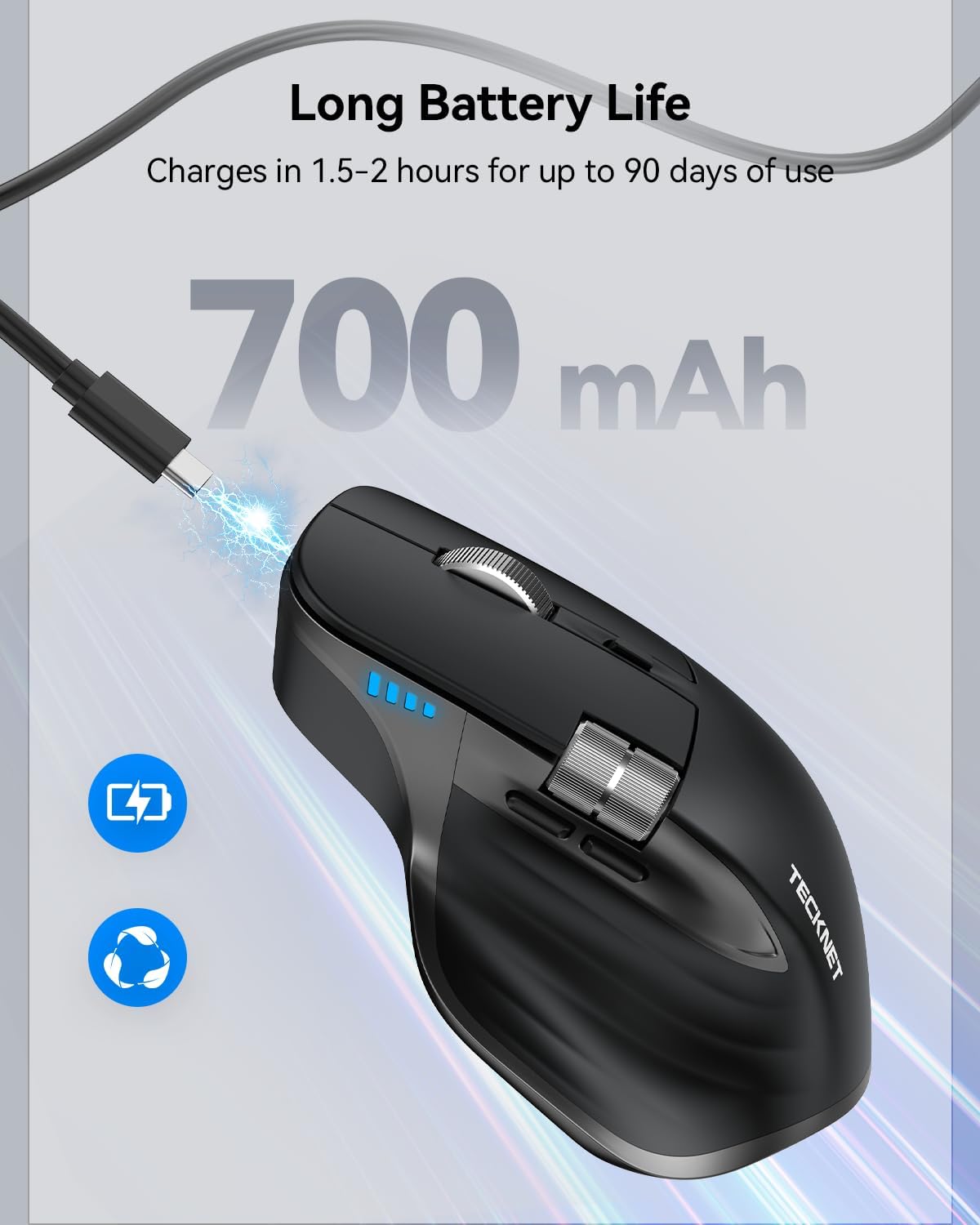
Image: The ergonomic design ensures a palm-contoured fit, side finger rests, and a tilted angle for comfort.
4. Quiet Clicks
The silent click feature minimizes noise, making it suitable for quiet environments like offices or libraries, allowing for focused work without disturbing others.

Image: The silent click feature allows for focused work without disturbing others.
Video: A detailed overview of the TECKNET Wireless Mouse, covering its features and benefits for daily use.
Maintenance
1. Charging the Mouse
The mouse features a rechargeable battery. Connect the included USB-A to USB-C charging cable to the USB-C port on the front of the mouse and to a power source. A full charge takes approximately 1.5–2 hours and can last up to 3 months with 2 hours of daily use.

Image: The mouse is shown charging via its USB-C port, emphasizing its long-lasting 700 mAh battery.
2. Power Saving Features
- Auto Sleep: The mouse enters auto sleep mode after 10 minutes of inactivity to conserve power. Click any button to wake it up.
- Low Battery Indicator: An LED on the mouse will blink when the battery level is low, indicating it's time to recharge.
Troubleshooting
- Mouse not responding: Ensure the mouse is powered on. Check battery level and recharge if necessary. For 2.4GHz, ensure the USB receiver is securely plugged in. For Bluetooth, verify pairing in your device's settings.
- Intermittent connection: Ensure the mouse is within the 33-foot operating range. Avoid obstructions between the mouse and the receiver/device.
- Cursor movement is erratic: Clean the optical sensor on the bottom of the mouse. Ensure you are using the mouse on a suitable surface. Adjust DPI settings if the cursor is too fast or too slow.
- Side scroll wheel not working on macOS: This is a known compatibility limitation; the side scroll wheel functionality is not supported on macOS.
Specifications
| Feature | Detail |
|---|---|
| Brand | TECKNET |
| Model Name | TK-MS029 |
| Connectivity Technology | Bluetooth (BT5.3/5.0), 2.4GHz USB-A Wireless |
| Movement Detection Technology | Optical |
| Adjustable DPI Settings | 800/1200/1600/2400/3200/4800 |
| Buttons | 7 (Left, Right, Scroll Wheel, Side Scroll Wheel, Forward, Backward, DPI) |
| Hand Orientation | Right |
| Power Source | Rechargeable (1 Lithium Ion battery included) |
| Battery Life | Up to 3 months (with 2 hours daily use) |
| Charging Time | 1.5-2 hours |
| Wireless Range | 33 feet |
| Compatible Devices | Windows, macOS, Chrome OS, Linux (Side scroll not supported on macOS) |
| Material | Metal, Plastic |
Warranty and Support
TECKNET offers a 36-month warranty for this product (registration may be required). If you encounter any issues or have questions regarding your mouse, please contact our professional customer service team for assistance.
For support, visit the TECKNET Store on Amazon or refer to the contact information provided with your product packaging.


