
1. Introduction
Thank you for choosing the TECKNET Wireless Mouse TK-MS029. This ergonomic optical mouse offers versatile connectivity, adjustable precision, and a comfortable design for enhanced productivity. It supports seamless switching between up to three devices using both 2.4GHz USB-A and Bluetooth 5.3/5.0 connections. Featuring a precision metal scroll wheel, a side scroll wheel for horizontal navigation, and six adjustable DPI levels, this mouse is designed to adapt to various tasks and user preferences. Its rechargeable battery provides long-lasting use, and quiet clicks ensure a focused work environment.
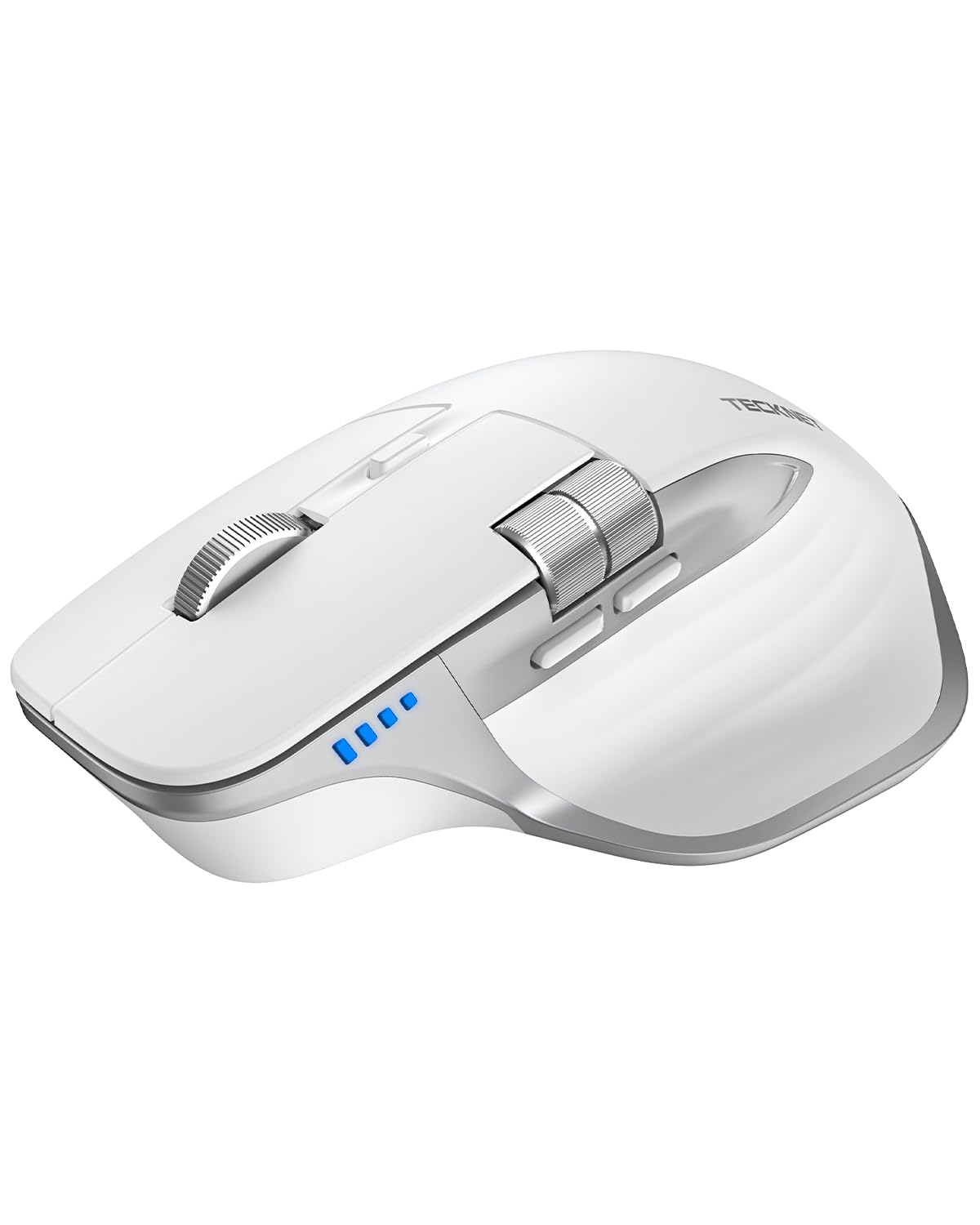
Image: The TECKNET Wireless Mouse TK-MS029 in Light White, showcasing its ergonomic design.
2. What's in the Box
- Rechargeable Mouse
- USB A to C Charging Cable
3. Product Features
3.1 Seamless 3-Device Switching
The TECKNET Wireless Mouse TK-MS029 supports two Bluetooth 5.3/5.0 connections and one 2.4GHz USB-A connection, allowing you to connect and switch between up to three devices simultaneously. In Bluetooth mode, the mouse pairs with two devices, freeing up USB-A ports, which is ideal for devices without USB-A ports. For 2.4GHz mode, simply plug the bottom-mounted USB receiver into your device for instant use without requiring software installation. A single button allows you to switch freely between all three connected devices for efficient multitasking.

Image: Visual representation of the mouse's 3-in-1 connection modes, illustrating connectivity to Windows, Android, MacOS, and iOS devices.
Video: An official TECKNET video demonstrating the wireless mouse's features, including its multi-device connectivity and ergonomic design.
3.2 Precision Metal Scroll Wheel
The mouse features a precision-crafted metal scroll wheel. This design not only provides a metallic aesthetic but also offers a smooth and cool tactile sensation, enhancing the mouse's overall texture and durability.

Image: A detailed view of the mouse highlighting its durable metal scroll wheel.
3.3 High-Precision 6-Level DPI Control
Equipped with a high-performance chip, this mouse offers six adjustable DPI settings: 800, 1200, 1600, 2400, 3200, and 4800 DPI. An LED indicator shows the currently selected DPI level by the number of blinks, allowing for easy verification. This range of DPI settings enables precise control for detailed work and faster movement for general browsing, adapting to various user needs.

Image: The mouse with an overlay showing the six adjustable DPI levels and their corresponding values.
3.4 Side Scroll Wheel for Horizontal Navigation
The mouse includes a side-mounted scroll wheel for effortless horizontal scrolling. This feature allows users to navigate spreadsheets, web pages, or design canvases horizontally with a gentle flick of the finger, reducing wrist strain during long sessions and improving efficiency by minimizing view adjustments. Note: The side scroll wheel is not supported on macOS.

Image: The mouse's side buttons and scroll wheel, demonstrating their function for horizontal scrolling and page navigation.
3.5 Rechargeable & Long-Lasting Battery
This wireless mouse is rechargeable, eliminating the need for frequent battery replacements. It fully charges in 1.5–2 hours and can last up to approximately 3 months with 2 hours of daily use. A charging cable is included. The mouse enters auto-sleep mode after 10 minutes of inactivity to conserve power and wakes up with a click. An LED indicator blinks when the battery is low.

Image: The mouse being charged, highlighting its 700 mAh battery and long battery life.
3.6 Quiet Clicks
The mouse features silent click technology, providing precise and comfortable control without loud clicking noises. This makes it suitable for use in quiet environments such as offices, libraries, or during focused work sessions, minimizing disturbance to others.

Image: A user operating the mouse in a quiet environment, emphasizing its silent click feature.
3.7 Ergonomic Design
The mouse is designed with an asymmetrical contour for an ergonomic fit, providing a comfortable grip that reduces wrist strain during prolonged use. It features side finger rests and a tilted design to support the natural hand position.

Image: Detailed views of the mouse's ergonomic curvature, including palm-contoured fit, side finger rests, and tilted design.
4. Setup and Connectivity
4.1 Connecting via 2.4GHz USB-A Receiver
- Locate the USB-A receiver stored in the compartment at the bottom of the mouse.
- Plug the USB-A receiver into an available USB-A port on your computer or laptop.
- Turn on the mouse using the ON/OFF switch located on the bottom.
- The mouse should automatically connect to your device. No additional software is required.
4.2 Connecting via Bluetooth (BT5.3/5.0)
- Turn on the mouse using the ON/OFF switch on the bottom.
- Press and hold the Bluetooth pairing button (usually indicated by a Bluetooth icon or 'BT1'/'BT2') on the bottom of the mouse until the LED indicator starts blinking, signifying it's in pairing mode.
- On your device (laptop, tablet, etc.), go to Bluetooth settings.
- Search for available devices and select "TECKNET Mouse" or a similar name.
- Once connected, the LED indicator on the mouse will stop blinking and remain solid for a few seconds.
- Repeat steps 2-5 to connect a second Bluetooth device using the other Bluetooth channel (BT2).
Image: An exploded view of the mouse, detailing the location of the ON/OFF button, USB receiver, Bluetooth pairing button, and charging port.
5. Operating Instructions
5.1 Basic Functions
- Left/Right Click: Standard mouse functions for selection and context menus.
- Main Scroll Wheel: Use for vertical scrolling through documents and web pages.
- Forward/Backward Buttons: Located on the side, these buttons allow for quick navigation (e.g., back and forward in web browsers).
5.2 DPI Adjustment
Press the DPI switch button (located near the main scroll wheel) to cycle through the 6 available DPI settings (800/1200/1600/2400/3200/4800). The LED indicator will blink to show the current DPI level.
5.3 Multi-Device Switching
Use the dedicated connection switch button on the bottom of the mouse to toggle between the 2.4GHz USB-A connection and the two Bluetooth connections (BT1 and BT2).
6. Maintenance
6.1 Charging the Mouse
When the battery is low, the LED indicator will blink. Connect the provided USB A to C charging cable to the charging port on the front of the mouse and to a power source (e.g., computer USB port, USB wall adapter). The mouse will fully charge in 1.5-2 hours.
6.2 Cleaning
To clean the mouse, gently wipe its surface with a soft, damp cloth. Avoid using harsh chemicals or abrasive materials that could damage the finish. Ensure no liquid enters the mouse's internal components.
7. Troubleshooting
- Mouse not responding:
- Ensure the mouse is turned on.
- Check battery level and charge if necessary.
- For 2.4GHz connection, ensure the USB receiver is securely plugged in.
- For Bluetooth connection, verify that Bluetooth is enabled on your device and the mouse is paired. Try re-pairing if necessary.
- Switch to a different connection mode (2.4G or Bluetooth) to see if the issue persists.
- DPI not changing:
- Ensure you are pressing the correct DPI switch button.
- Observe the LED indicator to confirm DPI changes.
- Side scroll wheel not working on macOS:
- This is expected behavior. The side scroll wheel functionality is not supported on macOS.
8. Specifications
| Feature | Detail |
|---|---|
| Brand | TECKNET |
| Model Name | TK-MS029 |
| Color | Light White |
| Connectivity Technology | Bluetooth, USB A, Wireless |
| Movement Detection Technology | Optical |
| Button Quantity | 7 |
| Hand Orientation | Right |
| Compatible Devices | Windows/Mac/Chromebook/Linux/Notebook/Laptop/Computer |
| Operating System | Chrome OS, Linux, Windows 10 |
| Battery Average Life | 3 months |
| Range | 33 feet |
| Power Source | Rechargeable |
| Mouse Maximum Sensitivity | 4800 Dots per Inch |
| Material | Metal, Plastic |
9. Warranty and Support
TECKNET offers a 36-month warranty for this product. If you encounter any problems during the use of the product, please contact TECKNET's professional customer service team for assistance. Registration may be required to avail the full warranty period.
For further support and information, please visit the official TECKNET website or refer to the contact details provided with your product packaging.


