
1. Introduction
This manual provides detailed instructions for the installation, operation, and maintenance of your CHSTEK 8581A+Box Android Car Radio. This unit is designed to enhance your driving experience with advanced multimedia and navigation features.
Key Features:
- Android 13 Operating System
- 8-inch 1280*720P HD Touch Screen
- Built-in Wireless CarPlay and Wired Android Auto
- Integrated GPS Navigation with online and offline map support
- 4G and WiFi Connectivity
- Bluetooth Hands-free Calling and Music Streaming
- Multiple UI Desktop Themes
- Split Screen Functionality
- FM Radio with 18 preset stations
- EQ Function for audio customization
2. Compatibility
This car radio is compatible with the following Porsche models:
- Porsche 911 (997) 2005-2012
- Porsche Boxster (987) 2004-2012
- Porsche Cayman (987) 2005-2013
Important Notes:
- This model does not include a DVD/CD player.
- Some high-grade versions of these vehicles may not support steering wheel control keys (e.g., Cayman 2010-2012).
- If your original car is equipped with a BOSE or Harman Kardon audio system, a fiber optic box must be purchased separately to ensure sound functionality.
- If your car dashboard matches the provided image, this model is suitable.
3. Package Contents
The package includes the main head unit and necessary accessories for installation, as shown in the product images.

Image: The CHSTEK 8581A-A car radio unit, accompanied by a microphone and a fiber optic box. The image highlights key specifications such as 4G connectivity, 2GB RAM + 32GB storage, an 8-core 1.6GHz processor, DSP*36EQ, CarPlay+Android Auto compatibility, and Android 13 OS. It also indicates support for SW Control, GPS Track, and AV OUT.
4. Installation & Setup
The unit is designed for plug-and-play installation. However, professional installation is recommended.
4.1 Pre-Installation Check
- Verify vehicle compatibility (Porsche Cayman 911 987 Boxster 997, 2005-2013).
- Confirm if your vehicle has a BOSE or Harman Kardon audio system. If so, ensure you have the necessary fiber optic box.
- Disconnect the vehicle's battery before starting installation.
4.2 Installation Steps
- Carefully remove the original car radio unit from the dashboard.
- Connect the provided wiring harness to the new CHSTEK unit and the vehicle's wiring. Ensure all connections are secure.
- If applicable, connect the fiber optic box for BOSE/Harman Kardon systems.
- Install the GPS antenna and 4G antenna (if using 4G connectivity) in a location with good signal reception.
- Mount the new CHSTEK unit into the dashboard opening.
- Reconnect the vehicle's battery and test the unit's functionality.

Image: A visual comparison showing the car dashboard before and after the installation of the CHSTEK Android car radio. The 'Before' image displays the original factory radio, while the 'After' image shows the new 8-inch touchscreen unit seamlessly integrated, displaying the Apple CarPlay interface.
5. Operating Instructions
5.1 Wireless CarPlay
Connect your iPhone wirelessly to access CarPlay features. CarPlay allows you to use your phone's navigation, make calls, send messages, and play music directly from the car's display. Activate Siri for voice control.
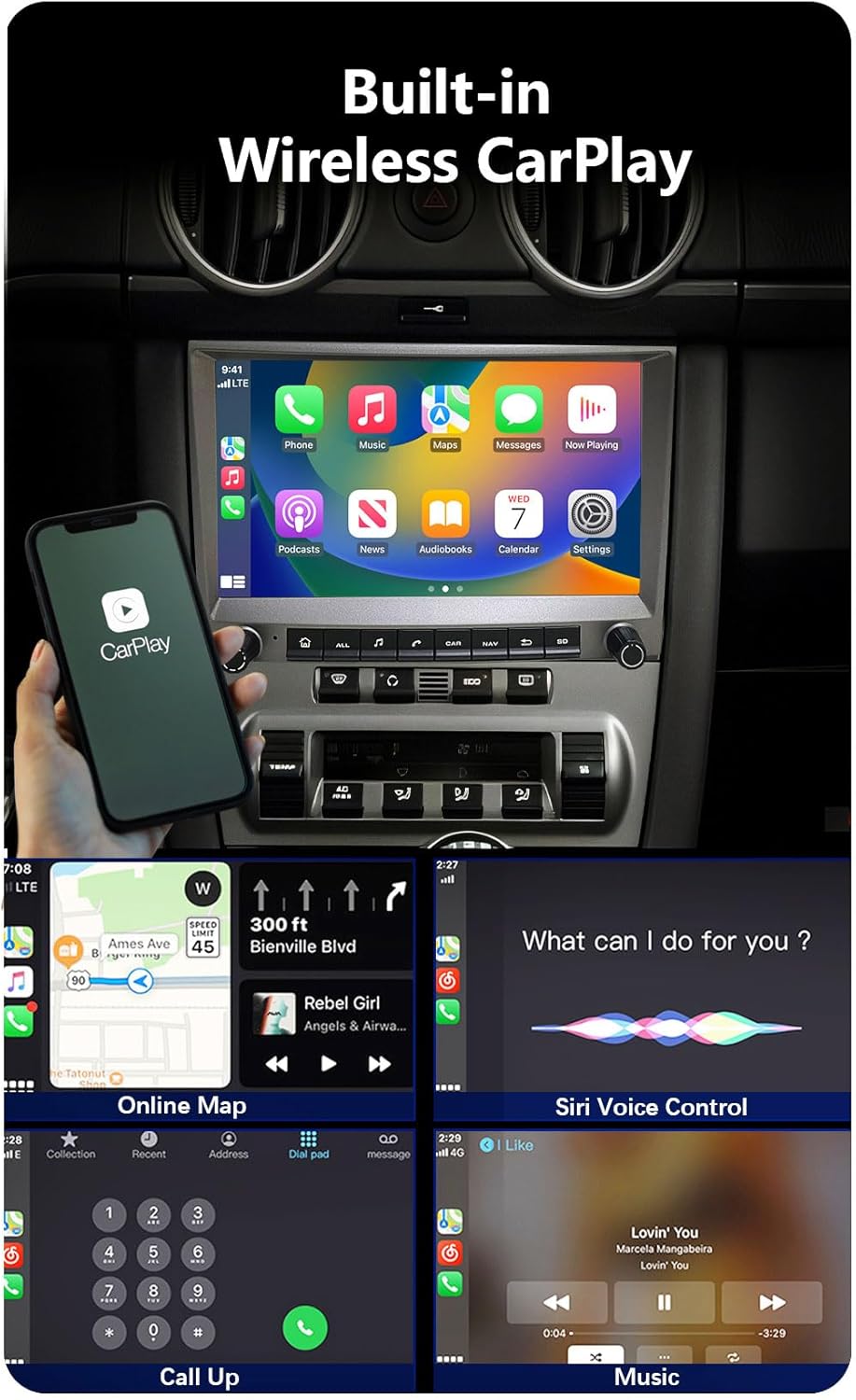
Image: The car radio display showing the Wireless CarPlay interface, mirroring an iPhone screen. The image also illustrates Siri voice control, online map navigation, call functionality, and music playback within the CarPlay environment.
5.2 Wired Android Auto
Connect your Android device via USB to use Wired Android Auto. This mirrors your Android phone's compatible apps, including GPS navigation, music playback, SMS, and telephone functions, onto the car's display.
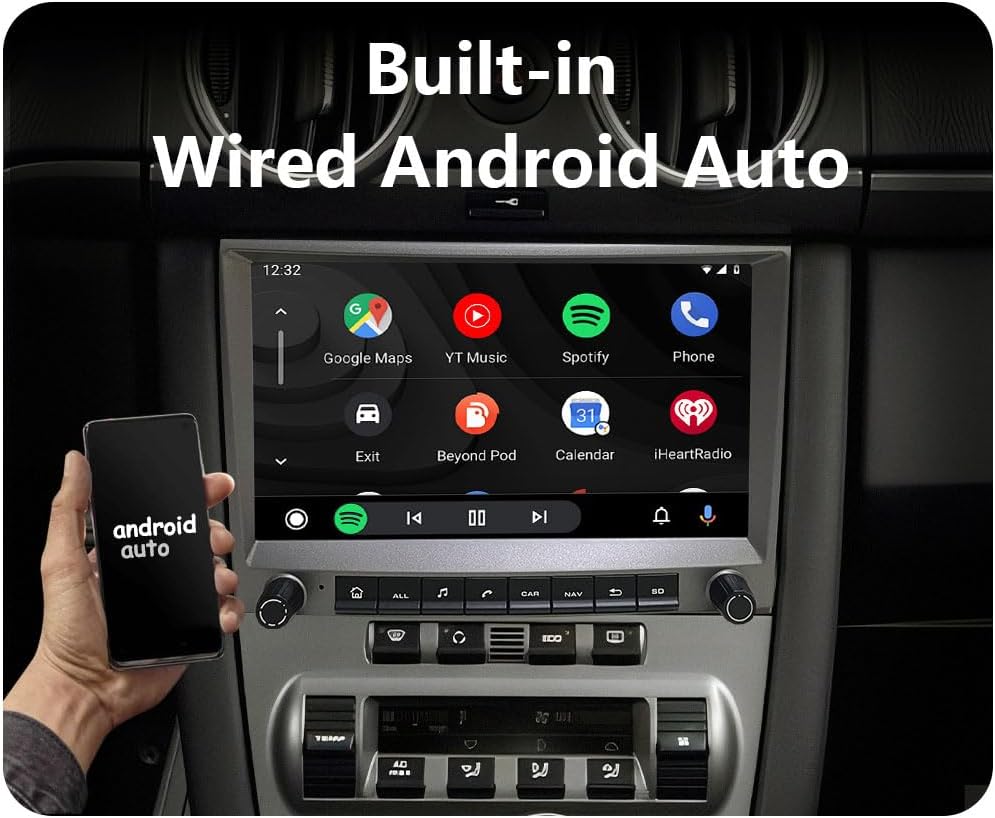
Image: The car radio display showing the Wired Android Auto interface, featuring applications like Google Maps, YouTube Music, Spotify, and Phone. An Android phone is shown next to the display, indicating the wired connection.
5.3 Bluetooth Hands-free & Music
Pair your smartphone via Bluetooth for hands-free calling and wireless music streaming. You can download phone contacts and use the external microphone for clear communication.

Image: The car radio display showing the Bluetooth interface, with options for phone calls, address book access, and music playback. The screen displays a dial pad for making calls.
5.4 GPS Navigation & WiFi/4G
The unit features built-in GPS for navigation. Download offline maps for use without an internet connection. Connect to WiFi or insert a 4G SIM card (via the provided slot) to access online maps, real-time traffic updates, and other internet-based applications.

Image: The car radio display showing various application icons, indicating internet connectivity. Below, a close-up illustrates the 4G SIM card cable and slot, emphasizing easy SIM card replacement without disassembling the unit.
5.5 Multiple UI Desktop Themes & Split Screen
Customize your user experience by selecting from multiple pre-installed UI desktop themes. Utilize the split-screen function to run two applications simultaneously, such as navigation and music playback.

Image: The car radio display demonstrating the split-screen functionality. The top image shows video playback and navigation side-by-side. The bottom images show examples of navigation combined with a music player, and video playback with navigation.
5.6 FM Radio & EQ
Access FM radio stations (87.50-108.0 MHz) with 18 preset options. Adjust audio settings using the built-in EQ function to optimize sound quality.
6. Maintenance
To ensure the longevity and optimal performance of your car radio, follow these maintenance guidelines:
- Cleaning: Use a soft, dry cloth to clean the screen and unit exterior. Avoid abrasive cleaners or solvents.
- Temperature: Avoid exposing the unit to extreme temperatures, both hot and cold, for extended periods.
- Software Updates: Periodically check for and install software updates to ensure the system runs efficiently and securely.
- Connections: Ensure all cables and connections remain secure to prevent intermittent issues.
7. Troubleshooting
If you encounter issues with your CHSTEK car radio, refer to the following common problems and solutions:
- No Sound:
- Check all audio connections.
- If your car has a BOSE or Harman Kardon system, ensure the fiber optic box is correctly installed and functioning.
- Verify volume settings on the unit and your connected device.
- Unit Does Not Power On:
- Check the power cable connection and vehicle's fuse.
- Ensure the vehicle's battery is properly connected and charged.
- CarPlay/Android Auto Connection Issues:
- For Wireless CarPlay, ensure Bluetooth and Wi-Fi are enabled on your iPhone.
- For Wired Android Auto, use a high-quality USB cable and ensure your Android phone is compatible (Note: Samsung devices may have specific compatibility requirements).
- Restart both the car radio and your smartphone.
- GPS Signal Loss:
- Ensure the GPS antenna is installed in a clear location, free from obstructions.
- Check the GPS antenna connection to the unit.
- Steering Wheel Controls Not Working:
- Verify if your specific vehicle model and year (e.g., Cayman 2010-2012) supports steering wheel control integration with aftermarket units.
- Check wiring connections for steering wheel control.
If problems persist, please contact CHSTEK customer support for assistance.
8. Specifications
| Model Name | 8581A+Box |
| Operating System | Android 13 |
| Display Size | 8 Inches |
| Display Resolution | 1280*720P HD |
| Processor | 8 Core 1.6GHz |
| Memory (RAM) | 2GB |
| Storage (ROM) | 32GB |
| Connectivity | Wireless CarPlay, Wired Android Auto, Bluetooth, 4G, WiFi |
| Navigation | Built-in GPS, supports online/offline maps (Worldwide) |
| Radio | FM (87.50-108.0 MHz) |
| Item Weight | 4.4 pounds |
| Package Dimensions | 11.81 x 9.84 x 7.87 inches |
9. Warranty Information
This CHSTEK car radio comes with a 1-year warranty from the date of purchase. The warranty covers manufacturing defects and malfunctions under normal use. Please retain your proof of purchase for warranty claims.
The warranty does not cover damage caused by improper installation, misuse, accidents, unauthorized repairs, or normal wear and tear.
10. Customer Support
For technical assistance, troubleshooting guidance, or warranty inquiries, please contact CHSTEK customer support. Refer to your purchase documentation for specific contact details or visit the official CHSTEK website.


