
1. Introduction
This manual provides detailed instructions for the operation and maintenance of your ROQIOO A9 4K Digital Camera. Please read this manual thoroughly before using the camera to ensure proper function and to maximize your user experience. The ROQIOO A9 is a compact digital camera designed for capturing high-quality 4K video and 50MP photos, featuring a 180° flip screen for versatile shooting.
2. What's in the Box
Verify that all items are present in your package:
- ROQIOO A9 Digital Camera
- 32GB Memory Card
- Type-C Data Cable
- Rechargeable Battery (pre-installed or separate)
- Wrist Strap
- Storage Bag
- Lens Cleaning Cloth

Image: The ROQIOO A9 Digital Camera shown with its included accessories: a 32GB memory card, Type-C data cable, storage bag, and lens cloth.
3. Setup
3.1. Charging the Battery
- Locate the Type-C charging port on the camera.
- Connect the provided Type-C data cable to the camera and a compatible USB power adapter (not included).
- The charging indicator light will illuminate. Once fully charged, the light will change or turn off.
3.2. Inserting the SD Card
- Open the SD card slot cover, usually located on the side or bottom of the camera.
- Insert the 32GB SD card with the metal contacts facing the correct direction (refer to the diagram inside the slot).
- Gently push the card until it clicks into place. Close the cover securely.
3.3. Powering On/Off
Press and hold the power button (usually located on the top of the camera) to turn the camera on or off.
4. Operating Instructions
4.1. Basic Photography
- Turn on the camera.
- Frame your shot using the LCD screen.
- Press the shutter button halfway down to focus.
- Press the shutter button fully to capture the photo.
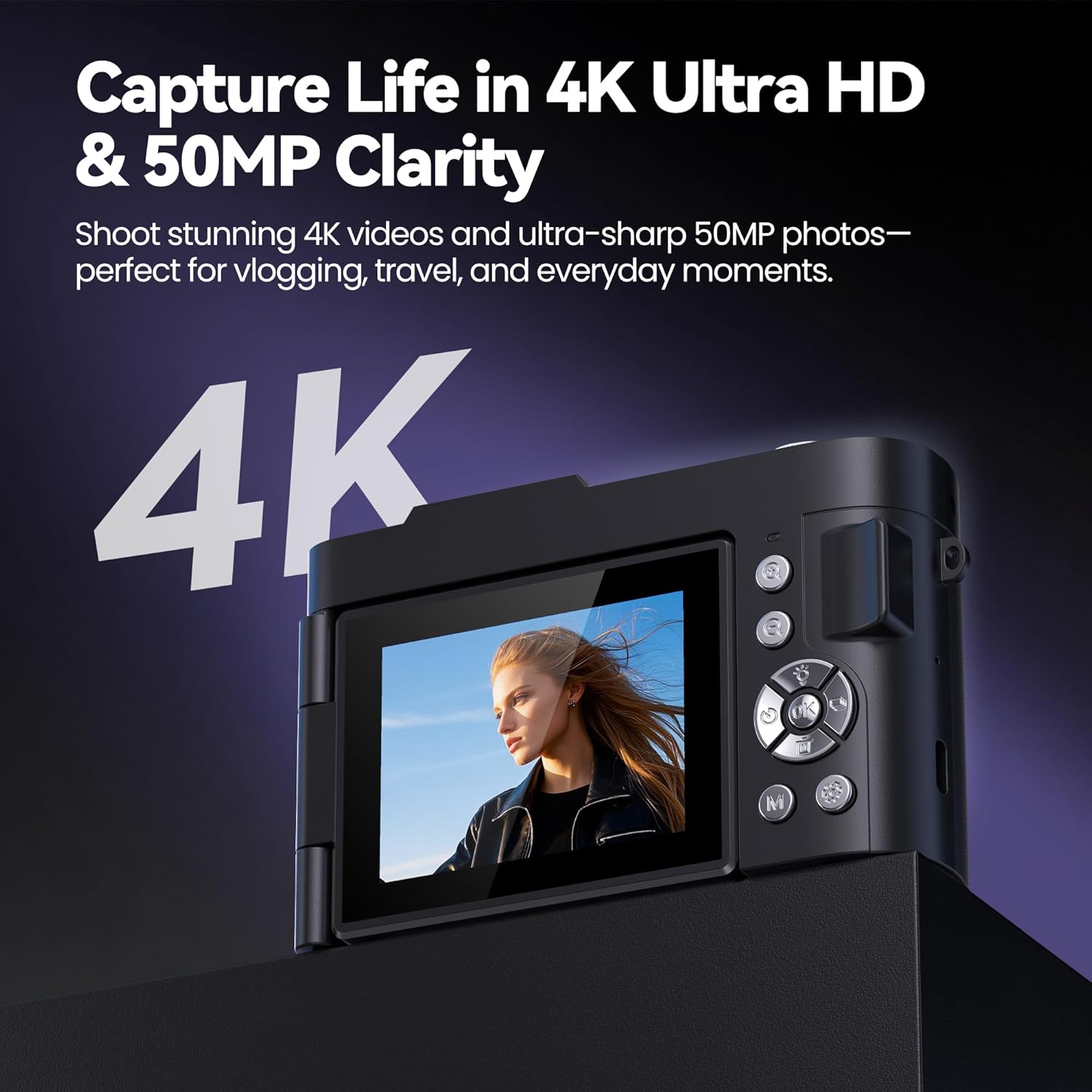
Image: The ROQIOO A9 camera's rear screen displaying the high-resolution capabilities for 4K video and 50MP photos.
4.2. Video Recording
- Switch to video mode (refer to the camera's on-screen menu or dedicated button).
- Press the record button to start recording.
- Press the record button again to stop recording.
4.3. Using the 180° Flip Screen
The camera features a rotatable LCD screen. Gently flip the screen outwards and rotate it 180° to face forward for vlogging or selfies. This allows you to monitor your framing while being in front of the camera.
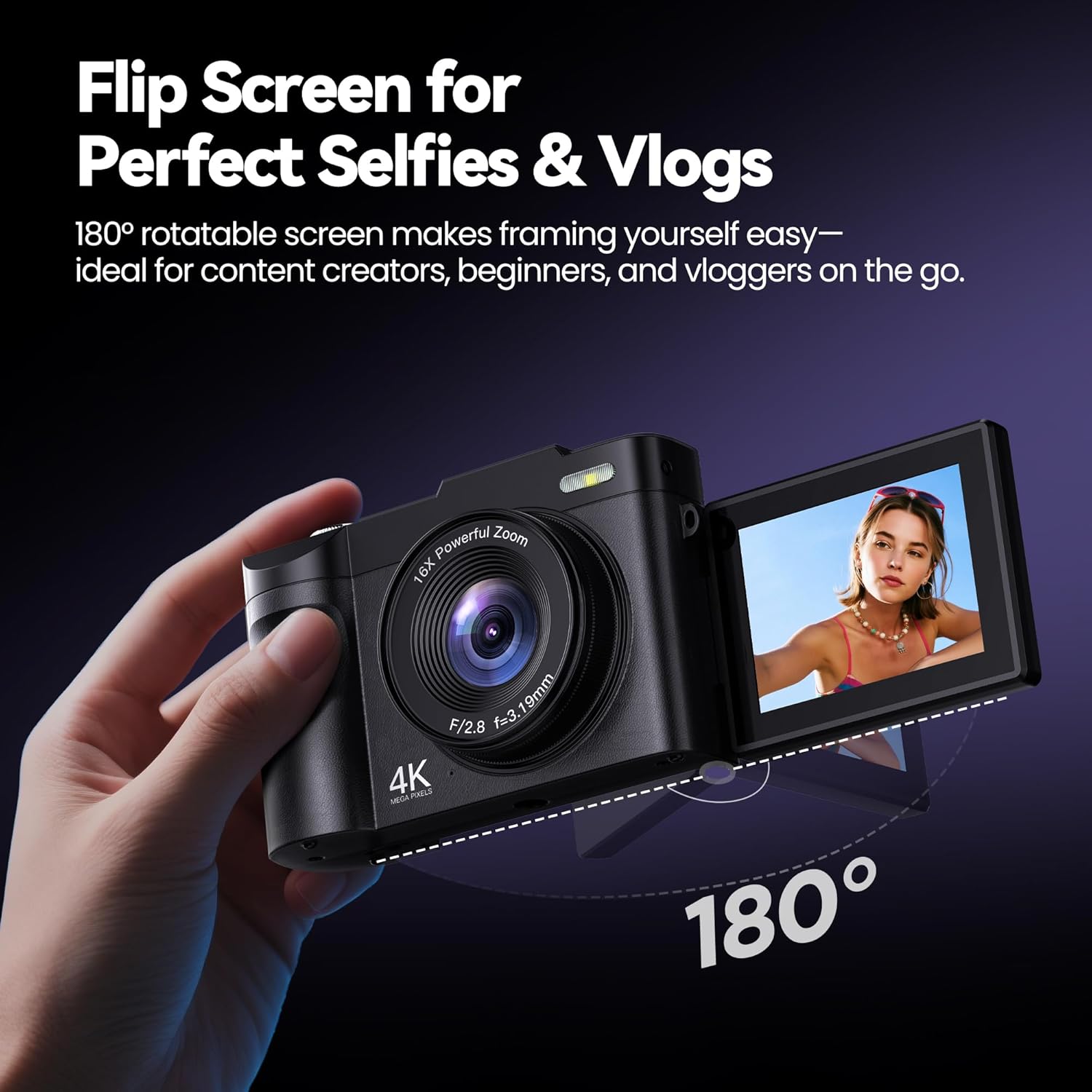
Image: A hand demonstrating the 180-degree rotation of the camera's flip screen, ideal for self-recording.
4.4. Zoom Function
Utilize the 16X digital zoom by pressing the 'W' (Wide) or 'T' (Telephoto) buttons, typically located near the shutter button, to zoom out or in, respectively.
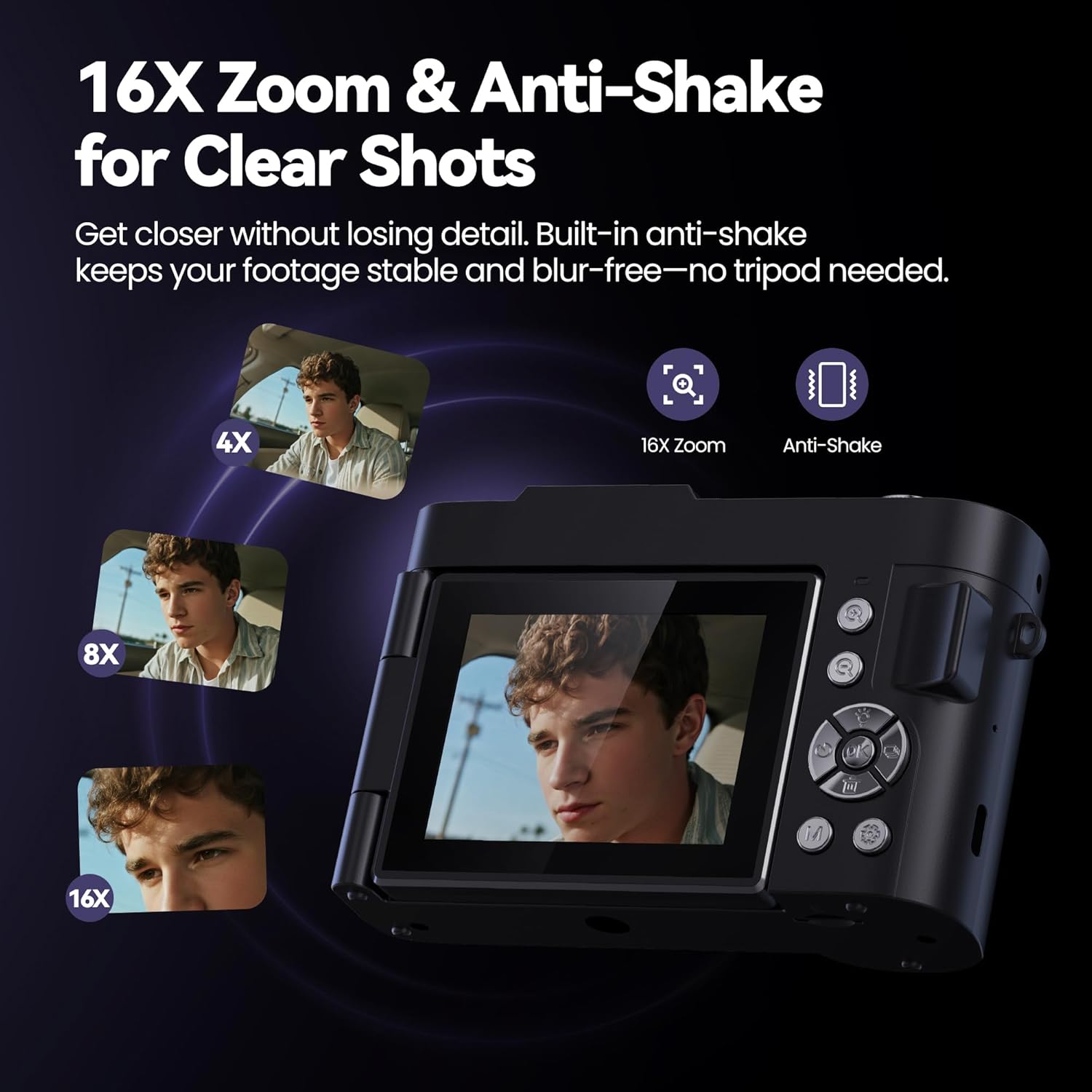
Image: The camera's screen showing different zoom levels (4X, 8X, 16X) and an icon indicating the anti-shake feature.
4.5. Special Features
- Filters: The camera includes 16 built-in filters to add creative effects to your photos. Access these through the camera's menu.
- Burst Mode: Capture a sequence of photos rapidly by activating burst mode, suitable for action shots.
- Self-Timer: Set a delay (e.g., 2, 5, or 10 seconds) before a photo is taken, allowing you to get into the shot.
- Smile Capture & Face Detection: These smart features automatically detect smiles and faces for optimal focus and capture. These can be toggled on or off in the settings.

Image: A collage demonstrating the camera's 16 fun filters, burst mode, and self-timer options.

Image: A woman taking a selfie, with on-screen indicators for smile capture and face detection.
4.6. Webcam Functionality
Connect the camera to your computer via the Type-C data cable. Select 'Webcam Mode' on the camera's screen (if prompted) to use it as a webcam for video calls or live streaming.
4.7. Tripod Compatibility
The camera features a standard 1/4-inch tripod mount on its base, allowing it to be attached to most tripods for stable shooting.
5. Maintenance
- Cleaning: Use the provided lens cleaning cloth to gently wipe the lens and screen. Avoid harsh chemicals.
- Storage: When not in use, store the camera in the provided storage bag to protect it from dust and scratches.
- Battery Care: For optimal battery life, avoid fully discharging the battery frequently. Charge it regularly.
6. Troubleshooting
- Camera not turning on: Ensure the battery is fully charged. Reinsert the battery to reset.
- Poor image quality: Check lighting conditions. Ensure the lens is clean. Adjust camera settings (e.g., ISO, white balance) for the environment.
- SD card error: Ensure the SD card is inserted correctly. Try formatting the SD card (this will erase all data). If the issue persists, try a different compatible SD card.
- Video file format (MOV): The camera records videos in MOV format. If you require MP4, conversion software may be necessary on your computer.
7. Specifications
| Feature | Specification |
|---|---|
| Brand | ROQIOO |
| Model Name | A9-Black |
| Photo Sensor Resolution | 50 MP (Effective Still Resolution 48 MP) |
| Video Resolution | 4K (3840p) |
| Optical Zoom | 16 x |
| Screen Size | 3 Inches |
| Display Type | LCD, Articulating |
| Image Stabilization | Digital |
| Supported File Format | MOV (Video) |
| Memory Storage Capacity | 32 GB (Included SD Card) |
| Connectivity Technology | USB, Wi-Fi |
| Compatible Mountings | 1/4-inch tripod mount |
| Item Weight | 0.3 Kilograms |
| Battery Capacity | 1500mAh |
| Recording Capacity | 90 Minutes (Video) |
| Flash Modes | Auto, On/Fill |
| Focus Type | Auto Focus (Contrast Detection) |
8. Warranty and Support
Your ROQIOO A9 Digital Camera comes with a 12-Month Warranty from the date of purchase. This warranty covers manufacturing defects and malfunctions under normal use. For warranty claims, technical support, or any inquiries, please contact ROQIOO customer service through the retailer where the product was purchased or visit the official ROQIOO website for contact information.