
Introduction
This manual provides detailed instructions for the Keychron B6 Pro Ultra-Slim Wireless Keyboard. It covers setup, operation, maintenance, and troubleshooting to ensure optimal performance and longevity of your device. The Keychron B6 Pro is a full-size, triple-mode keyboard supporting 2.4GHz wireless, Bluetooth 5.2, and wired USB Type-C connections, designed for compatibility with Mac and Windows operating systems.
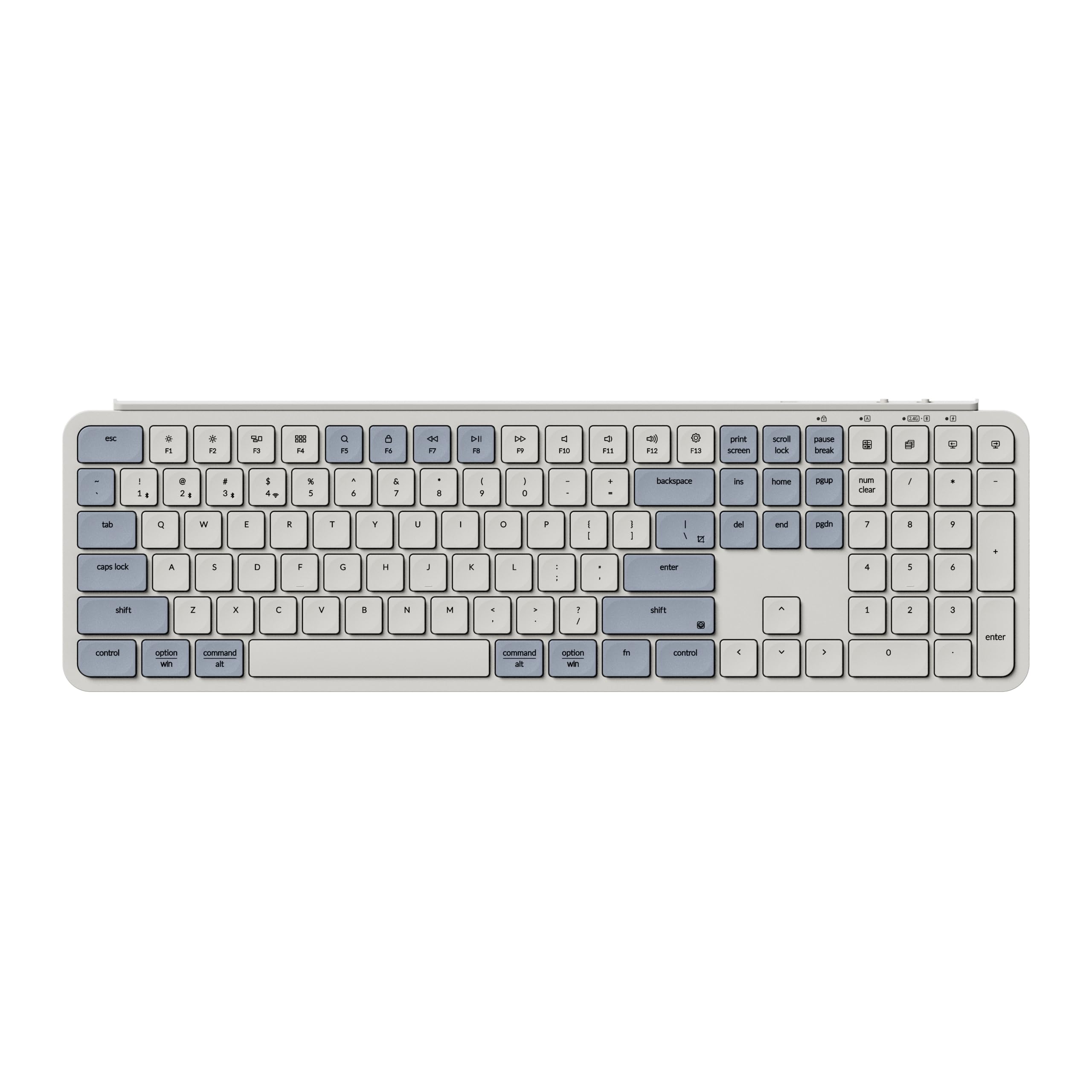
Image: Keychron B6 Pro Ultra-Slim Wireless Keyboard in Retro Blue, showcasing its full-size layout and slim profile.
Setup
What's in the Box

Image: Diagram illustrating the contents of the Keychron B6 Pro package, including the keyboard unit, USB Type-C cable, USB Type-A to Type-C adapter, 2.4GHz receiver, and a silicone skin.
- 1x Keychron B6 Pro Keyboard Unit
- 1x USB Type-C Cable
- 1x USB Type-A to Type-C Adapter
- 1x USB Type-A 2.4GHz Receiver
- 1x Silicone Skin
Charging the Keyboard
Before initial use, fully charge the keyboard using the provided USB Type-C cable. Connect the cable to the keyboard's USB-C port and a power source (e.g., computer USB port or USB wall adapter). The charging indicator will show the charging status.
Connecting the Keyboard
The Keychron B6 Pro supports three connection modes: 2.4GHz wireless, Bluetooth 5.2, and wired USB Type-C.
- 2.4GHz Wireless Connection:
- Locate the 2.4GHz USB receiver.
- Plug the receiver into an available USB-A port on your computer.
- On the keyboard's side, slide the mode switch to "2.4G". The keyboard will automatically connect.
- Bluetooth 5.2 Connection:
- On the keyboard's side, slide the mode switch to "BT".
- Press and hold the Fn + 1 (or Fn + 2, Fn + 3) key combination for 4 seconds until the indicator light flashes rapidly, indicating pairing mode.
- On your device (PC, phone, tablet), go to Bluetooth settings and select "Keychron B6 Pro" from the list of available devices to pair.
- You can pair up to three devices and switch between them using Fn + 1, Fn + 2, or Fn + 3.
- Wired USB Type-C Connection:
- Connect the provided USB Type-C cable from the keyboard to your computer's USB port.
- On the keyboard's side, slide the mode switch to "Cable". The keyboard will function as a wired device.

Image: Close-up of the keyboard's side, highlighting the switches for connectivity modes (BT, Cable, 2.4G) and operating system compatibility (Mac, Win).
Operating System Compatibility Switch
The Keychron B6 Pro is compatible with both macOS and Windows. Use the dedicated switch on the side of the keyboard to select the correct operating system layout for optimal key functionality.

Image: The Keychron B6 Pro keyboard showing the Mac/Win switch on its side, indicating compatibility with both operating systems.
Operating Instructions
Key Functions and Layout
The B6 Pro features a full-size QWERTY layout with a numeric keypad. Special function keys (F1-F12) can be accessed directly or via the Fn key, depending on your operating system switch setting. The keyboard is designed for whisper-quiet keystrokes, utilizing a scissor mechanism for reduced noise and enhanced comfort.

Image: The Keychron B6 Pro keyboard, emphasizing its quiet typing experience and the underlying scissor mechanism technology.
Customizing with Keychron Launcher (ZMK)
The Keychron B6 Pro supports ZMK customization, allowing you to remap keys, create macros, and set shortcuts. This can be done using the Keychron Launcher web application.
- Access the Keychron Launcher web app through your browser.
- Connect your keyboard via USB-C cable to your computer.
- Follow the on-screen instructions to customize keymaps, macros, and other settings.

Image: Screenshot of the Keychron Launcher web application, demonstrating the interface for customizing keymaps and programming the B6 Pro keyboard.
For detailed instructions on using the Keychron Launcher, please refer to the official Keychron website or the application's help section.
Maintenance
Cleaning the Keyboard
To maintain the cleanliness and functionality of your keyboard:
- Disconnect the keyboard from all devices before cleaning.
- Use a soft, lint-free cloth slightly dampened with water or a mild cleaning solution to wipe the keycaps and surface.
- Avoid excessive moisture.
- The included silicone skin can be washed with mild soap and water, then air-dried completely before re-applying.

Image: The Keychron B6 Pro keyboard shown with its protective silicone skin, which helps guard against spills and dust.
Troubleshooting
Connectivity Issues
- Keyboard not connecting via Bluetooth/2.4GHz:
- Ensure the mode switch on the keyboard is set to the correct position (BT or 2.4G).
- For Bluetooth, ensure the keyboard is in pairing mode (Fn + 1/2/3 held for 4 seconds).
- For 2.4GHz, ensure the USB receiver is securely plugged into your device.
- Try restarting your computer or device.
- Ensure the keyboard battery is sufficiently charged.
- Frequent disconnections or lag:
- Move the keyboard closer to your device to reduce interference.
- Avoid placing large metal objects between the keyboard and receiver/device.
- Ensure other wireless devices are not causing interference.
- Try switching to wired mode to confirm keyboard functionality.
Key Functionality Problems
- Keys not responding or typing incorrectly:
- Ensure the keyboard is fully charged.
- Check the OS switch (Mac/Win) on the side of the keyboard to ensure it matches your operating system. Incorrect settings can cause unexpected key behavior.
- If using the silicone skin, ensure it is properly aligned and not obstructing key presses.
- Clean around the affected keys to remove any debris.
- If a specific key consistently malfunctions, it may indicate a hardware issue. Contact customer support.
- Function (Fn) keys not working as expected:
- Some operating systems or applications may require specific drivers or settings for full Fn key functionality.
- Refer to the Keychron Launcher for potential remapping or function lock options.
Battery Life Concerns
- Short battery life:
- Ensure the keyboard is fully charged before use.
- Battery life can vary based on usage patterns and environmental factors.
- If battery life significantly degrades over time, contact customer support.
Specifications
| Feature | Detail |
|---|---|
| Model Name | B6P-K11 |
| Connectivity Technology | 2.4GHz wireless, Bluetooth 5.2, USB Type-C wired |
| Compatible Devices | PC, Phone, Tablet (Mac, Windows) |
| Keyboard Description | Full-Size Programmable |
| Number of Keys | 104 |
| Keyboard Layout | QWERTY |
| Switch Type | Clicky (Cherry MX Blue equivalent) |
| Material | Silicone (Enclosure) |
| Power Source | Battery Powered |
| Special Feature | Programmable Keys (via ZMK/Keychron Launcher) |
| Ergonomic Tilt | 3.2° fixed angle |

Image: Side profile view of the Keychron B6 Pro keyboard, illustrating its ultra-slim design and the fixed 3.2-degree ergonomic tilt for comfortable typing.
Warranty and Support
For warranty information and technical support, please refer to the official Keychron website or contact Keychron customer service directly. Details regarding product registration, warranty claims, and further assistance can be found through their official channels.
Official Keychron Website: www.keychron.com


