
1. Introduction
This manual provides essential information for the safe and effective operation of your DUPULEE HY300 Plus Electric Focus Mini Portable Projector. Please read this manual thoroughly before using the product and retain it for future reference. The HY300 Plus is designed to deliver a versatile home cinema experience with advanced features such as electric focusing, auto keystone correction, and an integrated Android 11 operating system.

Image 1.1: The HY300 Plus projector in a home cinema setting.
2. Package Contents
Verify that all items listed below are included in your product package. If any items are missing or damaged, please contact customer support.
- HY300 Plus Projector x1
- Projector Carrying Case x1
- Lens Cover x1
- Remote Control x1
- Power Cord x1
- User Manual x1

Image 2.1: All items included in the HY300 Plus package.
3. Product Overview
The DUPULEE HY300 Plus is a compact and versatile mini portable projector designed for various applications, including home cinema, business presentations, education, and gaming. It features an Android 11.0 operating system, dual-band WiFi 6, Bluetooth 5.0, and supports 4K video decoding for a high-quality viewing experience.
Key Features:
- Electric Focusing & Auto Keystone Correction: Ensures sharp and accurately aligned images automatically.
- Dual-Band WiFi 6 & Bluetooth 5.0: Provides stable and fast wireless connectivity for streaming and audio.
- Android 11.0 System: Offers a smart interface for accessing apps and media directly.
- Superior Brightness & Image Quality: 300 ANSI lumens brightness, 1500:1 contrast ratio, native 1280x720P resolution with 4K decoding support.
- Versatile Design: Compact, lightweight, 210° rotation, and supports ceiling installation.

Image 3.1: Overview of the HY300 Plus projector's main features.

Image 3.2: Additional features of the HY300 Plus projector.
4. Setup
4.1 Physical Placement
Place the projector on a stable, flat surface. Ensure there is adequate ventilation around the device. The projector features a 210° rotation capability, allowing for flexible projection angles on walls or ceilings. For ceiling installation, use the built-in 1/4 screw hole.
4.2 Power Connection
- Connect the provided power cord to the projector's power input port.
- Plug the other end of the power cord into a suitable electrical outlet.
4.3 Initial Power On
Press the power button on the projector or the remote control to turn on the device. The projector will initiate its startup sequence.
4.4 Focus and Keystone Adjustment
The HY300 Plus features electric focusing and automatic keystone correction. The high-precision sensor detects movement and adjusts the focus automatically. The auto keystone correction feature corrects image distortion, ensuring a rectangular image even when the projector is not perfectly aligned with the screen.
- Electric Focus: The projector will automatically adjust focus upon startup or movement. Fine-tuning can be done via the remote control if needed.
- Auto Keystone Correction: The projector automatically corrects vertical image distortion.

Image 4.1: Illustrates auto vertical keystone and remote focus functionality.
5. Operating Instructions
5.1 Navigation (Android 11 OS)
The projector runs on Android 11.0 OS. Use the provided remote control to navigate the user interface. The home screen provides access to installed applications, settings, and media sources.
5.2 Connectivity
The HY300 Plus offers multiple connectivity options:
- WiFi 6 (2.4G & 5G): Connect to your wireless network for internet access and streaming. Navigate to Settings > Network > Wi-Fi to select and connect to your network.
- Bluetooth 5.0: Pair with external Bluetooth speakers or headphones for enhanced audio. Go to Settings > Bluetooth to enable and pair devices.
- HDMI Interface: Connect external devices such as laptops, gaming consoles, or TV boxes using an HDMI cable. Select the HDMI input source from the projector's menu.
- USB Interface: Plug in USB drives for direct media playback. Access content through the file manager application on the Android OS.

Image 5.1: Supported device connections and wireless technologies.
5.3 Smartphone Connection
To connect a smartphone, an appropriate HDMI adapter (not included) may be required depending on your phone model. Once connected via the adapter, select the HDMI input source.

Image 5.2: Connecting smartphones to the projector.
5.4 Media Playback
The projector supports a wide range of image and video formats. You can play media from USB drives, stream content via installed apps, or connect external devices.
6. Maintenance
6.1 Cleaning
- Lens: Use a soft, lint-free cloth specifically designed for optical lenses. Avoid abrasive materials or harsh chemicals.
- Exterior: Wipe the projector's exterior with a soft, dry cloth. Do not use liquid cleaners directly on the device.
- Ventilation Ports: Ensure ventilation ports are clear of dust and debris to prevent overheating. Use a soft brush or compressed air if necessary.
6.2 Storage
When not in use, store the projector in a cool, dry place, away from direct sunlight and extreme temperatures. Use the provided lens cover to protect the projector lens from dust and scratches.
7. Troubleshooting
If you encounter issues with your projector, refer to the following common problems and solutions:
| Problem | Possible Cause | Solution |
|---|---|---|
| No image displayed | Power cable disconnected, incorrect input source, lens cap on | Check power connection, select correct input source, remove lens cap |
| Image is blurry | Out of focus | Allow auto-focus to adjust, or manually adjust focus via remote control. |
| Image is distorted (trapezoid shape) | Projector not perpendicular to screen | The projector features auto keystone correction. Ensure the projector is on a stable surface. |
| No sound | Volume too low, external audio device not connected, incorrect audio output selected | Increase volume, check Bluetooth connection, ensure internal speakers are selected or external audio is properly connected. |
| Cannot connect to Wi-Fi | Incorrect password, out of range, router issue | Verify Wi-Fi password, move projector closer to router, restart router. |
8. Specifications
Below are the technical specifications for the DUPULEE HY300 Plus Projector:
| Feature | Specification |
|---|---|
| Model | HY300 Plus |
| Brand | DUPULEE |
| Display Resolution | Native 1280 x 720P (Supports 4K decoding) |
| Brightness | 300 ANSI Lumens |
| Contrast Ratio | 1500:1 |
| Projection Size | 40-130 inches |
| Projection Distance | 1.2-4 meters |
| Projection Ratio | 1.2:1 |
| Operating System | Android 11.0 |
| CPU | Allwinner H713 Quad-core ARM Cortex-A53 |
| GPU | Mali-G31 (Supports OpenGL ES3.2, Vulkan 1.1, OpenCL2.0) |
| Connectivity | Dual-Band WiFi 6 (2.4G & 5G), Bluetooth 5.0, HDMI, USB |
| Audio | Built-in 3W speakers |
| Light Source Life | 50,000 hours (LED) |
| Item Weight | 1.1 pounds |
| Product Dimensions | 10.2 x 9.2 x 19.2 inches |
| Color | Black |
| Special Features | Built-In Speaker, Built-In Wi-Fi, Lightweight, Portable, Electric Focus, Auto Keystone, 210° Rotation |
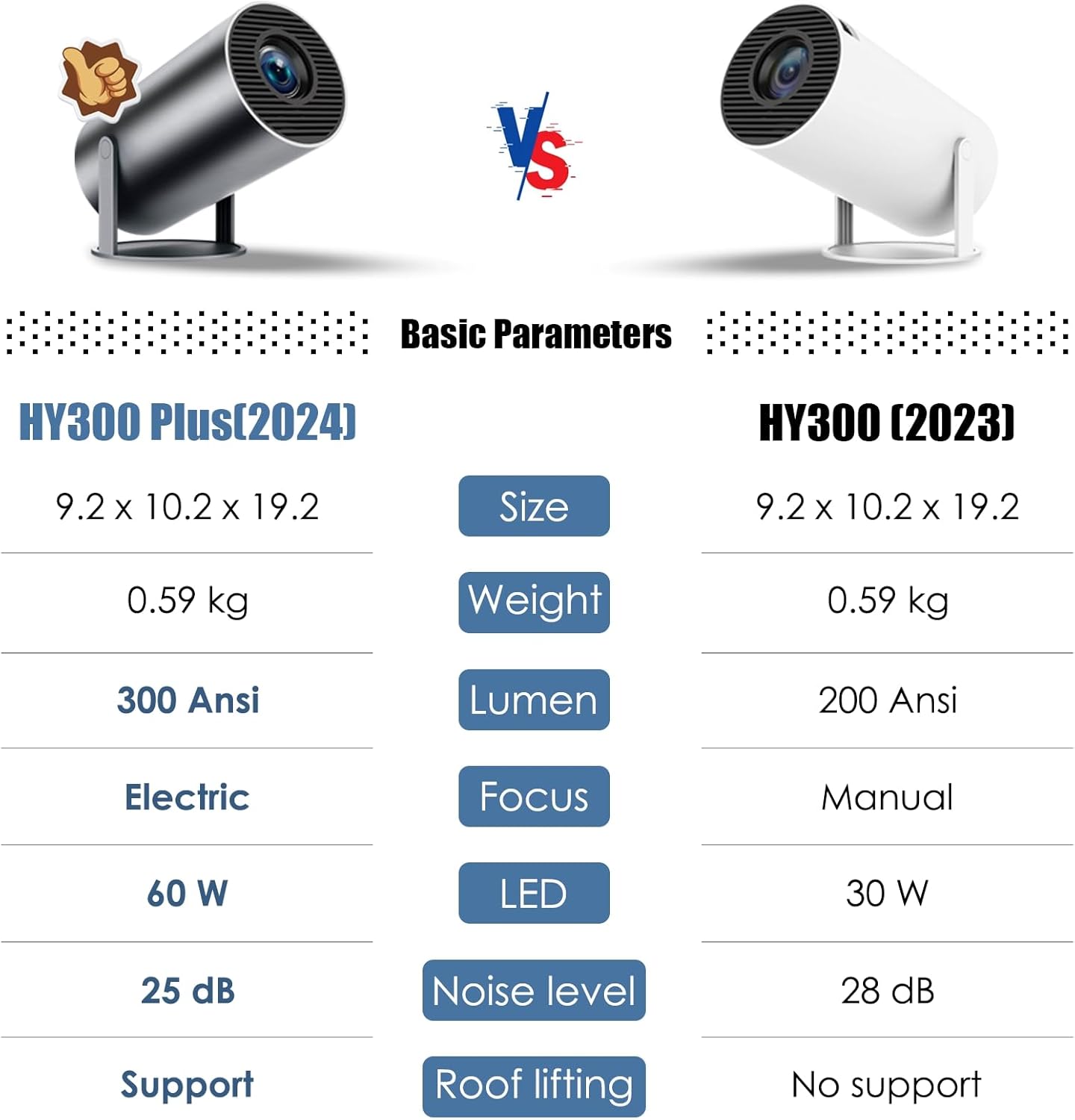
Image 8.1: Comparison of HY300 Plus with previous model, highlighting upgrades.
9. Warranty and Support
For warranty information and customer support, please refer to the warranty card included in your package or contact DUPULEE customer service through the retailer where the product was purchased. Please have your model number (HY300 Plus) and purchase date available when contacting support.