
1. Introduction
This manual provides detailed instructions for the Deeyaple Computer Speakers (Model: G4C). This 40W wireless soundbar is designed for desktop PCs, offering Bluetooth 5.3 and USB audio connectivity, dynamic RGB lighting, and custom EQ software. It is compatible with various devices including laptops, gaming consoles, and smartphones.

Image: Front view of the Deeyaple Computer Speakers, showcasing its sleek design and dynamic RGB lighting.

Image: The Deeyaple Computer Speakers integrated into a compact desktop setup, highlighting its stylish and space-saving design.
2. Package Contents
Please verify that all items are present in the package:
- Deeyaple Computer Speaker (Model: G4C)
- Power Cable
- Type-C to USB Audio Cable
- Quick Start Guide
3. Setup
3.1 Power Connection
- Connect the provided power cable to the DC IN port on the back of the speaker.
- Plug the other end of the power cable into a standard wall outlet.
- The speaker will power on automatically or can be turned on using the power button.
3.2 Audio Connection Options
The Deeyaple Computer Speakers support both Bluetooth 5.3 wireless and USB wired audio connections.
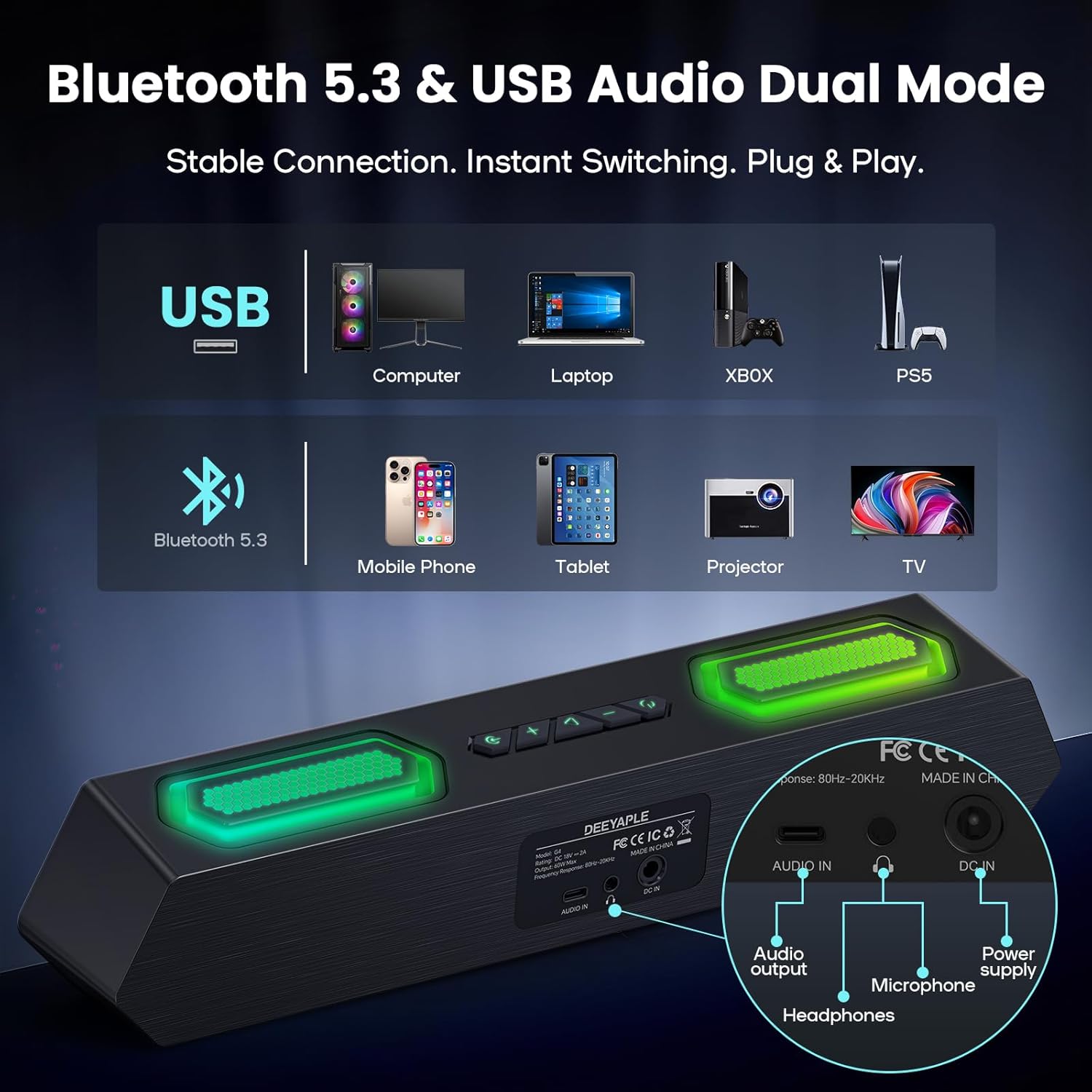
Image: Rear view of the speaker showing USB, Audio In, DC In ports, and compatible devices for Bluetooth and USB connections.
3.2.1 Bluetooth Connection
- Ensure the speaker is powered on.
- Press the Bluetooth button on the speaker to enter pairing mode (indicator light will flash).
- On your device (PC, laptop, smartphone, tablet), navigate to Bluetooth settings and search for "Deeyaple G4C".
- Select the speaker to pair. Once connected, the indicator light will become solid.
3.2.2 USB Audio Connection
- Connect one end of the provided Type-C to USB Audio Cable to the USB port on the speaker.
- Connect the other end of the cable to an available USB port on your computer or compatible device.
- The speaker will automatically switch to USB audio mode. You may need to select "Deeyaple G4C" as the audio output device in your computer's sound settings.
4. Operation
4.1 Basic Controls
The speaker features full-button control for various functions:
- Power Button: Press and hold to turn on/off. Double-click to turn RGB lights completely off.
- Volume Up/Down Buttons: Adjust the audio volume. The volume level will be indicated by the bottom RGB bar.
- Mode Button: Switch between Bluetooth and USB audio input modes.
- RGB Lighting Button: Cycle through different RGB lighting effects.
4.2 Audio Playback
Once connected via Bluetooth or USB, audio from your device will play through the Deeyaple speakers. Use your device's media controls for play/pause and track skipping.

Image: Diagram illustrating the internal components of the speaker, including full-range drivers and bass diaphragms, highlighting 40W Hi-Fi Stereo Sound capabilities.

Image: A user engaged with a computer setup, experiencing immersive sound and dynamic RGB lighting from the Deeyaple Computer Speakers.
5. Software Control (Custom EQ & RGB Lighting)
For advanced customization of sound and lighting, download and install the dedicated PC software (often referred to as "Eduplight" or similar, check the Quick Start Guide for the exact name and download link).
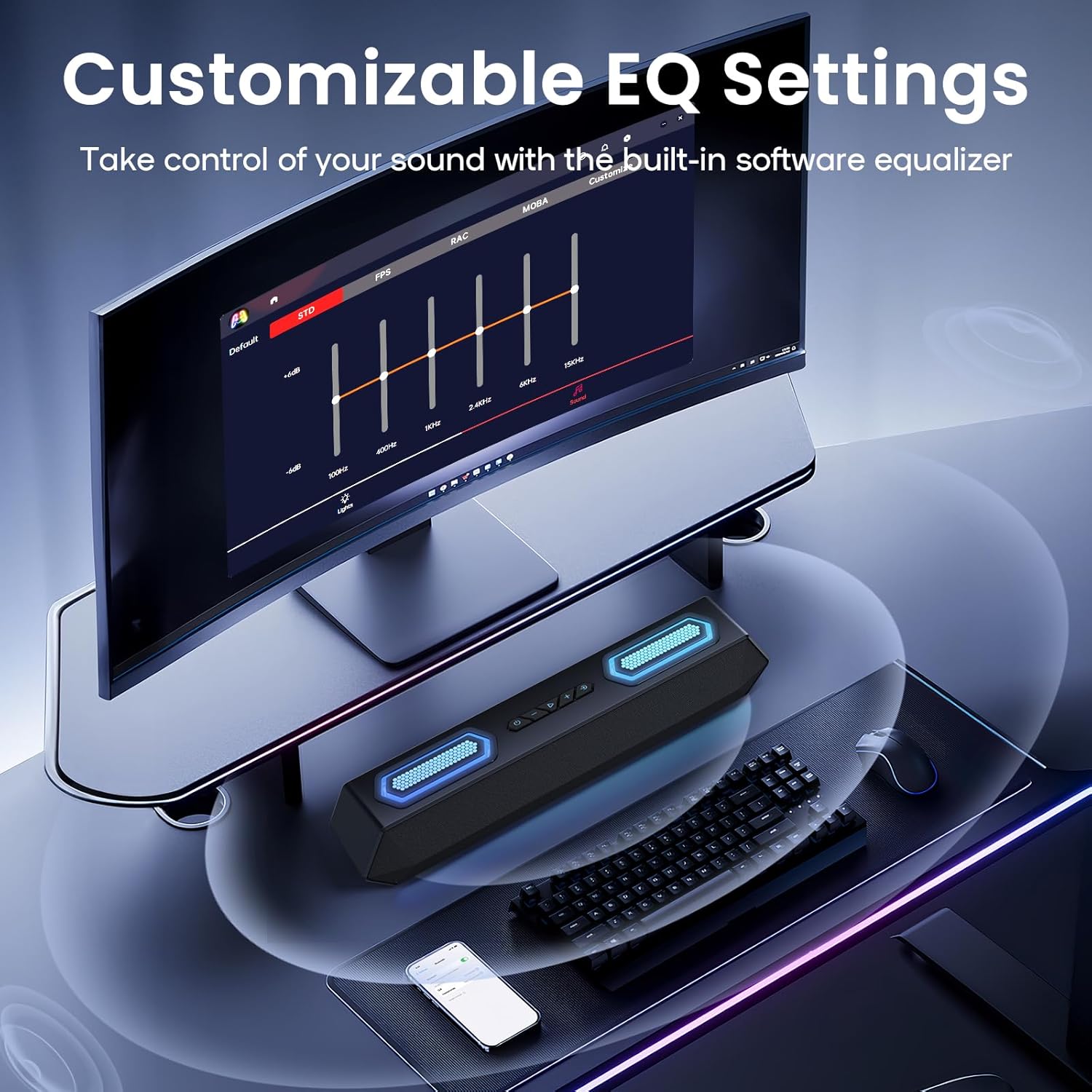
Image: Screenshot of the software interface for customizable EQ settings, showing sliders for bass, treble, and midrange adjustments.
5.1 Customizable EQ Settings
- The software allows you to adjust bass, treble, and midrange frequencies to create your preferred sound profile.
- Pre-set EQ modes may be available for different content types (e.g., gaming, music, movies).
5.2 RGB Lighting Modes

Image: The Deeyaple Computer Speakers displaying various vibrant RGB lighting effects, including 12 presets and transitions controlled via PC software.
- Access 12 dynamic RGB effects through the software.
- Customize colors, brightness, and lighting patterns.
- Features include Screen Color Sync, which matches on-screen colors, and Music Reactive Lighting, which pulses with your audio.
Note: Some users have reported that the software may require an online account or login. If you prefer not to use the software, basic lighting modes can be cycled via the physical button, and volume can be controlled via your connected device.
6. Specifications
| Feature | Detail |
|---|---|
| Model Name | G4C |
| Speaker Type | Portable Speaker |
| Speaker Maximum Output Power | 40 Watts |
| Connectivity Technology | Bluetooth 5.3, USB Audio |
| Special Features | Bass Boost, LED Light (RGB), Software Custom EQ, Screen Color Sync, Music Reactive Lighting |
| Compatible Devices | PC, Laptop, Smartphone, Tablet, Gaming Console (Xbox, PS4) |
| Color | Black |
| Product Dimensions | 13.5"D x 2.5"W x 3.34"H |
| Item Weight | 2.27 pounds |
| Power Supply | External Power Adapter |
| UPC | 850060113321 |
7. Troubleshooting
| Problem | Possible Solution |
|---|---|
| No sound from speakers. |
|
| Bluetooth pairing fails. |
|
| RGB lights are not working or stuck. |
|
| Sound quality issues (e.g., distortion, weak bass). |
|
| Software requires login/account. |
|
8. Maintenance
- Cleaning: Use a soft, dry cloth to clean the speaker's surface. Do not use liquid cleaners or abrasive materials.
- Storage: Store the speaker in a cool, dry place away from direct sunlight and extreme temperatures.
- Handling: Avoid dropping the speaker or exposing it to strong impacts.
- Water Exposure: This product is not waterproof. Keep it away from water and high humidity.
9. Warranty and Support
For warranty information and technical support, please refer to the warranty card included with your product or visit the official Deeyaple website. Keep your purchase receipt for warranty claims.
For further assistance, you may contact Deeyaple customer service through their official channels.