1. Introduction
Thank you for choosing the SKYWORTH H30P WiFi 3MP Indoor Surveillance Camera. This manual provides essential information for the safe and efficient operation of your device. Please read it thoroughly before use and retain it for future reference.
Safety Information
- Ensure the camera is installed in a stable location to prevent falling.
- Use only the provided power adapter to avoid damage or fire.
- Keep the camera away from water and moisture.
- Do not attempt to disassemble or repair the camera yourself. Contact qualified service personnel.
- Avoid placing the camera in direct sunlight or near heat sources.
- This camera is designed for indoor use only.
2. Package Contents
Please check the package for the following items:
- SKYWORTH H30P Camera
- Power Adapter
- Mounting Screws
- Fixing Screws
- Stand
- Instruction Manual (this document)

Image: The SKYWORTH H30P camera with its included accessories, including the power adapter and mounting hardware.
3. Product Overview
The SKYWORTH H30P is a versatile indoor surveillance camera designed for comprehensive monitoring. It features advanced capabilities for enhanced security and communication.
Key Features:
- 3MP High-Definition Video: Captures clear and detailed images at 1920p resolution.
- WiFi 6 Connectivity: Ensures faster and more stable wireless connection.
- 360° Rotation & Vertical Tilt: Provides full panoramic coverage without blind spots.
- Color Night Vision: Delivers vivid images even in low-light or complete darkness up to 20 meters.
- Two-Way Audio: Built-in microphone and speaker for real-time communication.
- Human Detection & Tracking: Advanced motion sensing for intelligent alerts.
- Wired (RJ45) & Wireless (WiFi) Connection: Flexible networking options.
- Compact Dome Design: Blends seamlessly with indoor environments.

Image: Front view of the SKYWORTH H30P camera, emphasizing its 3MP resolution and smart functionalities like two-way audio, 360° rotation, and human detection.

Image: Rear view of the SKYWORTH H30P camera, showing the WiFi 6 capability and the RJ45 Ethernet port for wired connectivity.
4. Setup
4.1 Installation
- Choose a Location: Select an indoor location with a clear view of the area you wish to monitor. Ensure it is within range of your WiFi network or close to an Ethernet port.
- Mounting Options:
- Desktop Placement: Place the camera on a flat, stable surface.
- Ceiling/Wall Mount: Use the provided stand, mounting screws, and fixing screws to securely attach the camera to a ceiling or wall. Ensure the mounting surface can support the camera's weight.
- Power Connection: Connect the power adapter to the camera's power input port and then plug it into a power outlet. The camera will power on and initiate its startup sequence.
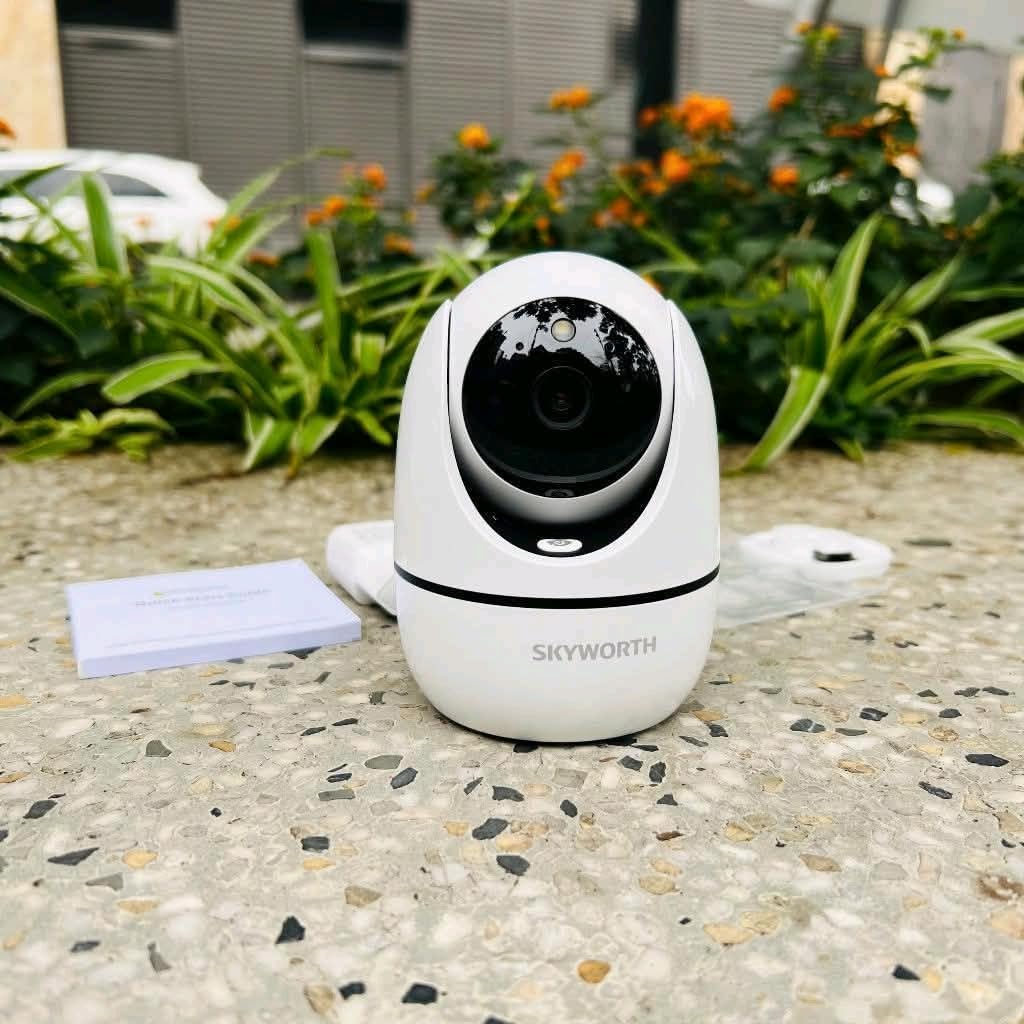
Image: The SKYWORTH H30P camera placed on a surface, demonstrating a typical installation scenario.
4.2 Network Connection
The H30P camera supports both wireless (WiFi) and wired (RJ45) connections.
- Download the App: Search for the official SKYWORTH smart home application on your smartphone's app store (iOS or Android) and install it.
- Create an Account: Open the app and follow the on-screen instructions to create a new user account or log in if you already have one.
- Add Device:
- Wireless Setup:
- In the app, select "Add Device" and choose your camera model.
- Follow the app's instructions to connect the camera to your WiFi network. This usually involves scanning a QR code displayed on your phone with the camera or entering your WiFi credentials.
- Ensure your smartphone is connected to a 2.4GHz or 5GHz WiFi network (WiFi 6 compatible).
- Wired Setup (Optional):
- Connect an Ethernet cable from your router to the RJ45 port on the back of the camera.
- In the app, select "Add Device" and choose the wired connection option. The camera should be automatically detected.
- Wireless Setup:
- Configuration: Once connected, you can name your camera and configure settings such as motion detection zones, recording preferences, and notification alerts within the app.
5. Operating the Camera
5.1 Live View and Recording
- Access Live Feed: Open the SKYWORTH app and select your camera to view the live video feed.
- Manual Recording: Tap the record button in the app to manually start or stop video recording.
- Screenshot: Capture still images from the live feed using the screenshot button.
5.2 Pan and Tilt Control
- In the live view, use the directional controls within the app to remotely rotate the camera horizontally (360°) and tilt it vertically to adjust the viewing angle.
- The camera also supports automatic cruise functions for continuous area scanning.
5.3 Two-Way Audio
- Tap the microphone icon in the app to speak through the camera's speaker.
- The camera's built-in microphone will capture audio from the monitored area, allowing you to listen in real-time.
5.4 Night Vision
- The camera automatically switches to night vision mode in low-light conditions.
- The H30P features color night vision, providing clearer and more detailed images than traditional black and white night vision.
5.5 Motion Detection and Alerts
- Configure motion detection sensitivity and detection zones in the app settings.
- When motion is detected, the camera will automatically record video and send push notifications to your smartphone.
- The human detection feature helps reduce false alarms by distinguishing human shapes from other movements.
6. Maintenance
- Cleaning: Use a soft, dry cloth to clean the camera lens and body. Do not use liquid cleaners or abrasive materials.
- Firmware Updates: Regularly check the app for available firmware updates to ensure optimal performance and security.
- Storage: If storing the camera for an extended period, disconnect it from power and store it in a cool, dry place.
- Data Security: Ensure your WiFi network is secure and use strong passwords for your camera and app accounts.
7. Troubleshooting
| Problem | Possible Cause | Solution |
|---|---|---|
| Camera not powering on | Power adapter not connected; Power outlet faulty | Ensure power adapter is securely connected. Try a different power outlet. |
| Unable to connect to WiFi | Incorrect WiFi password; Camera too far from router; Router issues | Verify WiFi password. Move camera closer to router. Restart router. Ensure you are connecting to a 2.4GHz or 5GHz network. |
| No video feed | Network connection issue; Camera offline | Check network connection. Restart the camera. Ensure the app is updated. |
| Two-way audio not working | Microphone/speaker muted in app; App permissions | Check app settings to ensure audio is not muted. Grant microphone permissions to the app on your smartphone. |
| Motion alerts not received | Motion detection disabled; App notifications off; Incorrect settings | Enable motion detection and configure alert settings in the app. Check your phone's notification settings for the app. |
8. Specifications
| Feature | Detail |
|---|---|
| Model Number | H30P |
| Video Capture Resolution | 3MP (1920p) |
| Connectivity Technology | Wireless (WiFi 6), Wired (RJ45) |
| Wireless Protocol | Wi-Fi Network |
| Pan/Tilt Rotation | 360° Horizontal Rotation, Vertical Tilt |
| Night Vision Range | Up to 20 meters (Color Night Vision) |
| Special Features | Night Vision, Audio Recording, High Definition, Motion Sensor, Two-Way Audio, Human Detection |
| Indoor/Outdoor Use | Indoor |
| Compatible Devices | Smartphone |
| Power Source | Corded Electric |
| Form Factor | Dome |
| Mounting Type | Screw (Ceiling Mount, Desktop Surface Mount) |
| Item Dimensions (L x W x H) | 4 x 8 x 8 cm (approx. 40 x 80 x 80 mm) |
| Item Weight | 240 g |
| Color | White |
9. Warranty and Support
For warranty information and technical support, please refer to the warranty card included in your package or visit the official SKYWORTH website. You may also contact customer service through the smart home application.
Manufacturer: SKY-WORTH
Country of Origin: China


