
TECKNET KB005
TECKNET Wrist Rest and Bluetooth Keyboard User Manual
Model: KB005
1. Introduction
Thank you for choosing the TECKNET Wrist Rest and Bluetooth Keyboard. This product combines an ergonomic wrist rest designed for comfort and pain relief with a versatile, multi-device Bluetooth keyboard. This manual provides detailed instructions for setup, operation, maintenance, and troubleshooting to ensure you get the most out of your new device.

Image 1.1: The TECKNET Wrist Rest and Bluetooth Keyboard, showcasing both components together.
2. Package Contents
Please check the package contents to ensure all items are present:
- TECKNET Ergonomic Wrist Rest
- TECKNET KB005 Bluetooth Keyboard
- USB-C Charging Cable
- 2.4G USB Receiver (stored in the keyboard's battery compartment)
- User Manual (this document)
3. Setup Guide
3.1. Wrist Rest Setup
The TECKNET Wrist Rest requires no complex setup. Simply place it in front of your keyboard, aligning it so your wrists can comfortably rest on its surface while typing. Ensure the anti-slip rubber base is in full contact with your desk surface for stability.

Image 3.1: Illustration of the ergonomic design of the wrist rest, showing its benefits for wrist comfort and pain prevention.

Image 3.2: Close-up of the premium memory foam material, highlighting its soft and supportive properties.

Image 3.3: Detail of the anti-slip rubber base, ensuring the wrist rest remains stable during use.
3.2. Keyboard Setup
3.2.1. Charging the Keyboard
Before first use, fully charge the keyboard using the provided USB-C cable. Connect one end to the keyboard's USB-C port and the other end to a USB power source (e.g., computer, wall adapter).
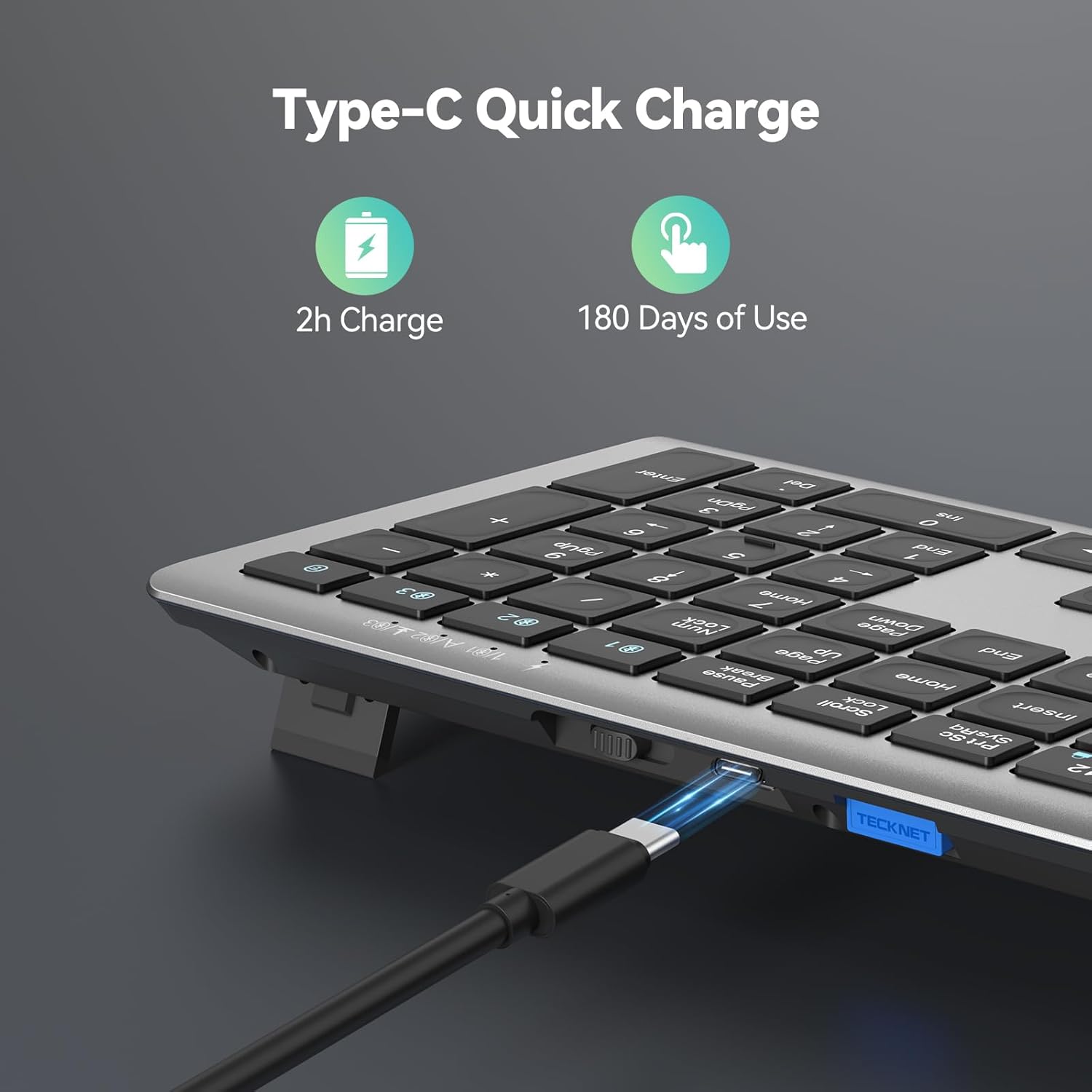
Image 3.4: The keyboard's Type-C charging port, illustrating the quick charge capability.
3.2.2. Connecting the Keyboard (4 Modes Connection)
The KB005 keyboard supports four connection modes: one 2.4G wireless mode and three Bluetooth modes. You can switch between these modes to connect up to four different devices simultaneously.
- 2.4G Wireless Mode:
- Locate the 2.4G USB receiver, usually stored in a compartment on the keyboard.
- Plug the USB receiver into an available USB port on your computer or device.
- Turn on the keyboard. The keyboard should automatically connect to the receiver. If not, press the 2.4G key (often indicated by a specific icon or number) to activate 2.4G mode.
- Bluetooth Modes (BT1, BT2, BT3):
- Turn on the keyboard.
- Press and hold one of the Bluetooth keys (e.g., BT1, BT2, or BT3, often indicated by numbers 1, 2, 3 above the function keys) for 3-5 seconds until the indicator light flashes rapidly. This indicates pairing mode.
- On your device (PC, laptop, tablet, phone, smart TV), go to Bluetooth settings and search for new devices.
- Select "TECKNET KB005" (or similar name) from the list of available devices to pair.
- Repeat for BT2 and BT3 to connect up to two additional Bluetooth devices.

Image 3.5: Visual representation of the keyboard's 4 modes connection, showing connectivity to various devices.
4. Operating Instructions
4.1. Switching Between Devices (Keyboard)
Once multiple devices are paired, you can effortlessly switch between them by simply pressing the corresponding connection key:
- Press the 2.4G key to switch to the device connected via the USB receiver.
- Press the BT1 key to switch to the first Bluetooth-paired device.
- Press the BT2 key to switch to the second Bluetooth-paired device.
- Press the BT3 key to switch to the third Bluetooth-paired device.
4.2. Multimedia Keys (Keyboard)
The keyboard features dedicated multimedia keys (F1-F12, often combined with Fn key) for quick access to functions like volume control, playback, and more. Refer to the key legends for specific functions.
4.3. Operating System Compatibility (Keyboard)
The keyboard automatically detects and adapts to different operating systems, including Windows, macOS, Android, and iOS, ensuring broad compatibility and optimal performance.
4.4. Quiet Typing Experience (Keyboard)
The KB005 keyboard is designed for quiet typing, reducing noise by up to 90% compared to traditional keyboards, providing a comfortable and less disruptive typing experience.

Image 4.1: Illustration demonstrating the reduced noise level of the keyboard during typing.
5. Maintenance
5.1. Cleaning the Wrist Rest
The wrist rest features a waterproof surface, making it easy to clean. Use a damp cloth with mild soap and water to wipe down the surface. Avoid harsh chemicals or abrasive cleaners. Allow it to air dry completely before use.

Image 5.1: Close-up of the wrist rest's waterproof surface, showing its easy-to-clean property.
5.2. Cleaning the Keyboard
To clean the keyboard, power it off first. Use a soft, lint-free cloth to wipe the keys and surface. For stubborn dirt, a slightly damp cloth can be used. Avoid getting moisture into the keyboard's internal components. Compressed air can be used to remove debris from between the keys.
6. Troubleshooting
- Keyboard not connecting/pairing:
- Ensure the keyboard is powered on and fully charged.
- For Bluetooth, ensure the keyboard is in pairing mode (indicator light flashing rapidly).
- For 2.4G, ensure the USB receiver is securely plugged in and the keyboard is in 2.4G mode.
- Try restarting the keyboard and your device.
- Remove previous pairings from your device's Bluetooth list and try pairing again.
- Lag or intermittent connection:
- Ensure the keyboard is within the effective range (up to 15 meters).
- Check for interference from other wireless devices.
- Ensure the keyboard is fully charged.
- Keys not responding:
- Check battery level and charge if necessary.
- Ensure the keyboard is properly connected to your device.
- Restart the keyboard and your device.
- Wrist rest slipping:
- Ensure the desk surface is clean and dry.
- Verify the anti-slip rubber base is free of dust or debris.
7. Specifications
- Product Name: TECKNET Wrist Rest and Bluetooth Keyboard
- Model: KB005
- Wrist Rest Material: High-quality 80D Memory Foam, Lycra surface, Anti-slip Rubber Base
- Wrist Rest Thickness: Approximately 1 inch (25mm)
- Keyboard Connectivity: 2.4G Wireless, Bluetooth (BT1, BT2, BT3)
- Number of Devices: Up to 4 (1 x 2.4G, 3 x Bluetooth)
- Wireless Range: Up to 15 meters (49 feet)
- Keyboard Battery: Rechargeable (Type-C charging)
- Charging Time: Approximately 2 hours
- Battery Life: Up to 180 days of use (keyboard, based on typical usage)
- Noise Reduction: Up to 90% (keyboard)
- Compatibility: Windows, macOS, Android, iOS, Smart TVs
8. Warranty and Support
TECKNET products come with a standard warranty. For detailed warranty information, product support, or technical assistance, please visit the official TECKNET website or contact their customer service. Keep your purchase receipt for warranty claims.
TECKNET Official Website: www.tecknet.co.uk (Please note: URL may vary by region)
Related documentsKB005


Ask a question about this manual
Ask about setup, troubleshooting, compatibility, parts, safety, or missing instructions. Manuals+ will review the question and use this page’s manual context to help answer it.