
1. Product Overview
The ZTE nubia Neo 3 5G Smartphone is designed for users seeking high performance and an immersive experience. It features a large 6.8-inch display with a 120Hz refresh rate, a powerful processor, and a versatile camera system. This manual provides essential information for setting up, operating, and maintaining your device.
Key Features
- Display: 6.8-inch, 120Hz refresh rate for smooth visuals.
- Performance: 20GB RAM (8GB physical + 12GB extended) and 256GB internal storage, powered by a Unisoc T8300 5G processor.
- Camera: 50MP AI dual camera system for high-quality photography.
- Battery & Charging: Supports 33W fast charging.
- Audio: DTS:X Ultra for immersive sound.
- Durability: IP54 rating for dust and splash resistance.
- Gaming Enhancements: Dedicated gaming shoulder triggers and AI Game Space 3.0.

Figure 1.1: Front and back view of the ZTE nubia Neo 3 5G Smartphone, showcasing its display and camera module.

Figure 1.2: Detailed back view of the nubia Neo 3, highlighting the camera array and design elements.
2. Initial Setup
2.1. SIM Card and MicroSD Card Installation
To ensure network connectivity and expand storage, install your SIM card(s) and an optional MicroSD card.
- Locate the SIM card tray on the side of your device.
- Insert the SIM ejector tool into the small hole next to the tray and press firmly until the tray pops out.
- Place your Nano-SIM card(s) and/or MicroSD card into the designated slots on the tray, ensuring the gold contacts face downwards.
- Carefully reinsert the tray into the device until it clicks into place.

Figure 2.1: Side view of the nubia Neo 3, showing the location of the SIM card tray and physical buttons.
2.2. Powering On and Initial Configuration
- Press and hold the Power button (located on the side) until the nubia logo appears.
- Follow the on-screen prompts to select your language, connect to a Wi-Fi network, and set up your Google account.
- Review and accept the terms and conditions to complete the initial setup.
2.3. Charging the Device
Before first use, it is recommended to fully charge your device. The nubia Neo 3 supports 33W fast charging.
- Connect the USB Type-C cable to the charging port at the bottom of the phone.
- Connect the other end of the cable to the power adapter, then plug the adapter into a wall outlet.
- The charging indicator will appear on the screen.
3. Operating Instructions
3.1. Basic Navigation
- Touch: Tap an icon to open an app or select an item.
- Swipe: Drag your finger across the screen to scroll or navigate between screens.
- Pinch: Use two fingers to zoom in or out on photos and web pages.
- Long Press: Press and hold an item for more options or to move it.
3.2. Making Calls and Sending Messages
- Calls: Open the Phone app, enter the number, and tap the call icon.
- Messages: Open the Messages app, tap the new message icon, enter the recipient and your message, then send.
3.3. Camera Usage
The 50MP AI dual camera system offers various modes for capturing photos and videos.
- Open the Camera app.
- Select your desired mode (e.g., Photo, Portrait, Video).
- Tap the shutter button to take a photo or start/stop recording a video.
- Utilize AI features for scene recognition and optimization.

Figure 3.1: Visual representation of AI Magic Editor for image enhancement, haptic feedback motor, DTS:X Ultra audio, and the multi-layer heat dissipation system.
3.4. Gaming Features
The nubia Neo 3 is equipped with features to enhance your mobile gaming experience.
- Shoulder Triggers: Utilize the dedicated shoulder triggers for improved control in games. These can often be mapped to in-game actions.
- AI Game Space 3.0: Access Game Space for performance optimization, notification management, and other gaming-specific settings.
3.5. Display and Audio Settings
- Display: Adjust brightness, refresh rate (120Hz), and color settings in the 'Display' section of the Settings app.
- Audio: Configure sound profiles, volume levels, and DTS:X Ultra settings in the 'Sound & Vibration' section.
4. Maintenance
4.1. Cleaning Your Device
- Use a soft, lint-free cloth to clean the screen and body.
- Avoid using harsh chemicals or abrasive materials.
- For stubborn smudges, slightly dampen the cloth with water or a screen cleaner.
- Ensure all ports are dry before charging.
4.2. Software Updates
Regular software updates provide security enhancements and new features.
- Go to Settings > System > System update to check for available updates.
- Ensure your device has sufficient battery life and a stable internet connection before starting an update.
4.3. Battery Care
- Avoid extreme temperatures, as they can degrade battery life.
- Do not leave the phone charging for extended periods after it reaches 100%.
- For optimal battery longevity, try to keep the charge level between 20% and 80%.
5. Troubleshooting
5.1. Common Issues and Solutions
- Device not turning on: Ensure the battery is charged. Connect to a charger for at least 15 minutes, then try powering on again.
- Apps crashing or freezing: Close and reopen the app. If the issue persists, clear the app's cache or reinstall it.
- No network signal: Check if the SIM card is correctly inserted. Try restarting the device. Verify network settings in Settings > Network & internet.
- Slow performance: Close unnecessary background apps. Clear cache and temporary files. Consider freeing up storage space.
5.2. Factory Reset
Warning: A factory reset will erase all data on your phone, including apps, photos, and settings. Back up important data before proceeding.
- Go to Settings > System > Reset options.
- Select Erase all data (factory reset).
- Confirm your decision and enter your PIN/password if prompted.
- The device will restart and begin the reset process.
6. Specifications
Detailed technical specifications for the ZTE nubia Neo 3 5G Smartphone.
| Feature | Detail |
|---|---|
| Model Name | nubia Neo 3 |
| Brand | ZTE |
| Operating System | Android 14 |
| Processor | Unisoc T8300 5G |
| RAM | 20GB (8GB physical + 12GB extended) |
| Storage Capacity | 256GB (with MicroSD card slot for expansion) |
| Screen Size | 6.8 Inches |
| Refresh Rate | 120Hz |
| Camera System | 50MP AI Dual Camera |
| Charging | 33W Fast Charging |
| Cellular Technology | 5G |
| Wireless Carrier | Unlocked for All Carriers |
| Dimensions | 10 x 10 x 2.7 cm |
| Weight | 194 g |
| Durability | IP54 (Dust and Splash Resistant) |

Figure 6.1: Visual representation of the Unisoc T8300 5G processor, NeoTurbo performance engine, and the 20GB dynamic RAM configuration.
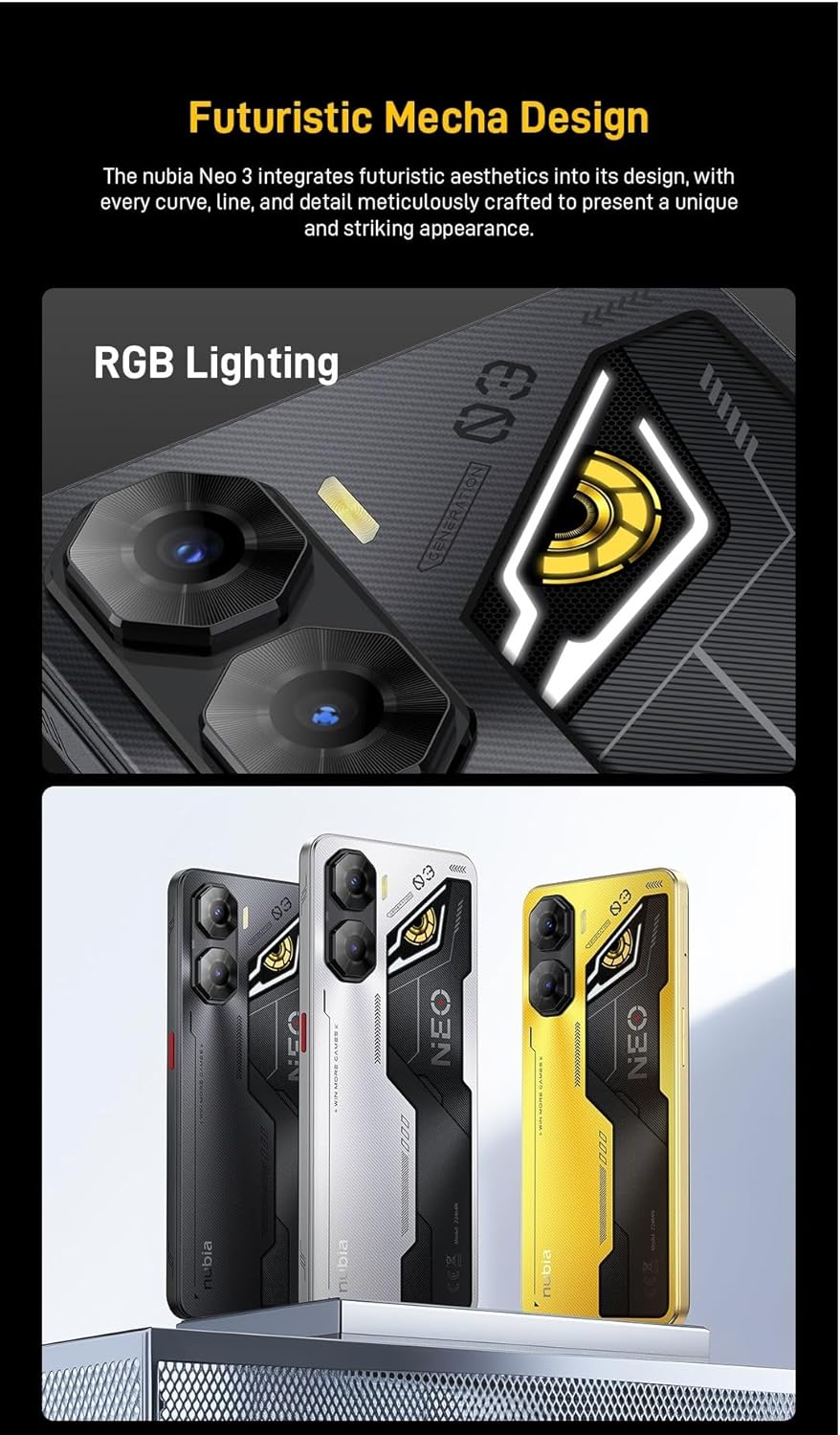
Figure 6.2: Illustration of the phone's futuristic mecha design, including RGB lighting elements and available color options.
7. Warranty and Support
Your ZTE nubia Neo 3 5G Smartphone comes with a standard manufacturer's warranty. The duration and terms of the warranty may vary by region and retailer.
- Warranty Information: Please refer to the warranty card included in your product packaging or visit the official ZTE website for detailed warranty terms and conditions.
- Technical Support: For technical assistance, troubleshooting beyond this manual, or service inquiries, please contact ZTE customer support through their official website or designated service centers.
- Online Resources: Additional support, FAQs, and software downloads may be available on the official ZTE nubia support page.


