1. Introduction
Thank you for choosing the SANNCE PoE NVR 4K 8 Channel Security Camera System. This manual provides essential information for the proper installation, operation, and maintenance of your Network Video Recorder (NVR). Please read this manual thoroughly before using the product and retain it for future reference. This NVR supports up to 8 channels of 8MP cameras, along with 2 additional IP cameras, offering comprehensive surveillance capabilities with 4K HD quality output.
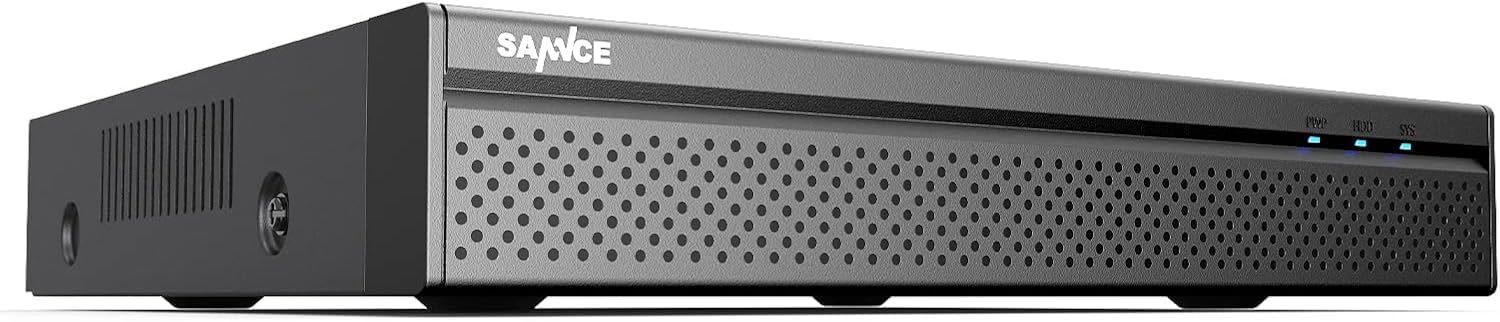
Figure 1: SANNCE PoE NVR 4K 8 Channel Security Camera System (Illustrative)
2. Safety Information
- Power Supply: Use only the specified power adapter. Incorrect voltage may damage the device and void the warranty.
- Ventilation: Ensure proper ventilation around the NVR to prevent overheating. Do not block ventilation openings.
- Environment: Avoid placing the NVR in extreme temperatures, high humidity, dusty environments, or direct sunlight.
- Handling: Handle the device with care. Avoid dropping or subjecting it to strong impacts.
- Cleaning: Disconnect power before cleaning. Use a soft, dry cloth. Do not use liquid or aerosol cleaners.
- Servicing: Do not attempt to disassemble or repair the NVR yourself. Refer all servicing to qualified personnel.
3. Package Contents
Please check the package contents upon receipt. If any items are missing or damaged, contact your retailer immediately.
- SANNCE PoE NVR (Model: 61BH)
- Power Adapter for NVR
- USB Mouse
- Ethernet Cable
- Quick Start Guide
- Mounting Screws (for HDD installation, if applicable)
4. Setup
4.1 Hardware Connection
Follow these steps to connect your NVR and cameras:
- Connect Monitor: Connect a monitor to the NVR's HDMI or VGA output port using an appropriate cable.
- Connect Mouse: Plug the USB mouse into one of the NVR's USB ports.
- Connect Network: Connect the NVR's LAN port to your router or network switch using an Ethernet cable for internet access and remote viewing.
- Connect PoE Cameras: Connect your PoE IP cameras to the NVR's PoE ports using Ethernet cables. The NVR will provide both power and data transmission to the cameras.
- Connect Non-PoE IP Cameras (Optional): If you have additional non-PoE IP cameras, connect them to your network (via a separate PoE switch or power adapter) and ensure they are on the same network as the NVR. You can add up to 2 additional IP cameras.
- Connect Power: Connect the NVR's power adapter to the DC 12V input port and then plug it into a power outlet. The NVR will power on automatically.
Figure 2: Illustrative diagram of NVR rear panel connections (HDMI, VGA, LAN, USB, PoE ports, DC 12V power input).
4.2 Initial Configuration
Upon first boot-up, the NVR will guide you through a setup wizard:
- Set Password: Create a strong password for the admin account.
- Network Settings: Configure network settings (DHCP is usually enabled by default). Ensure the NVR has internet access for remote viewing features.
- Date & Time: Set the correct date, time, and time zone.
- HDD Initialization: If a new hard drive is installed, the system may prompt you to initialize or format it. Follow the on-screen instructions.
- Camera Search: The NVR will automatically search for and add connected PoE cameras. For non-PoE IP cameras, you may need to add them manually via the camera management interface.
- Finish: Complete the wizard to access the live view interface.
5. Operating Instructions
5.1 Live View
After initial setup, the NVR will display the live view of all connected cameras. You can switch between single-camera view, multi-camera grid view, and access various controls via the on-screen menu (right-click with the mouse).
5.2 Recording Modes
The NVR supports several recording modes:
- Continuous Recording: Records 24/7.
- Motion Detection Recording: Records only when motion is detected in the camera's field of view.
- Scheduled Recording: Records according to a predefined schedule.
- Alarm Recording: Records when an external alarm device is triggered.
- Intelligent Detection Recording: If supported by the front-end camera protocol, the NVR can record based on human, face, or vehicle detection.
Configure recording schedules and detection zones in the NVR's menu under "Record" or "Alarm" settings.
5.3 Remote Access
Access your NVR remotely using the SANNCE App (Sannce Vision) or client software:
- Download App: Download the "Sannce Vision" app from your smartphone's app store.
- Register Account: Create an account and log in.
- Add Device: Scan the NVR's QR code (usually found in the NVR's network settings or on a sticker on the device) or manually enter the device ID to add your NVR.
- View Live/Playback: Once added, you can view live feeds, play back recordings, and receive real-time alerts on your mobile device or computer.
Ensure your NVR has a stable internet connection for reliable remote access and alert notifications.
5.4 Playback
To review recorded footage:
- Access Playback: Right-click on the live view screen and select "Playback" from the menu.
- Select Date & Channel: Choose the desired date and camera channel(s) for playback.
- Search: Use the timeline or intelligent retrieval options (by time point, calendar, event, channel, face, or vehicle) to find specific recordings.
- Control Playback: Use the playback controls (play, pause, fast forward, rewind) to navigate through the footage.
6. Maintenance
- Regular Cleaning: Keep the NVR and cameras clean from dust and debris. Use a soft, dry cloth.
- Firmware Updates: Periodically check the SANNCE official website for firmware updates to ensure optimal performance and security. Follow update instructions carefully.
- Hard Drive Management: The NVR supports up to 12 TB hard drives for 24/7 recording. Regularly check the HDD status in the NVR settings to ensure it is functioning correctly. Back up important footage as needed.
- Password Security: Change your NVR and app passwords regularly to maintain security.
7. Troubleshooting
| Problem | Possible Cause | Solution |
|---|---|---|
| No video output on monitor. | Loose cable connection, incorrect input source on monitor, NVR not powered on. | Check HDMI/VGA cable connections. Ensure monitor is set to correct input. Verify NVR power. |
| Cameras not displaying in live view. | PoE cable issue, camera not powered, camera not added to NVR, network issue for non-PoE cameras. | Check PoE cable connections. Ensure cameras are powered. Go to "Camera Management" to search and add cameras. Verify network connectivity for non-PoE cameras. |
| Remote access not working. | NVR not connected to internet, incorrect network settings, app issues. | Verify NVR's internet connection. Check network settings (DHCP/Static IP). Ensure correct device ID is entered in the app. Restart NVR and router. |
| No recording or incomplete recording. | HDD not initialized/full, recording schedule not set, motion detection not configured. | Check HDD status and initialize/format if needed. Review recording schedules. Configure motion detection zones and sensitivity. |
| System freezes or restarts unexpectedly. | Overheating, power supply issue, firmware issue, faulty HDD. | Ensure proper ventilation. Check power adapter. Update firmware. Check HDD health. Contact support if issues persist. |
8. Specifications
| Feature | Detail |
|---|---|
| Model Number | 61BH |
| Video Input | 8-channel PoE (up to 8MP), 2-channel IP (up to 8MP) |
| Video Output | HDMI (up to 4K), VGA |
| PoE Ports | 8 x 100Mbps, IEEE 802.3af/at compliant (up to 30W per port) |
| Video Compression | H.264+ |
| Hard Drive Support | Up to 12 TB (HDD not included) |
| Connectivity | Wired Ethernet |
| Special Features | App Control, Human/Face/Vehicle Detection (camera dependent) |
| Power Source | DC 12V (Corded Electric) |
| Dimensions (L x W x H) | 9 x 2 x 3 inches |
| Item Weight | 4 pounds |
9. Warranty and Support
SANNCE products are designed for reliability and performance. For detailed warranty information, please refer to the warranty card included with your product or visit the official SANNCE website.
If you encounter any issues or have questions regarding your SANNCE PoE NVR, please contact SANNCE customer support through their official website or the contact information provided in your product packaging. Please have your model number (61BH) and purchase details ready when contacting support.


