
Introduction
The ATTACK SHARK X11SE is a lightweight, tri-mode wireless gaming mouse designed for high-performance gaming and office use. It features a PixArt PAW3311 gaming sensor, offering up to 22,000 DPI, and supports 2.4G wireless, Bluetooth, and USB-C wired connectivity. Its ultra-light 59g design aims to reduce fatigue during extended use, while the efficient battery provides up to 65 hours of operation.

Image: The ATTACK SHARK X11SE mouse highlighting its 22,000 DPI, 1000Hz polling rate, and ultra-light design.
Setup
1. Unboxing and Initial Charge
Upon unboxing, it is recommended to fully charge the mouse. Connect the provided USB-C cable to the mouse and to a USB power source. A full charge typically takes 2-3 hours.
2. Connectivity Modes
The X11SE mouse supports three connectivity modes:
- 2.4G Wireless Mode: For a stable, low-latency connection.
- Bluetooth Mode: For general use and compatibility with various devices.
- USB-C Wired Mode: For direct connection and charging.

Image: The ATTACK SHARK X11SE mouse illustrating its three connectivity options: 2.4G Wireless, Wired Mode, and Bluetooth 5.2.
3. Switching Modes
Locate the mode switch on the bottom of the mouse. Slide it to select your desired connection mode (2.4G, Bluetooth, or Wired). For 2.4G wireless, insert the USB receiver into your device. For Bluetooth, ensure your device's Bluetooth is enabled and pair with the mouse.
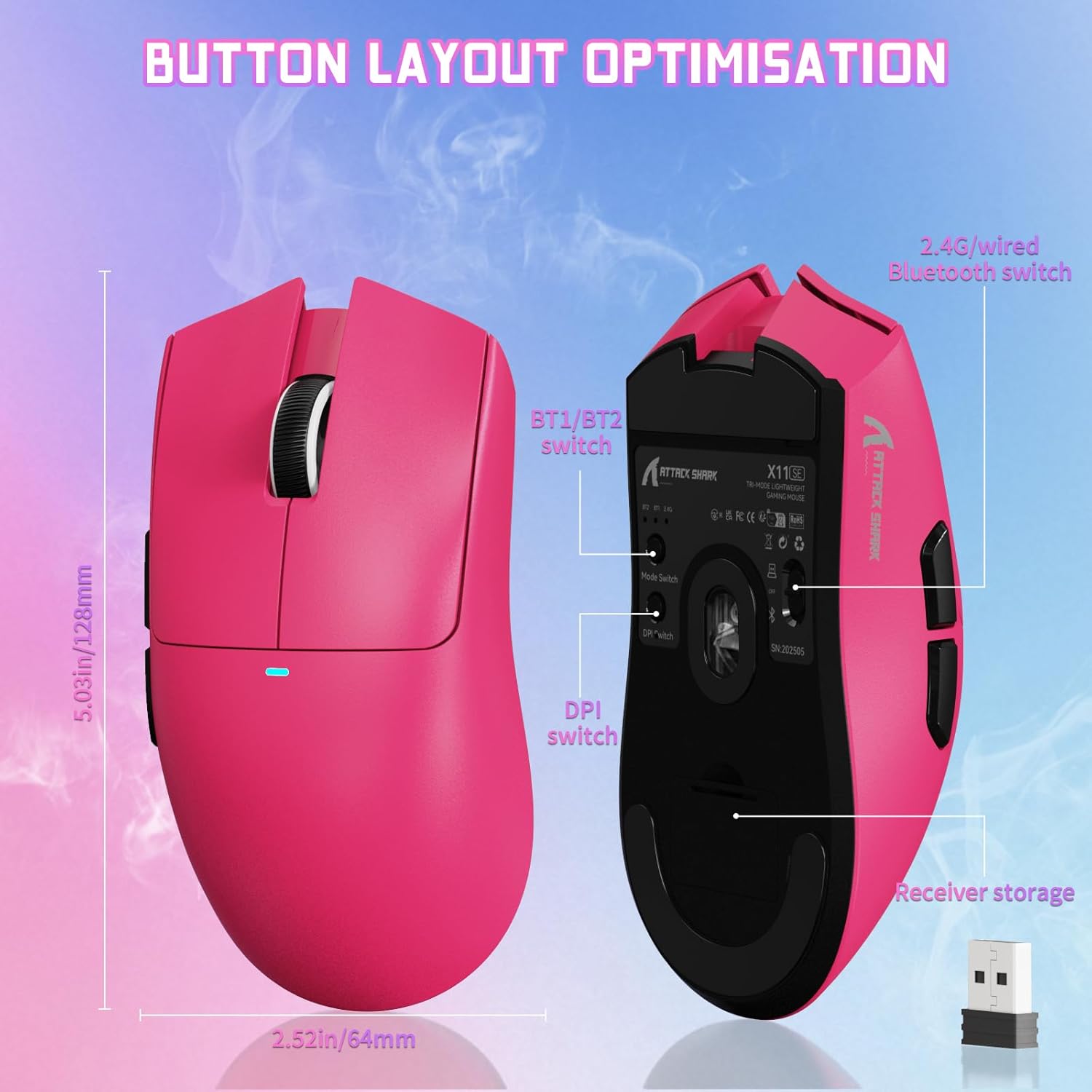
Image: Bottom view of the ATTACK SHARK X11SE mouse, highlighting the mode switch, DPI switch, and receiver storage compartment.
4. Cloud Driver Software
The X11SE mouse utilizes a cloud-driven webpage for customization. Access the driver software via the provided link to configure buttons, DPI settings, polling rate, and macros. No installation is required, making it compatible with Windows, macOS, and Linux systems.
Cloud Driver Link: bit.ly/X11SEMOUSE

Image: A visual representation of the cloud driver interface, demonstrating options for mouse settings, DPI, parameters, and macro editing.
Operating Instructions
1. DPI Adjustment
The mouse features a dedicated DPI switch, typically located on the bottom or top of the mouse, allowing you to cycle through preset DPI levels. Fine-tune DPI settings using the cloud driver software for precise control up to 22,000 DPI.
2. Button Functions
The X11SE mouse has 5 programmable buttons. Default functions include left click, right click, scroll wheel click, and two side buttons (forward/back). All buttons can be customized via the cloud driver software.
3. Polling Rate
The mouse supports an adjustable polling rate of up to 1000 Hz, ensuring rapid response times. This can be configured through the cloud driver software.
4. Battery Management
The mouse is equipped with a 300mAh battery, providing up to 65 hours of use. When the battery is low, connect the USB-C cable to charge. The mouse can be used in wired mode while charging.

Image: Side profile of the ATTACK SHARK X11SE mouse, emphasizing its efficient battery management and long usage time.
Maintenance
1. Cleaning
To maintain optimal performance, regularly clean your mouse. Use a soft, dry cloth to wipe the surface. For stubborn dirt, a slightly damp cloth with mild soap can be used, ensuring no liquid enters the mouse. Clean the optical sensor area with a cotton swab if tracking issues occur.
2. Storage
When not in use for extended periods, store the mouse in a cool, dry place. Avoid extreme temperatures and direct sunlight. If storing for a long time, ensure the battery is partially charged (around 50%) to prolong its lifespan.
3. Battery Care
Avoid completely draining the battery frequently. Charge the mouse when the low battery indicator appears. Overcharging or leaving the mouse plugged in constantly after it's fully charged is generally not recommended for long-term battery health, though modern batteries have protection circuits.
Troubleshooting
1. Mouse Not Responding
- Check Battery: Ensure the mouse is charged. Connect it via USB-C cable to check if it works in wired mode.
- Check Mode Switch: Verify the mode switch on the bottom of the mouse is set to the correct connectivity mode (2.4G, BT, or Wired).
- 2.4G Wireless: Ensure the USB receiver is securely plugged into a working USB port. Try a different USB port.
- Bluetooth: Ensure Bluetooth is enabled on your device and the mouse is paired. Re-pair if necessary.
- Wired Mode: Ensure the USB-C cable is properly connected to both the mouse and your computer.
2. Intermittent Connection or Lag
- Interference: Move the mouse closer to the 2.4G receiver or Bluetooth device. Avoid placing the receiver near other wireless devices or large metal objects.
- Battery Level: Low battery can affect wireless performance. Charge the mouse.
- Driver Issues: Ensure your operating system drivers are up to date. Check the cloud driver for any firmware updates.
3. Tracking Issues
- Clean Sensor: Clean the optical sensor on the bottom of the mouse.
- Surface: Use the mouse on a clean, non-reflective mouse pad. Avoid glass or highly reflective surfaces.
- DPI Settings: Adjust DPI settings via the mouse's DPI switch or the cloud driver software.
Specifications
| Brand | ATTACK SHARK |
| Model | X11SE |
| Connectivity Technology | 2.4G Wireless, Bluetooth, USB-C Wired |
| Movement Detection Technology | Optical (PixArt PAW3311) |
| DPI | Up to 22,000 (Programmable) |
| Polling Rate | 1000 Hz (Adjustable) |
| Acceleration | 40G |
| Tracking Speed | 400 IPS |
| Weight | 59g |
| Battery Life | Up to 65 hours |
| Battery Capacity | 300mAh |
| Charging Time | Approx. 2-3 hours |
| Buttons | 5 (Programmable) |
| Micro Switch | HUANO (20 Million Clicks) |
| Encoder | TTC Scroll Wheel Encoder |
| Compatible Operating Systems | Windows, macOS, Linux |
| Compatible Devices | Gaming Console, Personal Computer, Tablet |
Warranty Information
The ATTACK SHARK X11SE Wireless Gaming Mouse comes with a 1-Year Warranty from the date of purchase. This warranty covers manufacturing defects and malfunctions under normal use. It does not cover damage caused by misuse, accidents, unauthorized modifications, or normal wear and tear. Please retain your proof of purchase for warranty claims.
Support
For further assistance, technical support, or warranty claims, please refer to the following resources:
- Cloud Driver Software: Access customization options and potential firmware updates at bit.ly/X11SEMOUSE
- ATTACK SHARK Store: Visit the official ATTACK SHARK store on Amazon for product information and contact options: ATTACK SHARK Amazon Store
- Seller Support: For direct support, you may contact the seller "YINDIAO" through your Amazon order details.
Product Video
Video: An official product video showcasing the ATTACK SHARK X11SE Ultra-Lightweight Wireless Gaming Mouse, demonstrating its features and design.


