
1. Product Overview
The FENIFOX Wireless Keyboard BTKP-01 offers versatile connectivity and a comfortable typing experience. It supports Bluetooth 5.0, Bluetooth 3.0, and 2.4GHz USB connections, allowing control of up to four devices simultaneously. Designed for quiet operation, it features a full-size layout with a numeric keypad and is compatible with Mac, Windows, iOS, and Android systems.
Key Features:
- Multi-Device Control: Connects to up to 4 devices via Bluetooth (BT5.0, BT3.0) or 2.4GHz USB.
- Ultra-Quiet Typing: Soft-touch silicone cover reduces noise and protects against dust and spills.
- 120-Key Advanced Layout: Independent F1-F12 and 14 multimedia shortcut keys. Dual-print (Alt/Cmd) keys for Mac and Windows compatibility.
- Compact Full Size: Includes a numeric keypad while maintaining a slim, space-saving design.
- USB-C Rechargeable: Built-in battery provides long-lasting power with approximately 1.7 hours of charging every 2 months under normal use.
2. Package Contents
Please ensure all items are present in the package:
- FENIFOX Wireless Keyboard BTKP-01
- USB Receiver
- USB-C Adapter
- User Manual (this document)
3. Setup and Connection
3.1 Charging the Keyboard
Before first use, fully charge the keyboard using the provided USB-C cable. Connect the USB-C end to the keyboard's charging port and the USB-A end to a power source (e.g., computer USB port, USB wall adapter). The charging indicator light will show charging status.

Image: FENIFOX Wireless Keyboard showing the USB-C charging port. The keyboard is slim and pink, with white keys. A USB-C cable is plugged into the side of the keyboard.

Image: Diagram illustrating the keyboard's battery specifications. It shows a 500 mAh battery capacity, 30 days working time, and 2 hours charging time. The image also highlights the Type-C Charging Port and mentions "Smooth & 99% Noiseless typing".
3.2 Powering On/Off
Locate the ON/OFF switch on the keyboard. Slide it to the "ON" position to power on the keyboard. The indicator light will flash once to signal normal power supply.
3.3 2.4GHz USB Connection
- Ensure the keyboard is powered on.
- Plug the 2.4GHz USB receiver into an available USB-A port on your computer. If your computer only has USB-C ports, use the provided USB-C adapter.
- Press Fn + = to switch the keyboard to 2.4GHz mode. The corresponding indicator light will illuminate.
- The keyboard should automatically connect. If the receiver is not recognized, the indicator light will extinguish after flashing once. Ensure the receiver is properly inserted.
Video: This video demonstrates how to connect the FENIFOX Wireless Keyboard using the 2.4GHz USB receiver. It shows powering on the keyboard, inserting the USB receiver, and switching to the 2.4GHz mode using the Fn + = key combination. It also illustrates the use of the USB-C adapter for devices with only USB-C ports.
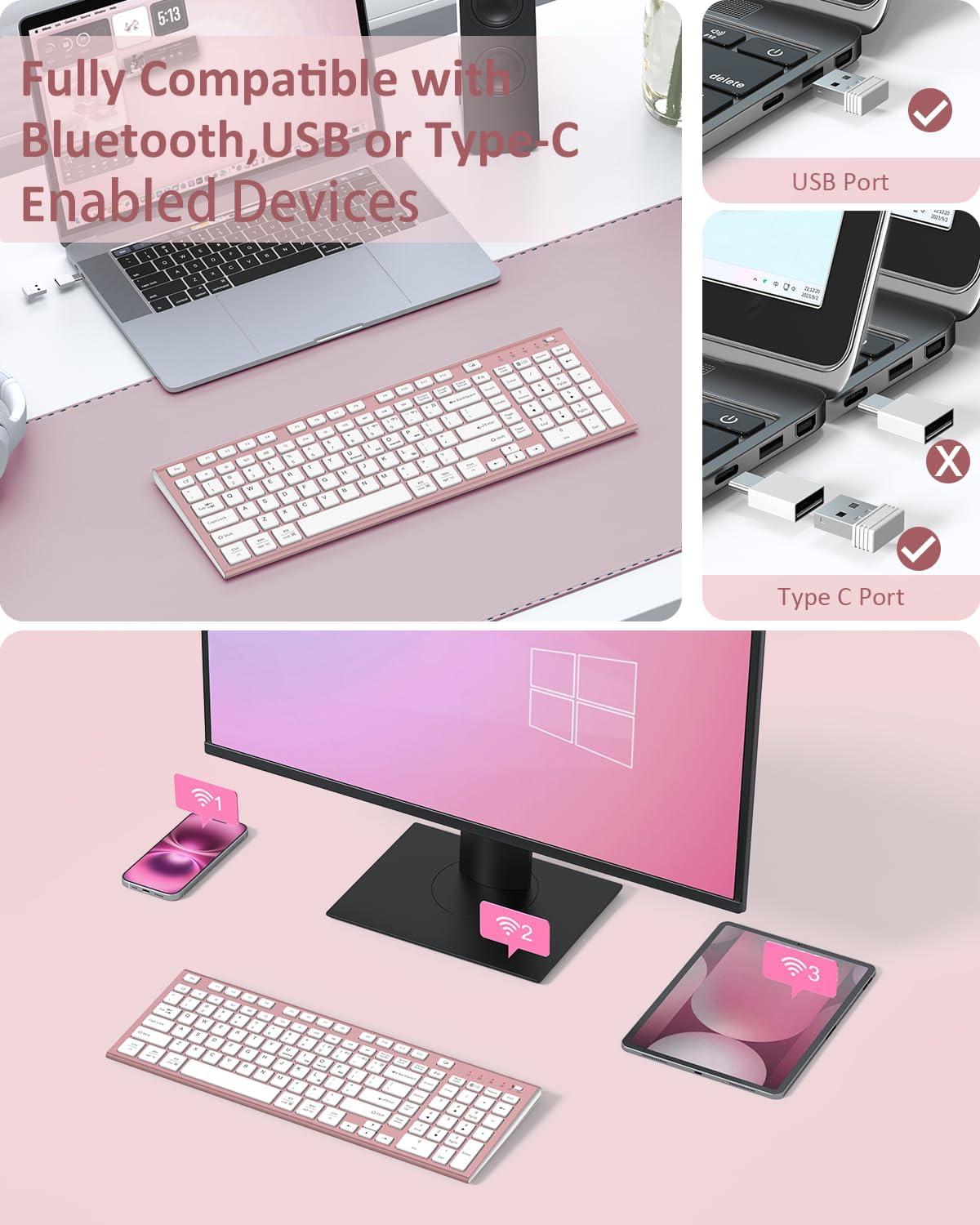
Image: The FENIFOX Wireless Keyboard shown with its USB receiver and a USB-C adapter. The image clarifies that the USB-C adapter is for use with the USB receiver only, not for direct computer/charger connections.
3.4 Bluetooth Connection (BT1, BT2, BT3)
The keyboard supports three Bluetooth channels for connecting to multiple devices.
- Ensure the keyboard is powered on.
- Press Fn + 9 (for BT1), Fn + 0 (for BT2), or Fn + - (for BT3) to select a Bluetooth channel. The corresponding indicator light will blink slowly.
- For first-time pairing, press and hold Fn + L until the indicator light for the selected Bluetooth channel blinks rapidly. This puts the keyboard into pairing mode.
- On your device (computer, tablet, smartphone), go to Bluetooth settings and search for "BT5.0 Keyboard" or "BT3.0 Keyboard".
- Select the keyboard from the list to pair. If prompted for a PIN, enter "0000" or "1234" (common default PINs) and press Enter on the keyboard.
- Once connected, the indicator light will stop blinking and remain solid for a few seconds before turning off.

Image: The FENIFOX Wireless Keyboard connected to a smartphone, laptop, and tablet, demonstrating its multi-device connection capability. The image highlights the Fn key combinations for switching between devices (Fn+9, Fn+0, Fn+- for Bluetooth, and Fn+= for USB).
4. Operating Instructions
4.1 Switching Between Connected Devices
To switch between devices connected via Bluetooth or 2.4GHz USB, use the following key combinations:
- Fn + 9: Switch to Bluetooth Channel 1
- Fn + 0: Switch to Bluetooth Channel 2
- Fn + -: Switch to Bluetooth Channel 3
- Fn + =: Switch to 2.4GHz USB Connection

Image: A close-up of the FENIFOX Wireless Keyboard highlighting the Fn key and the keys for switching between devices (9, 0, -, =). The image also shows the indicator lights for each connection mode.
4.2 Switching Operating Systems
The keyboard is compatible with various operating systems. After connecting, switch to the appropriate system mode for optimal functionality:
- Fn + U: Switch to Android System
- Fn + I: Switch to iOS System
- Fn + O: Switch to macOS System
- Fn + P: Switch to Windows System
The indicator light will blink to confirm the system switch.

Image: A close-up of the FENIFOX Wireless Keyboard showing the Fn key and the keys for switching between operating systems (U, I, O, P). The keys are labeled with Android, iOS, macOS, and Win icons respectively.
4.3 Multimedia and Function Keys
The keyboard features F1-F12 keys and 14 multimedia shortcut keys that operate independently. Refer to the keycap legends for specific functions (e.g., volume control, media playback, brightness adjustment).
The dual-print (Alt/Cmd) keys provide seamless compatibility for both Mac and Windows systems.
5. Maintenance
To ensure the longevity and optimal performance of your FENIFOX Wireless Keyboard, follow these maintenance guidelines:
- Cleaning: Use a soft, damp cloth to wipe the keyboard surface. For deeper cleaning, gently remove the silicone cover and wash it with mild soap and water. Ensure the cover is completely dry before placing it back on the keyboard.
- Dust and Spill Protection: The included silicone cover helps protect against dust, liquid spills, and scratches. Keep the cover on during use to maintain cleanliness and prevent damage.
- Storage: Store the keyboard in a cool, dry place away from direct sunlight and extreme temperatures.
- Battery Care: Avoid fully discharging the battery frequently. Charge the keyboard regularly to maintain battery health.

Image: The FENIFOX Wireless Keyboard with its transparent silicone dustproof and waterproof cover. The cover is shown protecting the keys from dust particles.
6. Troubleshooting
If you encounter issues with your FENIFOX Wireless Keyboard, refer to the following common solutions:
| Problem | Solution |
|---|---|
| Keyboard does not power on. | Ensure the ON/OFF switch is in the "ON" position. Charge the keyboard for at least 30 minutes. |
| 2.4GHz USB connection not working. | Verify the USB receiver is securely plugged into a working USB port. Ensure the keyboard is switched to 2.4GHz mode (Fn + =). Try a different USB port or restart your computer. |
| Bluetooth connection fails or disconnects. | Ensure the keyboard is in pairing mode (Fn + L) and the correct Bluetooth channel is selected (Fn + 9/0/-). Forget the device in your device's Bluetooth settings and re-pair. Ensure your device's Bluetooth is enabled. |
| Keys are not responding or typing incorrectly. | Check if the correct operating system mode is selected (Fn + U/I/O/P). Ensure the keyboard is fully charged. Restart the keyboard and your device. |
| Keyboard lags or has delayed input. | Ensure the keyboard is within the effective range (up to 33 feet). Reduce interference from other wireless devices. Charge the keyboard. |
7. Specifications
| Feature | Detail |
|---|---|
| Model Number | BTKP-01 |
| Connectivity Technology | Bluetooth (BT5.0, BT3.0), 2.4GHz USB |
| Compatible Devices | Laptop, PC, Smart TV, Smartphone, Tablet (Android, iOS, macOS, Windows) |
| Keyboard Description | Multimedia, Compact full-size, Ergonomic, Rechargeable, Silent |
| Special Features | 3 Bluetooth & 2.4G USB for Multi Devices, Ergonomics, Silent, Slim, Rechargeable, 120 Key Full-size, Silicone Cover (Dustproof, Waterproof) |
| Product Dimensions | 15.55 x 5.71 x 0.83 inches (39.5 x 14.5 x 2.1 cm) |
| Item Weight | 1.22 pounds (0.55 kg) |
| Battery | 1 Nonstandard Battery (included), USB-C Rechargeable |
| Material | Plastic |
| Included Components | USB Receiver, USB-C Adapter |
8. Warranty and Support
FENIFOX products are designed for reliability and performance. This product comes with a standard manufacturer's warranty. Please refer to the warranty card included in your package for specific terms and conditions, including warranty duration and coverage details.
For technical support, troubleshooting assistance, or warranty claims, please contact FENIFOX customer service through the retailer where you purchased the product or visit the official FENIFOX website for contact information.
Please retain your proof of purchase for warranty purposes.