
1. Introduction
Thank you for purchasing the TITAN ARMY P275MV-A 27-inch MiniLED Gaming Monitor. This monitor is designed to deliver an immersive visual experience with advanced display technologies. It features a 27-inch IPS panel with Quantum Dot MiniLED backlight, offering a high resolution of 4K (3840x2160) at 144Hz and a dual mode for FHD (1920x1080) at 288Hz. The monitor supports HDR1000 with 1152 local dimming zones, providing vibrant colors and deep blacks. It also includes multiple connectivity options and ergonomic adjustments for enhanced user comfort.

Figure 1.1: Front view of the TITAN ARMY P275MV-A monitor.
2. Safety Information
Please read all instructions carefully before using this product. Retain this manual for future reference.
- Do not expose the monitor to rain or moisture to prevent fire or shock hazards.
- Do not open the monitor casing. There are no user-serviceable parts inside. Refer all servicing to qualified personnel.
- Place the monitor on a stable, flat surface to prevent it from falling.
- Ensure proper ventilation around the monitor. Do not block ventilation openings.
- Use only the power adapter supplied with the monitor.
- Disconnect the power plug from the outlet if the monitor will not be used for an extended period.
3. Package Contents
Verify that all items are present in your package:
- TITAN ARMY P275MV-A Monitor
- Monitor Stand (Base and Neck)
- Power Adapter and Cable
- DisplayPort Cable
- HDMI Cable
- USB-B to USB-A Cable (for USB hub functionality)
- User Manual
- Calibration Report
4. Setup
4.1. Assembling the Stand
- Carefully remove the monitor from its packaging, keeping the screen protected.
- Attach the stand neck to the monitor panel using the provided screws.
- Connect the stand base to the stand neck and secure it with the thumb screw.

Figure 4.1: Stand assembly diagram.
4.2. VESA Mount Installation (Optional)
The monitor supports a 100x100mm VESA mount. If using a VESA mount, ensure the screws are of appropriate length (e.g., M4x12mm) as standard M4x10mm screws may be too short for some monitor arms.
4.3. Connecting to a Computer
Connect the monitor to your computer using either the DisplayPort or HDMI 2.1 cable. The monitor features two DisplayPort inputs and two HDMI 2.1 inputs.
- For 4K resolution at 144Hz, use either DisplayPort or HDMI 2.1.
- For FHD resolution at 288Hz (Dual Mode), use either DisplayPort or HDMI 2.1.

Figure 4.2: Rear ports of the monitor.
4.4. Power Connection
Connect the power adapter to the monitor's power input, then plug the power cable into a wall outlet.
5. Operating Instructions
5.1. OSD Menu Navigation
The On-Screen Display (OSD) menu is controlled by buttons located on the bottom right of the monitor. Press any button to activate the OSD, then use the directional buttons to navigate and the center button to select.

Figure 5.1: Monitor control buttons.
5.2. Dual Mode (4K@144Hz / FHD@288Hz)
This monitor supports a unique dual mode, allowing you to switch between 4K (3840x2160) at 144Hz for high-fidelity visuals and FHD (1920x1080) at 288Hz for ultra-high refresh rate gaming. To activate or switch modes, navigate to the 'Game+' function settings in the OSD menu and select 'AI Dual Mode'.

Figure 5.2: Dual Mode functionality.
5.3. HDR1000 and Local Dimming
The monitor features HDR1000 support with 1152 local dimming zones, providing a peak brightness of 1000 nits and a minimum black level of 0.02 nits for superior contrast and color accuracy. Ensure HDR is enabled in your operating system or game settings for optimal performance.

Figure 5.3: HDR1000 and Local Dimming.
5.4. Picture-in-Picture (PIP) and Picture-by-Picture (PBP)
The monitor supports PIP and PBP functions, allowing you to display content from two different sources simultaneously. PBP divides the screen into two halves, while PIP displays a smaller window from a second source over the main display. These settings can be configured via the OSD menu.
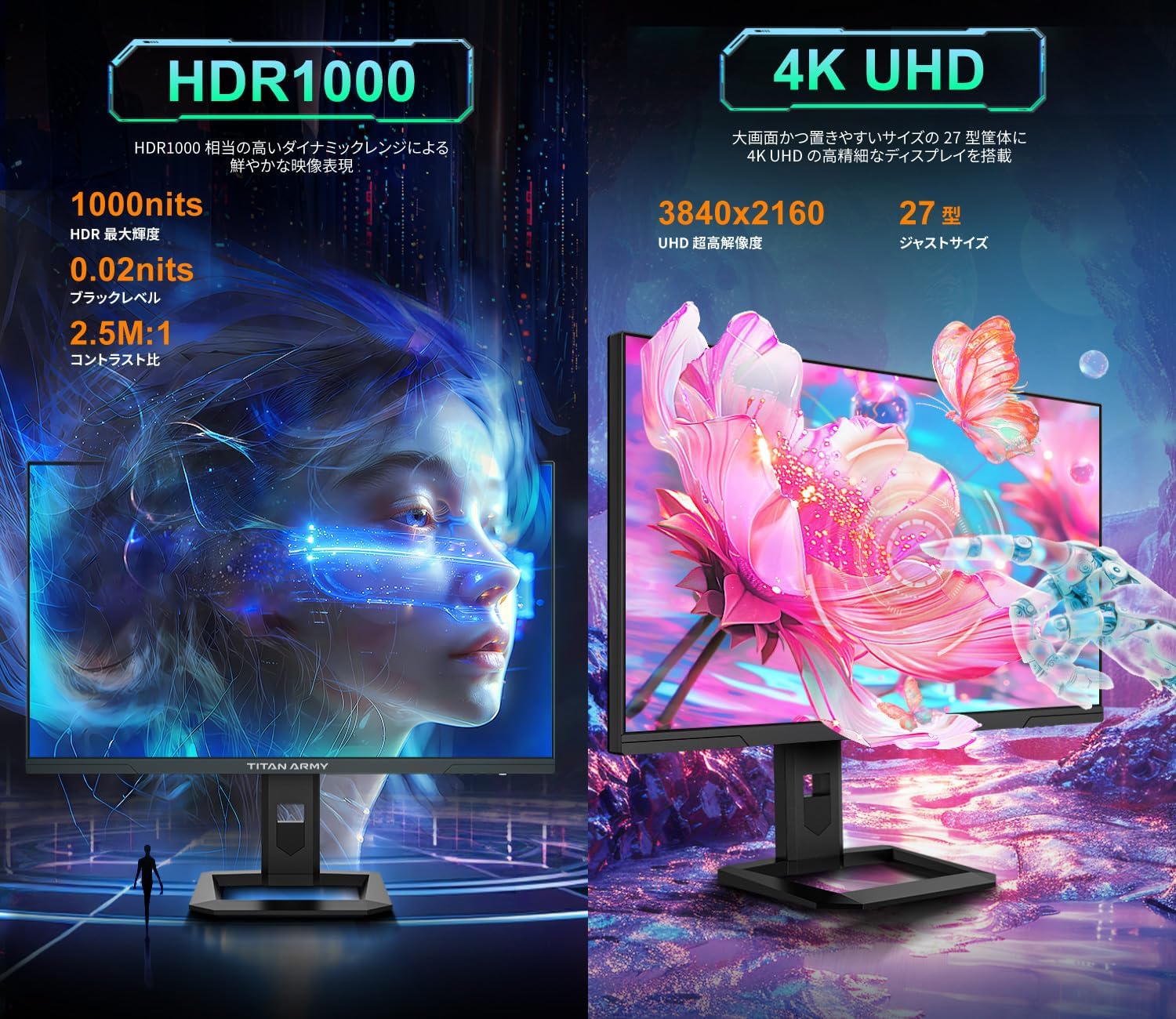
Figure 5.4: PBP and PIP modes.
5.5. Ergonomic Stand Adjustments
The included stand offers various ergonomic adjustments for optimal viewing comfort:
- Height Adjustment: Up to 120mm.
- Tilt: -5° to 20°.
- Swivel: ±25°.
- Pivot: 90° (for portrait mode).

Figure 5.5: Ergonomic stand adjustments.
6. Maintenance
6.1. Cleaning the Screen
Gently wipe the screen with a soft, lint-free cloth. For stubborn marks, lightly dampen the cloth with water or a screen-cleaning solution. Do not spray liquid directly onto the screen.
6.2. Cleaning the Casing
Wipe the monitor casing with a soft, dry cloth. Avoid using abrasive cleaners or solvents that may damage the finish.
7. Troubleshooting
| Problem | Possible Cause | Solution |
|---|---|---|
| No image on screen | Power cable disconnected; Video cable disconnected; Incorrect input source selected. | Check power and video cable connections; Select correct input source via OSD. |
| Image is blurry or distorted | Incorrect resolution or refresh rate; Video cable issue. | Adjust display settings on your computer; Try a different video cable. |
| Screen flickering | Refresh rate instability (especially at 288Hz); Cable issue; Graphics card driver issue. | Try setting a slightly lower refresh rate (e.g., 240Hz) in Windows display settings; Update graphics drivers; Ensure DC Dimming is enabled in OSD. |
| Local Dimming artifacts (e.g., halo effect) | Local Dimming setting too high for certain content. | Adjust Local Dimming level in OSD or disable it if preferred for specific use cases. |
| Difficulty navigating OSD menu | Unfamiliarity with button controls. | Refer to section 5.1 for OSD navigation; Consider using the manufacturer's OSD software if available for PC control. |
| No audio output from monitor | Monitor does not have built-in speakers; Incorrect audio output device selected on PC. | Connect external speakers or headphones to your PC or the monitor's audio output jack (if available and compatible with 4-pole plugs); Select the correct audio output device in your operating system. |
8. Specifications
- Brand: TITAN ARMY
- Model Number: P275MV-A
- Screen Size: 27 inches
- Panel Type: IPS with Quantum Dot MiniLED
- Resolution: 4K UHD (3840 x 2160)
- Refresh Rate: 144Hz (4K), 288Hz (FHD Dual Mode)
- HDR Support: HDR1000
- Local Dimming Zones: 1152
- Brightness: Max 1000 nits
- Black Level: Min 0.02 nits
- Color Gamut: 99% DCI-P3, 99% Adobe RGB
- Aspect Ratio: 16:9
- Surface: Non-glare
- Connectivity: 2 x DisplayPort, 2 x HDMI 2.1
- Ergonomics: Height, Tilt, Swivel, Pivot
- VESA Mount: 100x100mm
- Weight: 7.9 kg
- Dimensions (W x H x D): 61.4 x 51.8 x 22.9 cm
9. Warranty Information
This product is covered by a limited manufacturer's warranty. Please refer to the warranty card included in your package for specific terms and conditions, including warranty period and coverage details. Keep your proof of purchase for warranty claims.
10. Support
For technical support, troubleshooting assistance, or service inquiries, please contact TITAN ARMY customer support. Contact information can typically be found on the manufacturer's official website or on the warranty card.
You may also visit the TITAN ARMY Brand Store on Amazon for additional product information and resources.


