
1. Introduction
This manual provides comprehensive instructions for the setup, operation, maintenance, and troubleshooting of your NGTeco TC1-W Cloud-Based Time Clock. Please read this manual thoroughly before using the device to ensure proper functionality and to maximize its benefits for your employee time tracking needs.
2. Product Overview
The NGTeco TC1-W is a versatile 4-in-1 time clock system designed for small businesses, offering cloud-based management, 2.4GHz WiFi connectivity, and remote control capabilities via software and a mobile application. It supports multiple verification methods including facial recognition, fingerprint, PIN, and IC cards.

Figure 2.1: NGTeco TC1-W Time Clock and Mobile App Interface.
Key Features:
- Cloud-Based Management: Real-time punch data and report generation accessible via web browser or app.
- Flexible Scheduling: Supports fixed, rotating, split, and on-demand shifts.
- Multi-Device Sync: Connect multiple TC1 devices for unified data across locations.
- Advanced Security: AWS (U.S. servers) with end-to-end encryption for data protection.
- Multi-Language Support: English, Spanish, French, German, Italian, and Japanese.
- High Capacity: Supports up to 200 users and 30,000 logs.
- Connectivity: Operates via LAN or 2.4GHz Wi-Fi.
- Verification Methods: Facial recognition, fingerprint, PIN, and IC cards.
3. Setup Instructions
Follow these steps to set up your NGTeco TC1-W time clock and integrate it with the NGTeco Office software.
3.1 Initial Device Connection
- Power On: Connect the power adapter to the time clock and a power outlet. The device will power on automatically.
- Network Connection:
- Wi-Fi: On the device screen, navigate to network settings and connect to a 2.4GHz Wi-Fi network.
- LAN (Optional): Connect an Ethernet cable to the LAN port on the device and to your network router.
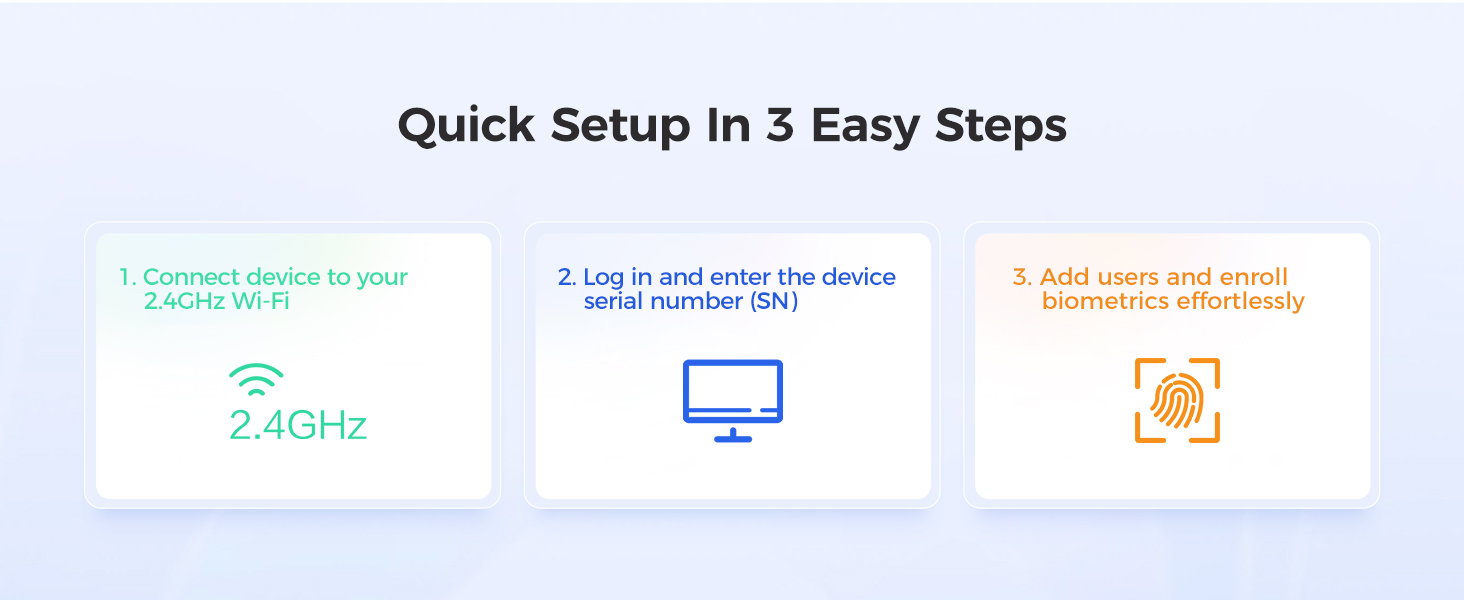
Figure 3.1: Quick Setup Overview.
3.2 NGTeco Office Software Setup
- Access Software: Open a web browser and navigate to the NGTeco Office portal (refer to the quick start guide for the exact URL). Alternatively, download the NGTeco Office mobile app.
- Create Account: If you are a new user, create an administrator account.
- Add Device: Log in to your NGTeco Office account. Follow the on-screen prompts to add your TC1-W device by entering its serial number (SN), which can be found on the device's packaging or in its system information menu.
3.3 User Enrollment
After connecting the device and software, enroll employees for time tracking.
- Add Employees: In the NGTeco Office software/app, navigate to the "Employees" or "Users" section. Add each employee's details.
- Enroll Biometrics/Cards: For each employee, enroll their chosen verification method directly on the TC1-W device:
- Facial Recognition: Follow the on-screen instructions to capture the employee's face.
- Fingerprint: Place the employee's finger on the scanner multiple times as prompted for accurate registration.
- IC Card: Present the IC card to the device's card reader.
- PIN: Assign a unique PIN to the employee through the software, which they can then use on the device keypad.
- Assign Shifts: Configure work schedules and shifts for each employee within the NGTeco Office software.
4. Operating Instructions
4.1 Employee Clock In/Out
Employees can clock in or out using their registered credentials:
- Facial Recognition: Stand in front of the device's camera.
- Fingerprint: Place a registered finger on the fingerprint scanner.
- IC Card: Tap the registered IC card on the card reader area.
- PIN: Enter the assigned PIN using the keypad and confirm.
The device will display a confirmation message upon successful punch.
4.2 Using the NGTeco Office Software/App
The NGTeco Office platform provides comprehensive tools for managing attendance.
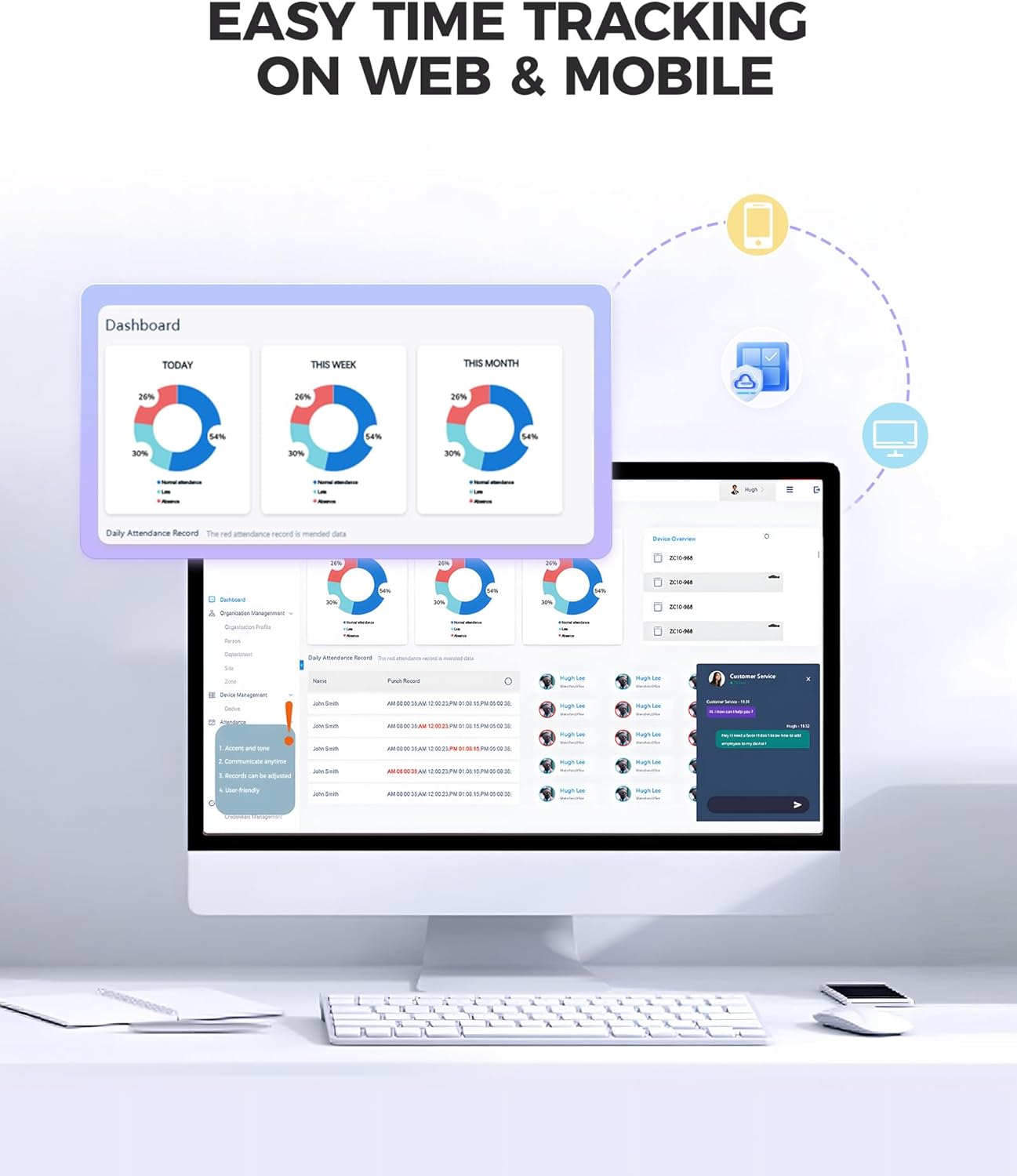
Figure 4.1: NGTeco Office Web and Mobile Interface.
- Dashboard: View real-time attendance data, daily, weekly, and monthly summaries.
- Employee Management: Add, edit, or remove employees; manage their credentials and assigned shifts.
- Shift Management: Create and customize various shift types (fixed, flexible, night shifts) to match your business operations.
- Reports: Generate detailed attendance reports, including work hours, overtime, and exceptions. Reports can be exported and scheduled for automatic delivery.
- Remote Management: Monitor and manage attendance from any location with internet access.

Figure 4.2: Automated Report Generation in NGTeco Office.
4.3 Employee Mobile App (Premium Feature)
The optional employee mobile app provides additional functionalities for employees and administrators.

Figure 4.3: NGTeco Employee Mobile App Interface.
- GPS-Restricted Punch-In: Allows employees to clock in/out from designated locations.
- Personal Reports: Employees can view their own attendance records and work hours.
- Unlimited Employees: The premium app allows for an unlimited number of employees.
5. Maintenance
- Cleaning: Regularly wipe the device screen and fingerprint scanner with a soft, dry cloth. Avoid abrasive cleaners or liquids.
- Software Updates: Ensure your NGTeco Office software and device firmware are kept up-to-date for optimal performance and security. Updates are typically managed through the NGTeco Office platform.
- Data Backup: While data is stored on AWS cloud servers, it is good practice to regularly export and back up critical attendance reports.
- Environmental Conditions: Operate the device within recommended temperature and humidity ranges as specified in the product specifications to prevent damage.
6. Troubleshooting
| Problem | Possible Cause | Solution |
|---|---|---|
| Device not powering on. | Power adapter disconnected or faulty. | Check power connections. Ensure the adapter is securely plugged into the device and a working power outlet. |
| Unable to connect to Wi-Fi. | Incorrect Wi-Fi password, 5GHz network, or weak signal. | Verify Wi-Fi password. Ensure you are connecting to a 2.4GHz network. Move the device closer to the router or check router settings. |
| Fingerprint/Face recognition failure. | Unclear scan, dirty sensor/camera, or unregistered biometric data. | Ensure the sensor/camera is clean. Re-enroll biometric data if issues persist. Ensure proper placement of finger or face. |
| Punches not syncing to cloud. | No internet connection or software configuration issue. | Check device's internet connection. Verify device registration and settings in NGTeco Office software. Data is stored offline and syncs when connection is restored. |
| Software reports are incorrect. | Incorrect shift settings or employee data. | Review and adjust shift schedules, employee assignments, and attendance rules within the NGTeco Office software. |
If you encounter issues not listed here or require further assistance, please contact NGTeco customer support.
7. Specifications
| Feature | Detail |
|---|---|
| Model Number | TC1-W |
| Product Dimensions | 2.76 x 1.5 x 7.09 inches |
| Item Weight | 2.05 pounds |
| Connectivity | 2.4GHz Wi-Fi, LAN |
| User Capacity | Up to 200 users |
| Log Capacity | Up to 30,000 logs |
| Verification Methods | Facial Recognition, Fingerprint, PIN, IC Card |
| Cloud Service | NGTeco Office (AWS U.S. servers) |
| Supported Languages | English, Spanish, French, German, Italian, Japanese |
| Batteries | 1 Nonstandard Battery (required) |
8. Warranty and Support
8.1 Product Warranty
The NGTeco TC1-W Time Clock comes with a 1-year warranty from the date of purchase, covering manufacturing defects and malfunctions under normal use. Please retain your proof of purchase for warranty claims.
8.2 Technical Support
NGTeco provides lifetime technical support for the TC1-W. Our support team is available to assist with setup, operation, and troubleshooting.
- Availability: Monday to Friday, 6 AM to 6 PM EST.
- Contact: Refer to the NGTeco official website or the quick start guide for contact information (phone, email, or online chat).
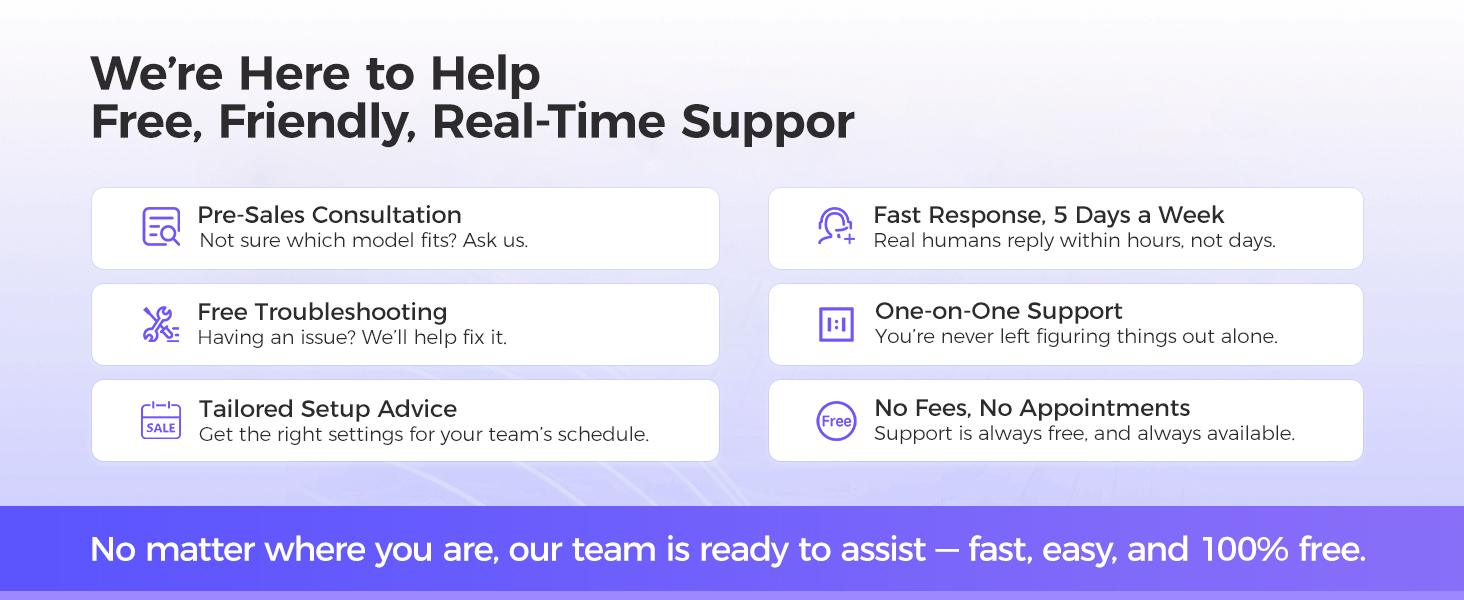
Figure 8.1: NGTeco Customer Support Services.


