
1. Introduction
The IROK Mer68 LITE is a wired 68-key mechanical keyboard designed for high-performance gaming and efficient typing. It features advanced magnetic switches, customizable ARGB lighting, and a compact layout to optimize desk space. This manual provides detailed instructions for setup, operation, and maintenance to ensure optimal performance.

Figure 1: IROK Mer68 LITE Magnetic Switch Mechanical Keyboard
2. Package Contents
Upon unboxing your IROK Mer68 LITE keyboard, please verify that all the following items are included:
- IROK Mer68 LITE Mechanical Keyboard
- USB-C to USB-A Cable
- Keycap Puller
- Extra Magnetic Switches (3 pieces)
- User Manual
For a visual guide on unboxing, please refer to the video below:
Video 1: EPOMAKER HE68 Lite Unboxing Overview
3. Setup
- Connect the Keyboard: Plug the provided USB-C cable into the keyboard's USB-C port and the USB-A end into an available USB port on your computer. The keyboard is wired-only for optimal performance.
- Adjust Keyboard Angle: The keyboard features adjustable feet on the underside. Flip out the feet to achieve your preferred typing angle.
- Select Operating System Mode: Locate the toggle switch on the top edge of the keyboard. Slide it to the 'Win' position for Windows operating systems or 'Mac' for macOS.
- Install Drivers (Optional but Recommended): For full customization options, including key remapping, macros, and advanced magnetic switch settings, download the proprietary Web Driver or One-stop HUB Drive from the official IROK website.

Figure 2: Web Driver and One-stop HUB Driver Interface
4. Operating Instructions
4.1 Basic Key Functions
The Mer68 LITE features a compact 68-key layout, integrating essential keys for both typing and gaming. The magnetic switches offer a responsive and smooth typing experience with a 0.125ms latency and 8KHz polling rate.
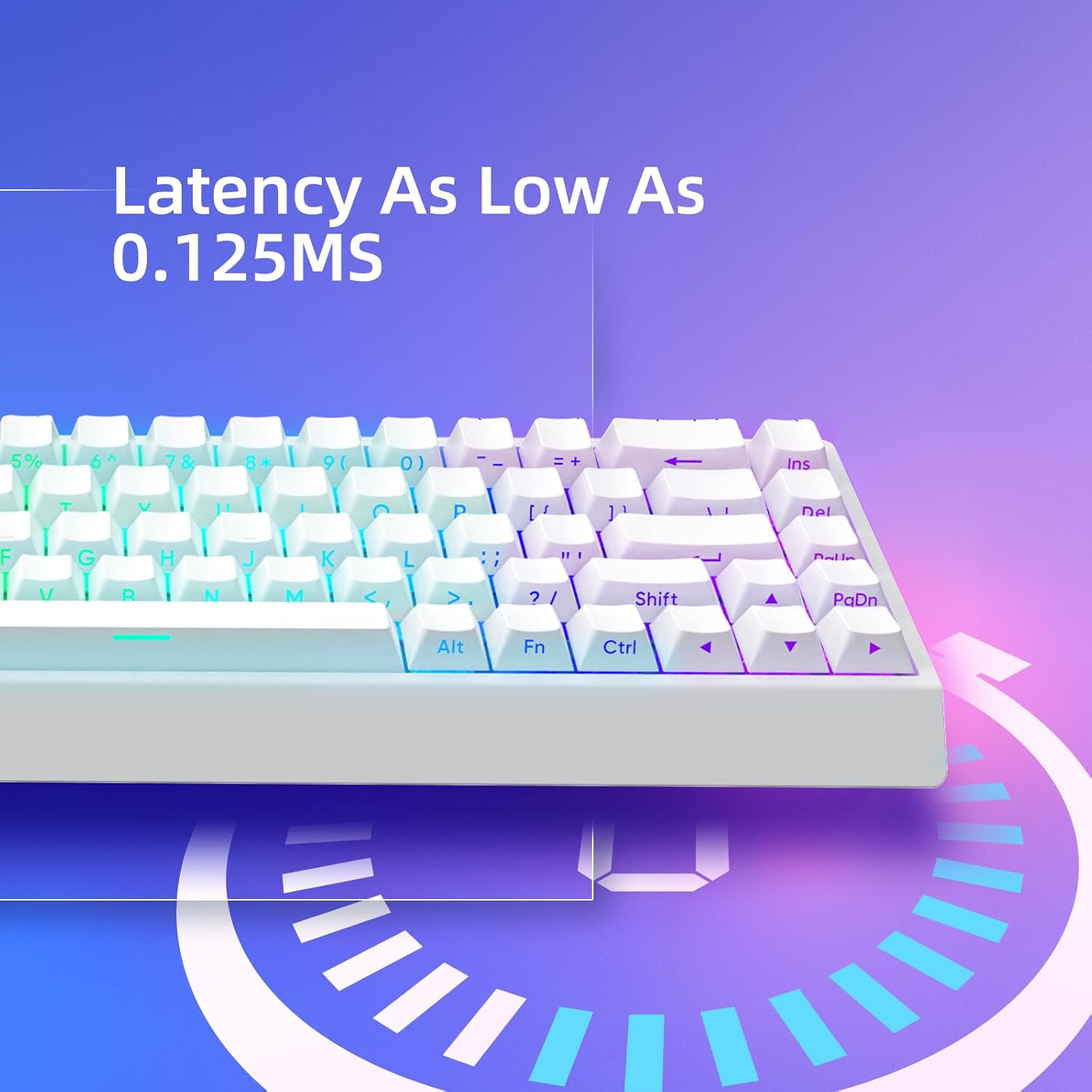
Figure 3: Low Latency Performance
4.2 RGB Lighting Control
The keyboard is equipped with customizable ARGB lighting with a 500Hz refresh rate. Use the following key combinations to control the lighting effects:
- FN + Backspace: Toggle RGB lighting On/Off.
- FN + \|: Cycle through various RGB lighting effects.
- FN + Delete: Cycle through single color modes.
- FN + ↑: Increase brightness.
- FN + ↓: Decrease brightness.
- FN + →: Increase effect speed.
- FN + ←: Decrease effect speed.

Figure 4: Customizable ARGB Lighting
4.3 Magnetic Switch Customization
The Mer68 LITE features advanced magnetic switches that allow for precise customization through the dedicated software:
- Adjustable Actuation: Customize the actuation point of each key from 0.1mm to 3.5mm for personalized responsiveness.
- Rapid Trigger: Set keys to re-actuate instantly upon release, ideal for fast-paced gaming.
- Hot-Swappable Switches: The magnetic switches are hot-swappable, allowing you to easily replace them without soldering.
- Software Features: The Web Driver/One-stop HUB Drive allows for key remapping, macro creation, and advanced modes like Dynamic Keystroke (DKS), Mod Tap (MT), Toggle Key (TGL), and Snap Key.

Figure 5: Hot-Swappable Magnetic Switches
Video 2: EPOMAKER HE68 Lite Typing Sound Test
5. Maintenance
- Cleaning Keycaps: Use the provided keycap puller to remove keycaps. Clean them with a soft, damp cloth.
- Cleaning Switches: Use compressed air to remove dust and debris from around the switches.
- General Cleaning: Wipe the keyboard's surface with a soft, dry cloth. Avoid using harsh chemicals or abrasive materials.
6. Troubleshooting
- Keyboard Not Responding: Ensure the USB-C cable is securely connected to both the keyboard and the computer. Check the Mac/Windows toggle switch is in the correct position for your operating system. Try connecting to a different USB port.
- RGB Lighting Not Working: Ensure the lighting is not turned off (FN + Backspace). Check brightness levels (FN + ↑/↓). If issues persist, try reinstalling the keyboard drivers.
- Keys Not Registering Correctly: If specific keys are not working, try replacing the magnetic switch for that key using the provided spare switches and keycap puller. Ensure the drivers are up to date and the actuation points are correctly configured in the software.
7. Specifications
| Feature | Detail |
|---|---|
| Product Dimensions | 12 x 5 x 2 inches (30.48 x 12.7 x 5.08 cm) |
| Item Weight | 1.65 pounds (0.75 kg) |
| Connectivity Technology | USB-C (Wired) |
| Keyboard Description | Mechanical, Magnetic Switches |
| Layout | 68 Keys (Compact) |
| Polling Rate | 8KHz |
| Latency | As low as 0.125ms |
| Key Scan Rate | 256KHz (single-key), 64KHz (all keys) |
| Backlighting | Customizable ARGB (500Hz refresh rate) |
| Special Features | Hot-Swappable, Adjustable Actuation, Rapid Trigger, Web Driver Support |
| Compatible Devices | Laptop, PC (Windows, macOS) |
8. Warranty and Support
IROK products are designed for durability and performance. For specific warranty details and support inquiries, please refer to the official IROK website or contact their customer service. Keep your purchase receipt as proof of purchase for any warranty claims.