
Introduction
This manual provides comprehensive instructions for the installation, operation, and maintenance of your WonVon 10.26-inch Wireless Car Play Screen. This device integrates a smart touch display with Apple CarPlay, Android Auto, a 4K dash camera, and a 1080P backup camera, enhancing your driving experience with navigation, multimedia, and safety features.
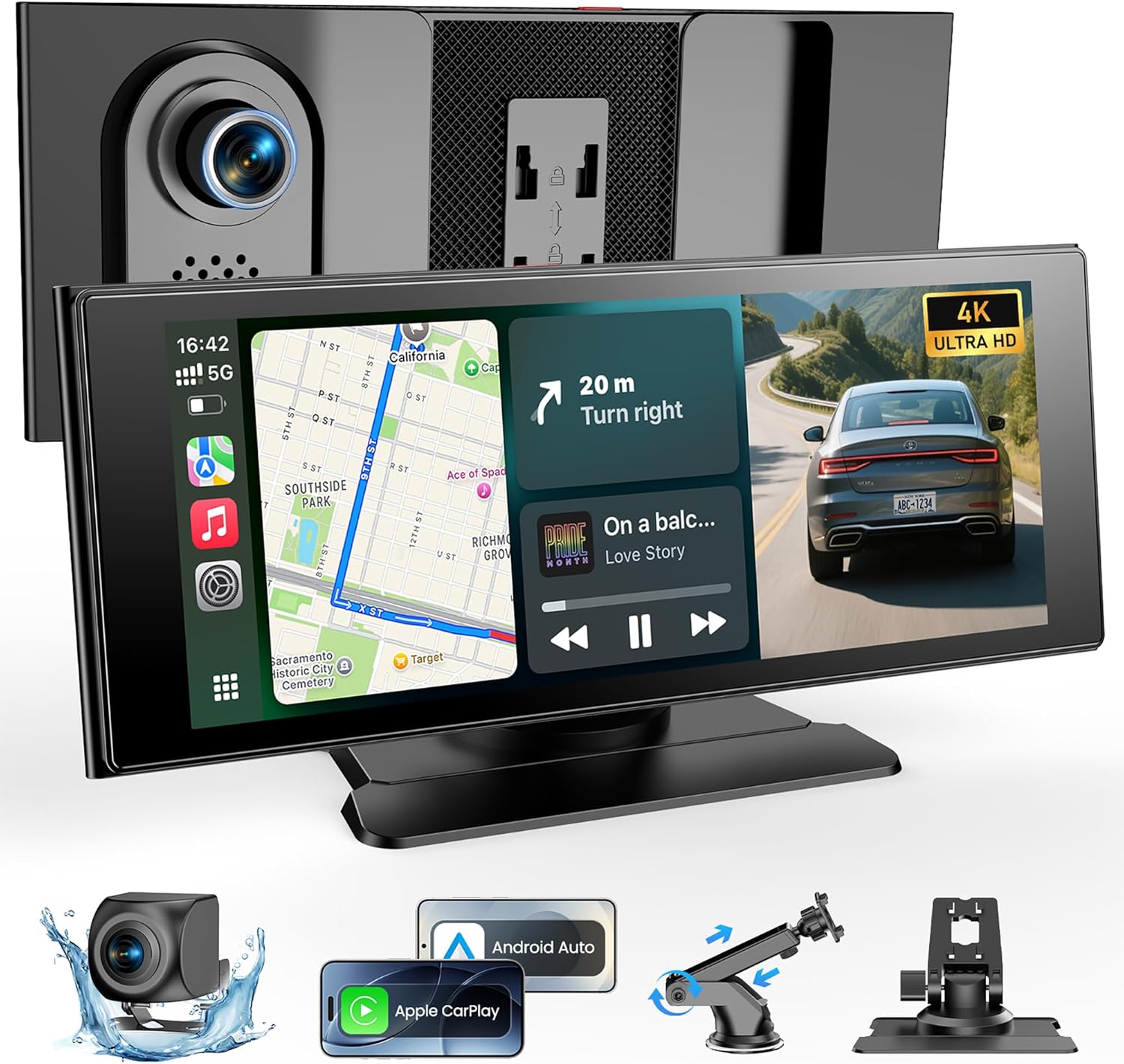
Figure 1: WonVon 10.26-inch Wireless Car Play Screen with included dash camera, backup camera, and mounting options.
Setup
1. Package Contents
Verify that all components are present in the package:
- 10.26-inch Display Screen with Integrated 4K Dash Camera
- 1080P Backup Camera
- Adhesive Bracket Mount
- Suction Cup Mount
- Aux Audio Cable
- Type-C Car Charger
- 64GB TF Card (pre-installed or included separately)
- Crowbar Tool (for cable routing)
- User Manual

Figure 2: All items included in the WonVon Wireless Car Play Screen package.
2. Mounting the Display
Choose between the adhesive bracket or the suction cup mount based on your preference and vehicle dashboard surface. Ensure the chosen location does not obstruct your view or interfere with vehicle controls.
- Adhesive Bracket: Clean the dashboard surface thoroughly. Adjust the angle of the mount, peel off the adhesive backing, and firmly press the mount onto the dashboard. Install the device onto the mount.
- Suction Cup Mount: Clean the windshield or dashboard area. Attach the patch to the dashboard if using on a textured surface, then peel off the film from the patch. Press the suction cup firmly and secure it using the lever. Adjust the arm and angle as needed, then install the device.

Figure 3: Step-by-step installation guide for the display unit using both mounting options.
3. Power Connection
Connect the Type-C car charger to the display unit and plug it into your vehicle's 12V-24V DC cigarette lighter socket. The unit will power on automatically when the vehicle starts.
4. Backup Camera Installation
Mount the 1080P waterproof backup camera at the rear of your vehicle, typically near the license plate. Route the camera cable to the main display unit. For automatic display of parking assist lines when reversing, connect the camera's red wire to your vehicle's reverse light power supply.

Figure 4: Rear view of the display unit, highlighting the camera input and other connections.
Video 1: An introductory overview of the 10-inch car play screen, demonstrating its features and initial setup.
Operating Instructions
1. Wireless Apple CarPlay Connection
- On your iPhone, enable Wi-Fi and Bluetooth.
- On the WonVon screen, select the "CarPlay" icon.
- On your iPhone, search for and connect to the Bluetooth device name displayed on the screen (e.g., "Car_Play_Hub_XXXXXX"). Confirm pairing.
- Once connected via Bluetooth, CarPlay will automatically activate.

Figure 5: Visual guide for establishing a wireless Apple CarPlay connection.
Video 2: A brief introduction to setting up Apple CarPlay on the device.
2. Wireless Android Auto Connection
- On your Android phone, enable Wi-Fi and Bluetooth.
- On the WonVon screen, select the "Android Auto" icon.
- On your Android phone, search for and connect to the Bluetooth device name displayed on the screen (e.g., "T93_d1fd5e"). Confirm pairing.
- Once connected via Bluetooth, Android Auto will automatically activate.

Figure 6: Visual guide for establishing a wireless Android Auto connection.
Video 3: A brief introduction to setting up Android Auto on the device.
3. Smart Voice Control & Hands-Free Calling
With CarPlay or Android Auto active, you can use voice commands (Siri for Apple, Google Assistant for Android) for navigation, making calls, sending messages, and controlling music. This feature promotes safer driving by minimizing manual interaction with the device.
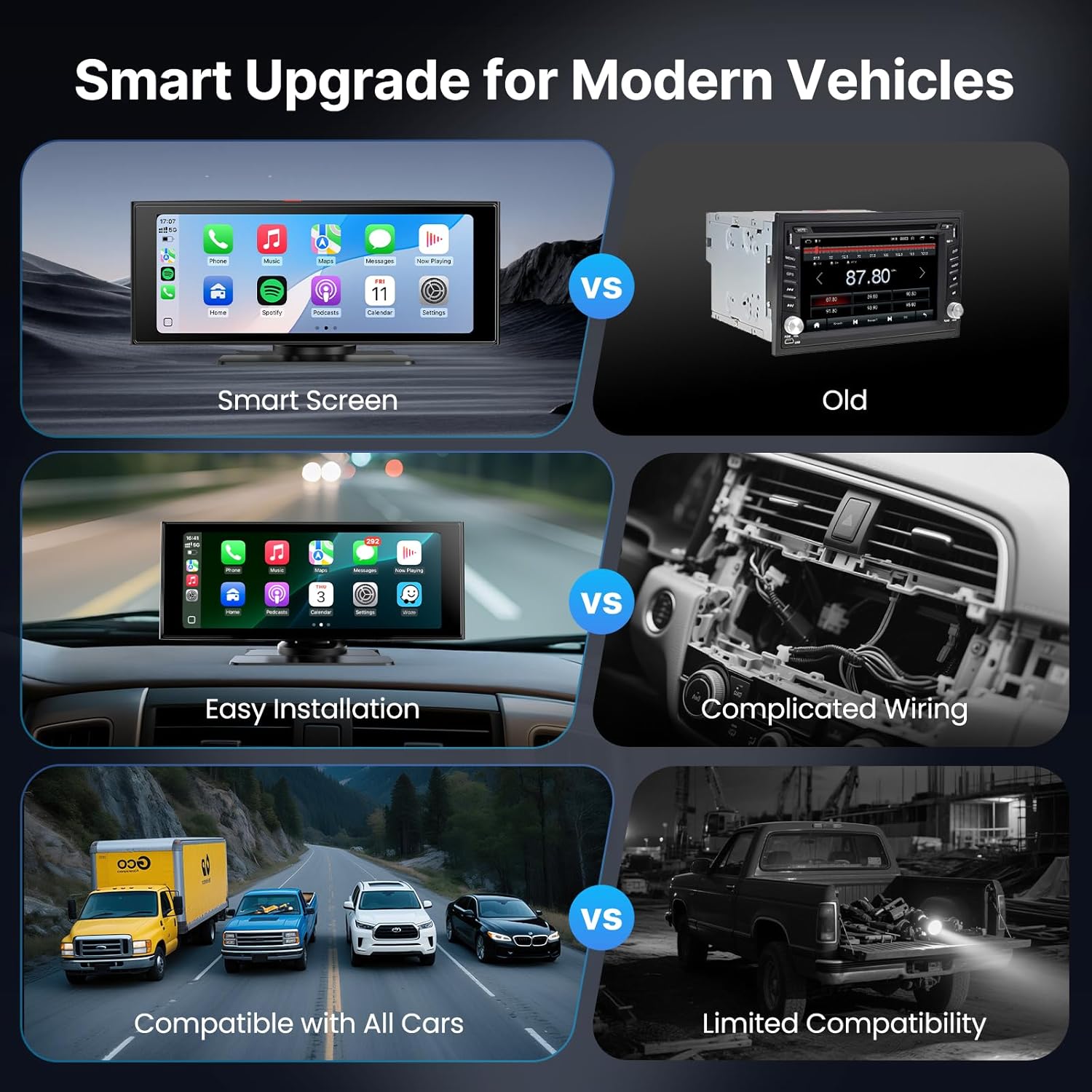
Figure 7: Example of voice command functionality for navigation and communication.
4. Dash Camera (DVR) Operation
The integrated 4K dash camera continuously records your driving. Footage is saved to the included 64GB TF card. The system supports loop recording, automatically overwriting the oldest files when the card is full. A built-in G-sensor detects sudden impacts and automatically locks the corresponding footage to prevent it from being overwritten, ensuring critical moments are preserved.
To view recordings, select the "DVR" or "Playback" icon on the main screen.

Figure 8: Overview of the dual camera system, highlighting 4K dash cam and 1080P reverse camera capabilities.
5. Backup Camera (Reverse Assist)
When properly installed and wired to your vehicle's reverse light, the 1080P backup camera automatically displays a clear rear view with parking assist lines on the screen when you shift into reverse. This aids in safe parking and maneuvering in tight spaces.
Video 4: Demonstrates the various features of the WonVon Carplay Screen, including camera functions.
6. Audio Output Options
The WonVon Car Play Screen offers four methods for audio output:
- Built-in Speakers: Audio plays directly from the device's integrated speakers.
- AUX: Connect the included AUX cable from the device to your car's AUX input for direct audio transmission.
- Bluetooth: If your car stereo supports Bluetooth, connect the device to your car's Bluetooth system for audio playback.
- FM Transmission: Select an unused FM frequency on the device and tune your car radio to the same frequency to transmit audio wirelessly.
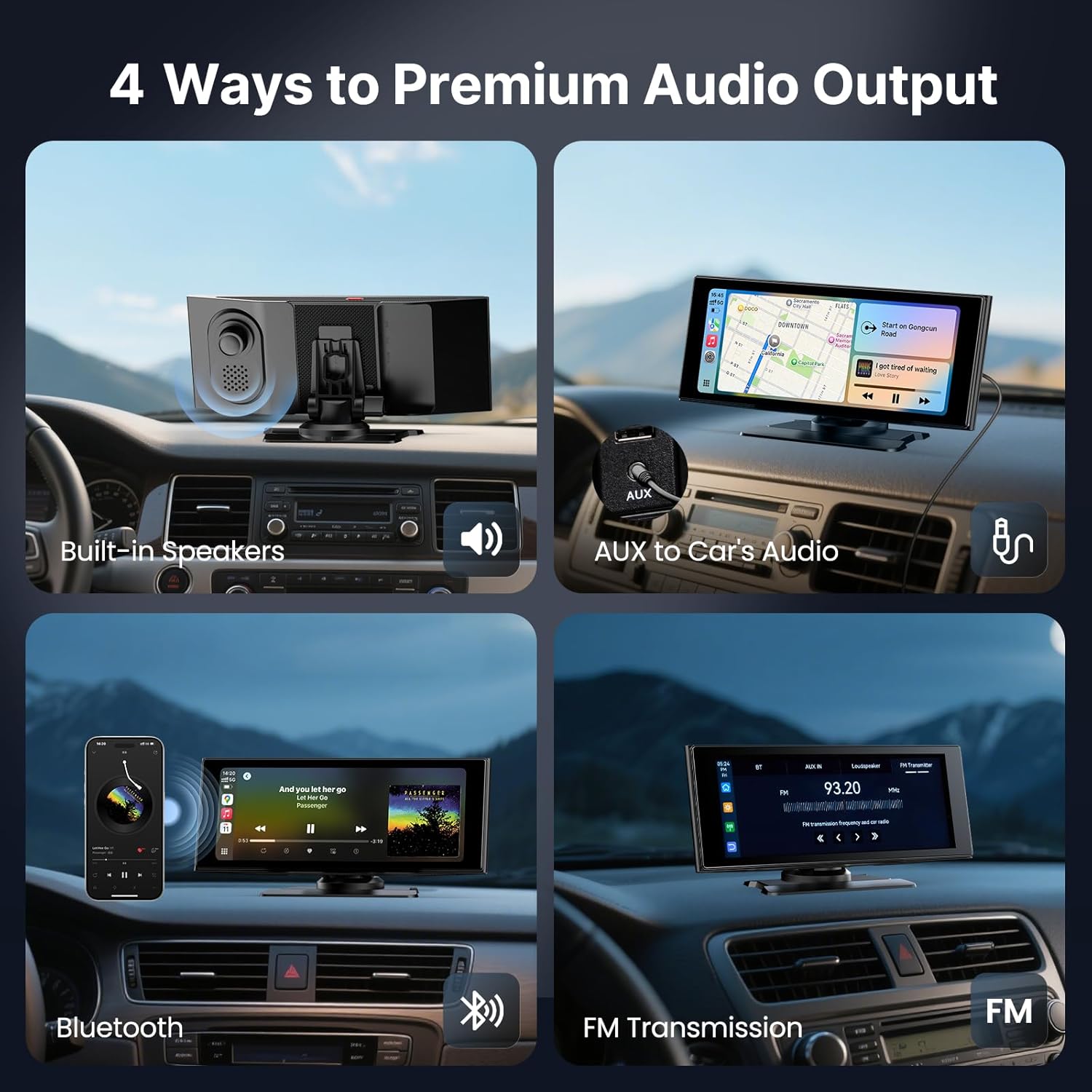
Figure 9: Illustration of the four available audio output options for the device.
7. Screen Mirroring (AirPlay & Android Cast)
The device supports screen mirroring from both iOS (AirPlay) and Android (Android Cast) devices, allowing you to display content from your phone directly onto the larger screen.
- For AirPlay (iOS):
- On the WonVon screen, select the "AirPlay" icon. Note the Wi-Fi name and password displayed.
- On your iPhone, go to Wi-Fi settings and connect to the device's Wi-Fi network using the provided password.
- Open your iPhone's Control Center, tap "Screen Mirroring," and select the device.
- For Android Cast:
- On the WonVon screen, select the "Android Cast" icon. Scan the QR code to download the necessary APK application to your Android phone.
- Enable Wi-Fi on your phone and connect to the device's Wi-Fi network.
- Open the downloaded APK application and follow the on-screen prompts to connect and start casting.

Figure 10: Instructions for setting up AirPlay screen mirroring from an iPhone.

Figure 11: Instructions for setting up Android Cast screen mirroring from an Android phone.
Video 5: A brief introduction to setting up Android Cast on the device.
Maintenance
1. Cleaning the Device
Use a soft, dry cloth to clean the screen and exterior of the device. Avoid using abrasive cleaners or solvents, which can damage the screen or finish.
2. TF Card Management
The included 64GB TF card is used for dash cam recordings. Due to loop recording, older files are automatically overwritten. Periodically review important footage and transfer it to another storage device if needed. Ensure the TF card is properly inserted and formatted if issues arise.
3. Software Updates
Check the manufacturer's website or the device settings for any available software updates to ensure optimal performance and access to new features.
Troubleshooting
- Device does not power on: Ensure the car charger is securely plugged into both the device and the vehicle's cigarette lighter socket. Verify the vehicle's 12V-24V power outlet is functional.
- Wireless CarPlay/Android Auto not connecting:
- Confirm Wi-Fi and Bluetooth are enabled on your phone.
- Ensure your phone is paired with the device via Bluetooth.
- Restart both your phone and the WonVon screen.
- Check for any software updates for your phone's operating system or the device itself.
- Mount is unstable:
- For adhesive mounts, ensure the dashboard surface was clean and dry before application.
- For suction cup mounts, ensure the surface is clean and smooth. Re-apply the suction cup firmly, pressing out all air.
- Avoid placing the mount in direct sunlight for extended periods, as extreme temperatures can affect adhesive or suction performance.
- Rear camera image is reversed: Check the device settings for a "mirror image" or "flip image" option for the rear camera and ensure it is set correctly.
- Google Maps (or other navigation app) is always on: This behavior may vary based on the specific CarPlay/Android Auto implementation. Check the settings within the CarPlay/Android Auto interface on the WonVon screen or your phone for options to manage default applications or background activity.
Specifications
| Feature | Detail |
|---|---|
| Product Dimensions | 9.7 x 1.4 x 3.7 inches |
| Item Weight | 2.88 pounds (1.31 Kilograms) |
| Model Number | WonVon Wireless Car Play Screen |
| Connectivity Technology | Auxiliary, Bluetooth, FM, Wi-Fi |
| Controller Type | iOS, Android (Touchscreen) |
| Special Feature | Touchscreen, 4K Dash Cam, 1080P Backup Camera, Wireless CarPlay, Wireless Android Auto |
| Compatible Devices | Cars, SUVs, Trucks (12V-24V) |
| Connector Type | RCA, 3.5mm Jack, USB, Type-C |
| Audio Output Mode | Stereo, Mono |
| Video Encoding | H.264, H.265/HEVC, MPEG-4 |
| Color | Black |
Warranty and Support
For specific warranty information, please refer to the documentation included with your product or contact WonVon customer support directly. Protection plans may be available for purchase separately to extend coverage beyond the standard warranty period.
For technical assistance or further inquiries, please visit the official WonVon website or contact their customer service department.