
SOOMFON BT34-BN1
SOOMFON Airplane Bluetooth Adapter User Manual
Model: BT34-BN1
Brand: SOOMFON
Introduction
The SOOMFON 2-in-1 Bluetooth 5.3 Transmitter Receiver is a versatile audio adapter designed to provide wireless audio solutions for a wide range of devices. It functions as both a transmitter (TX mode) to send audio from non-Bluetooth sources to your Bluetooth headphones; and a receiver (RX mode) to stream audio from your phone to wired speakers or car stereos. Featuring an LCD display for easy setup and advanced Bluetooth 5.3 technology, this device offers stable, low-latency audio transmission for an enhanced listening experience at home, in the car, or while traveling, including on airplanes.
What's in the Box
- Bluetooth transmitter/receiver x 1
- Charging cable x 1 (USB-A to USB-C)
- Dual 3.5 mm adapter x 1 (for airplane use)
- Drawstring bag x 1
- Connection guide card x 1

Image: All items included in the SOOMFON Bluetooth Adapter package.
Specifications
| Product Dimensions | 1.77 x 0.43 x 4.61 inches |
| Item Weight | 0.847 ounces (24 Grams) |
| Model Number | BT34-BN1 |
| Bluetooth Version | 5.3 |
| Battery Life (TX Mode) | Up to 13 hours |
| Battery Life (RX Mode) | Up to 11 hours |
| Charging Time | Approx. 1.5 hours (via USB-C) |
| Hardware Interface | USB Type C, 3.5mm Audio |
| Color | Blue |
| Compatible Devices | Laptop, Airplane, Headphone, Smartphone, TV, PC, Car Audio Systems, Home Stereo |

Image: The SOOMFON Bluetooth Adapter, highlighting its compact design and integrated 3.5mm audio jack.
Setup and Operating Instructions
1. Charging the Device
Before first use, fully charge the SOOMFON Bluetooth Adapter. Connect the provided USB-C charging cable to the device's USB-C port and the other end to a USB power source (e.g., computer USB port, wall adapter). A full charge takes approximately 1.5 hours.

Image: The SOOMFON Bluetooth Adapter connected to a USB-C charging cable, illustrating its power capabilities.
2. Power On/Off
- To Power On: Press and hold the power button (multifunction button) for 3 seconds. The LCD screen will light up.
- To Power Off: Press and hold the power button for 3 seconds. The screen will turn off.
3. Switching Between TX (Transmitter) and RX (Receiver) Modes
The device has a dedicated switch on its side to toggle between TX and RX modes. Ensure the switch is set to the desired mode before connecting or pairing.

Image: A visual representation of the SOOMFON Bluetooth Adapter's dual functionality, showing connections for TX mode (TV, PC to headphones/speakers) and RX mode (phone/tablet to car/home stereo).
4. TX (Transmitter) Mode Operation
In TX mode, the adapter sends audio from non-Bluetooth devices (e.g., TV, airplane entertainment, gym equipment) to your Bluetooth headphones or speakers.
- Set the mode switch to "TX".
- Power on the SOOMFON adapter. It will automatically enter pairing mode, and "Searching..." will appear on the LCD screen.
- Put your Bluetooth headphones or speaker into pairing mode.
- The adapter's screen will display available Bluetooth devices. Use the multifunction button (power button) to select your device and click to confirm connection.
- Once connected, plug the SOOMFON adapter's 3.5mm audio jack into the audio output port of your non-Bluetooth device (e.g., TV headphone jack, airplane audio jack, gym treadmill audio jack).
- Audio from your non-Bluetooth device will now be transmitted to your paired Bluetooth headphones/speakers.
Video: Demonstrates the setup process for the SOOMFON Bluetooth Adapter in TX (Transmitter) mode, including pairing with headphones and connecting to a treadmill.

Image: A woman enjoying wireless audio on an airplane using the SOOMFON adapter connected to the seat's audio jack.

Image: A man exercising on a treadmill, utilizing the SOOMFON adapter to connect his wireless earbuds to the treadmill's audio output.
Dual Pairing in TX Mode
The SOOMFON adapter supports connecting to two Bluetooth headphones or speakers simultaneously in TX mode, allowing for shared listening.
- First, pair the adapter with your first Bluetooth headphone/speaker as described above.
- Once the first device is connected, double-click the multifunction button on the SOOMFON adapter to enter secondary device pairing mode. The screen will show "Searching..." again.
- Put your second Bluetooth headphone/speaker into pairing mode.
- Select the second device from the list on the adapter's screen and confirm connection.
- Both devices will now receive audio from the connected non-Bluetooth source.

Image: Two individuals sharing audio from a television using the SOOMFON adapter's dual pairing feature.
5. RX (Receiver) Mode Operation
In RX mode, the adapter receives audio from your Bluetooth-enabled device (e.g., smartphone, tablet, laptop) and outputs it to wired speakers or car stereos.
- Set the mode switch to "RX".
- Power on the SOOMFON adapter. It will automatically enter pairing mode, and "Pairing..." will appear on the LCD screen.
- On your smartphone or other Bluetooth device, turn on Bluetooth and search for "BT34".
- Select "BT34" to connect. The adapter's screen will confirm the connection.
- Plug the SOOMFON adapter's 3.5mm audio jack into the AUX input of your wired speaker, car stereo, or home stereo system.
- Audio from your Bluetooth device will now be streamed to your wired audio system.
Video: Demonstrates the setup process for the SOOMFON Bluetooth Adapter in RX (Receiver) mode, including pairing with a smartphone and connecting to a wired speaker.
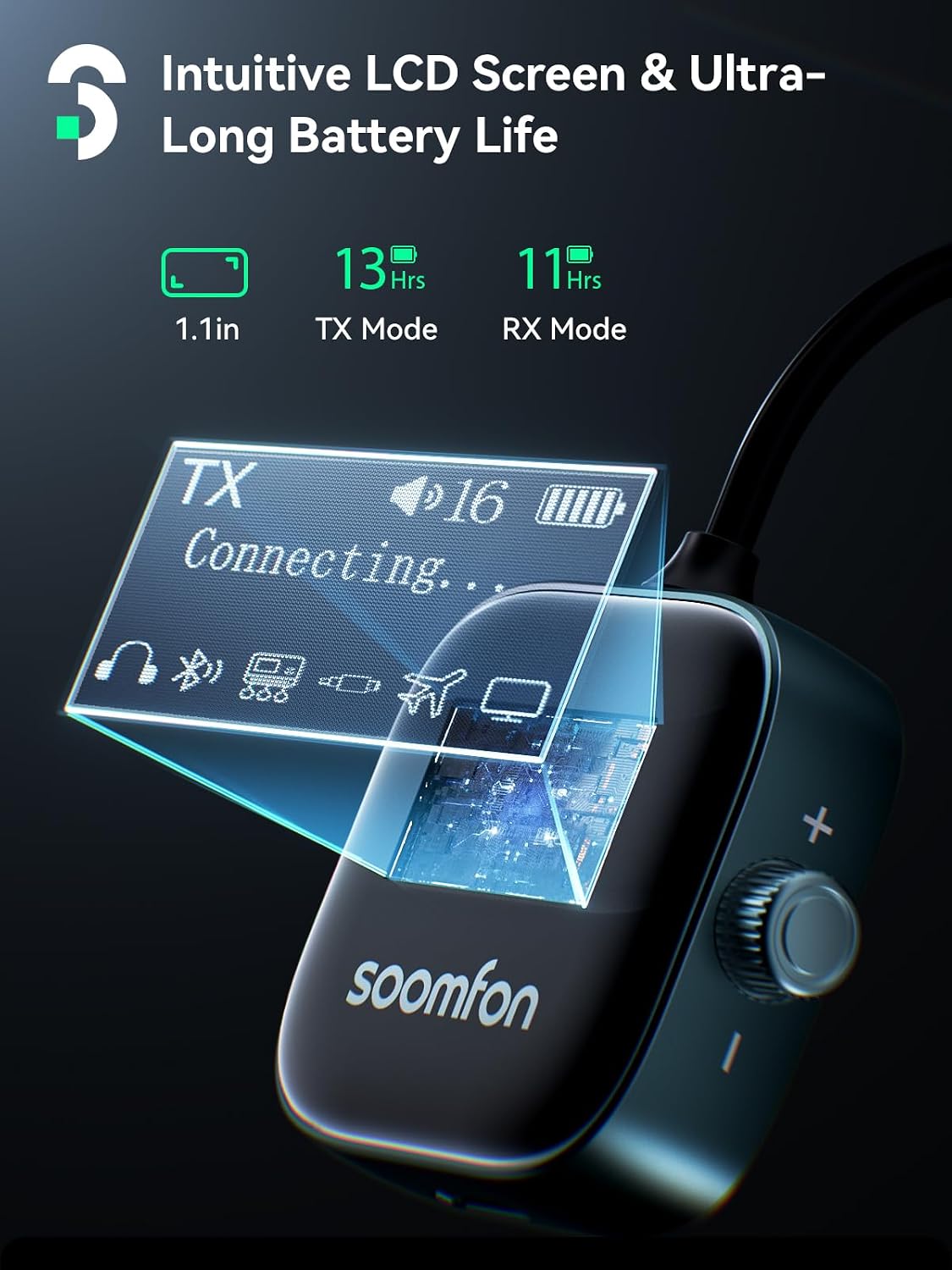
Image: A driver streaming music from their phone to the car's audio system using the SOOMFON Bluetooth Adapter in RX mode.
Dual Pairing in RX Mode
In RX mode, the adapter can be paired with two Bluetooth-enabled devices (e.g., two smartphones), though only one can play audio at a time.
- First, pair the adapter with your first Bluetooth device (e.g., smartphone) as described above.
- Once the first device is connected, turn on Bluetooth on your second device and search for "BT34".
- Select "BT34" to connect. The adapter will connect to the second device.
- To switch audio playback between the two connected devices, simply pause playback on the currently active device and start playback on the other.
6. Volume Control
The SOOMFON adapter features a rotary dial on the side for volume adjustment. Rotate the dial to increase or decrease the volume. The volume level will be displayed on the LCD screen.

Image: The intuitive LCD screen of the SOOMFON Bluetooth Adapter, displaying connection status and battery level.
Maintenance
- Keep the device dry. Avoid exposure to moisture or liquids.
- Clean the device with a soft, dry cloth. Do not use harsh chemicals or abrasive cleaners.
- Store the device in a cool, dry place when not in use.
- Avoid extreme temperatures.
Troubleshooting
| Problem | Solution |
|---|---|
| Device does not power on. | Ensure the device is fully charged. Connect to a power source using the USB-C cable. |
| Cannot pair with Bluetooth headphones/speakers (TX mode). |
|
| Cannot connect to phone/tablet (RX mode). |
|
| No audio or low audio. |
|
| Audio delay/latency. | While Bluetooth 5.3 offers low latency, some devices or specific audio codecs might introduce slight delays. This adapter is not recommended for musical instruments, live music, or karaoke where extremely low latency is critical. |
| Cannot pair with devices requiring a PIN code. | The SOOMFON adapter does not support pairing with devices that require a PIN code input. |
| Individual headphone volume adjustment not supported in dual-connection mode (TX). | In dual-connection mode, volume is controlled universally. Individual volume adjustment for each headphone is not supported. |
| Only one device plays audio in RX dual-connection mode. | In RX mode with two connected devices, only one device can actively play audio at a time. Pause playback on one to enable playback on the other. |
| No microphone for phone calls. | This device does not include a microphone and is not suitable for phone calls. |
| Does not support Dolby audio. | The device does not support Dolby audio formats. |
Warranty and Support
SOOMFON products come with a 2-year product guarantee. For any inquiries or support needs, please contact SOOMFON customer service. We aim to provide prompt responses within 24 hours.
For further assistance, please visit the official SOOMFON store on Amazon: SOOMFON Store
Ask a question about this manual
Ask about setup, troubleshooting, compatibility, parts, safety, or missing instructions. Manuals+ will review the question and use this page’s manual context to help answer it.