
1. Introduction
Thank you for choosing the GHB ABM780 7-inch 1080P IPS Baby Monitor. This device is designed to provide reliable and secure monitoring of your baby, offering high-definition video and audio transmission. Please read this manual carefully before use to ensure proper operation and to maximize the product's lifespan.

Image 1.1: GHB ABM780 Baby Monitor components and packaging.
2. Product Overview
2.1 Package Contents
- 1 x Baby Monitor (Parent Unit)
- 1 x Baby Camera (Baby Unit)
- 2 x Power Adapters (USB-C cables included)
- 1 x User Manual
- Mounting Screws and Wall Plugs (for camera)
2.2 Key Features
- 7-inch 1080P IPS Display: Provides a clear, stable, and flicker-free image with a wide viewing angle.
- Extended Battery Life: 5000mAh battery offers approximately 10 hours of continuous monitoring or up to 360 hours in VOX mode.
- HD Night Vision: Infrared night vision allows clear monitoring in low-light conditions without disturbing the baby.
- Pan-Tilt-Zoom (PTZ) Camera: Camera can be rotated 350° horizontally and 100° vertically, with 2x and 4x digital zoom.
- Two-Way Audio: Communicate with your baby remotely through the monitor.
- VOX Mode: Sound-activated mode conserves battery by turning off the screen until sound is detected.
- Temperature Monitoring: Built-in sensor displays room temperature on the monitor.
- Lullabies: 8 pre-programmed lullabies to soothe your baby.
- Multi-Camera Support: Connect up to two cameras to the monitor (additional cameras sold separately).
- Secure 2.4 GHz FHSS Connection: Ensures a private and interference-free connection without Wi-Fi or app requirements.
- Image Capture: Supports capturing still images to a TF card (up to 32GB, not included). Video recording is not supported.
3. Setup
3.1 Charging the Monitor
Before first use, fully charge the parent unit (monitor) using the provided USB-C cable and power adapter. The camera unit must always be connected to a power source to function.

Image 3.1: The monitor features a USB-C port for charging its 5000mAh battery.
3.2 Camera Placement and Installation
Place the baby camera in a location that provides a clear view of your baby. Ensure it is out of reach of children and away from any cords that could pose a strangulation hazard. The camera can be placed on a flat surface (tabletop) or mounted to a wall.
- Tabletop Placement: Simply place the camera on a stable, flat surface.
- Wall Mounting: Use the included screws and wall plugs to securely mount the camera to a wall. Ensure the camera is positioned to capture the desired viewing area.
- Tripod Mounting: The camera base includes a 1/4-inch screw hole, allowing it to be attached to a compatible tripod or mounting bracket (not included).

Image 3.2: The system supports connecting up to two cameras for comprehensive monitoring.
3.3 Initial Connection
The monitor and camera are pre-paired at the factory. To establish a connection:
- Connect the camera to a power outlet using its adapter.
- Turn on the monitor by pressing and holding the power button.
- The monitor should automatically display the camera's video feed. If not, refer to the troubleshooting section for pairing instructions.
4. Operating Instructions
4.1 Monitor Controls
The monitor features intuitive buttons for navigation and control:
- Power Button: Press and hold to turn on/off. Short press to turn screen on/off.
- Directional Buttons (Up/Down/Left/Right): Navigate menus and control camera pan/tilt.
- OK Button: Confirm selections.
- Menu Button: Access settings menu.
- VOX Button: Activate/deactivate VOX mode.
- Microphone Button: Activate two-way audio.
- Lullaby Button: Play/stop lullabies.
- Zoom Button: Toggle 2x/4x digital zoom.
4.2 Camera Pan, Tilt, and Zoom
Use the directional buttons on the monitor to remotely adjust the camera's viewing angle. Press the 'Up' or 'Down' buttons to tilt the camera vertically (100° range), and 'Left' or 'Right' buttons to pan horizontally (350° range). Press the 'Zoom' button to cycle through 2x and 4x digital zoom levels.

Image 4.1: Control the camera's pan, tilt, and zoom functions directly from the monitor.
4.3 Two-Way Audio
To speak to your baby, press and hold the Microphone button on the monitor. Release the button to listen to your baby. The monitor will display a microphone icon when two-way audio is active.
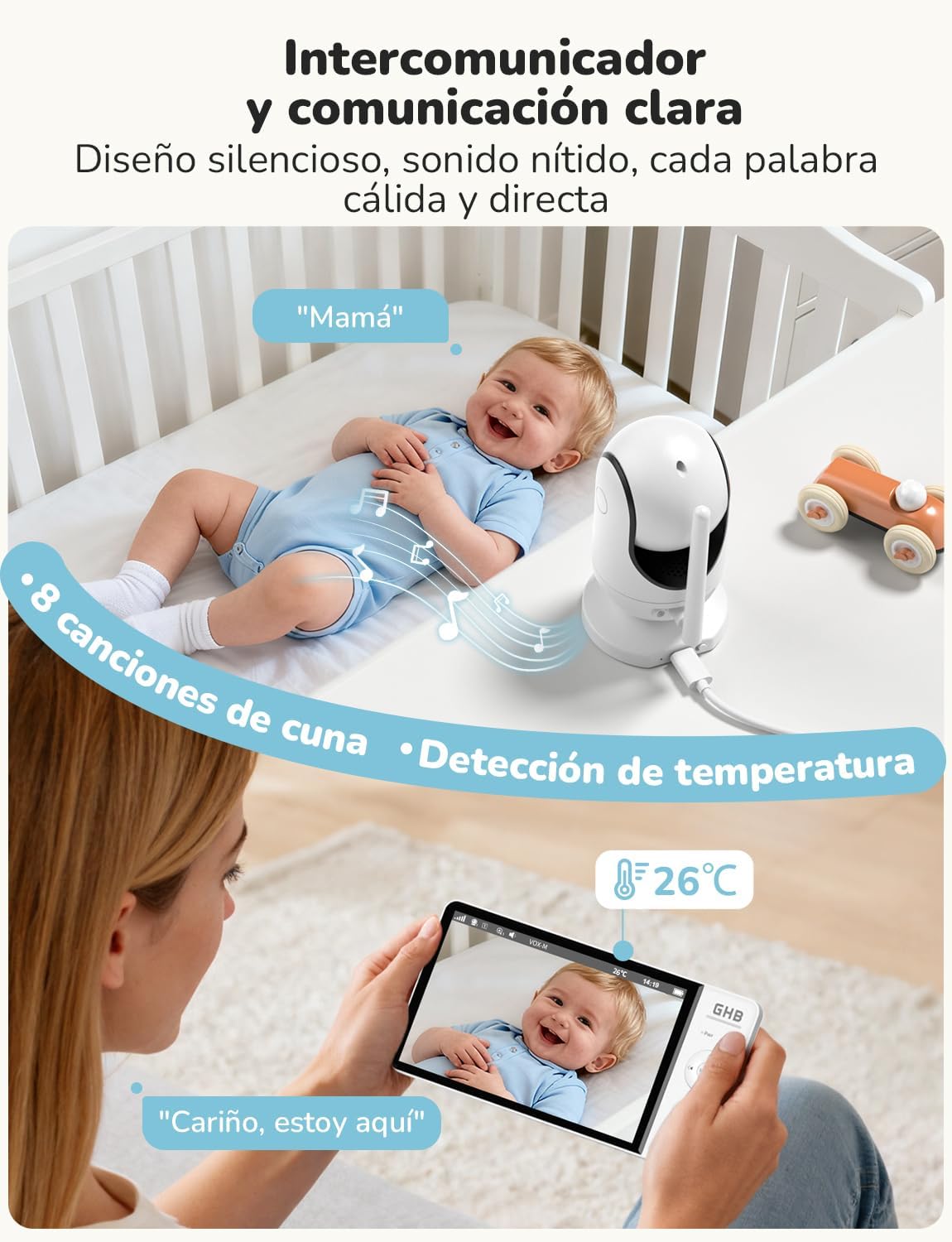
Image 4.2: Engage in two-way communication with your baby using the monitor's microphone function.
4.4 VOX Mode (Voice Operated Exchange)
VOX mode helps conserve battery life by turning off the monitor screen when no sound is detected. The screen will automatically turn on when the camera detects sound above a set sensitivity level. Press the VOX button to activate or deactivate this mode. You can adjust the VOX sensitivity in the monitor's settings menu.

Image 4.3: VOX mode activates the screen only when sounds are detected, saving battery.
4.5 Night Vision
The camera automatically switches to infrared night vision in low-light conditions, providing a clear black-and-white image on the monitor. This feature ensures continuous monitoring without the need for additional lighting.

Image 4.4: The 7-inch 1080P IPS display provides clear images day and night, including automatic night vision.
4.6 Lullabies
To play lullabies, press the Lullaby button on the monitor. You can cycle through the 8 available melodies or stop playback using the same button or through the menu.
4.7 Temperature Monitoring
The monitor displays the ambient temperature of the baby's room, detected by a sensor on the camera. You can set temperature alerts in the menu to be notified if the room temperature goes outside a comfortable range.
4.8 Image Capture
The monitor supports capturing still images. Insert a TF card (up to 32GB, FAT32 format, not included) into the monitor's card slot. Refer to the menu for options to capture images. Note that video recording is not supported.
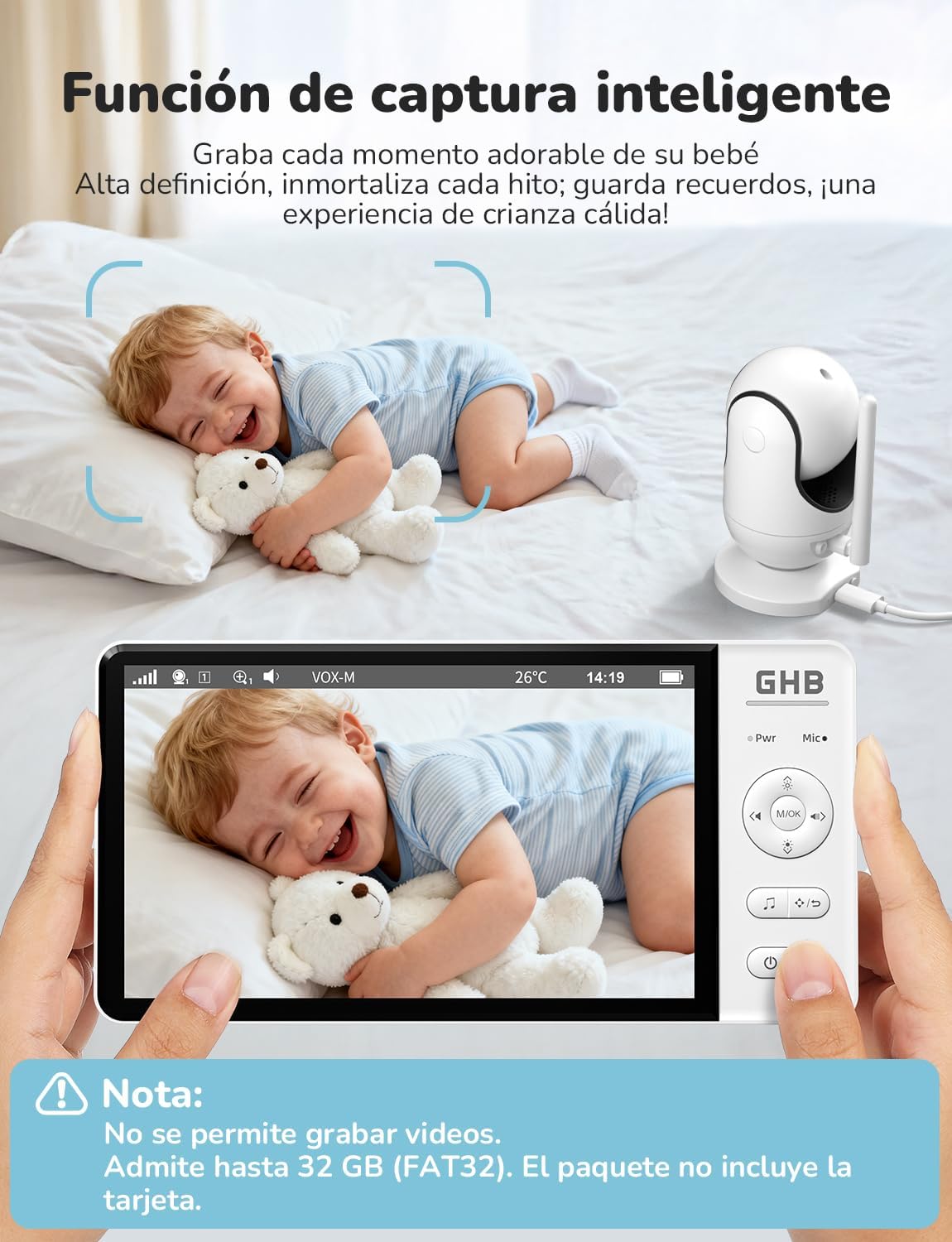
Image 4.5: The smart capture function allows you to save precious moments as still images.
5. Maintenance
- Cleaning: Use a soft, dry cloth to clean the monitor and camera. Do not use abrasive cleaners or solvents.
- Battery Care: To prolong battery life, avoid fully discharging the monitor frequently. Charge it regularly. If storing for an extended period, charge the battery to about 50% and store in a cool, dry place.
- Storage: Store the device in a dry place, away from extreme temperatures and direct sunlight.
6. Troubleshooting
| Problem | Possible Cause | Solution |
|---|---|---|
| No image/signal on monitor | Camera not powered on or out of range. Monitor battery low. | Ensure camera is plugged in and powered. Move monitor closer to camera. Charge monitor battery. Re-pair units if necessary (see manual for specific pairing steps). |
| Poor image quality | Low light conditions (night vision active). Obstructions. Camera lens dirty. | Night vision is black and white; this is normal. Ensure no objects block the camera's view. Clean the camera lens gently with a soft cloth. |
| No sound or poor audio | Volume too low. Microphone muted. Interference. | Increase monitor volume. Ensure microphone is not muted. Move units away from other electronic devices. |
| Monitor battery drains quickly | Continuous screen on. VOX mode not active. | Activate VOX mode to conserve battery. Reduce screen brightness. |
| Camera not responding to pan/tilt/zoom | Connection issue. | Check connection. Power cycle both camera and monitor. |
7. Specifications
| Feature | Specification |
|---|---|
| Model Number | ABM780 |
| Display Size | 7 inches IPS |
| Video Capture Resolution | 1080p |
| Wireless Technology | 2.4 GHz FHSS |
| Monitor Battery Capacity | 5000 mAh Lithium Ion |
| Monitor Battery Life (Continuous) | Approx. 10 hours |
| Monitor Battery Life (VOX Mode) | Approx. 360 hours |
| Camera Pan Angle | 350° |
| Camera Tilt Angle | 100° |
| Digital Zoom | 2x, 4x |
| Max. Supported Cameras | 2 |
| Image Storage | TF card up to 32GB (FAT32, not included) |
| Product Dimensions | 21 x 11 x 10 cm |
| Product Weight | 870 g |

Image 7.1: Physical dimensions of the GHB ABM780 Baby Monitor components.
8. Warranty and Support
This product comes with a standard manufacturer's warranty. For specific warranty details, please refer to the warranty card included in your package or contact GHB customer support. If you encounter any issues not covered in the troubleshooting section, please contact GHB customer service for assistance.
Contact information for support can typically be found on the product packaging or the official GHB website.


