
1. Introduction
Thank you for choosing the CHSTEK 8581A Android 13 Car Radio. This manual provides detailed instructions for the installation, operation, and maintenance of your new multimedia system. Please read this manual thoroughly before installation and use to ensure proper functionality and to maximize your user experience. This device is designed for specific Porsche models: Cayman 911 987, Boxster 997, manufactured between 2005 and 2013.
2. Product Overview
The CHSTEK 8581A is an advanced Android 13 car stereo system featuring an 8-inch 1280x720P HD touch screen. It integrates modern connectivity and entertainment options to enhance your driving experience. Key features include:
- Android 13 Operating System
- 8-inch HD Touch Screen (1280x720P)
- 8-Core Processor with 2GB RAM + 32GB Internal Storage
- Built-in Wireless Apple CarPlay and Wired Android Auto
- Integrated GPS Navigation (online and offline support)
- 4G and WiFi Connectivity
- Bluetooth for Hands-free Calling and Music Streaming
- FM Radio with RDS Function
- Multiple UI Desktop Themes and Split Screen Functionality
- Digital Sound Processor (DSP) with 36-band EQ

Image 2.1: CHSTEK 8581A Car Radio displaying its core specifications and features, including 8581-A model, microphone, 4G connectivity, 2GB+32GB memory, 8-core 1.6GHz processor, DSP*36EQ, CarPlay+Android Auto, and Android 13.
3. Setup and Installation
This unit is designed for a plug-and-play installation for compatible vehicles. However, professional installation is recommended if you are unfamiliar with car audio systems.
3.1. Vehicle Compatibility
- Porsche 911 (997): 2005-2012
- Porsche Boxster (987): 2004-2012
- Porsche Cayman (987): 2005-2013
Important Note: This model does not include a DVD/CD player. If your vehicle is equipped with a Harman Kardon or BOSE audio system, a separate fiber optic box must be purchased and installed to ensure sound functionality. Please contact support for assistance with this requirement. Some high-grade versions of the car, such as the Cayman 2010-2012, may temporarily not support the original steering wheel control keys.
3.2. Installation Process
The unit is designed to replace your existing car radio. Ensure the vehicle's power is disconnected before beginning installation. Connect the provided wiring harness to the vehicle's existing connectors. Secure the unit in the dashboard opening. Refer to your vehicle's specific service manual for dashboard disassembly and reassembly procedures.

Image 3.1: The CHSTEK 8581A Car Radio seamlessly integrated into a Porsche vehicle's dashboard, showcasing its fit and appearance.

Image 3.2: A visual comparison demonstrating the car dashboard's appearance before and after the installation of the CHSTEK 8581A car radio, highlighting the modern upgrade.
3.3. 4G SIM Card Installation
The unit supports 4G connectivity via a SIM card. Locate the 4G SIM cable and insert your SIM card into the designated slot. This allows for 4G data access without disassembling the main unit.

Image 3.3: Illustration of the 4G and WiFi support feature, detailing the external 4G SIM cable for easy SIM card replacement without needing to remove the main unit.
4. Operating Instructions
4.1. Wireless Apple CarPlay
Connect your iPhone wirelessly to access CarPlay features. CarPlay provides a simplified interface for navigation, making calls, sending messages, and playing music directly from your iPhone on the car radio screen. Activate Siri for voice control by saying "Hey Siri" or pressing the voice command button.

Image 4.1: The built-in Wireless Apple CarPlay interface, demonstrating features such as online map navigation, Siri voice control, call management, and music playback.
4.2. Wired Android Auto
Connect your Android device via USB to use Wired Android Auto. This mirrors essential features from your Android phone to the car's display, including GPS mapping, music playback, SMS, telephone functions, and web search. You can use Google Assistant for voice commands.
Note: Some Android devices, such as certain Samsung models, may experience compatibility issues with Android Auto. Please contact support if you encounter problems.
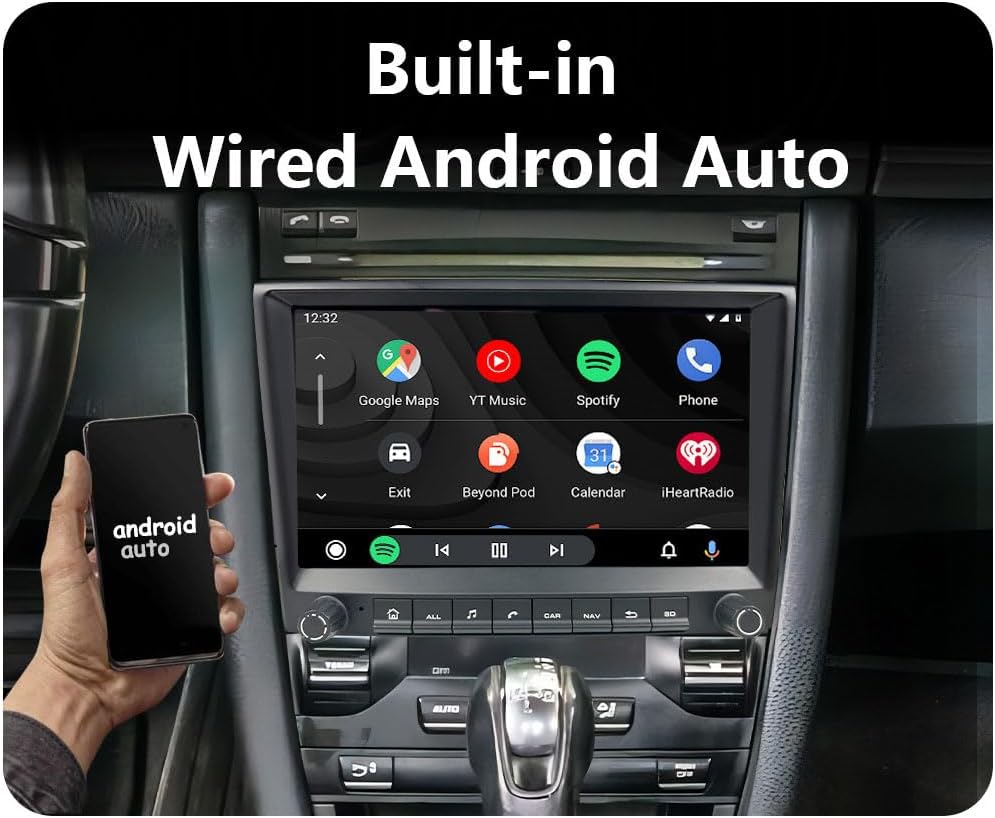
Image 4.2: The built-in Wired Android Auto interface, showing popular applications like Google Maps, YouTube Music, Spotify, and Phone.
4.3. GPS Navigation
The head unit includes built-in GPS navigation. It supports both online and offline maps. Download your preferred offline maps for navigation without an internet connection. Real-time road conditions can be accessed when connected to the internet, helping you avoid traffic.
4.4. WiFi and 4G Connectivity
Connect to available WiFi networks or use a 4G SIM card for internet access. This enables online activities such as streaming videos, browsing the web, and accessing real-time news.
4.5. Bluetooth Functions
Pair your smartphone via Bluetooth for hands-free calling and audio streaming. The system supports downloading phonebooks for easy access to contacts. An external microphone can be connected for clearer call quality.
4.6. FM Radio
The FM radio provides access to 18 preset stations (FM 87.50-108.0 MHz). The built-in RDS (Radio Data System) function, especially useful for European users, automatically selects the most stable frequency for a station.

Image 4.3: The FM Radio interface, showcasing station tuning, RDS functionality, and current playback information.
4.7. Multiple UI Desktop Themes
Customize your user interface by selecting from various built-in desktop themes to personalize your experience.
4.8. Split Screen Function
Utilize the split-screen feature to run two applications simultaneously. For example, you can view navigation maps while playing music or watching a video.

Image 4.4: Demonstration of the split-screen function, illustrating simultaneous video playback with navigation and navigation with a music player.
4.9. EQ Function
Adjust the audio output using the Equalizer (EQ) function to tailor the sound quality to your preferences, providing an optimized listening experience.
5. Specifications
| Item Weight | 4.4 pounds |
| Package Dimensions | 11.81 x 9.84 x 7.87 inches |
| Item Model Number | GMC |
| Display Size | 8 Inches |
| Manufacturer | CHSTEK |
| Brand | Generic |
| Special Feature | Bluetooth, Touchscreen |
| Connectivity Technology | Wireless |
| Map Type | Worldwide |
| Included Components | As shown |
6. Troubleshooting
- No Sound with Premium Audio Systems: If your vehicle has a Harman Kardon or BOSE audio system and you experience no sound, a fiber optic box is required. Please contact CHSTEK support for guidance on purchasing and installing this component.
- Steering Wheel Controls Not Responding: For certain high-grade vehicle versions, such as the Porsche Cayman 2010-2012, steering wheel controls may not be fully supported.
- CarPlay/Android Auto Connection Issues: Ensure your phone's operating system is up to date. For wireless CarPlay, verify Bluetooth and Wi-Fi are enabled on your iPhone. For wired Android Auto, try a different USB cable. If issues persist, contact support.
- General Malfunctions: If the unit is unresponsive or exhibits unexpected behavior, try restarting the device. If the problem continues, check all wiring connections.
7. Maintenance
To ensure the longevity and optimal performance of your CHSTEK 8581A car radio, follow these maintenance guidelines:
- Screen Cleaning: Use a soft, lint-free cloth slightly dampened with water or a screen cleaner specifically designed for electronics. Avoid harsh chemicals or abrasive materials.
- Software Updates: Periodically check for available software updates through the system settings to ensure you have the latest features and performance enhancements.
- Environmental Conditions: Avoid exposing the unit to extreme temperatures, direct sunlight for prolonged periods, or excessive moisture.
8. Warranty and Support
The CHSTEK 8581A Car Radio comes with a 1-year warranty from the date of purchase. This warranty covers manufacturing defects under normal use. For warranty claims, technical assistance, or any questions regarding your product, please contact CHSTEK Radio customer support directly. You can typically find contact information on your purchase receipt or the seller's page where the product was acquired.