
Sovboi E30Max
Sovboi E30Max Outdoor Projector User Manual
Model: E30Max
1. Introduction
Thank you for choosing the Sovboi E30Max Outdoor Projector. This manual provides essential information for setting up, operating, maintaining, and troubleshooting your new projector. The E30Max is designed to deliver a high-quality cinematic experience with advanced features like Google TV integration, AI voice control, automatic adjustments, and robust connectivity.
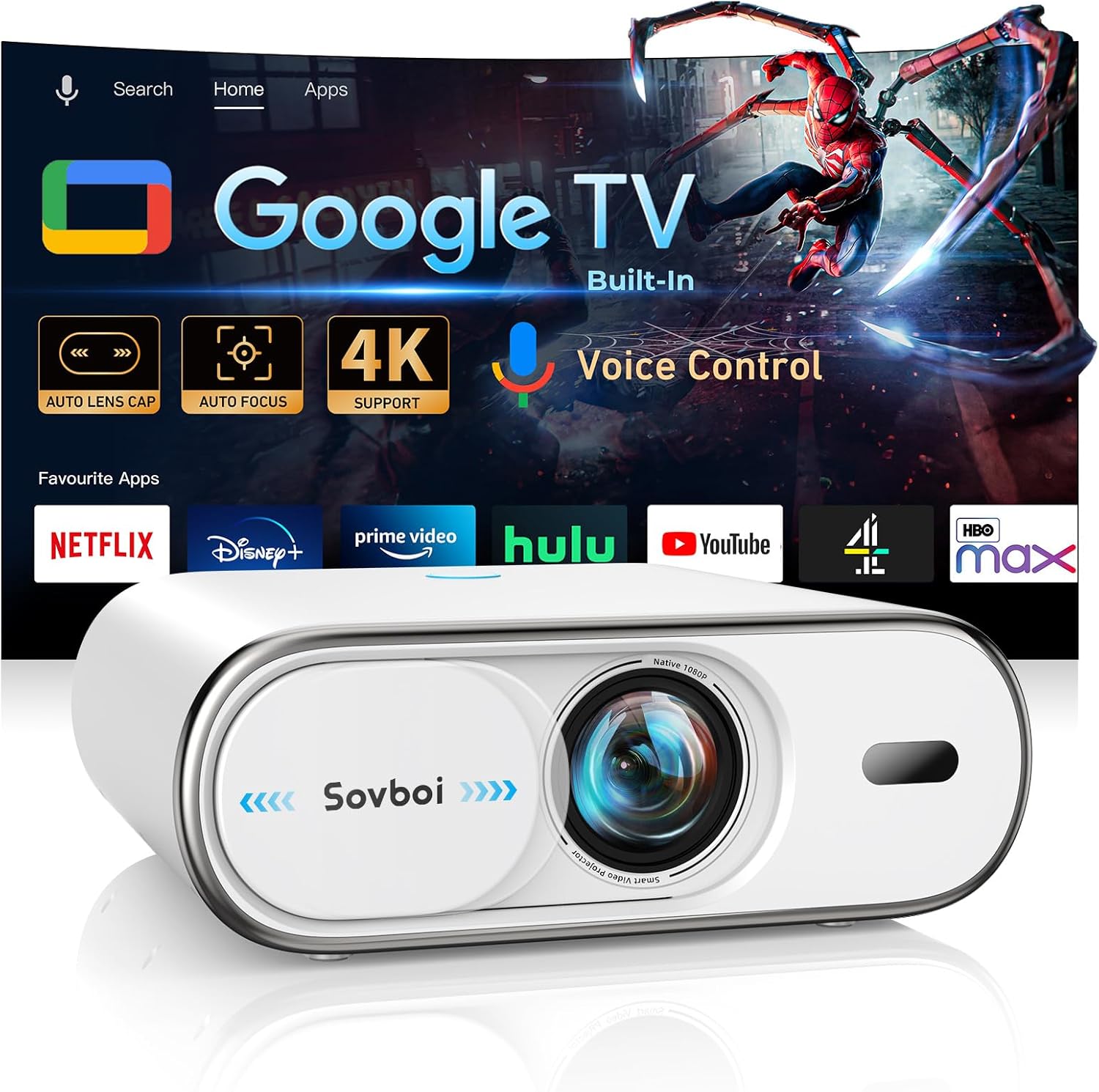
Figure 1.1: Sovboi E30Max Projector with Google TV interface displayed.
2. Package Contents
Please verify that all items listed below are included in your package:
- Projector x 1
- Adapter x 1
- HDMI Cable x 1
- Cleaning Kit x 1
- Remote Control x 1
3. Product Overview
The Sovboi E30Max projector integrates advanced technology for a seamless viewing experience. Key features include:
- Google TV Compatibility: Full access to Google Play Store for 10,000+ apps, including Netflix, Disney+, and HBO Max.
- AI Voice Control: Hands-free operation with Google Assistant, supporting over 200 languages.
- 4K Support & 1500 ANSI Brightness: Delivers true-to-life 4K clarity with vibrant brightness for various environments.
- AI Chip Auto-System: Features automatic lens cap, auto-focus, and ±50° vertical keystone correction for quick setup.
- Dual-Channel Connectivity: Equipped with Wi-Fi 6 for ultra-smooth streaming and Bluetooth 5.2 for low-latency audio sync.
- Auto-Guard Smart System: Auto-retracting lens cover protects against scratches and dust, extending lens lifespan.
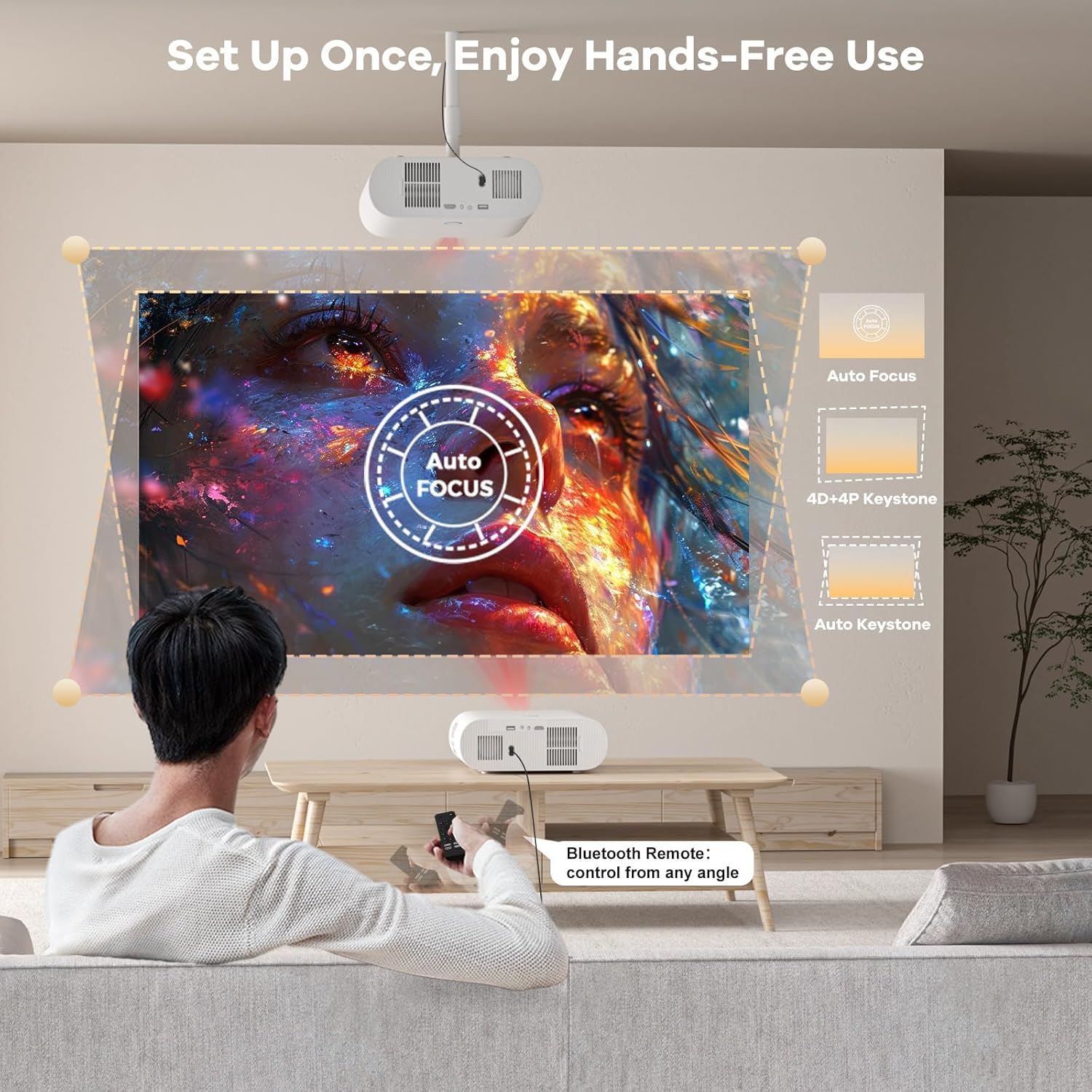
Figure 3.1: The E30Max features automatic focus and keystone correction for effortless setup.

Figure 3.2: The Auto-Guard Smart System with an auto-retracting lens cover for protection.
4. Setup Guide
4.1 Initial Power-On and Placement
- Place the projector on a stable, flat surface, or mount it securely. Ensure there are no obstructions to the lens or ventilation ports.
- Connect the power adapter to the projector's power input and then to a power outlet.
- Press the power button on the projector or remote control to turn it on. The auto-retracting lens cover will open automatically.
4.2 Automatic Adjustments
The E30Max features an AI-driven chip for rapid setup:
- Auto-Focus: The projector will automatically adjust the image clarity within approximately 3 seconds.
- Auto Vertical Keystone Correction: The projector will automatically correct vertical image distortion up to ±50°.
- 4-Point Keystone Correction: For more precise adjustments or non-vertical angles, use the remote control to manually adjust the four corners of the image.

Figure 4.1: The projector's automatic focus and keystone correction ensure a clear image quickly.
4.3 Initial Google TV Setup
- Follow the on-screen prompts to connect to your Wi-Fi network.
- Sign in with your Google Account to access personalized recommendations and sync preferences.
- The system will guide you through installing essential apps and setting up voice control.
5. Operating Your Projector
5.1 Google TV Interface
The E30Max comes with Google TV built-in, providing a centralized hub for all your entertainment:
- App Access: Download and install over 10,000 applications directly from the Google Play Store.
- Content Aggregation: Google TV organizes movies, shows, and live TV from all your subscriptions into one easy-to-browse interface.
- Personalized Recommendations: Based on your viewing habits and Google Account preferences.

Figure 5.1: The Google TV interface provides access to a wide range of applications and content.
5.2 AI Voice Control
Utilize the integrated Google Assistant for hands-free control:
- Press the microphone button on the remote control.
- Speak commands such as "Play [movie title]", "Open Netflix", or "Turn up the volume".
- The voice control supports over 200 languages.

Figure 5.2: Use the remote's mic button for AI voice commands.
5.3 Wireless Connectivity (Wi-Fi 6 & Bluetooth 5.2)
- Wi-Fi 6: Ensures ultra-smooth, low-latency streaming and gaming. Connect to your home Wi-Fi network via the settings menu.
- Bluetooth 5.2: Connect external Bluetooth speakers, headphones, or game controllers with minimal audio lag.
- Chromecast Built-in: Easily cast content from your iOS, Android, Mac, or Windows devices directly to the projector.
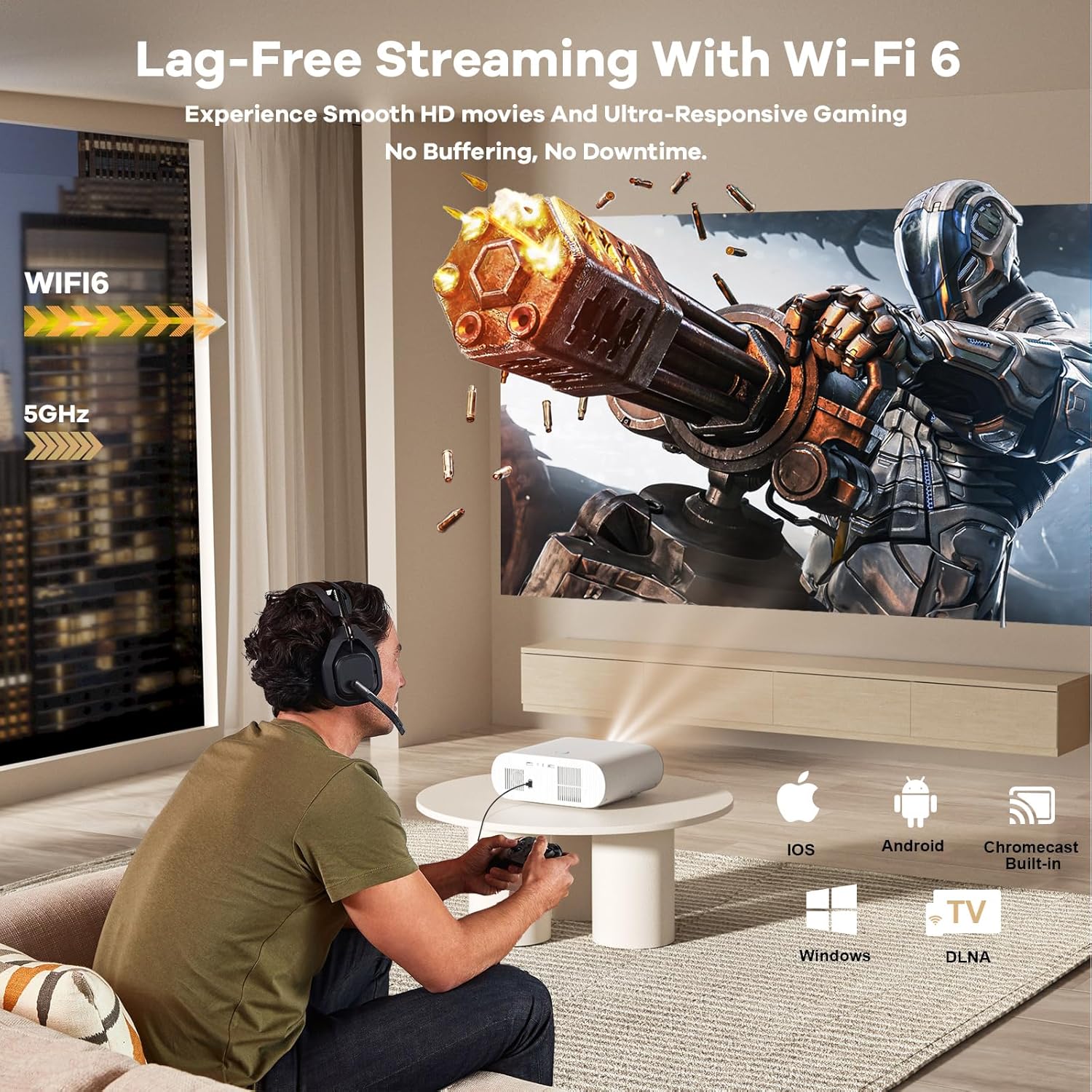
Figure 5.3: Enjoy lag-free streaming and gaming with Wi-Fi 6 and broad device compatibility.
5.4 Using Your Phone as a Remote
You can control the projector using the Google Home app on your smartphone:
- Download the Google Home app from your device's app store.
- Ensure your phone and the projector are on the same Wi-Fi network.
- Select the projector in the Google Home app to use it as a remote for power on/off, app launching, and volume control.

Figure 5.4: Control your projector using the Google Home app on your smartphone.
5.5 CEC Controller Functionality
The E30Max remote control features CEC (Consumer Electronics Control) functionality, allowing you to control multiple compatible devices (e.g., soundbars, Blu-ray players) connected via HDMI with a single remote.

Figure 5.5: The CEC-enabled remote allows control of multiple devices.
6. Maintenance and Care
6.1 Lens Protection and Cleaning
- The auto-retracting lens cover helps prevent scratches and dust ingress. Ensure it closes properly when the projector is off.
- Use the provided cleaning kit or a soft, lint-free cloth to gently wipe the lens. Avoid abrasive materials or harsh chemicals.
- The hermetically-sealed optical engine minimizes dust intrusion, maintaining image quality over time.
6.2 Software Updates
The E30Max projector with Google TV automatically updates via Wi-Fi, ensuring you always have the latest features, content, and security enhancements. Ensure the projector is connected to the internet for seamless updates.

Figure 6.1: The projector receives seamless automatic updates via Wi-Fi.
7. Troubleshooting
7.1 Common Issues and Solutions
| Issue | Possible Cause / Solution |
|---|---|
| Cannot wirelessly cast content from Hulu, Netflix, Disney+, etc. | Due to copyright restrictions, some content cannot be cast directly. The projector comes with pre-installed licensed streaming apps. Go to the homepage, select "Apps", search for the app, and log in to play your content. |
| Remote control not working. | 1. Ensure two AAA batteries are correctly installed in the remote control. 2. Avoid mixing new batteries with old ones, as this can lead to insufficient power supply. |
| Projector does not support accessing the Google Store. | The projector fully supports Google Store access. You can freely download apps supported by the Google Store. Ensure you are signed in to your Google Account and connected to the internet. |
| Skewed or fuzzy image. | Auto Focus instantly sharpens your picture. For distortion, the Auto Vertical Keystone Correction will adjust automatically. For more precise adjustments, use the 4-point keystone correction feature via the remote control. No manual knobs or menus are required for basic correction. |
| No image or signal. | Check all cable connections (HDMI, USB). Ensure the correct input source is selected on the projector. Restart the projector and the connected device. |
| No audio. | Check the projector's volume level and ensure it's not muted. Verify external audio devices (if connected via Bluetooth or 3.5mm audio jack) are powered on and properly paired/connected. Check audio settings on the source device. |
8. Technical Specifications
| Feature | Specification |
|---|---|
| Brand | Sovboi |
| Model Number | E30Max |
| Display Resolution | 1920 x 1080 (Full HD), 4K Supported |
| Brightness | 1500 ANSI Lumens |
| Connectivity Technology | Wi-Fi 6, Bluetooth 5.2, HDMI, USB, 3.5mm Audio |
| Product Dimensions | 10.2 x 8.5 x 4.5 inches |
| Item Weight | 4 pounds |
| Color | White |
| Special Features | Auto Focus, Auto 4P/4D Keystone Correction, Auto Lens Cover, Compatible with Google TV/Netflix/Prime Video/Hulu, Smart Google Voice Assistant, 360° Bluetooth Remote |
| Recommended Uses | Business, Education, Gaming, Home Cinema |
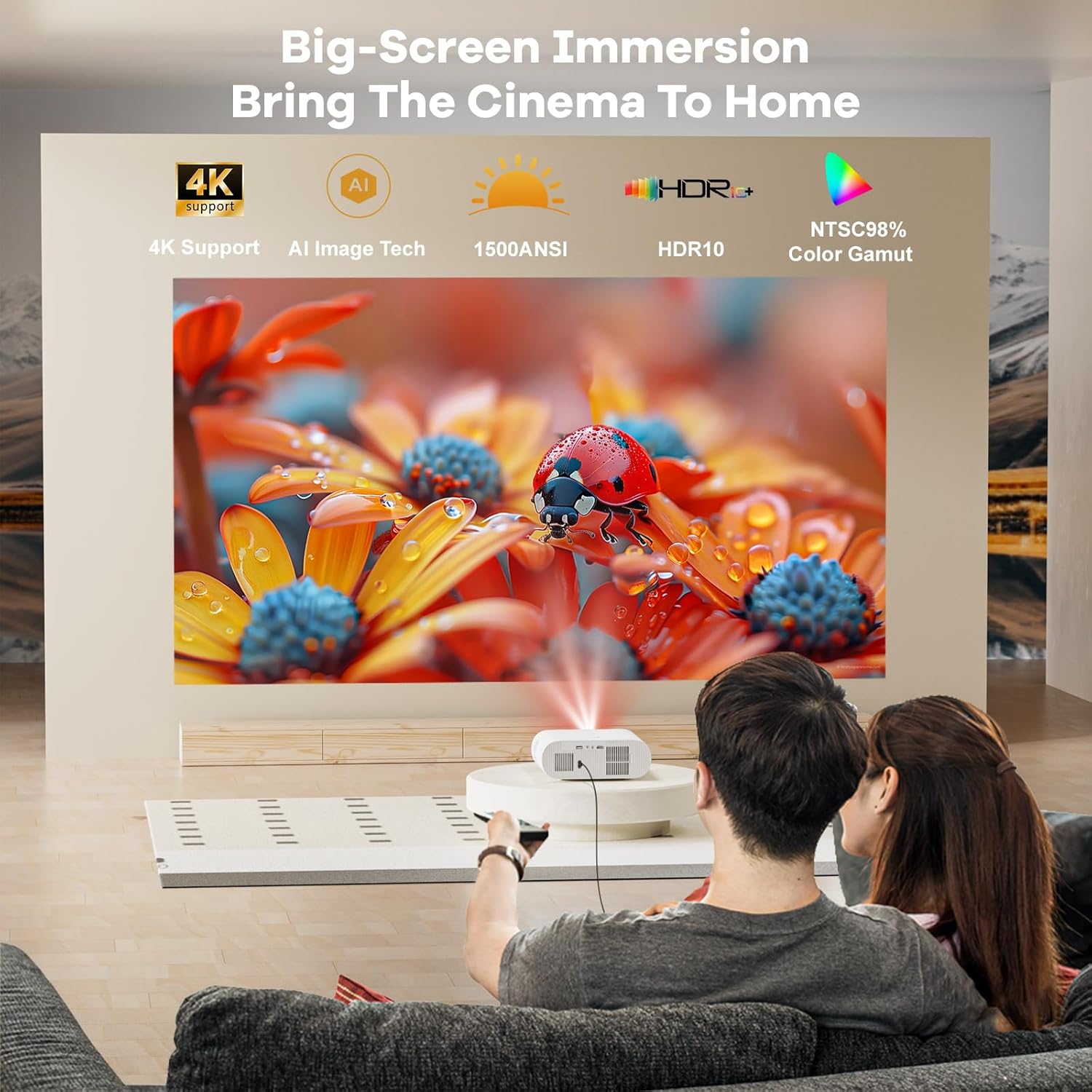
Figure 8.1: The E30Max delivers a high-quality visual experience with 4K support and 1500 ANSI brightness.
9. Warranty and Support
Sovboi is committed to providing excellent customer service and product reliability.
- Protection Plan: The Sovboi E30Max comes with a 3-year full protection plan. Extended protection plans are also available for purchase.
- Technical Support: Enjoy lifetime technical support for your projector. Professional technicians are available 24/7 to assist you.
- Return Policy: A 30-day no-questions-asked return policy is provided.
- Contact Support: For any inquiries or assistance, please contact us at Support_us@sovboi.com.
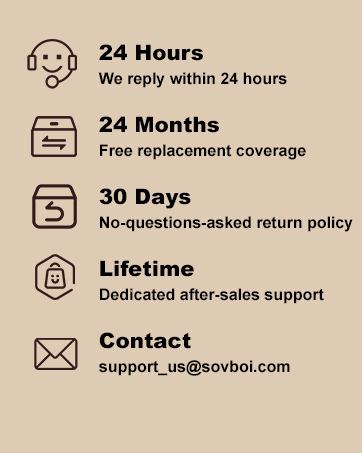
Figure 9.1: Sovboi's commitment to customer satisfaction and support.
Related documentsE30Max


Ask a question about this manual
Ask about setup, troubleshooting, compatibility, parts, safety, or missing instructions. Manuals+ will review the question and use this page’s manual context to help answer it.