
Introduction
This manual provides detailed instructions for the installation, operation, and maintenance of your WonVon 9''HD Wireless CarPlay Screen. This device integrates advanced features such as wireless Apple CarPlay and Android Auto, a 4K front dash camera, and a 1080P rear backup camera, enhancing your driving experience with navigation, communication, and recording capabilities.
Safety Information
- Always ensure the device is securely mounted and does not obstruct your view of the road or interfere with vehicle controls.
- Do not attempt to operate the device or adjust settings while driving. Perform all adjustments when the vehicle is safely parked.
- Avoid prolonged exposure to direct sunlight or extreme temperatures, as this may damage the device.
- Keep the device away from water and moisture.
- Use only the provided power cable and accessories to prevent damage or malfunction.
Package Contents
Verify that all items listed below are included in your package:
- 1x 9" CarPlay Screen with Front 4K Camera
- 1x 1080P Rear Camera
- 1x Adhesive Bracket
- 1x Suction Cup Mount
- 1x Aux Audio Cable
- 1x Type-C Car Charger
- 1x 64GB TF Card
- 2x Fixed Adhesive Stickers
- 1x Chisel (for cable routing)
- 3x Wire Holders
- 1x User Manual
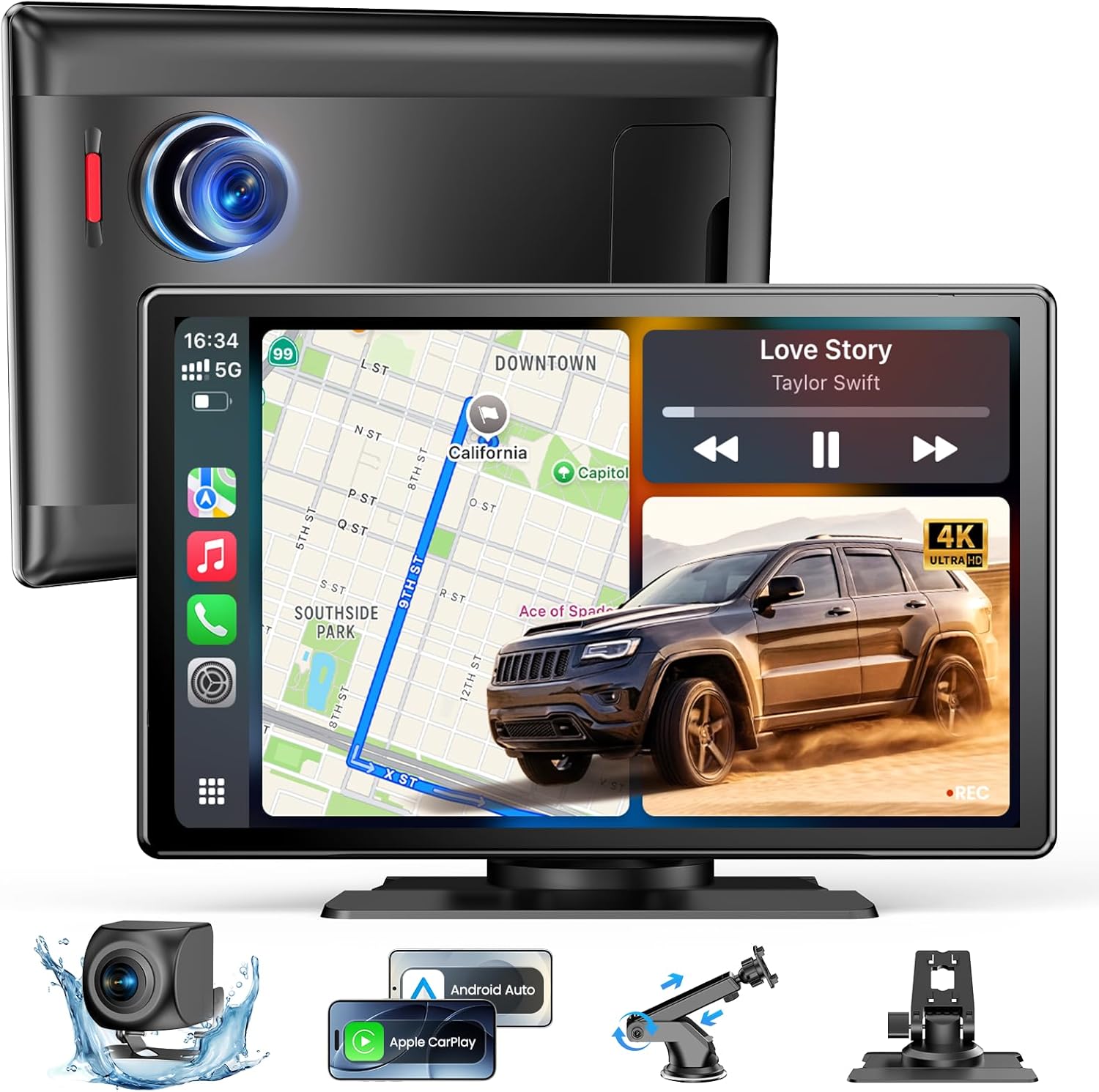
Image: The WonVon 9''HD Wireless CarPlay Screen and its included accessories.
Video: An unboxing demonstration showing the contents of the package.
Setup
1. Mounting the Device
The device offers two primary mounting options: a suction cup mount for windshields or a dashboard adhesive bracket.
- Suction Cup Mount: Attach the suction cup mount to the back of the CarPlay screen. Clean the desired area on your windshield or dashboard thoroughly. Press the suction cup firmly against the surface and engage the lever to secure it.
- Adhesive Bracket: Attach the adhesive bracket to the back of the CarPlay screen. Clean the desired area on your dashboard. Remove the protective film from the adhesive and press the bracket firmly onto the dashboard for several seconds.

Image: Illustration of damage-free installation methods using suction cup or adhesive bracket.
Video: A tutorial demonstrating the installation process for the CarPlay screen.
2. Power Connection
Connect the provided Type-C car charger to the device's power input and plug the other end into your vehicle's cigarette lighter socket.
3. Memory Card Installation
Insert the included 64GB TF card into the designated memory card slot on the side of the CarPlay screen. Ensure it clicks into place.

Image: Close-up of the memory card slot on the device.
4. Rear Camera Installation
Connect the 1080P rear camera to the R-CAM port on the CarPlay screen. Route the camera cable neatly through your vehicle's interior to the rear. For automatic display when reversing, connect the red wire of the rear camera cable to your vehicle's reverse light power supply. Professional installation is recommended for this step.
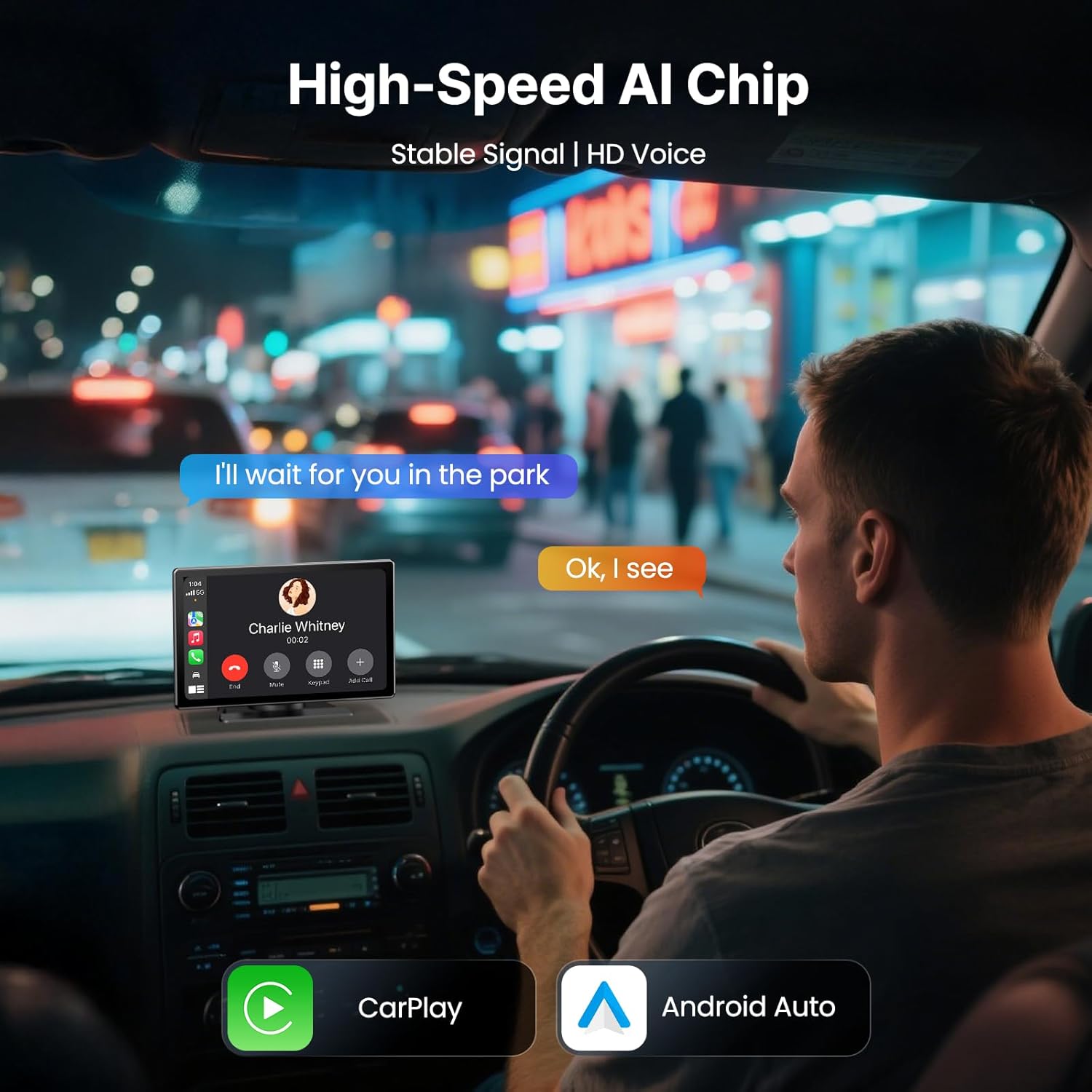
Image: The 1080P rear camera unit.
Video: A tutorial demonstrating the car audio connection, which may include rear camera wiring.
Operating Instructions
1. Power On/Off
The device will automatically power on when your vehicle starts and power off when the ignition is turned off.
2. Wireless Apple CarPlay Connection
To connect your iPhone to CarPlay wirelessly:
- On the CarPlay screen, tap the 'CarPlay' icon.
- On your iPhone, enable Bluetooth and Wi-Fi.
- In your iPhone's Bluetooth settings, find and select the device name (e.g., 'Car_Play_Hub_5dac60').
- Confirm the pairing request on both devices.
- Once paired, select 'Connect to CarPlay' on your iPhone. CarPlay will launch on the screen.

Image: Step-by-step guide for connecting iOS devices to CarPlay wirelessly.
Video: A demonstration of how to link your iPhone to CarPlay.
3. Wireless Android Auto Connection
To connect your Android phone to Android Auto wirelessly:
- On the CarPlay screen, tap the 'Android Auto' icon.
- On your Android phone, enable Bluetooth and Wi-Fi.
- In your phone's Bluetooth settings, find and select the device name (e.g., 'Car_Play_Hub_5dac60').
- Confirm the pairing request on both devices. Android Auto will launch on the screen.

Image: Step-by-step guide for connecting Android devices to Android Auto wirelessly.
4. Audio Output Options
The device supports multiple audio output methods:
- Built-in Speakers: Audio will play directly from the device's integrated speakers.
- AUX Audio Cable: Connect the provided AUX cable from the device's AUX output to your vehicle's AUX input for higher quality audio.
- Bluetooth: Once your phone is connected via Bluetooth for CarPlay/Android Auto, audio can be streamed to your vehicle's Bluetooth system.
- FM Transmission: Select an unused FM frequency on the CarPlay screen and tune your vehicle's radio to the same frequency to transmit audio.

Image: Visual representation of the four available audio output methods.
5. Mirror Link (AirPlay / Android Cast)
To mirror your phone's screen directly to the CarPlay device:
- For iOS (AirPlay): Tap the 'AirPlay' icon on the device. Connect your iPhone to the device's Wi-Fi network (details displayed on screen). Then, use your iPhone's screen mirroring function to select the device.
- For Android (Android Cast): Tap the 'Android Cast' icon on the device. Connect your Android phone to the device's Wi-Fi network. Open the mirroring app on your phone (you may need to scan a QR code on the device screen to download it) and select the device to cast.

Image: Step-by-step instructions for AirPlay screen mirroring from iOS devices.

Image: Step-by-step instructions for Android Cast screen mirroring from Android devices.
6. Dash Cam Operation
The device features integrated 4K front and 1080P rear cameras for simultaneous recording.
- Recording: The dash cam automatically begins loop recording when the device powers on. Footage is saved to the installed 64GB TF card.
- Emergency Lock: In case of sudden impact or collision, the built-in G-sensor will automatically lock the current video segment to prevent it from being overwritten.
- Playback: Access recorded videos by tapping the 'Playback' icon on the main screen. You can view front and rear camera footage, including normal and locked videos.

Image: Overview of the dual-camera system, highlighting 4K front and 1080P rear recording.
Video: A demonstration of the 9''HD Wireless CarPlay Screen with 4K Dash and 1080P Backup camera features.
7. Voice Control
Utilize Siri or Google Assistant for hands-free control of navigation, calls, messages, and music. Simply activate your phone's voice assistant and speak your commands.

Image: Illustrates voice control functionality with Siri and Google Assistant.
Specifications
| Product Dimensions | 8.7 x 1 x 5.5 inches |
| Item Weight | 2.63 pounds (1.2 Kilograms) |
| Model Number | CP4C0037US |
| Brand | WonVon |
| Connectivity Technology | Bluetooth, Wi-Fi |
| Special Features | Android Auto, Apple CarPlay, Front View Camera, Rear View Camera, Touchscreen |
| Compatible Devices | Smartphone (Google Pixel, Motorola, Samsung, iPhone) |
| Connector Type | USB Type-C |
| Audio Output Mode | Built-in Speakers, AUX to Car's Audio, Bluetooth, FM Transmission |
| Color | Black |
| Control Method | Voice |
Maintenance
- Regularly clean the screen with a soft, lint-free cloth. Avoid abrasive cleaners.
- Ensure camera lenses are clean for optimal recording quality.
- Check cable connections periodically to ensure they are secure.
- Format the TF card regularly (e.g., monthly) to maintain optimal recording performance and prevent data corruption. Back up any important footage before formatting.
Troubleshooting
No Power
- Ensure the car charger is securely plugged into both the device and the vehicle's cigarette lighter socket.
- Check if the vehicle's cigarette lighter socket is receiving power (e.g., by testing with another device).
CarPlay/Android Auto Not Connecting
- Verify that Bluetooth and Wi-Fi are enabled on your smartphone.
- Ensure your phone's operating system meets the minimum requirements (iOS 13+ for iPhone 5+, Android 11+ for Android Auto).
- Forget the device from your phone's Bluetooth settings and attempt to pair again.
- Restart both the CarPlay screen and your smartphone.
No Audio Output
- Check the selected audio output mode on the CarPlay screen (Built-in Speakers, AUX, Bluetooth, FM).
- If using AUX, ensure the cable is properly connected and your vehicle's audio system is set to AUX input.
- If using FM transmission, ensure the CarPlay screen and your vehicle's radio are tuned to the exact same unused frequency.
- Adjust the volume on both the CarPlay screen and your vehicle's audio system.
Dash Cam Recording Issues
- Ensure the 64GB TF card is correctly inserted and not full.
- If the card is full, older footage will be overwritten by loop recording, unless locked.
- Format the TF card if recording issues persist.
Warranty and Support
WonVon is committed to providing top-tier products and excellent after-sales service. For any product-related inquiries, technical support, or warranty claims, please contact WonVon customer service through the retailer where the product was purchased. Refer to your purchase documentation for specific warranty terms and contact information.