
1. Introduction
This manual provides detailed instructions for the Redragon S151 Gaming Keyboard and Mouse Combo. It covers setup, operation, customization, maintenance, and troubleshooting to ensure optimal performance and user experience.
2. Package Contents
- Redragon K525 Wired RGB Membrane Gaming Keyboard
- Redragon M616 Wired 10000 DPI Gaming Mouse
- User Manual
- Redragon Sticker Pack (Optional)
3. Keyboard Features (K525)

The Redragon K525 keyboard features a standard 104-key layout with quiet membrane keys, designed for both gaming and general use. It includes a comfortable wrist rest for extended use and supports software customization. The keyboard is equipped with 4 onboard macro keys (G1-G4) and 5 dedicated media controls for convenient access to multimedia functions.
Key Features:
- 104-Key Layout: Full-size keyboard for comprehensive functionality.
- Quiet Membrane Keys: Designed for reduced noise during typing and gaming.
- 4 Onboard Macro Keys (G1-G4): Programmable keys for custom commands without additional software.
- Dedicated Media Controls: Play, pause, skip, and volume control directly from the keyboard.
- Integrated Wrist Rest: Provides ergonomic support to reduce hand fatigue.
- 26 Anti-Ghosting Keys: Ensures simultaneous key presses are registered accurately.
- True RGB Backlighting: Customizable lighting with multiple modes and brightness control.

The K525 utilizes linear membrane gaming switches, offering effortless precision and silent comfort during operation. This design contributes to a responsive yet quiet typing experience.
4. Mouse Features (M616)

The Redragon M616 gaming mouse is designed for precision and customization. It features a gaming-grade optical sensor with adjustable DPI settings up to 10000 DPI, ensuring accurate tracking. The mouse includes 6 programmable buttons and customizable RGB backlighting.
Key Features:
- Max 10000 DPI Adjustable: 5 on-board DPI levels (800/1200/1600/2400/10000) for precise control.
- Gaming-Grade Optical Sensor: Provides high accuracy and responsiveness.
- 6 Programmable Buttons: Customizable tactical keybinds for gaming and work.
- 1000Hz Polling Rate: Ensures rapid and accurate mouse movements.
- Customizable RGB Backlighting: 8 backlit modes and various color options.
- Ergonomic Design: Comfortable for long gaming sessions.
- 10 Million Clicks Lifespan: Durable switches for extended use.
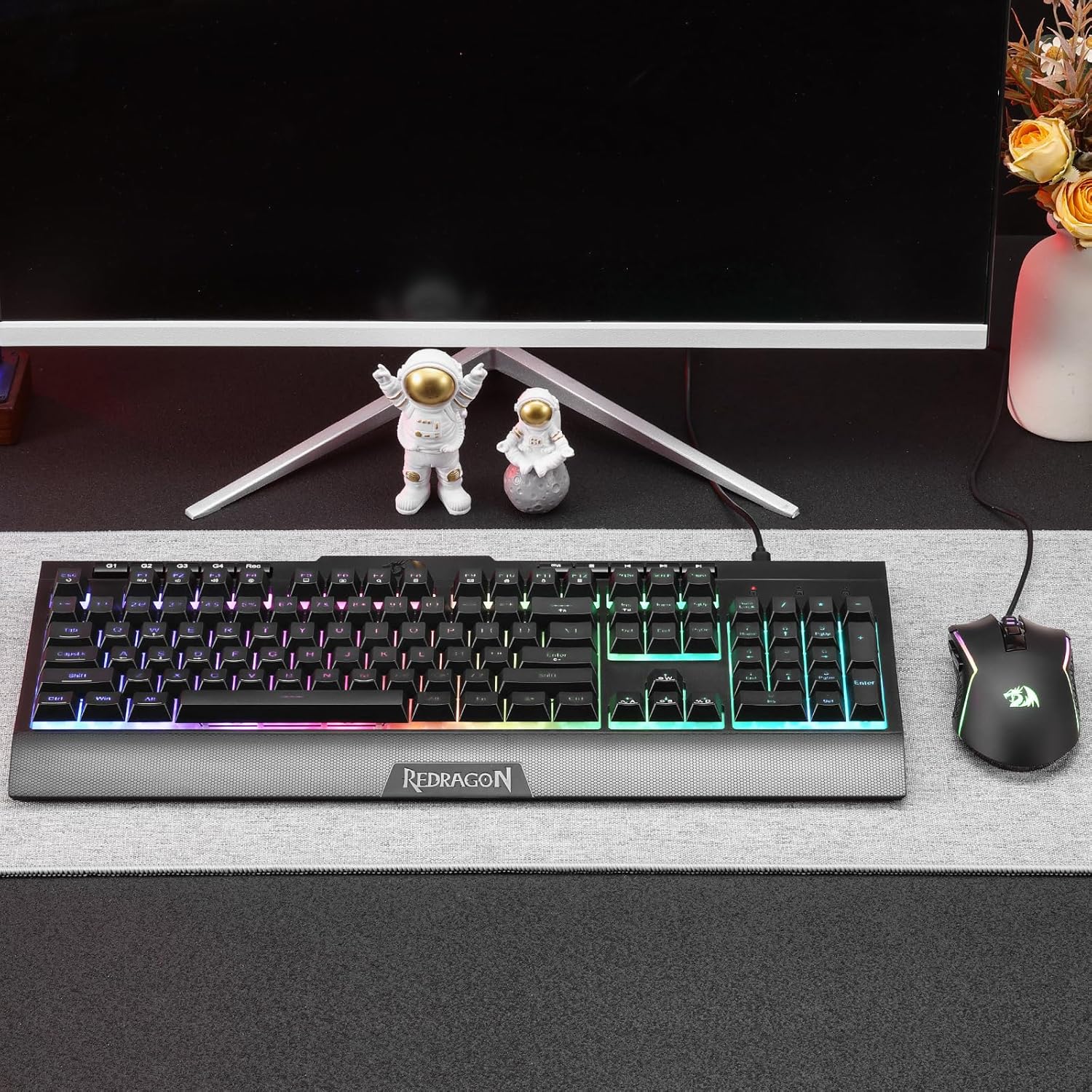
The M616 mouse's gaming-grade optical sensor offers up to 10000 Max DPI Sensitivity, 30G Acceleration, and 80 IPS Tracking Speed, all within a lightweight 95g design for optimal performance.
5. Setup Guide
The Redragon S151 combo is a plug-and-play device. No special drivers are required for basic functionality.
Connecting the Devices:
- Locate an available USB port on your computer (PC or Laptop).
- Plug the USB connector of the K525 keyboard into the USB port.
- Plug the USB connector of the M616 mouse into another available USB port.
- The devices will be automatically recognized by your operating system.
For advanced customization of RGB lighting, macros, and DPI settings, download the official Redragon software from the Redragon website. Refer to the software section for more details.
6. Operating Instructions - Keyboard
Macro Keys (G1-G4):
The 4 onboard macro keys (G1-G4) can be programmed directly on the keyboard without software. Consult the included user manual for specific instructions on recording and assigning macros.
Media Controls:
Use the dedicated media control keys located above the function row to manage your audio and video playback:
- Volume Up/Down: Adjust audio levels.
- Mute: Silence audio output.
- Play/Pause: Control media playback.
- Previous/Next Track: Navigate through media tracks.
7. Operating Instructions - Mouse
DPI Adjustment:
The M616 mouse features 5 on-board DPI levels (800/1200/1600/2400/10000) that can be cycled through using the dedicated DPI button, usually located below the scroll wheel. This allows for quick sensitivity adjustments during gameplay or work.
Programmable Buttons:
The 6 programmable buttons on the mouse can be customized using the Redragon software to assign specific functions, macros, or keybinds for enhanced control.
8. RGB Lighting Customization
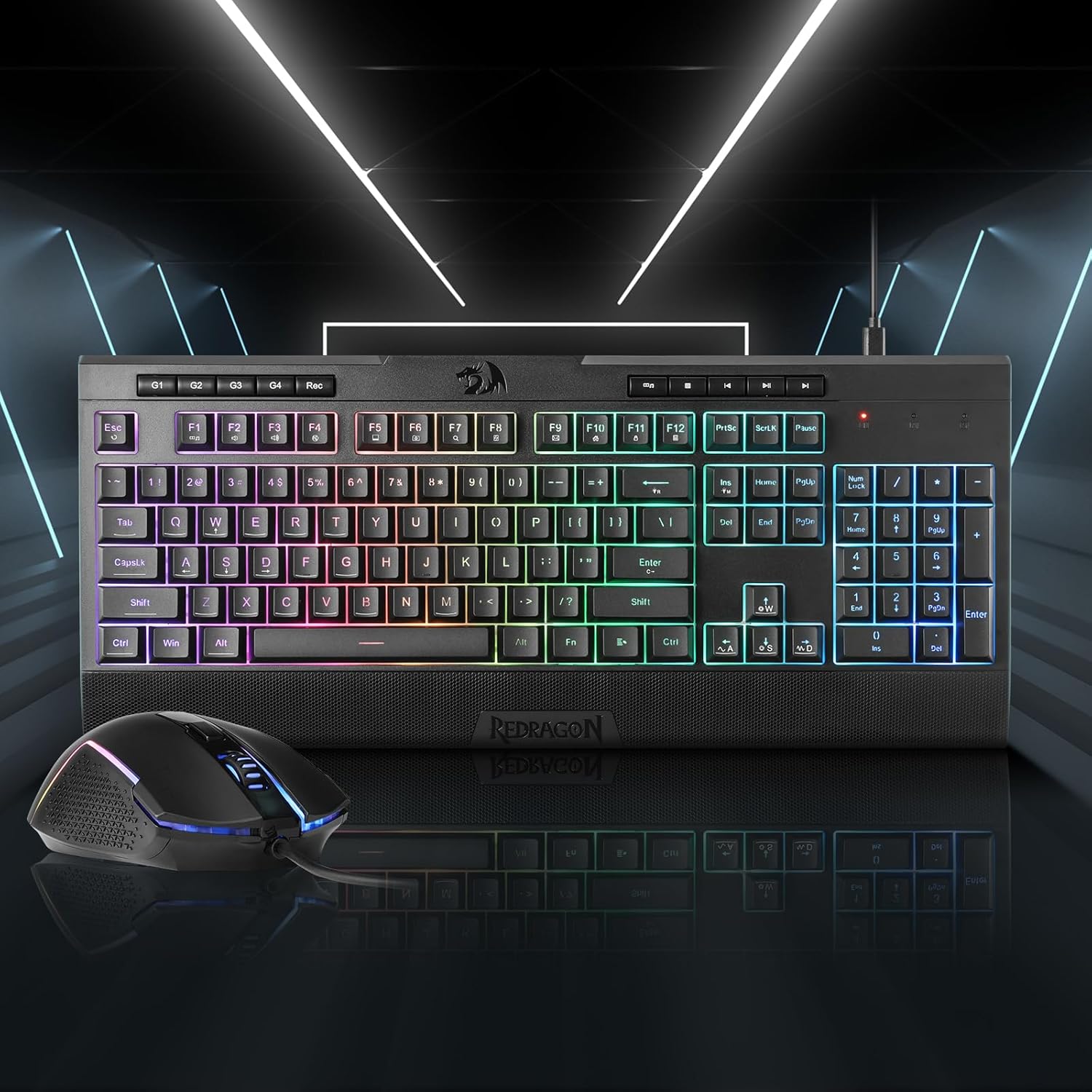
Both the K525 keyboard and M616 mouse feature dynamic RGB backlighting. The keyboard offers 7 pre-set lighting modes and 6 customizable slots, along with brightness control. The mouse has 8 backlit modes and various color options.
Keyboard RGB Control:
- Change Lighting Mode: Press Fn + INS to cycle through 8 different lighting modes.
- Change Solid Color (in static modes): Press Fn + ENTER to cycle through various solid colors.
- Adjust Brightness: Press Fn + Up Arrow / Down Arrow to increase or decrease brightness.
- Adjust Speed (for dynamic modes): Press Fn + Left Arrow / Right Arrow to adjust the speed of lighting effects.
Mouse RGB Control:
The mouse's RGB lighting can be changed by pressing the mode button located on the underside of the mouse. This button cycles through various colors and lighting effects, including a slow color-changing mode and the option to turn the lights off.
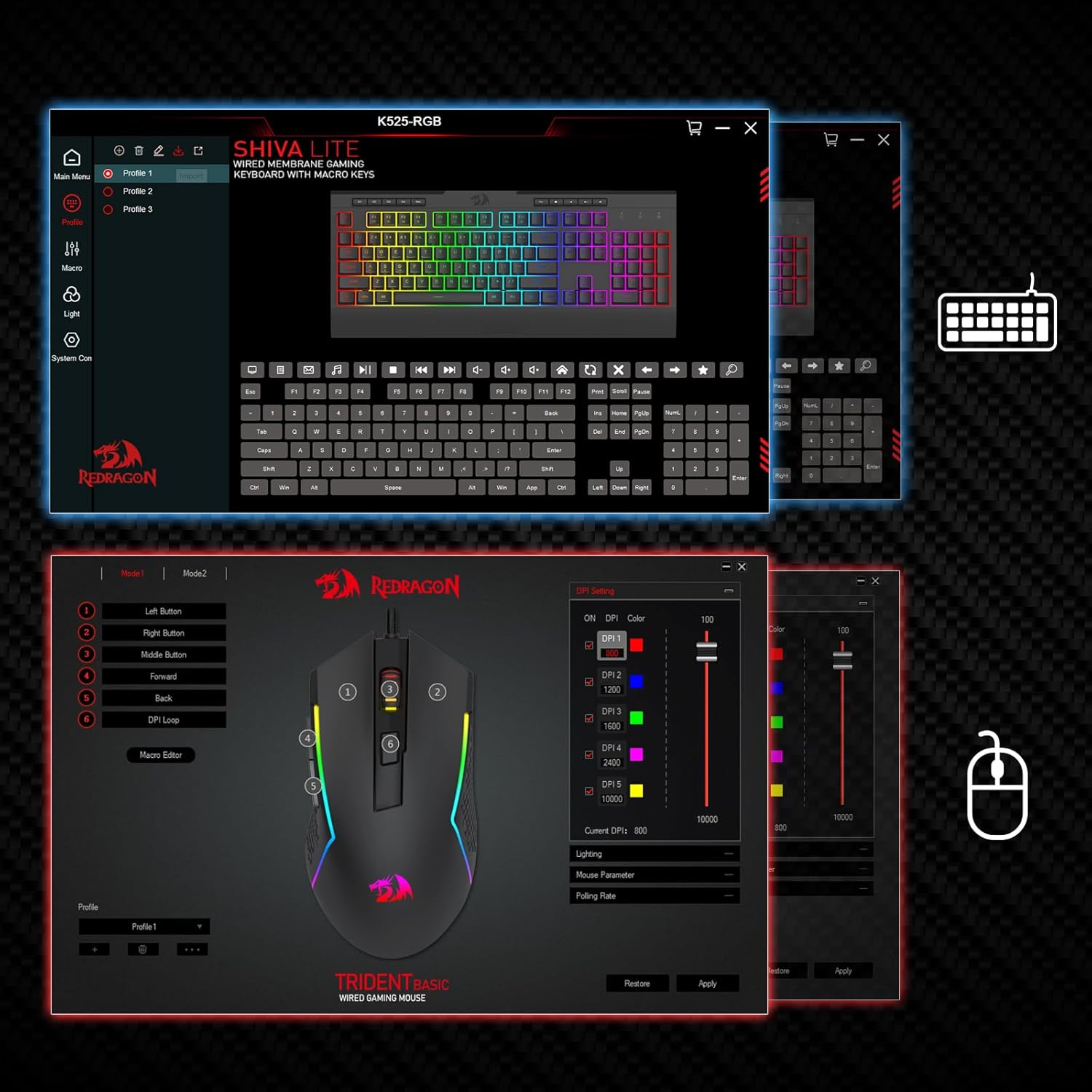
For advanced customization of both keyboard and mouse RGB lighting, macro settings, and button assignments, download the Redragon software. The software provides a graphical interface to personalize your devices.
9. Maintenance and Care
- Cleaning: Use a soft, dry cloth to wipe down the keyboard and mouse. For stubborn dirt, a slightly damp cloth with mild soap can be used, ensuring no liquid enters the devices.
- Avoid Liquids: Do not expose the devices to excessive moisture or immerse them in water.
- Storage: Store the keyboard and mouse in a cool, dry place away from direct sunlight and extreme temperatures.
- Cable Management: Avoid sharp bends or excessive pulling on the USB cables to prevent damage.
10. Troubleshooting
Keyboard/Mouse Not Responding:
- Ensure the USB cables are securely plugged into your computer's USB ports.
- Try plugging the devices into different USB ports.
- Restart your computer.
- Check if the devices are recognized in your computer's Device Manager (Windows) or System Information (macOS).
RGB Lighting Not Working/Incorrect:
- Ensure the devices are properly connected.
- Cycle through lighting modes and brightness settings using the keyboard's function keys or the mouse's mode button.
- If using the Redragon software, ensure it is running and the settings are correctly applied.
- Perform a factory reset if issues persist (refer to the included manual for specific reset instructions).
Macro Keys Not Functioning:
- Ensure macros are correctly recorded and assigned.
- If using software, verify that the software is running and the macro profiles are active.
11. Specifications
| Feature | Detail |
|---|---|
| Product Dimensions | 17.91 x 10.24 x 1.97 inches |
| Item Weight | 2.35 pounds |
| Model Number | TSASEP83 |
| Connectivity Technology | USB Wired |
| Keyboard Layout | 104 Keys |
| Keyboard Type | Membrane |
| Mouse DPI | Up to 10000 DPI (Adjustable) |
| Mouse Buttons | 6 Programmable Buttons |
| Compatible Devices | PC, Laptop |
| Manufacturer | Redragon |
12. Warranty and Support
For warranty information, technical support, or further assistance, please visit the official Redragon website or contact their customer service. Keep your purchase receipt for warranty claims.
Redragon Official Website: www.redragonzone.com


