
MCHOSE GX87
MCHOSE GX87 Lite Wireless Mechanical Keyboard User Manual
Model: GX87
1. Product Overview
The MCHOSE GX87 Lite is a TKL 80% wireless mechanical keyboard designed for gaming and general use. It features a full CNC aluminum body, QMK/VIA support for extensive customization, and multiple connectivity options. This manual provides detailed instructions for setup, operation, and maintenance of your GX87 Lite keyboard.

Figure 1.1: Top view of the MCHOSE GX87 Lite Wireless Mechanical Keyboard in Lite Blue & White.
Key Features:
- Full CNC Aluminum Body: Constructed with 180 mesh surfacing technology for a premium feel and durable build.
- QMK/VIA Support: Allows for comprehensive key remapping, macro creation, and shortcut setup for personalized control.
- Silicon Tactile & Gasket Mount: Features a 5-layer sound-absorbing foam and silicone leaf-springs for a comfortable and rhythmic typing experience.
- Customizable RGB Backlight: Offers 17 RGB backlight settings with adjustable hue, saturation, brightness, effect speed, and modes.
- Tri-Mode Connectivity: Supports Wired USB, Bluetooth (BT), and 2.4GHz wireless connections for versatile use across multiple devices.
- Hot-Swappable Switches: Equipped with Matcha Latte V2 Pre-lubed Linear Switches, allowing for easy switch replacement and customization.

Figure 1.2: Exploded view illustrating the internal layers and components of the GX87 Lite keyboard, including the aluminum frame, PC flex-cut plate, various foam layers, and the 8000mAh battery.

Figure 1.3: Comparison of the GX87 Lite, GX87 Max, and GX87 Ultra models, highlighting differences in surfacing technology, nameplates, and switch types.
2. Package Contents
Please verify that all items are present in the package:
- MCHOSE GX87 Lite Wireless Mechanical Keyboard
- Keycap & Switch Puller
- USB Cable (USB-C)
- 2.4GHz Receiver
- 2 x Replace Switches
- Dust Cover
- User Manual (this document)
3. Specifications
| Feature | Detail |
|---|---|
| Product Dimensions | 14 x 5.43 x 1.39 inches |
| Item Weight | 4.5 pounds |
| Connectivity Technology | 2.4GHz Wireless, Bluetooth, USB-C (Wired) |
| Keyboard Description | Mechanical |
| Number of Keys | 88 |
| Backlighting | RGB (17 settings, customizable hue, saturation, brightness) |
| Special Features | Backlit, Customizable Display Keys, Ergonomic, Hot-Swappable, Rechargeable |
| Battery | 8000mAh (Nonstandard Battery, included) |
| Compatible Devices | Gaming Console, Laptop, PC, Smartphone, Tablet (Mac OS and Windows compatible) |
4. Setup
4.1 Charging the Keyboard
Before first use, it is recommended to fully charge the keyboard. Connect the provided USB-C cable to the keyboard's USB-C port and the other end to a powered USB port on your computer or a wall adapter. The keyboard features an 8000mAh battery.
4.2 Connectivity Modes
The GX87 Lite keyboard supports three connectivity modes:
- Wired USB Mode:
Connect the keyboard directly to your computer using the provided USB-C cable. This mode offers a 1000Hz polling rate.
- 2.4GHz Wireless Mode:
Insert the 2.4GHz USB receiver into an available USB port on your computer. Ensure the keyboard's mode switch (located on the side) is set to 2.4G. This mode also provides a 1000Hz polling rate.
- Bluetooth (BT) Mode:
Set the keyboard's mode switch to BT. The keyboard will enter pairing mode. On your device (computer, smartphone, tablet), search for Bluetooth devices and select "MCHOSE GX87 Lite" to pair. This mode operates at a 125Hz polling rate and allows seamless multitasking across up to three devices.

Figure 4.1: Side view of the keyboard, indicating the location of the connectivity mode switch.
5. Operating Instructions
5.1 QMK/VIA Customization
The GX87 Lite keyboard supports QMK and VIA firmware, providing extensive customization options for key remapping, macros, and lighting effects. You can access the MCHOSE HUB web driver or download the desktop driver for configuration.
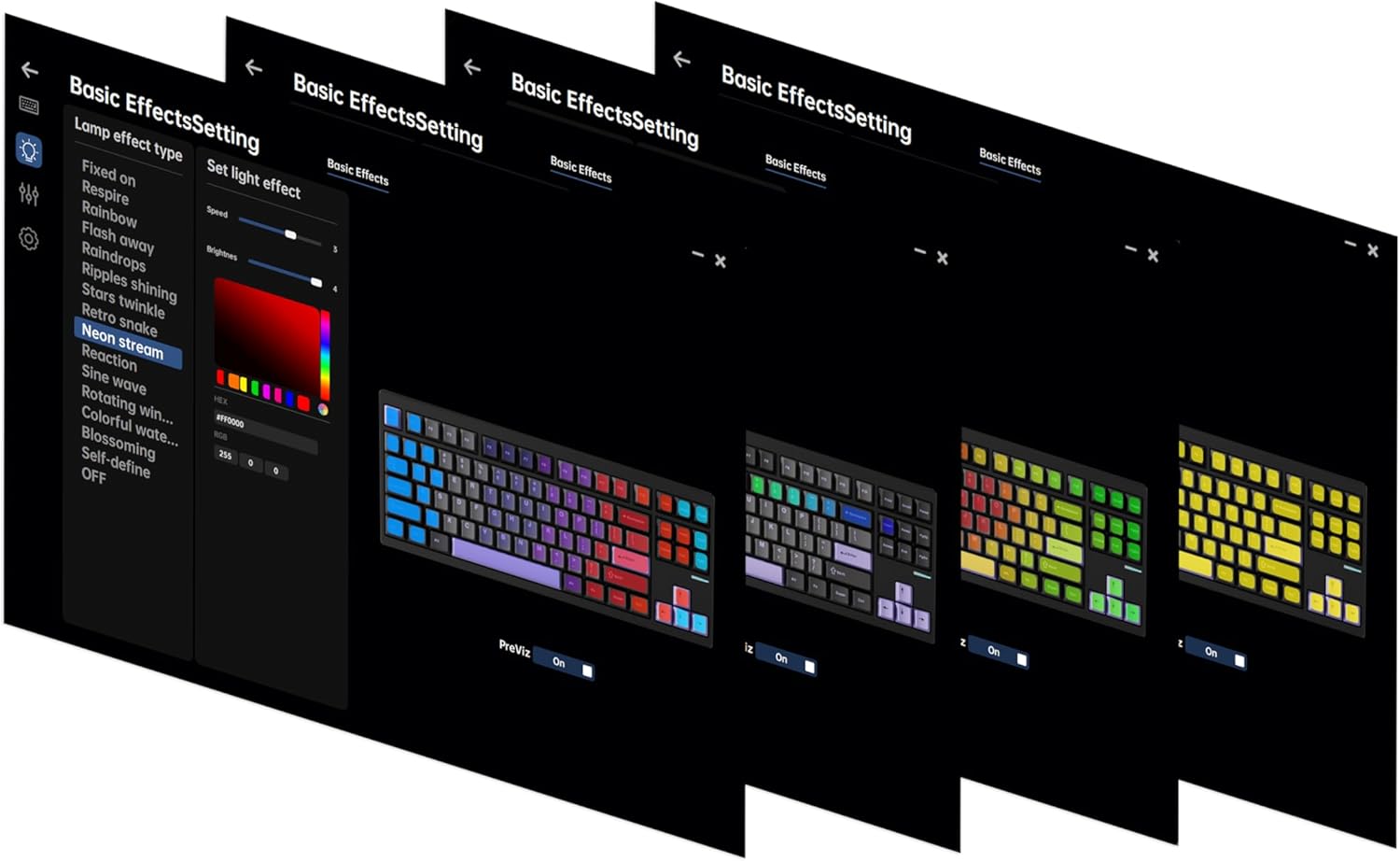
Figure 5.1: Screenshot of the QMK/VIA interface, demonstrating key remapping and layer management.
For detailed instructions on connecting and using the MCHOSE driver, please refer to the video below:
Video 5.1: This video demonstrates the process of connecting to the MCHOSE Web driver and Desktop driver for keyboard configuration and customization.
5.2 RGB Backlight Settings
The keyboard features 17 pre-set RGB backlight settings. You can fine-tune the RGB hue, saturation, brightness, effect speed, and modes through the QMK/VIA software. This allows for personalized lighting to match your preferences.
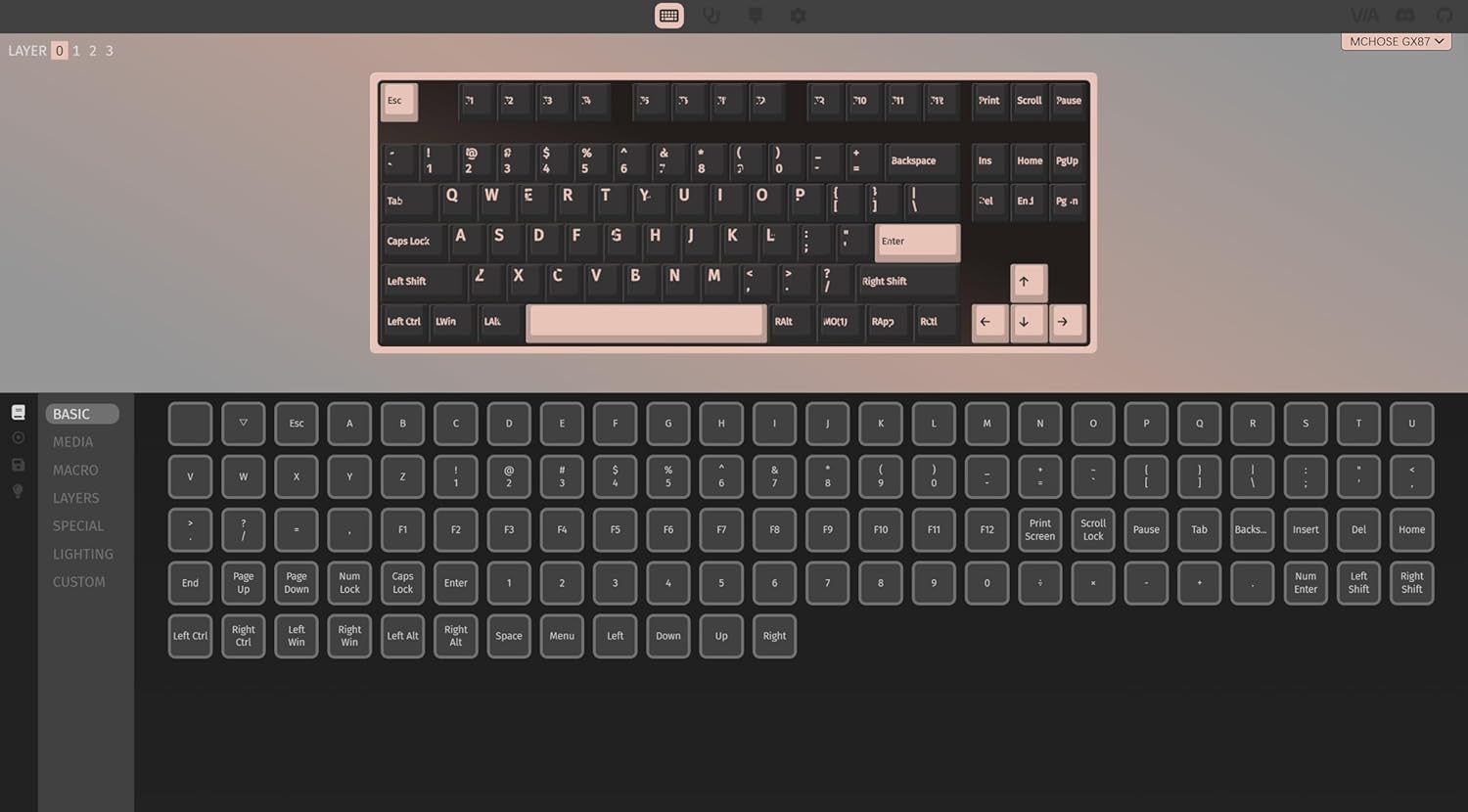
Figure 5.2: Interface for customizing RGB backlight settings, including various effects and color adjustments.
5.3 Hot-Swappable Switches
The GX87 Lite keyboard is equipped with hot-swappable sockets, allowing you to easily change the switches without soldering. This enables customization of typing feel and sound. Use the provided keycap and switch puller for safe removal and installation.

Figure 5.3: Detailed view of the Matcha Latte V2 Linear Switches, highlighting their pre-lubed nature and specifications.
6. Maintenance
6.1 Cleaning the Keyboard
To maintain the keyboard's appearance and functionality, regularly clean it. Use a soft, lint-free cloth to wipe the surface. For dust and debris between keycaps, use compressed air. For deeper cleaning, you may remove keycaps using the provided puller and clean the plate underneath.
6.2 Keycap and Switch Replacement
To replace keycaps or switches:
- Gently use the keycap puller to remove the desired keycap by hooking it onto the keycap and pulling straight up.
- Once the keycap is removed, use the switch puller to grasp the switch firmly. Ensure the prongs of the puller engage with the clips on the top and bottom of the switch.
- Pull the switch straight up to remove it from the hot-swap socket.
- To install a new switch, align its pins with the holes on the PCB. Press down firmly until the switch clicks into place. Ensure the pins are not bent.
- Place the keycap back onto the new switch, pressing down gently until it is secure.
Caution: Apply gentle, even pressure when removing or installing switches and keycaps to avoid damaging the pins or sockets.
7. Troubleshooting
7.1 Connectivity Issues
- Keyboard not responding in Wired Mode:
Ensure the USB-C cable is securely connected to both the keyboard and the computer. Try a different USB port or cable. Verify the mode switch is set to Wired.
- 2.4GHz Wireless connection unstable/not connecting:
Ensure the 2.4GHz receiver is fully inserted into a USB port. Move the keyboard closer to the receiver to reduce interference. Check if the keyboard's mode switch is set to 2.4G. Re-pair the keyboard if necessary (refer to pairing instructions in Section 4.2).
- Bluetooth connection issues:
Ensure Bluetooth is enabled on your device. Check if the keyboard's mode switch is set to BT. Forget the device on your computer/smartphone and attempt to re-pair. Ensure the keyboard is charged.
7.2 Lighting Issues
- Backlight not working:
Check the brightness settings via the QMK/VIA software. Ensure the backlight is not turned off. Verify the keyboard is sufficiently charged.
- Inconsistent lighting/dead LEDs:
This may indicate a faulty LED. If under warranty, contact MCHOSE support. For hot-swappable LEDs (if applicable), replacement may be possible.
7.3 Key Functionality Issues
- Key not registering:
Remove the keycap and switch for the affected key. Re-seat the switch firmly into the socket. If the issue persists, try replacing the switch with one of the spare switches provided.
- Keys double-typing or chattering:
This can sometimes be resolved by re-seating the switch or replacing it. Ensure the QMK/VIA firmware is up to date.
8. Warranty and Support
MCHOSE products are manufactured to high quality standards. For warranty information, technical support, or to download the latest drivers and firmware, please visit the official MCHOSE website:
You can also find support resources and contact information on their website under the "Support" section, which includes "Drivers & Firmwares" and "User Manual" links.
Related documentsGX87


Ask a question about this manual
Ask about setup, troubleshooting, compatibility, parts, safety, or missing instructions. Manuals+ will review the question and use this page’s manual context to help answer it.