
1. Introduction
Thank you for choosing the IROK Mer68 Wired 68 Keys Magnetic Switch Mechanical Keyboard. This high-performance gaming keyboard is designed for precision and speed, featuring advanced magnetic switches, customizable ARGB lighting, and a compact 68-key layout. This manual provides essential information for setting up, operating, and maintaining your new keyboard.
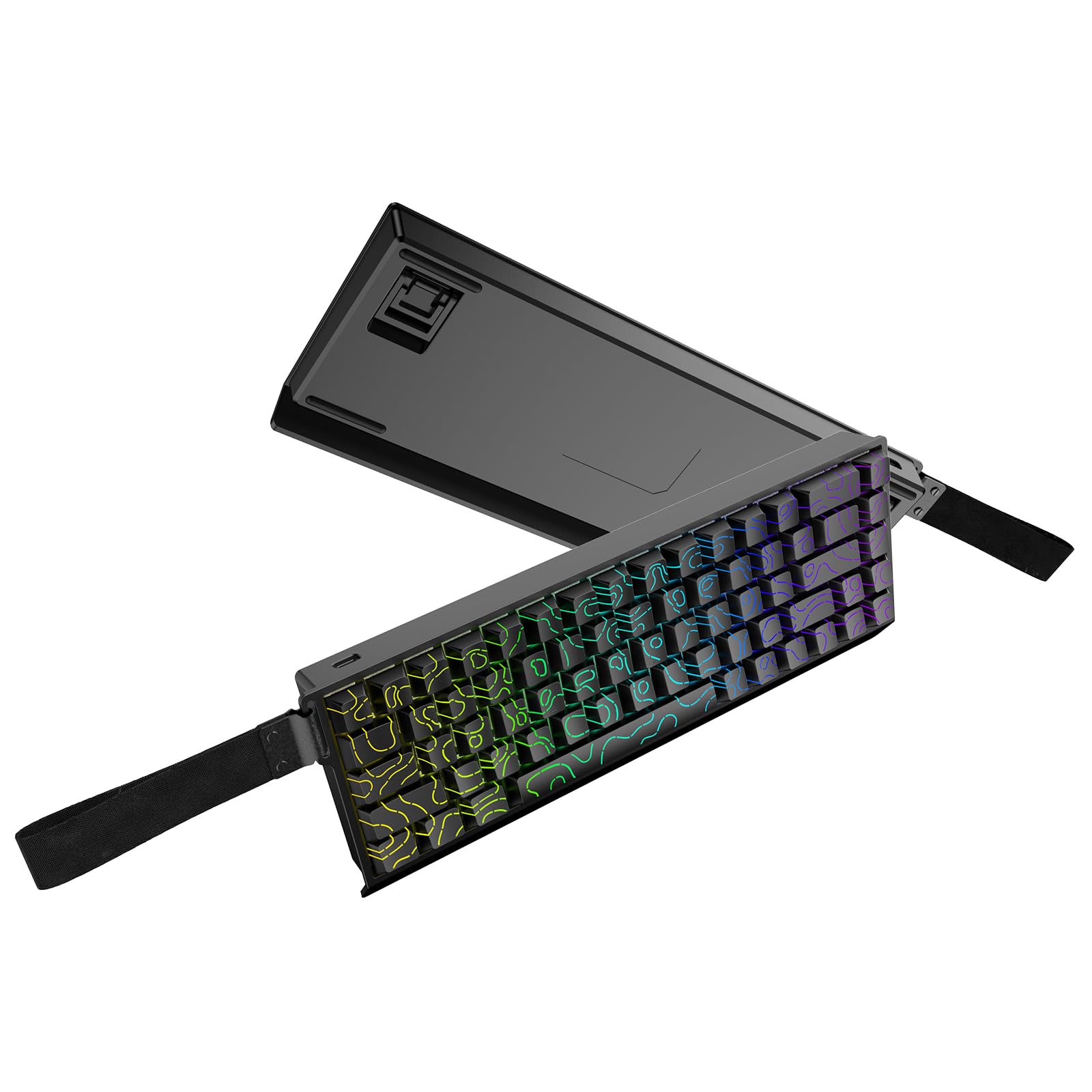
Figure 1: IROK Mer68 Wired 68 Keys Magnetic Switch Mechanical Keyboard (Black variant).
2. What's in the Box
Upon unboxing your IROK Mer68 keyboard, please ensure all the following items are present:
- IROK Mer68 Wired 68 Keys Magnetic Switch Mechanical Keyboard
- USB Cable (Type-C)
- Keycap Puller
- Spare Switches (Magnetic)

Figure 2: Included USB Type-C Cable for keyboard connection.
Figure 3: Keycap puller for easy removal and replacement of keycaps.

Figure 4: Spare magnetic switches for replacement or customization.
3. Setup
3.1 Connecting the Keyboard
- Locate the USB Type-C port on the left side of the keyboard.
- Connect one end of the provided USB Type-C cable to the keyboard.
- Connect the other end of the USB cable to an available USB port on your computer.
- The keyboard will automatically be recognized by your operating system.
3.2 Driver Installation
The IROK Mer68 supports a proprietary Web Driver & One-stop HUB Drive. This allows for customization without the need for traditional software installation.
- Access the Web Driver by visiting the official IROK website or the address provided in the user manual.
- Follow the on-screen instructions to customize settings such as actuation points, rapid trigger, and RGB lighting effects.

Figure 5: Interface of the IROK Web Driver for keyboard customization.
4. Operating Instructions
4.1 Keyboard Layout
The Mer68 features a compact 68-key layout, integrating essential keys while saving desk space. The keycaps are side-engraved PBT for durability and clear legend visibility with backlighting.
4.2 Basic Key Functions
Many functions are accessed via the Function (Fn) key in combination with other keys. Refer to the keyboard's side-printed legends for specific combinations.
4.3 ARGB Lighting Control
The keyboard features customizable ARGB backlighting with an independent IC 500Hz high refresh rate, offering rich colors and enhanced eye protection.
- Change Lighting Effects: Use Fn + PgUp to cycle through various lighting effects.
- Change Lighting Colors: Use Fn + PgDn to switch between different backlight colors.
Video 1: Demonstrates various A-RGB backlight effects on the keyboard. This video shows the keyboard cycling through different colors and patterns, highlighting the visual customization options.
Video 2: Showcases the RGB effects of the EPOMAKER HE68 keyboard. The video displays the dynamic lighting capabilities and color transitions.
Video 3: Provides instructions on how to enable A-RGB backlight on the keyboard. This video guides users through the steps to activate and customize the lighting.
5. Customization
5.1 Magnetic Switches and Hot-Swap Functionality
The IROK Mer68 is equipped with advanced second-generation GTURBO magnetic switches, offering a 256KHz single-key scan rate for enhanced gaming efficiency and a stable, smoother experience. The 'Mix' function allows for easy replacement of switches and keycaps without soldering, enabling personalized typing feel and sound.

Figure 6: Depiction of the Flagship MCU Chip, highlighting enhanced gaming performance.

Figure 7: Visual representation of the keyboard's ultra-low latency, as low as 0.125ms.

Figure 8: Illustration of the 256KHz single-key scan rate for precise input detection.
Video 4: Overview of the AULA HERO 68 HE Magnetic Switch Gaming Keyboard, highlighting its features and performance.
5.2 Driver Customization
The Web Driver allows for detailed customization of key functions, actuation points, and rapid trigger settings to suit your preferences. This includes adjusting the trigger stroke and quick reset sensitivity.
6. Specifications
| Feature | Detail |
|---|---|
| Model Number | Mer68 |
| Layout | 68 Keys, Compact |
| Switch Type | Magnetic Switches (Hot-Swappable) |
| Polling Rate | 8KHz |
| Latency | As low as 0.125ms |
| Single Key Scan Rate | 256KHz |
| Backlighting | ARGB, Independent IC 500Hz High Refresh Rate |
| Keycaps | Double Shot PBT, Side-Engraved |
| Connectivity | USB-C (Wired) |
| Compatible Devices | Laptop, PC |
| Product Dimensions | 12"L x 5"W x 2"H (30.48 x 12.7 x 5.08 cm) |
| Item Weight | 1.65 pounds (0.75 kg) |
| Manufacturer | IROK |
7. Maintenance
7.1 Cleaning
- Regularly clean your keyboard with a soft, dry cloth.
- Use compressed air to remove dust and debris from between the keycaps.
- For deeper cleaning, use the provided keycap puller to remove keycaps and clean the switches and plate.
7.2 Switch and Keycap Replacement
The hot-swappable design allows for easy replacement of switches and keycaps. Use the provided keycap puller and switch puller (if included) to carefully remove and install components. Ensure proper alignment to avoid damage.
8. Troubleshooting
- Keyboard Not Responding: Ensure the USB-C cable is securely connected to both the keyboard and your computer. Try a different USB port or cable.
- Lighting Issues: Check Fn key combinations for lighting control. If using the Web Driver, ensure settings are correctly applied and saved.
- Key Input Problems: If a specific key is not registering, try removing and re-inserting its switch. If the issue persists, replace the switch with a spare.
- Driver Not Accessible: Verify your internet connection and ensure you are using the correct URL for the Web Driver.
9. Warranty and Support
For warranty information, technical support, or further assistance, please refer to the official IROK website or contact their customer service. Keep your purchase receipt for warranty claims.
Visit the IROK Store for more products and information.


