1. Introduction
This manual provides essential information for setting up, operating, maintaining, and troubleshooting your new iBUYPOWER Element SE Gaming PC (Model: ESA7N5601). Please read this guide thoroughly before using your computer to ensure optimal performance and longevity.

Figure 1: iBUYPOWER Element SE Gaming PC with included peripherals.
2. What's in the Box
Upon unboxing, please verify that all the following items are included:
- iBUYPOWER Element SE Gaming PC (Model: ESA7N5601)
- iBUYPOWER Gaming Keyboard
- iBUYPOWER RGB Gaming Mouse
- Power Cable
- Wi-Fi Antenna
- Quick Start Guide / Instruction Manual
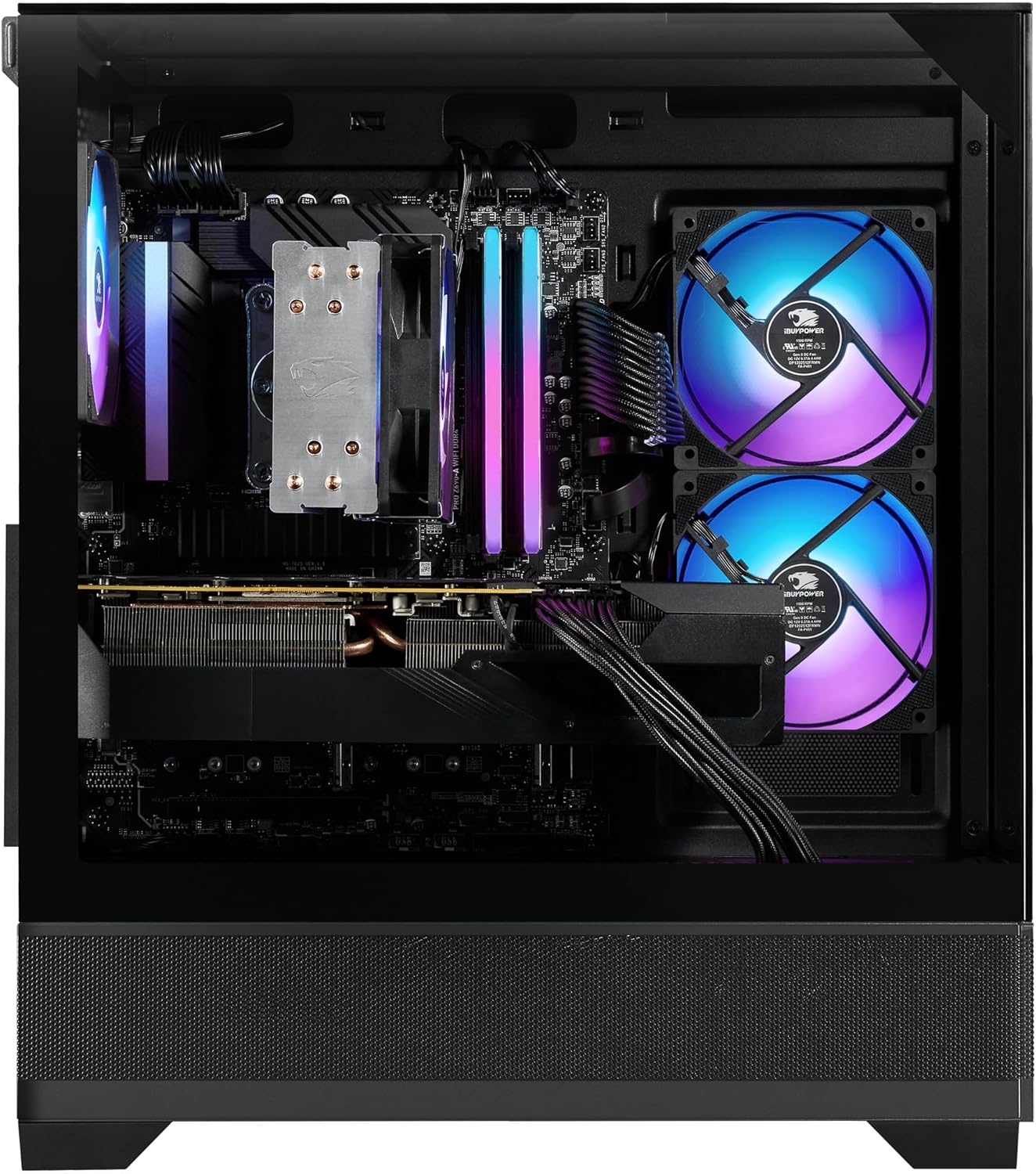
Figure 2: Internal view of the PC chassis, highlighting the CPU cooler and GPU.
3. Setup
3.1. Unboxing and Initial Inspection
- Carefully remove the PC and all accessories from the packaging.
- Inspect the PC for any visible damage. If damage is found, contact customer support immediately.
- Important: Remove any internal packing foam or protective films from inside the PC chassis before powering on. This is crucial to prevent damage during operation.
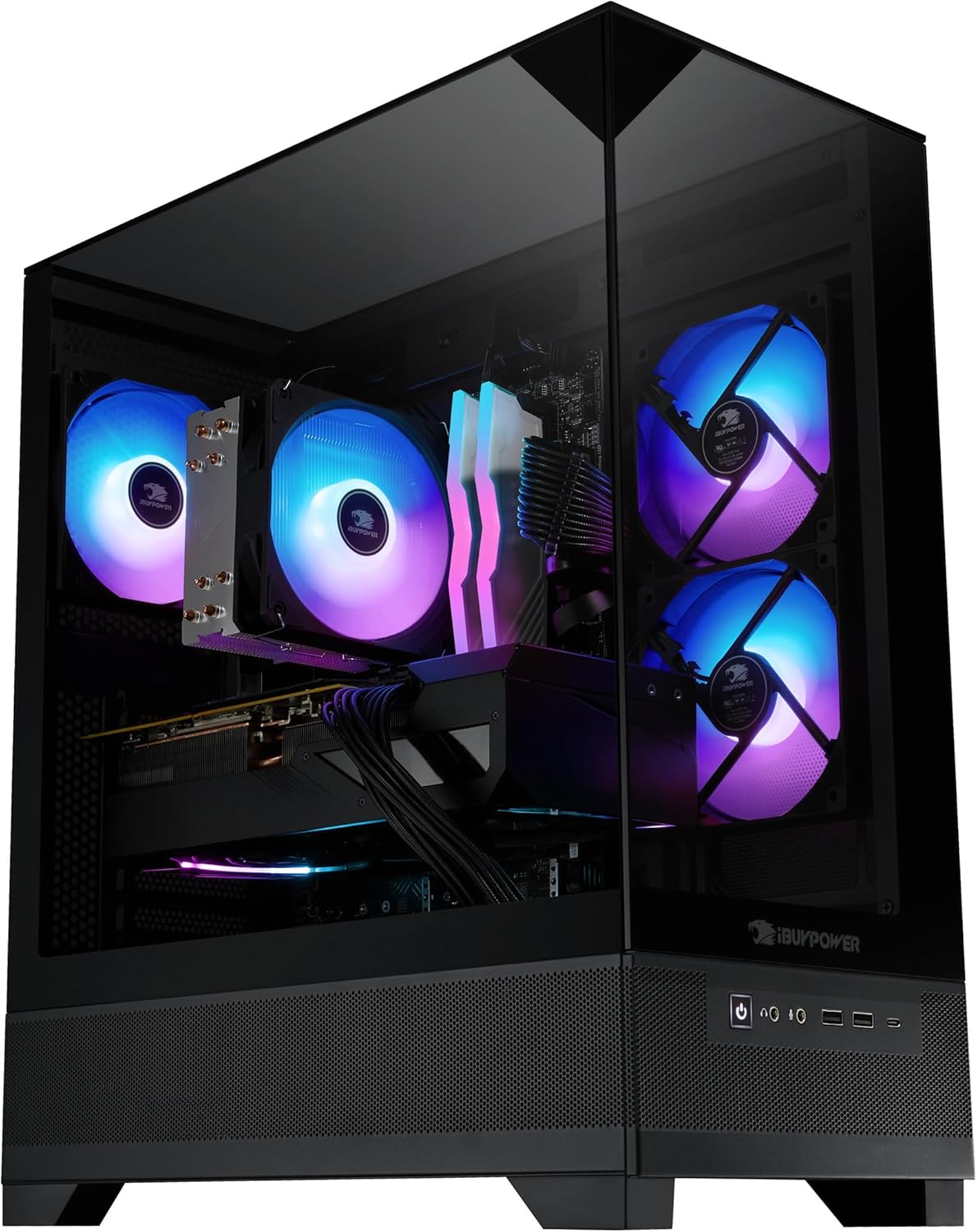
Figure 3: Side view of the iBUYPOWER Element SE PC tower.
3.2. Connecting Peripherals
- Monitor: Connect your monitor to the graphics card's display ports (HDMI or DisplayPort) located at the lower rear of the PC. Do not use the ports on the motherboard I/O panel above the graphics card.
- Keyboard and Mouse: Connect the included gaming keyboard and mouse to any available USB ports on the rear I/O panel.
- Wi-Fi Antenna: Screw the Wi-Fi antenna into the designated ports on the rear I/O panel for wireless internet connectivity.
- Power: Connect the power cable to the power supply unit (PSU) at the bottom rear of the PC, then plug it into a wall outlet.
- Other Peripherals: Connect any other desired peripherals such as speakers, headphones, or external drives to the appropriate ports.
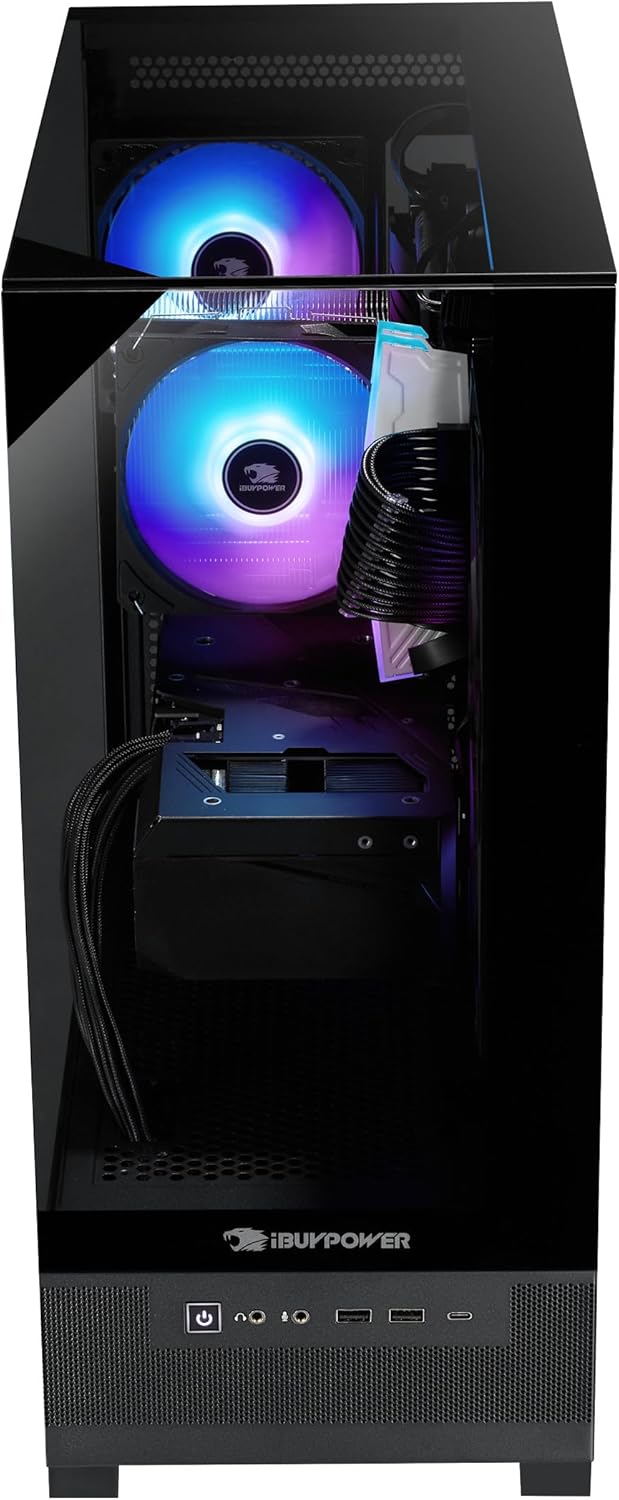
Figure 4: Rear I/O panel with various connectivity options.
3.3. Initial Boot-Up
- Press the power button located on the top front of the PC.
- Follow the on-screen instructions to complete the Windows 11 Home setup. This may include setting up your user account, network connection, and privacy settings.
- Ensure all drivers are installed. Windows Update typically handles this, but you may need to visit the component manufacturers' websites for the latest drivers.
4. Operating Your PC
4.1. Windows 11 Home
Your iBUYPOWER Element SE comes pre-installed with Windows 11 Home, offering a modern interface and enhanced features for gaming and productivity. Familiarize yourself with the operating system's settings and personalization options.
4.2. RGB Lighting Control
The PC features 16-color RGB lighting for the case fans and internal components. Control and customize these lighting effects using the pre-installed software or physical buttons on the chassis, if available.

Figure 5: The PC illuminated with customizable RGB lighting.
4.3. Gaming and Performance
Leverage the AMD Ryzen 7 5700 CPU and NVIDIA GeForce RTX 5060 8GB GPU for a high-performance gaming experience. Ensure your games are updated and graphics settings are optimized for your monitor's resolution and refresh rate.
5. Maintenance
- Cleaning: Regularly clean the exterior of the PC with a soft, dry cloth. Use compressed air to clear dust from fan vents and internal components. Ensure the PC is powered off and unplugged before cleaning.
- Software Updates: Keep your Windows operating system, graphics drivers, and other software updated to ensure stability and optimal performance.
- Airflow: Ensure the PC has adequate airflow. Do not block the intake or exhaust vents. The Element SE case features PSU perforations for additional airflow.

Figure 6: PSU perforations designed for enhanced airflow.
6. Troubleshooting
- No Display: Ensure your monitor is connected to the graphics card ports, not the motherboard ports. Check all cable connections.
- PC Not Powering On: Verify the power cable is securely connected to both the PC and the wall outlet. Check the power switch on the PSU.
- Performance Issues: Update graphics drivers. Close unnecessary background applications. Monitor component temperatures.
- Unusual Noises: Check for loose cables or components. Ensure fans are clear of obstructions.
For more detailed troubleshooting, refer to the iBUYPOWER support website or contact their technical support.
7. Specifications
| Component | Detail |
|---|---|
| Model Number | ESA7N5601 |
| Operating System | Windows 11 Home |
| Processor (CPU) | AMD Ryzen 7 5700 (3.7 GHz, 8 Cores) |
| Graphics Card (GPU) | NVIDIA GeForce RTX 5060 8GB |
| RAM | 16GB DDR4 3200MHz (8x2) |
| Storage | 1TB NVMe SSD |
| Wireless Connectivity | 802.11AC Wi-Fi |
| Wired Connectivity | 6 x USB 3.1, 1 x RJ-45 Network Ethernet 10/100/1000 |
| Audio | On board audio |
| Case Features | Tempered Glass RGB Gaming Case, 16 Color RGB Lighting Case |
| Dimensions (LxWxH) | 19.4 x 8.3 x 17.3 inches |
| Weight | 36 pounds |
8. Warranty and Support
Your iBUYPOWER Element SE Gaming PC comes with a standard manufacturer's warranty. For specific warranty details, technical support, or service inquiries, please visit the official iBUYPOWER website or contact their customer service department.
iBUYPOWER Support: www.ibuypower.com/support


