
1. Introduction
This manual provides detailed instructions for the installation, operation, and maintenance of your PHEZEN RT-QA1865X-WUYA-05 car radio. This head unit is designed for Nissan NAVARA NP300 models manufactured between 2016 and 2019, offering an enhanced in-car entertainment and navigation experience.
2. Package Contents
Please verify that all items listed below are included in your package:
- Vehicle Navigation Head Unit
- Power Cable
- RCA Input/Output Cables
- 2 USB Cables
- Camera Input Cable
- GPS Antenna
- Instruction Manual
- Backup Camera
- Microphone

Image: Overview of the PHEZEN RT-QA1865X-WUYA-05 car radio and its included accessories.
3. Product Features
The PHEZEN RT-QA1865X-WUYA-05 car radio offers a range of advanced features for an enhanced driving experience:
- Advanced Operating System: Built-in Android 13 system with 2GB RAM and 32GB ROM for smooth multitasking and app performance.
- High-Resolution Display: 9-inch IPS touch screen with 1024x600 resolution for a sensitive and clear visual experience.
- Smartphone Integration: Supports wireless and wired Apple CarPlay and Android Auto. Connect via Bluetooth and Wi-Fi to access phone content, navigation, music, and voice assistants (Siri/Google Assistant).
- GPS Navigation: Dual navigation system supports both offline and online maps, ensuring guidance even in areas with no mobile signal.
- Steering Wheel Control: Compatible with existing steering wheel controls for convenient operation of the head unit.
- Backup Camera Support: Includes a reversing camera with a 170° wide-angle lens, IP68 waterproof rating, and night vision for safe parking.
- Bluetooth 5.2: For hands-free calling and audio streaming.
- FM/RDS Radio: Access to FM radio stations with RDS functionality.
- Split Screen Functionality: Allows for simultaneous display of two applications.

Image: Visual representation of Apple CarPlay, Android Auto, and Mirror Link capabilities.

Image: Illustrates the clarity of the IPS touchscreen display.
4. Setup
4.1. Physical Installation
The car radio is designed for direct fitment in Nissan NAVARA NP300 models (2016-2019). Ensure the vehicle's power is disconnected before beginning installation. Connect the provided wiring harnesses to the corresponding ports on the head unit and the vehicle's existing wiring. Refer to your vehicle's specific wiring diagram if necessary.

Image: Back of the head unit with wiring connections.
4.2. Connecting Your Smartphone (Apple CarPlay / Android Auto)
Your PHEZEN car radio supports both wireless and wired connections for Apple CarPlay and Android Auto. Follow these steps for initial setup:
- Bluetooth Connection:
- On the car radio, navigate to the 'Settings' menu and select 'Bluetooth'.
- On your smartphone, enable Bluetooth and search for available devices.
- Select 'CarBT' from the list of devices on your phone.
- Enter the PIN '0000' (or as displayed on the car radio) on your phone to pair.
- Once connected, 'phone audio' and 'music audio' will be displayed on the car radio, indicating a successful Bluetooth connection. If not, restart Bluetooth on both devices.
- ZLINK Connection (for CarPlay/Android Auto):
- From the car radio's main screen, tap the 'Apps' icon.
- Select the 'ZLINK' application.
- The ZLINK app will attempt to connect to your phone.
- Manual WiFi Connection (if ZLINK connection is unsuccessful):
- On the car radio, go to 'Settings' > 'Android Settings'.
- Select 'Network & Internet' > 'Hotspot & tethering' > 'Wi-Fi hotspot'.
- Note the 'Network name' (e.g., AndroidAP_B442) and 'Password' displayed.
- On your smartphone, go to 'Settings' > 'Wi-Fi' and connect to the network name displayed on the car radio, entering the password.
- Once connected, the device name (e.g., 'iPhone-3-mobile') will be displayed on the car radio, confirming a successful WiFi connection.
- After manually connecting to the car's WiFi, delete the history record on the car radio, then click 'ZLINK' again.
Video: Demonstrates the steps for connecting your smartphone to the car radio via Bluetooth, ZLINK, and manual WiFi for Apple CarPlay/Android Auto functionality.
5. Operating Instructions
5.1. Navigation
Utilize the dual navigation system by selecting your preferred map application. Connect to Wi-Fi for online maps or use pre-loaded offline maps for areas without network coverage.
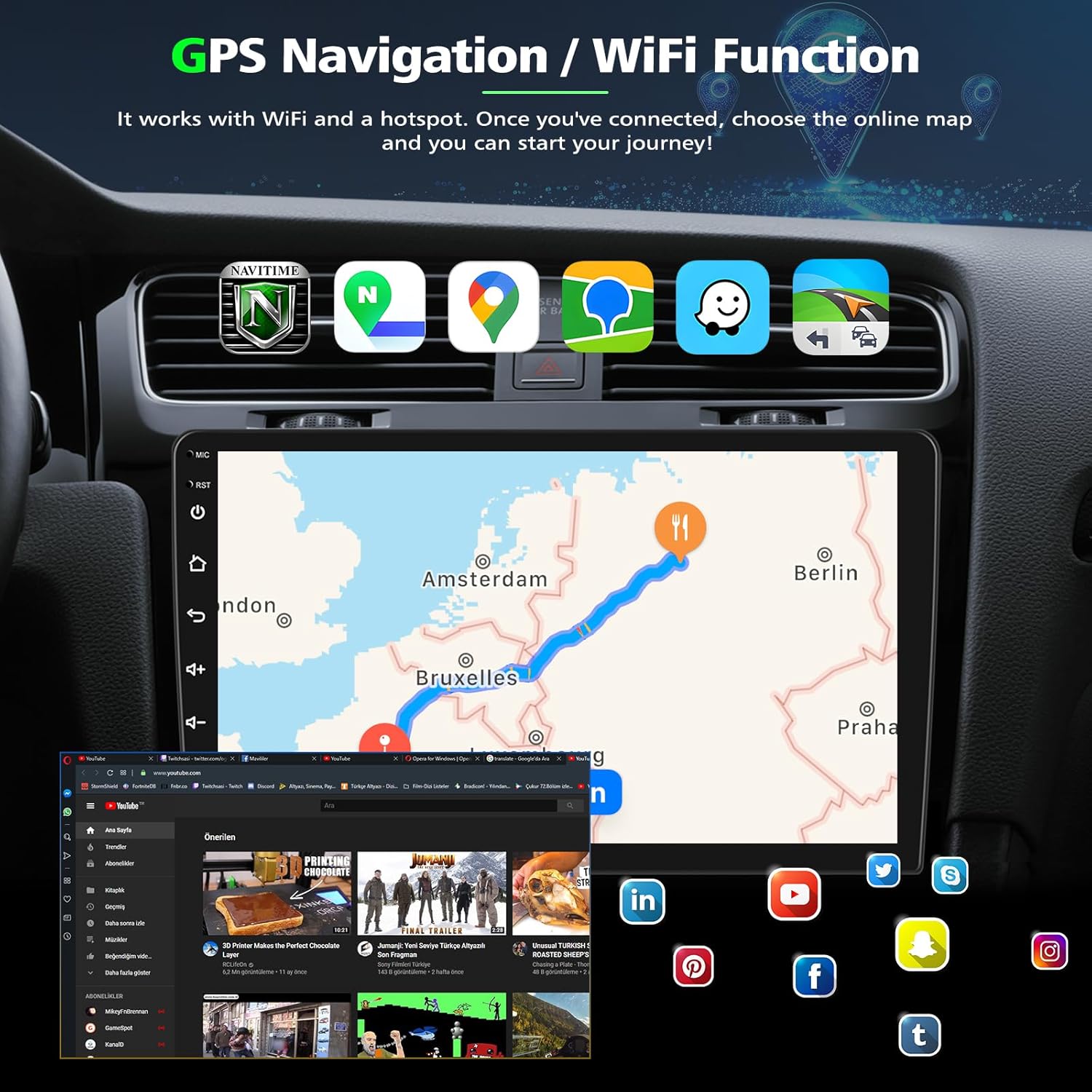
Image: GPS Navigation and WiFi Functionality.
5.2. Media Playback
Access music and videos through your connected smartphone via Apple CarPlay or Android Auto, or use local storage. The system supports various audio and video formats.
5.3. Phone Calls and Messaging
Make and receive calls hands-free via Bluetooth. Use voice commands through Siri or Google Assistant to manage calls and send messages, ensuring safe driving.
5.4. Steering Wheel Control
Configure your vehicle's steering wheel buttons to control the car radio's functions, such as volume, track skipping, and call management. This feature enhances convenience and safety.

Image: Reverse Display and Steering Wheel Control interface.
5.5. Rear View Camera
When reversing, the display automatically switches to the backup camera view, providing a wide-angle perspective with guidelines for easier parking.
5.6. Split Screen
The split-screen feature allows you to run two applications simultaneously, for example, navigation on one side and music playback on the other.

Image: Rear View Camera, Steering Wheel Control, and Split Screen in action.
6. Maintenance
To ensure the longevity and optimal performance of your car radio, follow these maintenance guidelines:
- Cleaning: Use a soft, dry cloth to clean the screen and exterior. Avoid abrasive cleaners or solvents that may damage the surface.
- Software Updates: Periodically check for software updates to ensure you have the latest features and bug fixes. Follow the on-screen instructions for any available updates.
- Environmental Conditions: Avoid exposing the unit to extreme temperatures, direct sunlight for prolonged periods, or excessive moisture.
7. Troubleshooting
If you encounter any issues with your PHEZEN car radio, refer to the following common troubleshooting steps:
- No Power: Check all power connections to ensure they are securely fastened. Verify the vehicle's fuse for the radio is intact.
- No Sound: Check the volume settings on both the car radio and your connected smartphone. Ensure the correct audio output source is selected (e.g., Bluetooth, AUX, FM).
- Bluetooth/CarPlay/Android Auto Connection Issues: Ensure Bluetooth and Wi-Fi are enabled on your smartphone. Try restarting both the car radio and your phone. Delete previous pairings and attempt to reconnect. Refer to Section 4.2 for detailed connection steps.
- GPS Signal Loss: Ensure the GPS antenna is properly installed and has a clear line of sight to the sky. Move the vehicle to an open area if signal is weak.
- Touchscreen Unresponsive: Try restarting the unit. If the issue persists, a factory reset may be required (consult support before performing a factory reset).
- Backup Camera Not Displaying: Verify the camera input cable is correctly connected. Check the camera's power supply.
8. Specifications
| Feature | Specification |
|---|---|
| Product Dimensions | 14.57 x 9.06 x 5.12 inches |
| Item Weight | 3.12 pounds (1414 Grams) |
| Item Model Number | RT-QA1865X-WUYA-05 |
| Operating System | Android 13 |
| Memory | 2GB RAM + 32GB ROM |
| Display Size | 9 Inch IPS Touch Screen |
| Display Resolution | 1024*600 |
| Special Features | Apple CarPlay, Android Auto, GPS Navigation, Steering Wheel Control, Mirrorlink, Backup Camera Support |
9. Warranty and Support
PHEZEN is committed to providing reliable after-sales support. If you have any questions regarding the installation or use of your car audio radio, please contact us directly. You can reach our support team by clicking the store name 'UZZO-PHEZEN' on the product page and then selecting 'Ask a question' to send a message to the seller. We aim to respond within 24 hours to assist you with any issues.