
1. Introduction
This manual provides comprehensive instructions for the SIXTOP Android Car Stereo, Model 2G+64G. This unit is designed to enhance your in-car entertainment and navigation experience with its advanced features. Please read this manual thoroughly before installation and operation to ensure proper use and to maximize the product's capabilities.

Image 1.1: SIXTOP Android Car Stereo with included accessories.
Product Overview
- Operating System: Android 13
- Memory: 2GB RAM, 64GB ROM
- Processor: Quad-core CPU
- Display: 9-inch HD Touchscreen (1024*600 resolution)
- Connectivity: Wireless CarPlay, Android Auto, Mirror Link, Bluetooth, WiFi
- Navigation: Built-in GPS module with offline map support
- Audio: EQ Sound Effect, FM/RDS Radio
- Additional Features: Steering Wheel Control (SWC) support, AHD Rear Camera input, Split Screen function, 26 UI theme settings.
2. Setup and Installation
2.1 Compatibility
This car stereo is compatible with the following vehicle models:
- Dodge Grand Caravan: 2011-2020
- Chrysler Town & Country: 2011-2016
- Grand Voyager: 2011-2015
Before installation, confirm your original car center console matches Model A as shown in the diagram below. This product only supports Model A configurations.

Image 2.1: Car Models Attention - Compatible (A) vs. Incompatible (B) Consoles.
2.2 Package Contents
Verify that all items are present in the package:

Image 2.2: Package List and Unit Dimensions.
- Car Stereo with Frame
- Camera
- Microphone
- Radio Antenna
- RCA Cable
- Tools
- GPS Module
- Camera Cable
- USB Cable
- Input Cable
- Power Cable
- User Manual
2.3 Installation Steps
Installation is generally plug-and-play. However, for specific vehicle configurations, additional steps may be required. It is recommended to consult a professional or refer to online resources for detailed vehicle-specific installation guides.
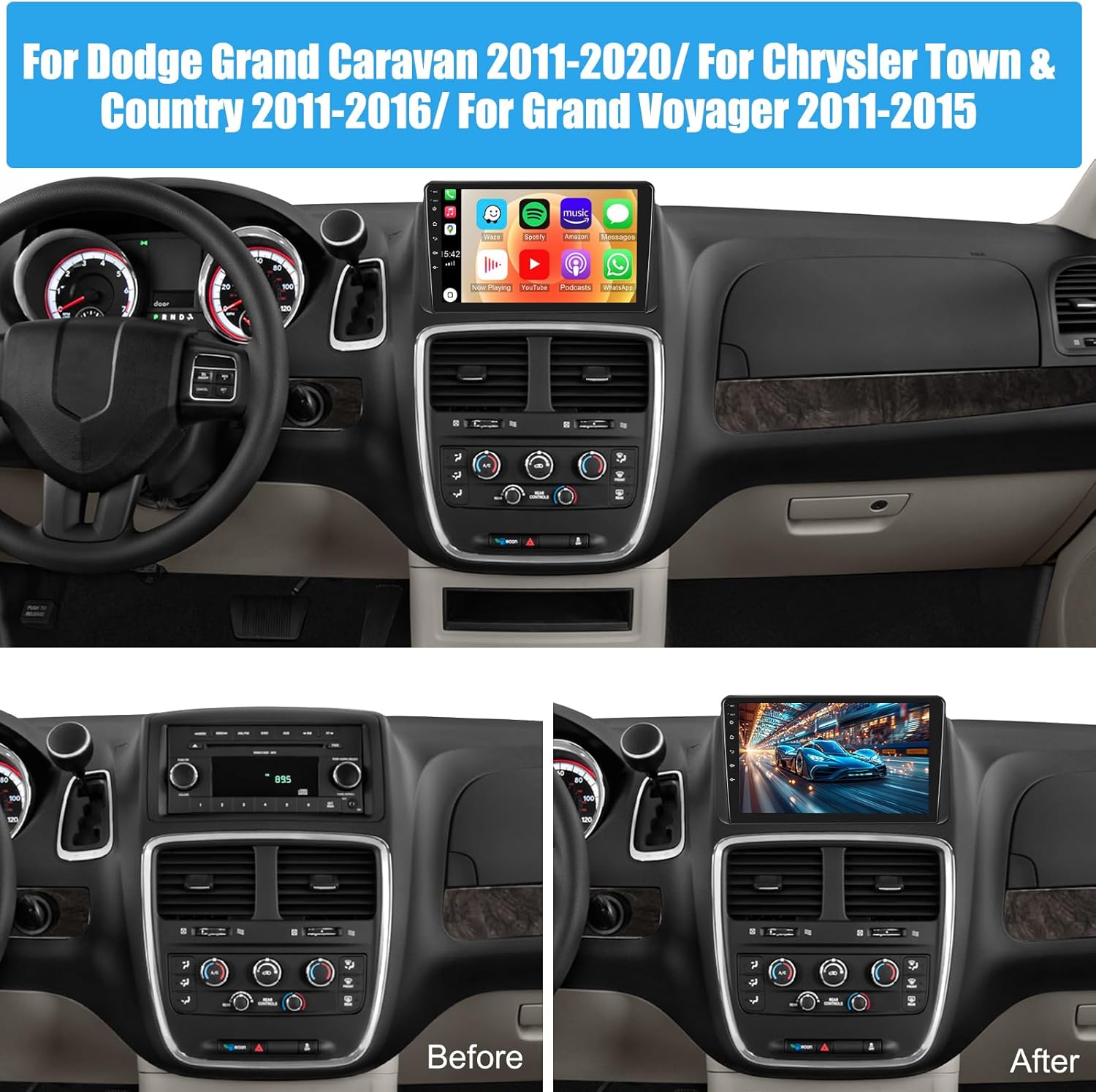
Image 2.3: Before and After Installation Example.
Note: If your vehicle has a stock backup camera, you may need to purchase a separate harness to integrate it with this unit.
2.4 Rear Camera Wiring
The included AHD rear camera requires proper wiring for functionality. Refer to the diagram below for connection details.

Image 2.4: Rear Camera Wiring Diagram.
- Connect the video cable from the camera to the Video(out) port on the stereo.
- Connect the red wire from the video cable to the reversing lamp power.
- Connect the black wire to ground (GND).
- Ensure the camera power cable is connected correctly.
3. Operating Instructions
3.1 Wireless CarPlay / Android Auto / Mirror Link
The unit supports wireless Apple CarPlay and Android Auto, as well as Mirror Link for screen mirroring. This allows synchronization of phone functions like navigation, music, and calls to the stereo display.

Image 3.1: Wireless CarPlay, Android Auto, and Mirror Link Interface.
To connect:
- Ensure your phone's WiFi is enabled.
- Connect your phone via Bluetooth to the car stereo.
- Open the "ZLINK5" application on the car stereo. It should automatically connect.
- Alternatively, use a USB cable to connect your phone and select "ZLINK5" for connection.
- For Mirror Link, select "Mirror Link" within the "ZLINK5" app to transmit your phone's screen.
3.2 WiFi and GPS Navigation
Connect the stereo to a WiFi network to access online features and download applications. The built-in GPS module supports both online and offline navigation.

Image 3.2: Built-in WiFi for Apps and Streaming.

Image 3.3: GPS Navigation Interface.
GPS Usage:
- Built-in GPS navigation allows for immediate use.
- Download offline navigation maps directly from the Play Store for use without an internet connection.
- With WiFi connected, online maps function optimally.
3.3 Bluetooth and FM/RDS Radio
The unit features Bluetooth for hands-free calling and music streaming, and an FM/RDS radio for local broadcasts.

Image 3.4: Built-in Bluetooth for Calls and Music.

Image 3.5: FM/RDS Radio Interface.
Bluetooth Functions:
- Support for incoming and outgoing calls.
- Synchronize your phone's address book.
- Stream music from your mobile phone.
FM/RDS Radio:
- Listen to news, music, weather forecasts, and traffic information.
- Supports FM radio stations.
3.4 EQ Sound Effect and Split Screen
Customize your audio experience with the EQ sound effect settings and multitask using the split-screen function.

Image 3.6: EQ Sound Effects Interface.

Image 3.7: Split Screen Mode in Operation.
Split Screen Function:
- Tap the rectangle icon at the top of the screen.
- Select a desired application page and drag it to either the left or right side of the screen.
- The left and right screens can be operated independently.
3.5 Steering Wheel Control (SWC)
The unit supports the original steering wheel buttons of your car for convenient control of audio functions, enhancing driving safety.

Image 3.8: Steering Wheel Controls Interface.
After entering the touch button learning mode, you can assign functions to your steering wheel controls. Refer to the on-screen instructions for programming.
3.6 Reversing Display (Backup Camera)
The included waterproof night vision camera provides a clear reversing image, automatically switching when reverse gear is engaged, aiding in safer parking.

Image 3.9: AHD Rear View Camera Display.
4. Maintenance
To ensure the longevity and optimal performance of your SIXTOP Android Car Stereo, follow these general maintenance guidelines:
- Cleaning: Use a soft, dry cloth to clean the touchscreen and unit exterior. Avoid abrasive cleaners or solvents that may damage the surface.
- Temperature: Avoid exposing the unit to extreme temperatures, both hot and cold, for extended periods.
- Moisture: Keep the unit dry. Do not expose it to water or excessive humidity.
- Software Updates: Periodically check for available software updates to ensure the system runs efficiently and has the latest features and security patches.
5. Troubleshooting
This section addresses common issues you might encounter. If you experience problems not covered here, please contact customer support.
| Problem | Possible Cause / Solution |
|---|---|
| Rear camera image is black and white or scrambled. | The camera video format may be incorrect. Enter factory settings (password: 000000), navigate to "protocol parameter settings", then "reversing video resolution settings", and change the camera type from "AHD/25" to "CVBS". |
| Apple CarPlay icon is missing or cannot be found. | The CarPlay application might be labeled differently. Look for an app named "CPLibk" on the home screen. |
| Unit does not power on. | Check all power connections. Ensure the power cable is securely connected and the vehicle's fuse for the stereo is intact. |
| No sound output. | Verify speaker connections. Check volume levels on the stereo and ensure mute is not activated. Confirm audio output settings. |
| GPS signal is weak or inaccurate. | Ensure the GPS antenna is properly installed and has a clear view of the sky. Avoid obstructions. |
6. Specifications
| Feature | Detail |
|---|---|
| Brand | SIXTOP |
| Operating System | Android |
| Memory Storage Capacity | 64 GB |
| RAM | 2 GB |
| Compatible Devices | Smartphone |
| Screen Display Size | 9 Inches |
| Display Type | LCD |
| Color Screen | Yes |
| Audio Output Mode | Stereo |
| Connector Type | Bluetooth, Wi-Fi |
| Human Interface Input | Touchscreen |
| Mounting Type | Dashboard Mount |
| Vehicle Service Type | Minivan |
| Map Type | Worldwide |
| Parcel Dimensions | 34 x 25 x 12 cm; 2 kg |
7. Warranty and Support
7.1 Warranty Information
The SIXTOP Android Car Stereo comes with a 1-Year Replacement warranty. Additionally, a 30-day refund or replacement policy is available from the date of receipt.

Image 7.1: Support Features.
7.2 Technical Support
For any technical assistance, questions, or issues, please contact our online support team. We offer lifetime technical support and aim for a 24-hour/7-day quick response.

Image 7.2: Online Support Representative.
Email: SIXTOP123@163.com
You can also contact the seller directly through the Amazon platform:
- Go to the product page on Amazon.
- Click on the seller's name (e.g., "xinshunhang").
- Select "Ask a question" to send a message.

Image 7.3: How to Contact Seller via Amazon.
