
1. Introduction
This document provides instructions for the ZAMZAM PRO Active Stylus Pen. This active rechargeable stylus is compatible with Motorola Edge 30 Pro and other touch screen devices. It offers sensitive and accurate input, preventing fingerprints on the screen. Its soft tips ensure smooth gliding and protect touch screen devices from scratches.
2. Product Overview
2.1 Package Contents
The package includes the following items:
- PRO Active Stylus Pen (White)
- PRO Active Stylus Pen (Black)
- USB Type-C Charging Cable
- Extra POM Magnetic Tips (2 white, 2 black)
- Instruction Manual

2.2 Key Features
The ZAMZAM PRO Active Stylus Pen incorporates several features for enhanced usability:
- High Sensitivity & Precision: The medium tip provides responsive input for various tasks, including drawing, writing, and detailed work.
- Universal Compatibility: Compatible with most touch screen devices, including Android and iOS smartphones, tablets, and car navigation systems.
- Capacitive Touch: Works sensitively and accurately, preventing fingerprints and protecting screens with soft tips.
- Slim and Portable Design: Constructed from lightweight aluminum and durable soft rubber, featuring a clip for easy portability.
- Magnetic Absorption: Allows the stylus to attach magnetically to compatible devices for storage.
- Tilt Sensitivity: Supports varying line thickness and shading based on the angle of the stylus.
- Palm Rejection: Enables resting your palm on the screen without interfering with stylus input.
- LED Indicator: Displays battery level and charging status.
- Smart Touch Switch: Easy power on/off functionality.
- Type-C Charging: Modern and fast charging interface.
- Replaceable POM Tips: Includes extra tips for extended use.


3. Setup
3.1 Charging the Stylus
Before first use, fully charge the stylus. Connect the provided USB Type-C cable to the charging port on the stylus and to a compatible USB power source. The LED indicator lights will show the charging status:
- 1 Light On: Less than 25% Power
- 2 Lights On: 25%-50% Power
- 3 Lights On: 50%-75% Power
- 4 Lights On: 75%-100% Power (Fully Charged)
A full charge takes approximately 35 minutes and provides up to 10 hours of working time. The stylus has a standby time of 3 years and an automatic sleep function after 90 minutes of inactivity to conserve battery.

3.2 Power On/Off
To power on or off the stylus, double-tap the smart touch switch located at the top of the pen.
4. Operating Instructions
4.1 Basic Usage
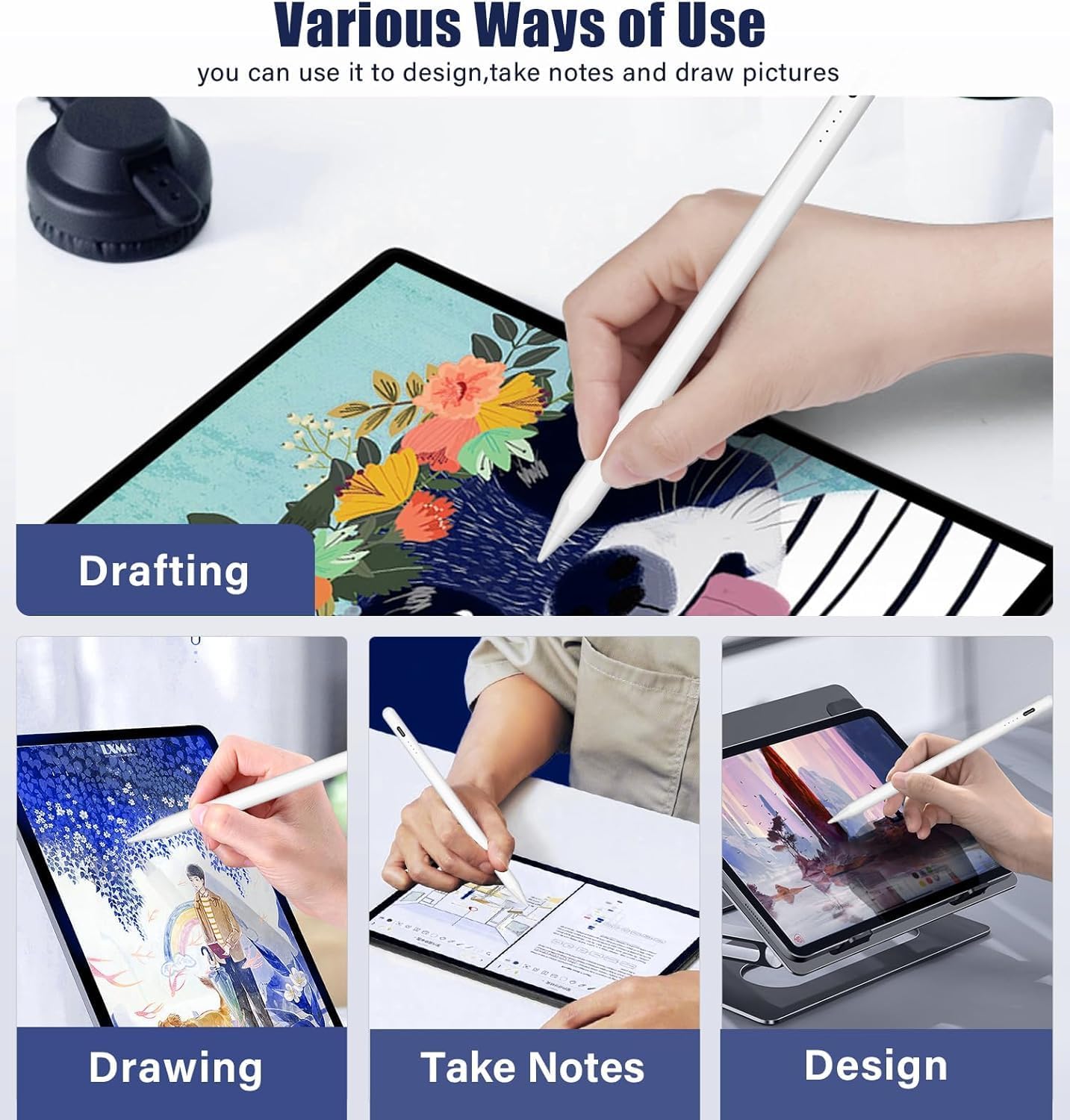
Once powered on, the stylus is ready for use with any compatible touch screen device. Simply touch the stylus tip to the screen to interact. No Bluetooth pairing or special applications are required.

4.2 Advanced Features
The stylus supports tilt sensitivity, allowing for variations in line thickness and shading depending on the angle at which the stylus is held against the screen. It also features palm rejection, which enables users to rest their hand on the screen naturally while writing or drawing without unintended input.
4.3 Compatibility
The ZAMZAM PRO Active Stylus Pen is broadly compatible with touch screen devices, including:
- Android devices
- iOS devices (iPads, iPhones)
- Mac devices (touch screen models)
- Motorola Edge 30 Pro
- Windows devices (touch screen models)
- Other tablets, small laptops, and Chromebooks with touch screens.

5. Maintenance
5.1 Cleaning
To clean the stylus, gently wipe the body with a soft, dry cloth. Avoid using harsh chemicals or abrasive materials. For the tip, a slightly damp cloth can be used, ensuring no moisture enters the stylus body.
5.2 Replacing the Tip
The stylus comes with extra POM magnetic tips. If the tip becomes worn or damaged, it can be replaced:
- Gently pull the old tip straight out from the stylus body.
- Align a new tip with the stylus and push it firmly into place until it is secure.
6. Troubleshooting
- Stylus not turning on: Ensure the stylus is fully charged. Double-tap the smart touch switch to activate.
- Stylus not responding on screen: Check if the stylus is powered on. Ensure your device's screen is clean and free of debris. Restart your device if necessary.
- Inaccurate input: Ensure the tip is securely attached and not worn. Clean the screen and the stylus tip.
- Palm rejection not working: Verify that your device supports palm rejection with active styluses. Some applications may require specific settings.
- Charging issues: Use the provided Type-C cable. Ensure the power source is functional. Check the charging port for any obstructions.
7. Specifications
| Feature | Detail |
|---|---|
| Model Number | ZZT-1900-WH |
| Product Dimensions | 4.1 x 0.06 x 0.06 inches |
| Item Weight | 1.8 ounces |
| Color | WHITE (also available in Black) |
| Material | Aluminum, Soft Rubber (POM Tips) |
| Battery Type | 1 Nonstandard Battery (included) |
| Full Charge Time | Approximately 35 minutes |
| Working Time | Up to 10 hours |
| Standby Time | 3 years |
| Automatic Sleep | After 90 minutes of inactivity |
| Compatible Devices | Android, iOS, Mac, Motorola Edge 30 Pro, Windows (touch screen devices) |
| Tip Size | 1.5mm |
8. Warranty and Support
For warranty information and technical support, please refer to the product packaging or contact ZAMZAM customer service through their official website or the retailer where the product was purchased. Keep your proof of purchase for warranty claims.

