1. Introduction
This manual provides detailed instructions for the installation, operation, and maintenance of your XTRONS QDB80X3NB Car Stereo GPS Multimedia Player. This device is specifically designed for BMW X3 F25 and X4 F26 models equipped with the NBT system, offering an enhanced in-car entertainment and navigation experience with Android 14, WiFi, 4G connectivity, and Apple CarPlay/Android Auto support.
Please read this manual thoroughly before using the product to ensure proper operation and to prevent damage.

Image 1.1: Front view of the XTRONS QDB80X3NB 8.8-inch Android Car GPS Multimedia Player.
2. Safety Information
- Professional Installation Recommended: Due to the complexity of car electrical systems, professional installation is highly recommended to avoid damage to the unit or your vehicle.
- Power Supply: Ensure the unit is connected to a 12V DC power supply with a negative ground. Incorrect voltage can cause damage.
- Wiring: Do not modify or cut the wiring harness. Refer to the wiring diagram in the installation manual.
- Driving Safety: Do not operate the unit in a way that distracts you from driving. Always prioritize road safety.
- Temperature: Avoid exposing the unit to extreme temperatures or direct sunlight for prolonged periods.
- Moisture: Keep the unit away from water and excessive moisture.
3. Package Contents
Please check the contents of your package against the list below. If any items are missing or damaged, contact your retailer immediately.
- XTRONS QDB80X3NB Main Unit
- Power Wiring Harness
- GPS Antenna
- USB Cables
- User Manual (this document)
- Installation Manual
- Other necessary accessories (e.g., microphone, specific adapters)

Image 3.1: Overview of the XTRONS QDB80X3NB package contents, including the main unit, various cables, antennas, and documentation.
4. Setup and Installation
The installation of the XTRONS QDB80X3NB requires careful attention to detail and knowledge of automotive electronics. It is strongly recommended that installation be performed by a qualified professional.
4.1. Pre-Installation Checks
- Ensure your vehicle is a BMW X3 F25 or X4 F26 with the NBT system.
- Disconnect the vehicle's battery before starting any electrical work.
- Verify all package contents are present and undamaged.
4.2. Physical Installation
The unit is designed for dashboard mounting, integrating seamlessly into your vehicle's existing NBT system. Refer to the dedicated Installation Manual for specific steps, including removal of the original screen and routing of cables.
- Dimensions: Ensure the unit's dimensions are compatible with your vehicle's dashboard space.
- Mounting: Securely mount the unit using the provided brackets and screws.
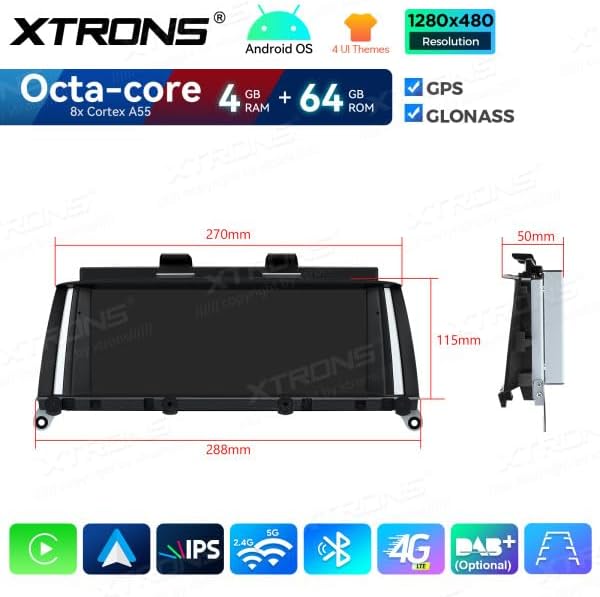
Image 4.1: Dimensional drawing of the XTRONS QDB80X3NB unit, indicating its physical measurements for installation planning.
4.3. Wiring Connections
Connect the wiring harness, GPS antenna, and any other accessories according to the Installation Manual. Pay close attention to:
- Power: Connect the main power harness to the vehicle's power supply.
- GPS Antenna: Mount the GPS antenna in a location with a clear view of the sky, typically on the dashboard or under the windshield.
- USB Ports: Route the USB cables to an accessible location for connecting external devices.
- 4G Antenna (if applicable): If using a 4G SIM card, ensure the 4G antenna is properly connected and positioned for optimal signal reception.
4.4. Initial Power On
After all connections are made and the unit is securely mounted, reconnect the vehicle's battery. Turn on the ignition to power up the unit. Follow any on-screen prompts for initial setup.
5. Operating Instructions
The XTRONS QDB80X3NB operates on Android 14, providing a user-friendly interface and access to a wide range of features.
5.1. Basic Operation
- Power On/Off: The unit typically powers on with the vehicle's ignition. A long press on the power button (if available) may turn it off or put it into standby.
- Touchscreen: Navigate the interface using the capacitive touchscreen. Swipe, tap, and pinch gestures are supported.
- Home Screen: The main screen provides access to key functions like Navigation, Bluetooth, and Music.
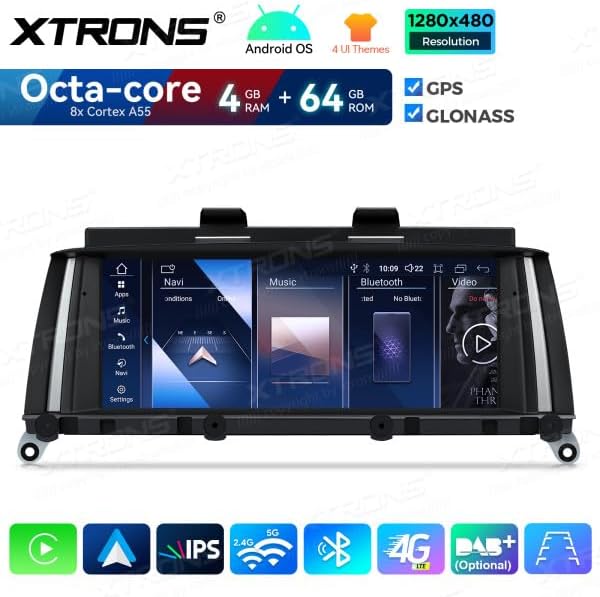
Image 5.1: The main interface of the XTRONS QDB80X3NB, displaying quick access icons for Navigation, Bluetooth, and Music functions.
5.2. Android 14 System
The unit runs on Android 14, allowing you to download and use various applications from the Google Play Store (requires internet connection).
- App Drawer: Access all installed applications from the app drawer.
- Settings: Configure system settings, network connections, display, sound, and more.
5.3. Navigation (GPS/GLONASS)
Utilize the built-in GPS and GLONASS support for accurate navigation. Pre-installed map applications or downloaded alternatives can be used.
- GPS Antenna: Ensure the GPS antenna is properly connected and has a clear view of the sky for optimal signal reception.
- Map Updates: Keep your map data updated for the best navigation experience.
5.4. Connectivity
The unit offers multiple connectivity options for seamless integration with your devices and the internet.
5.4.1. Bluetooth
Connect your smartphone via Bluetooth for hands-free calling and audio streaming.
- Go to the Bluetooth settings on the unit.
- Enable Bluetooth on your smartphone and search for available devices.
- Select the XTRONS device from your phone's list and pair.
5.4.2. Wi-Fi
Connect to a Wi-Fi hotspot (e.g., from your smartphone or a portable hotspot) to access online features, download apps, and browse the internet.
- Go to Wi-Fi settings on the unit.
- Turn on Wi-Fi and select your desired network.
- Enter the password if prompted and connect.
5.4.3. 4G (SIM not included)
The unit supports 4G connectivity. Insert a compatible SIM card (not included) into the designated slot to enable mobile data access directly from the unit.
- Ensure the 4G antenna is connected for optimal signal.
- Configure APN settings if required by your mobile carrier.
5.4.4. Apple CarPlay & Android Auto (Wireless)
Enjoy seamless integration with your smartphone using wireless Apple CarPlay or Android Auto.
- Apple CarPlay: Connect your iPhone wirelessly to access navigation, music, messages, and more directly on the unit's screen.
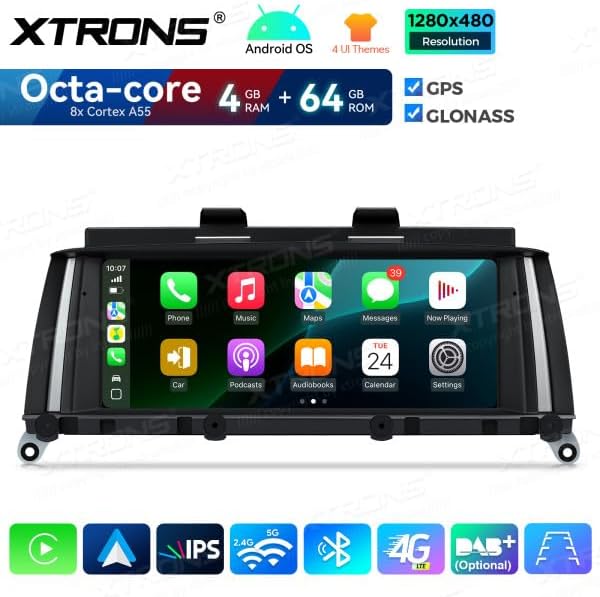
Image 5.2: The unit displaying the Apple CarPlay interface, providing access to iPhone apps like Phone, Music, Maps, and Messages.
- Android Auto: Connect your Android phone wirelessly to use Google Maps, play music, send messages, and interact with Google Assistant.
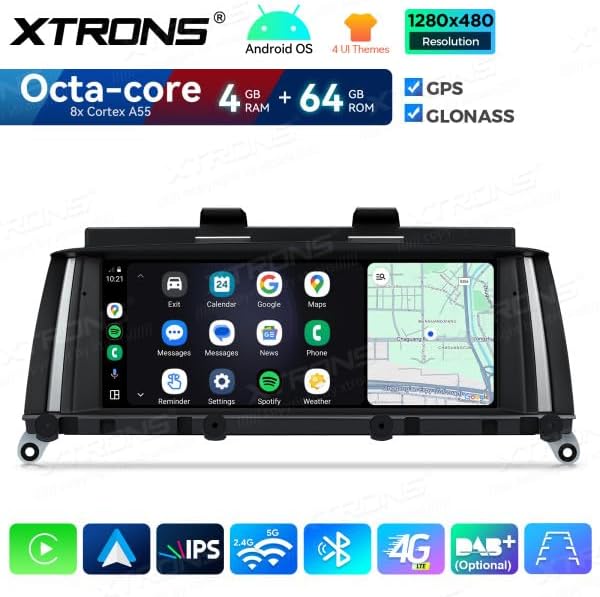
Image 5.3: The unit displaying the Android Auto interface, showing apps such as Calendar, Google Maps, and Spotify.
5.5. Multimedia Playback
The unit supports various multimedia formats for music and video playback.
- Music Player: Play audio files from internal storage, USB drives, or streaming services.
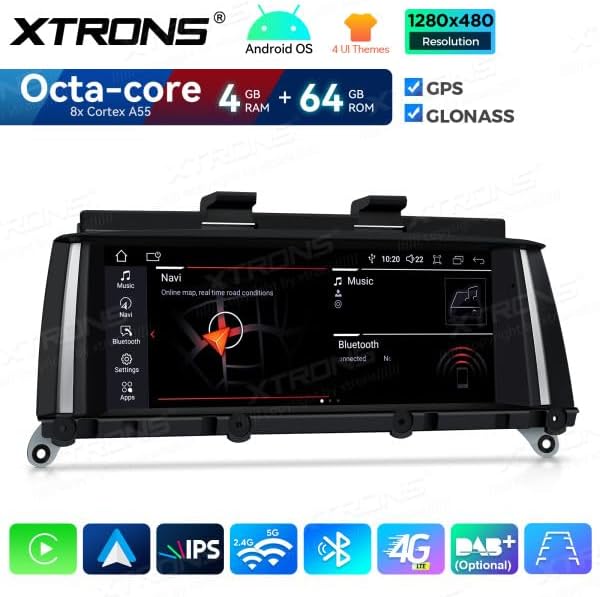
Image 5.4: The unit displaying a music player interface, allowing selection and playback of audio tracks.
- Video Player: Play video files from internal storage or USB drives.

Image 5.5: The unit displaying a video player interface, with a warning not to watch videos while driving.
6. Maintenance
Proper maintenance ensures the longevity and optimal performance of your XTRONS QDB80X3NB unit.
- Cleaning the Screen: Use a soft, lint-free cloth to gently wipe the touchscreen. For stubborn smudges, slightly dampen the cloth with water or a screen cleaner designed for electronics. Do not use harsh chemicals or abrasive materials.
- General Cleaning: Keep the unit and surrounding areas free from dust and debris. Use a soft brush or compressed air to clean vents and ports.
- Software Updates: Periodically check for software updates from XTRONS to ensure you have the latest features and bug fixes. Follow the instructions provided with the update carefully.
- Avoid Extreme Conditions: Do not expose the unit to extreme heat, cold, or direct sunlight for extended periods, as this can affect its performance and lifespan.
7. Troubleshooting
If you encounter issues with your XTRONS QDB80X3NB, refer to the following common problems and solutions.
| Problem | Possible Cause | Solution |
|---|---|---|
| Unit does not power on. | Loose power connection, blown fuse, vehicle battery issue. | Check all power connections. Inspect vehicle fuses. Ensure vehicle battery is charged. |
| No sound. | Volume too low, mute enabled, speaker wiring issue. | Increase volume. Check if mute is active. Verify speaker connections. |
| GPS signal lost or inaccurate. | GPS antenna not properly connected or obstructed. | Ensure GPS antenna is securely connected and mounted in a location with a clear view of the sky. |
| Bluetooth device cannot connect. | Bluetooth not enabled, device not in pairing mode, interference. | Ensure Bluetooth is enabled on both devices. Put your phone in pairing mode. Try restarting both devices. |
| Wi-Fi/4G not connecting. | Incorrect password, weak signal, SIM card issue (for 4G). | Verify Wi-Fi password. Check signal strength. For 4G, ensure SIM card is correctly inserted and activated, and APN settings are correct. |
| Touchscreen unresponsive. | Temporary software glitch, dirty screen. | Restart the unit. Clean the screen thoroughly. If the problem persists, contact support. |
If the problem persists after trying these solutions, please contact XTRONS customer support for further assistance.
8. Specifications
Below are the key technical specifications for the XTRONS QDB80X3NB Car Stereo GPS Multimedia Player:
- Brand: XTRONS
- Model: QDB80X3NB
- Vehicle Service Type: Car (BMW X3 F25 / X4 F26 NBT)
- Screen Size: 8.8 Inches
- Display Resolution: 1280x480 (as indicated in product images)
- Touchscreen Type: Capacitive
- Operating System: Android 14
- Processor: Octa-core (8x Cortex A55, as indicated in product images)
- Memory (RAM): 4 GB (as indicated in product images)
- Storage Capacity (ROM): 64 GB
- Special Features: Android Auto, Apple CarPlay (Wireless)
- Connectivity Technology: Wi-Fi, Bluetooth, 4G (SIM not included), USB
- Navigation: GPS, GLONASS (Satellite Map Type)
- Included Components: Autoradio, wiring harness, GPS antenna, USB cables
- Mounting Type: Dashboard mount
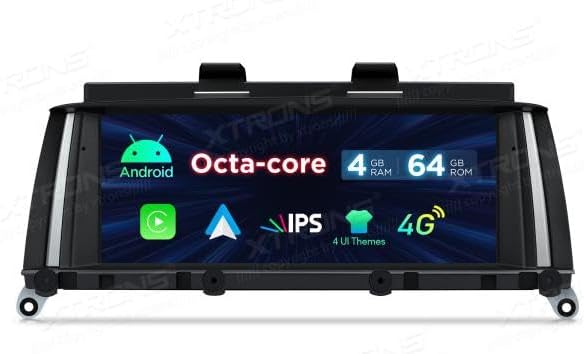
Image 8.1: The XTRONS QDB80X3NB unit showcasing its core specifications including Android OS, Octa-core processor, memory, storage, IPS display, and 4G support.
9. Warranty and Support
XTRONS products are designed for reliability and performance. For specific warranty terms and conditions, please refer to the warranty card included with your product or visit the official XTRONS website.
If you require technical assistance, have questions about installation, or need to report a defect, please contact XTRONS customer support through their official channels. When contacting support, please have your product model number (QDB80X3NB) and purchase details ready.
XTRONS Official Website: www.xtrons.com (Please note: This is a placeholder URL. Refer to your product documentation for the correct support contact information.)


