
INEAUTO 1200
INEAUTO AC1200 Outdoor WiFi Extender User Manual
Model: 1200
1. Introduction
The INEAUTO AC1200 Outdoor WiFi Extender is a high-performance device designed to expand your wireless network coverage to outdoor areas. With dual-band support (2.4GHz and 5GHz) and robust weatherproof construction, it provides stable and fast internet connectivity for various outdoor applications, including surveillance cameras, smart devices, and general internet access in large properties.

Image: The AC1200 Outdoor WiFi Extender providing seamless wireless coverage around a residential property with a swimming pool, demonstrating its capability to eliminate Wi-Fi dead zones.
Key features include:
- Powerful Dual Band Performance: Supports 2.4GHz (up to 300Mbps) and 5GHz (up to 867Mbps) for fast and stable connections.
- Signal Boosting and Wide Coverage: Extends existing WiFi signal strength and reduces dead zones, ideal for large outdoor spaces.
- Designed for Outdoor Use: IP67 weatherproof rating ensures durability against rain, dust, and extreme temperatures.
- Multiple Operating Modes: Functions as a Repeater, Access Point (AP), or Router to suit various network needs.
- WPA/WPA3 Security Protection: Advanced encryption standards to secure your network and data.
- PoE Powered for Easy Installation: Power over Ethernet simplifies setup by delivering power and data through a single cable.
2. Package Contents
Please verify that all items are present in the package:
- 1 x AC1200 WiFi Extender Unit
- 1 x Passive PoE Adapter
- 1 x RJ45 Ethernet Cable
- Mounting Kit (includes zip ties, screws, and waterproof connector)
- Quick Installation Guide
3. Setup and Installation
Follow these steps to set up your INEAUTO AC1200 Outdoor WiFi Extender:
- Choose a Location: Select an optimal outdoor location for the extender, ensuring it is within range of your existing router's signal (if using Repeater mode) and has a clear line of sight to the area you wish to cover. Consider mounting it on a pole or wall.
- Mount the Extender: Use the provided mounting kit (zip ties or screws) to securely attach the extender to your chosen location. Ensure it is stable and positioned correctly for optimal signal propagation.
- Connect via PoE: The extender is powered using Power over Ethernet (PoE). Connect one end of the RJ45 Ethernet cable to the LAN port on the extender. Connect the other end of the Ethernet cable to the 'PoE' port on the passive PoE adapter.
- Power On: Connect another RJ45 Ethernet cable from the 'LAN' port of the PoE adapter to your router or network switch. Plug the PoE adapter into a standard electrical outlet. The PoE adapter is designed for indoor use and is not waterproof.
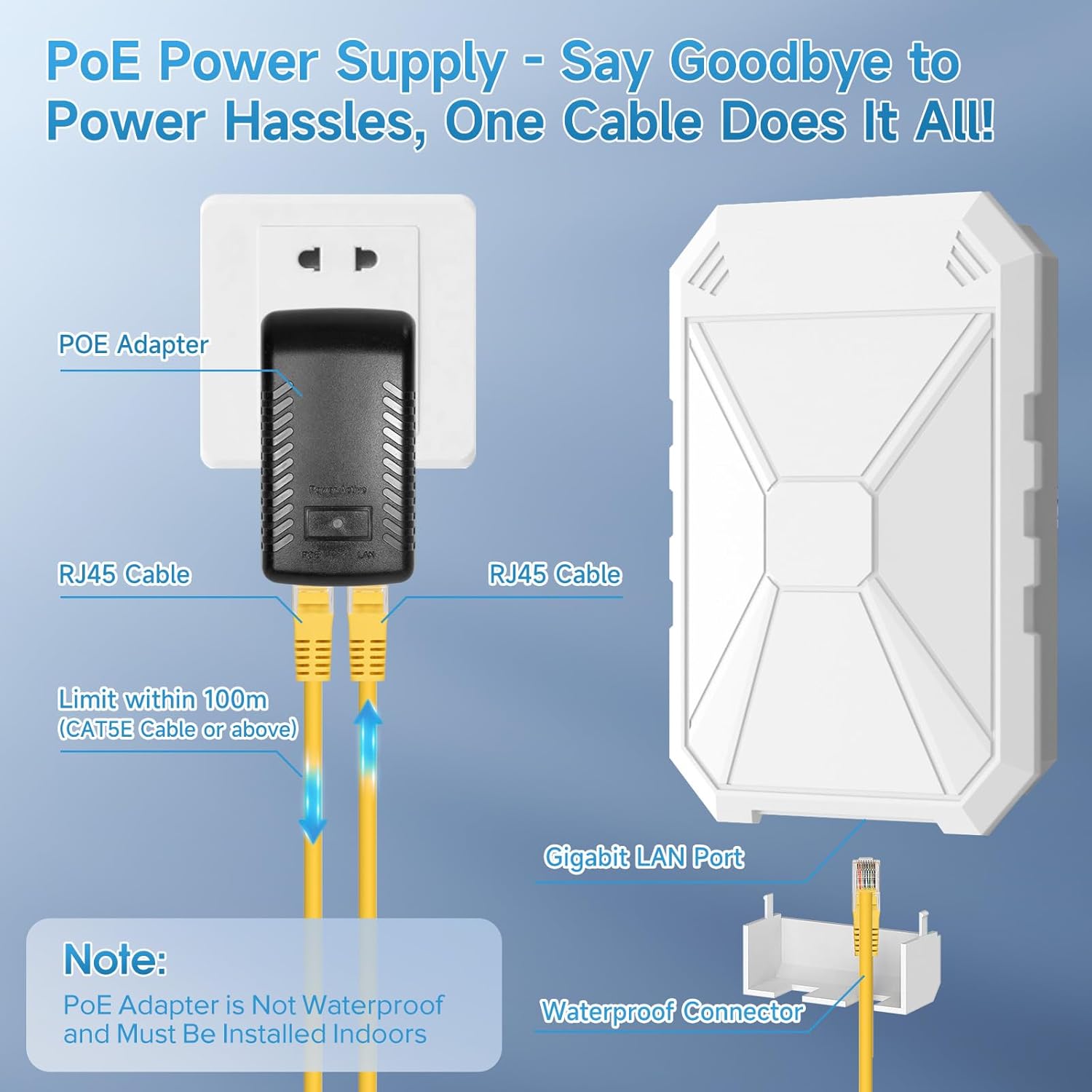
Image: Detailed diagram illustrating the Power over Ethernet (PoE) connection, showing how a single RJ45 cable provides both power and data to the extender from the PoE adapter, which must be installed indoors.
- Initial Configuration: Access the extender's web-based management interface by connecting a computer to the extender's network (either wirelessly or via Ethernet through the PoE adapter's LAN port). Follow the on-screen instructions to configure the desired operating mode (Repeater, AP, or Router) and network settings. Refer to the Quick Installation Guide for default IP address and login credentials.
4. Operating Modes
The AC1200 Outdoor WiFi Extender supports three primary operating modes:
- Repeater Mode: Extends the coverage of an existing wireless network. The extender connects to your main router wirelessly and rebroadcasts the signal, effectively eliminating Wi-Fi dead zones.
- AP (Access Point) Mode: Converts a wired network connection into a wireless one. Ideal for areas where you have an Ethernet port but need Wi-Fi access. The extender acts as a central hub for wireless devices.
- Router Mode: Functions as a primary router, creating a new wireless network from a wired internet connection (e.g., from a modem). This mode is suitable for setting up a new network in an outdoor space.
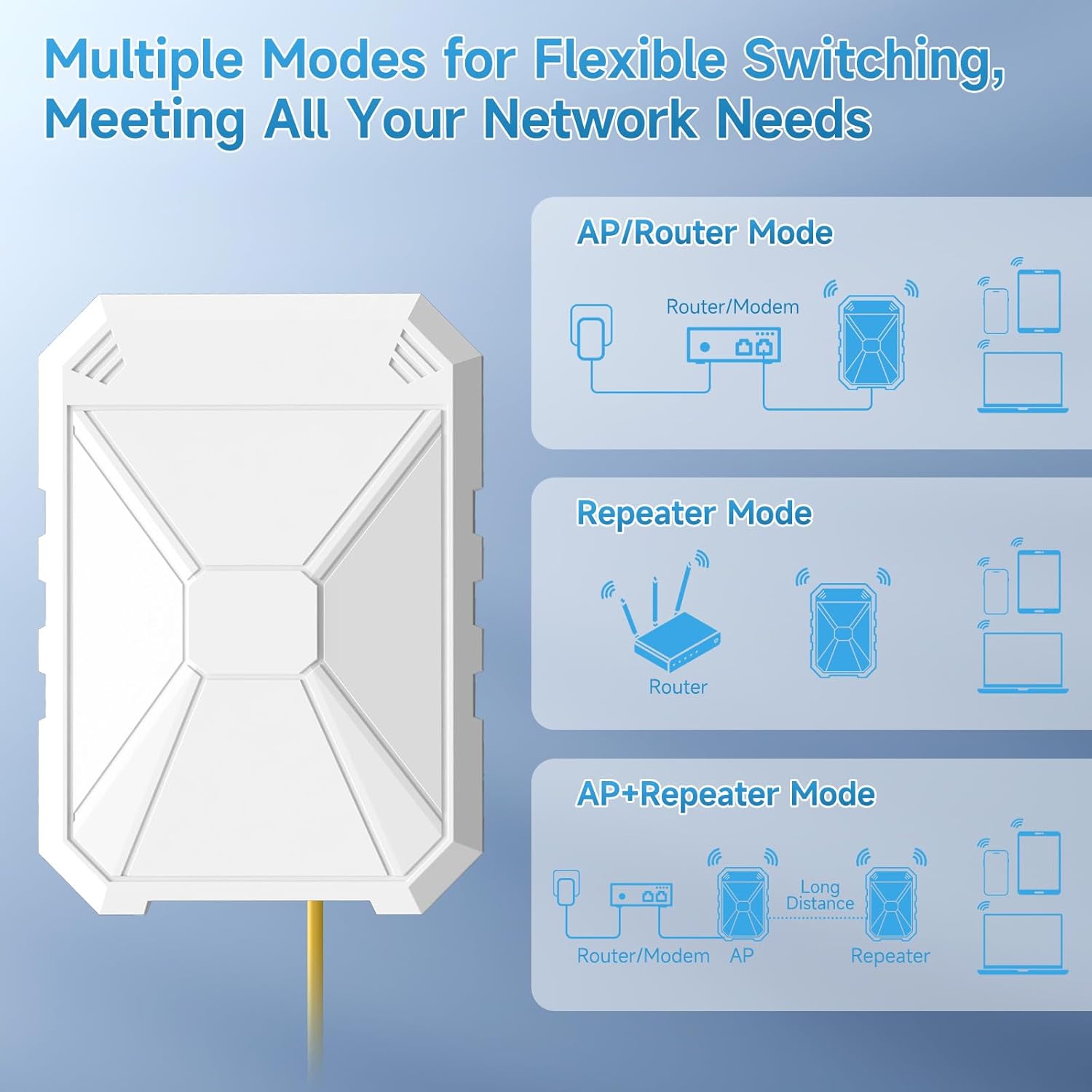
Image: Visual representation of the three flexible operating modes: Repeater Mode, AP Mode, and Router Mode, showing how the extender can be configured to meet various network requirements.
5. Maintenance and Care
To ensure the longevity and optimal performance of your outdoor WiFi extender, follow these maintenance guidelines:
- Weather Protection: The extender is IP67 weatherproof, designed to withstand rain, dust, snow, wind, thunder, and frost. However, avoid direct exposure to extreme conditions beyond its rating if possible.
- Cleaning: Periodically wipe the exterior of the unit with a soft, damp cloth to remove dust and dirt. Do not use harsh chemicals or abrasive cleaners.
- Cable Inspection: Regularly inspect the Ethernet cable and connections for any signs of wear, damage, or corrosion, especially the waterproof connector.
- Firmware Updates: Check the manufacturer's website periodically for firmware updates. Keeping the firmware updated can improve performance, security, and add new features.
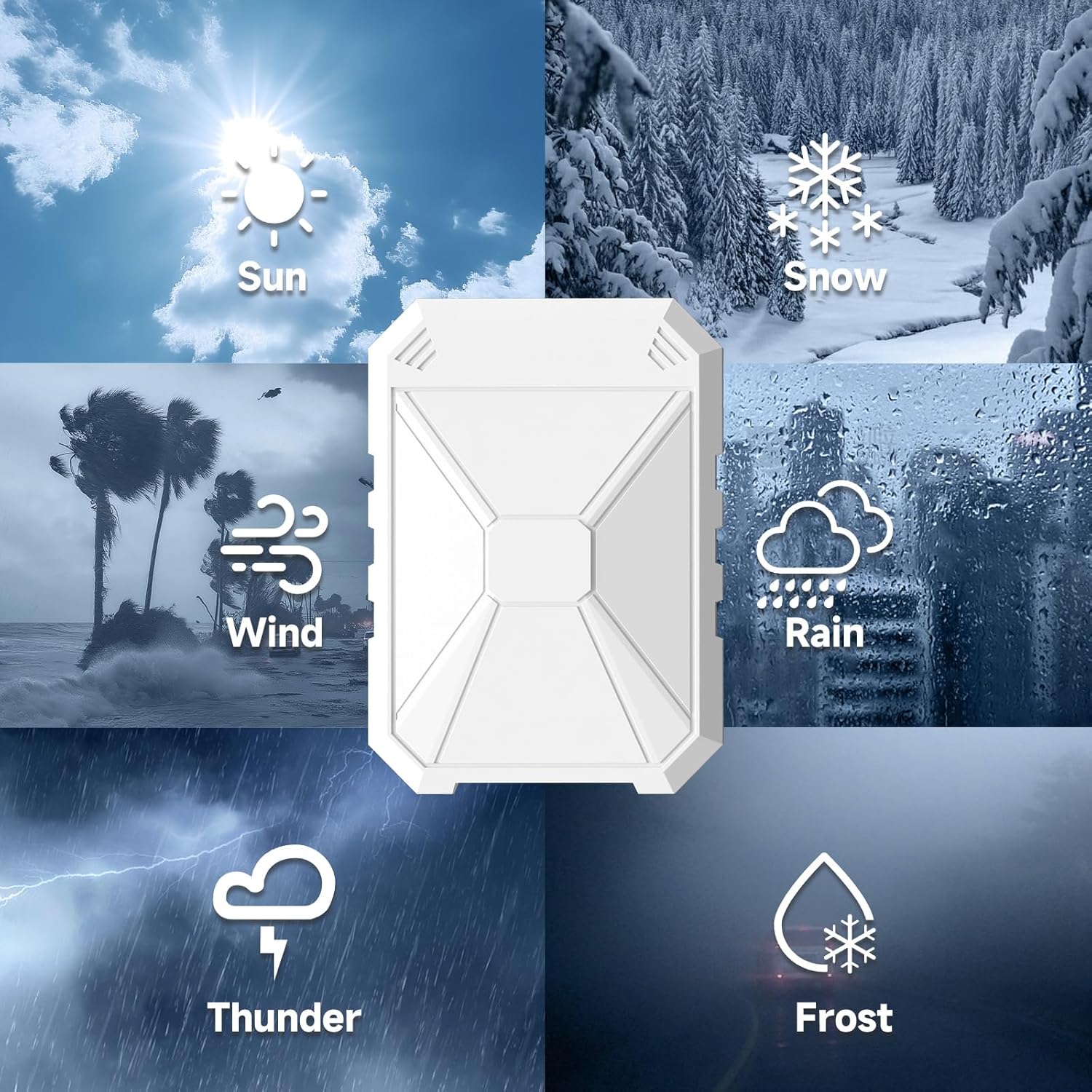
Image: Icons representing the robust weather resistance of the extender, including sun, snow, wind, rain, thunder, and frost, highlighting its suitability for year-round outdoor deployment.
6. Troubleshooting
If you encounter issues with your extender, try the following solutions:
| Problem | Possible Solution |
|---|---|
| No Power/Indicator Lights Off | Ensure the PoE adapter is securely plugged into a working power outlet. Check the Ethernet cable connections between the extender, PoE adapter, and router. |
| No Internet Connection | Verify that your main router has internet access. Check the extender's configuration settings (e.g., Wi-Fi password, operating mode). Try restarting both the extender and your main router. |
| Weak Signal or Slow Speed | Relocate the extender to a more central position between your router and the desired coverage area. Ensure there are no major obstructions (e.g., thick walls, metal objects). Check for interference from other wireless devices. |
| Cannot Access Web Management Interface | Ensure your computer is connected to the extender's network. Verify the IP address and try clearing your browser's cache. If issues persist, perform a factory reset on the extender (refer to the Quick Installation Guide for reset instructions). |
| Connection Drops Frequently | Check for signal interference. Ensure the extender's firmware is up to date. Consider changing the wireless channel on your router or extender to a less congested one. |
7. Specifications
| Feature | Detail |
|---|---|
| Model Number | 1200 |
| Wireless Communication Standard | 802.11a/b/g/n/ac (2.4 GHz & 5 GHz Radio Frequency) |
| Frequency Band Class | Dual-Band |
| Data Transfer Rate | Up to 300Mbps (2.4GHz), 867Mbps (5GHz) |
| Special Features | Access Point Mode, Directional Antenna, MU-MIMO, Power Over Ethernet, Weatherproof (IP67) |
| Connector Type | RJ45 |
| Item Weight | 2.05 pounds |
| Package Dimensions | 14.29 x 8.78 x 3.58 inches |
8. Warranty and Support
The INEAUTO AC1200 Outdoor WiFi Extender comes with a standard manufacturer's warranty. For detailed warranty information, technical support, or service inquiries, please refer to the warranty card included in your package or visit the official INEAUTO website. Online resources, FAQs, and contact information for customer support are typically available on the manufacturer's support page.
Related documents1200

Ask a question about this manual
Ask about setup, troubleshooting, compatibility, parts, safety, or missing instructions. Manuals+ will review the question and use this page’s manual context to help answer it.