
VANBAR CP03pro
VANBAR Display Audio System User Manual
Model: CP03pro
1. Introduction
Thank you for purchasing the VANBAR Display Audio system. This device is a versatile 3-in-1 on-dash monitor designed to enhance your driving experience with advanced navigation, entertainment, and safety features. It features a 10.25-inch high-resolution display, powered by Android 14, and supports seamless integration with your smartphone via wireless CarPlay and Android Auto. This manual provides detailed instructions for setup, operation, maintenance, and troubleshooting to ensure optimal performance and longevity of your device.
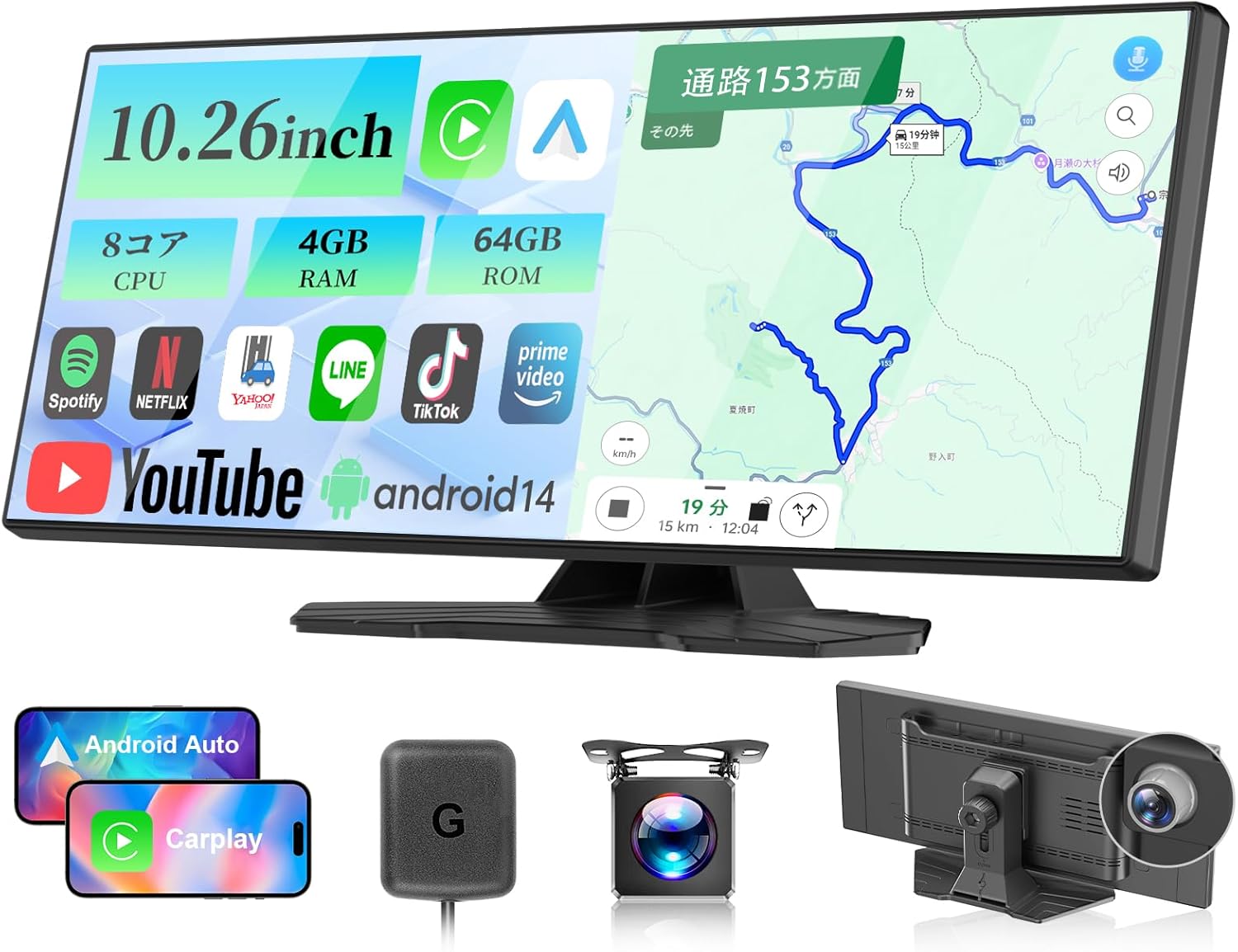
Figure 1.1: Overview of the VANBAR Display Audio System and its components.
2. Package Contents
Please verify that all items are present in the package:
- Main Display Unit
- Rear Camera (Waterproof)
- GPS Antenna
- Cigarette Lighter Power Adapter
- AUX Cable
- Mounting Stand
- User Manual
- 3M Adhesive Tape
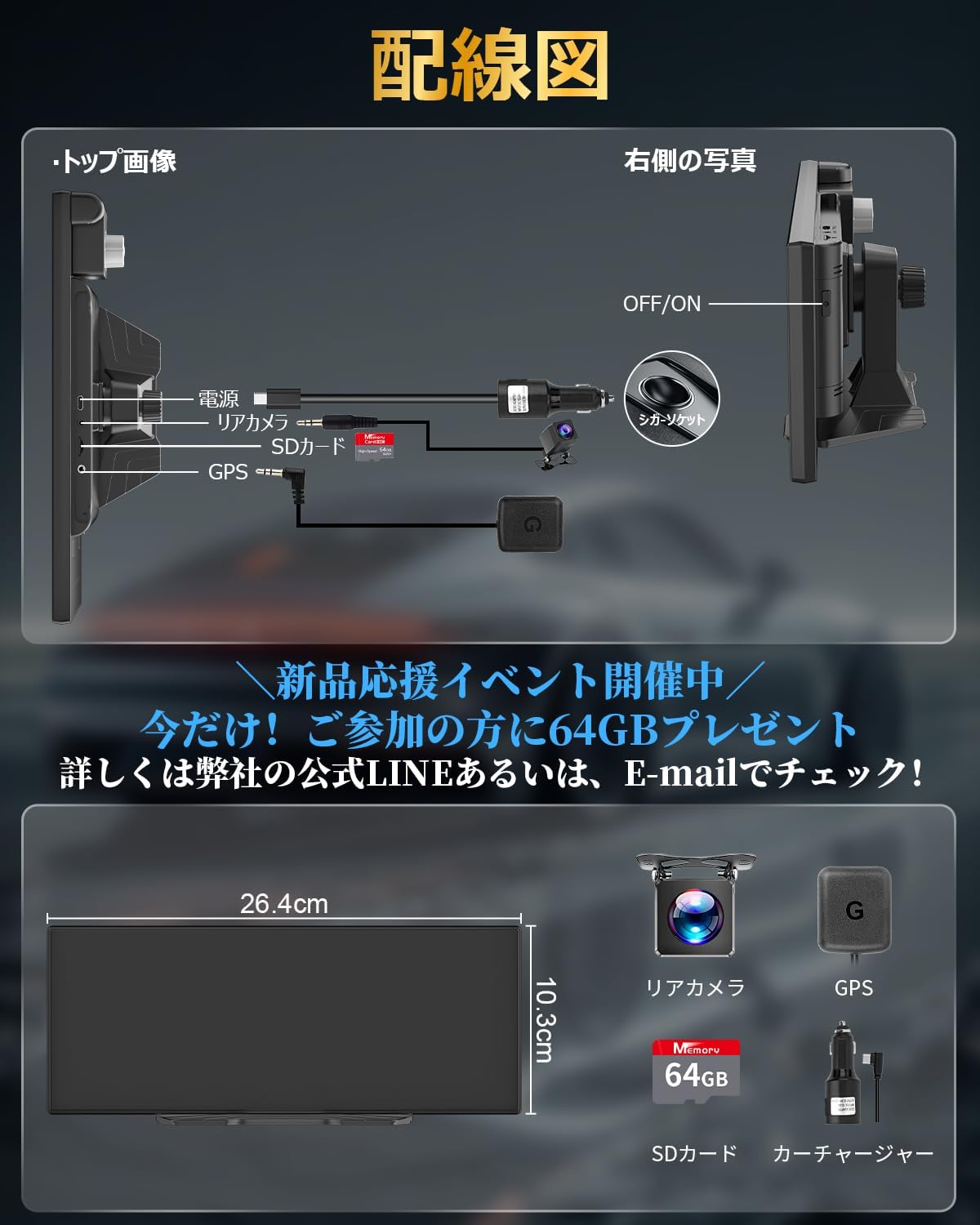
Figure 2.1: Included accessories and basic wiring diagram.
3. Setup and Installation
The VANBAR Display Audio system is designed for easy installation without complex wiring. Follow these steps for quick setup:
- Mounting the Main Unit:
Clean the desired area on your dashboard. Attach the mounting stand to the main unit. Peel off the protective film from the 3M adhesive tape on the stand and firmly press it onto the dashboard. Ensure a stable and unobstructed view.

Figure 3.1: Main unit installation steps.
- Power Connection:
Connect the provided cigarette lighter power adapter to the main unit and plug it into your vehicle's cigarette lighter socket. Avoid forcing the cable or using non-standard adapters.
- Rear Camera Installation (Optional but Recommended):
Install the rear camera at the back of your vehicle, ensuring a clear view. Connect the camera cable to the designated port on the main unit. This enables parking assist and simultaneous front/rear recording.
- GPS Antenna Connection:
Connect the GPS antenna to the main unit. Place the antenna in a location with a clear view of the sky for accurate positioning.
- MicroSD Card Insertion:
Insert a microSD card (up to 128GB, not included by default, but a 64GB card may be available through a promotional offer) into the designated slot for drive recorder functionality and media storage.
The monitor's angle can be adjusted using the screw on the back to achieve the optimal viewing position, considering sunlight and your line of sight.
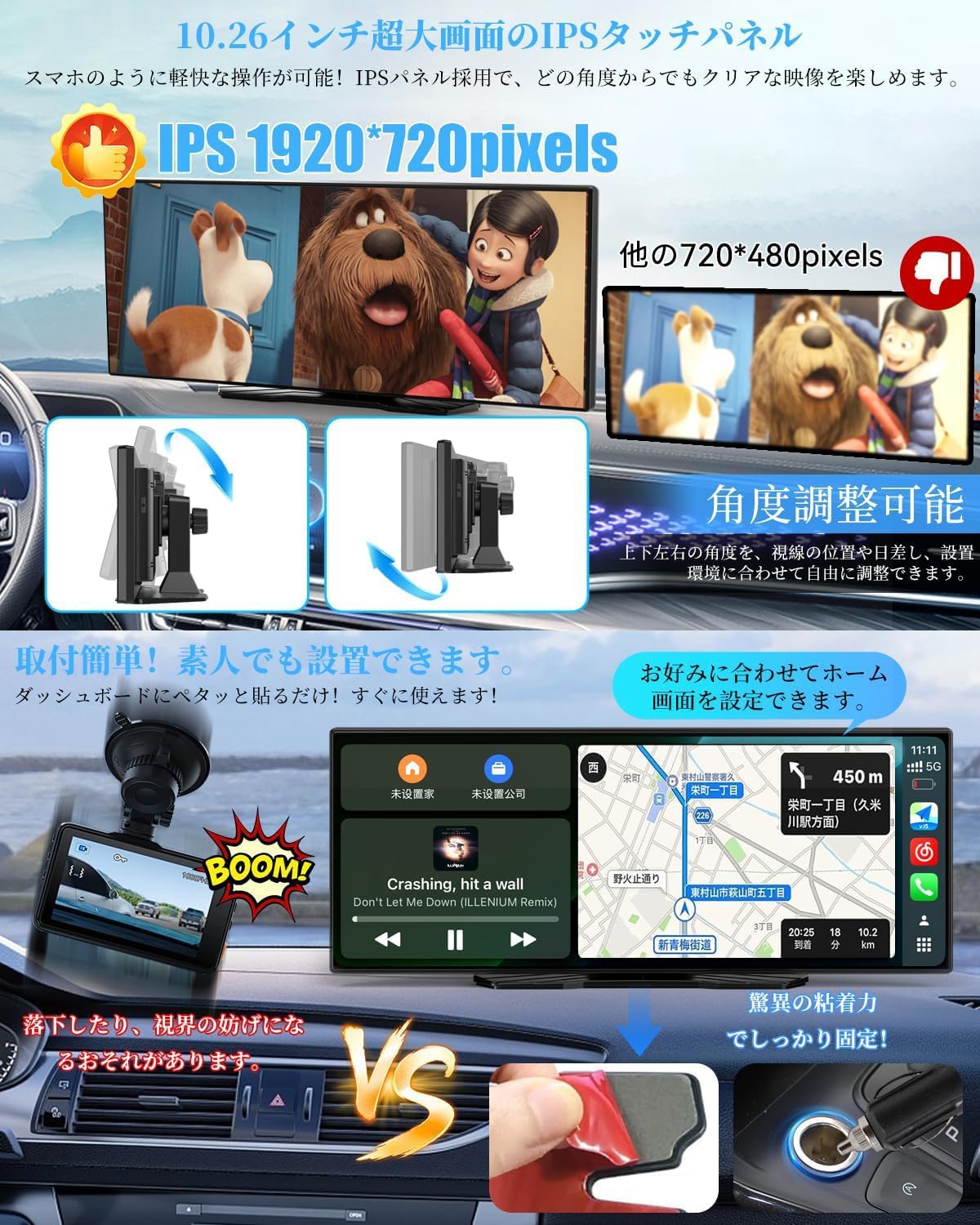
Figure 3.2: Display features and mounting stability.
4. Operating Instructions
4.1 Power On/Off and Initial Boot
Once connected to power, the device will automatically power on with your vehicle's ignition. The system boots up quickly, typically within 20 seconds.

Figure 4.1: Android 14 System Interface.
4.2 Android 14 System and App Installation
The device runs on the latest Android 14 system, offering a smooth and responsive user experience. Connect to Wi-Fi to access the Google Play Store and download your favorite entertainment apps such as YouTube, Netflix, and Prime Video. The powerful 8-core CPU, 4GB RAM, and 64GB ROM ensure stable operation and ample storage for multiple applications.

Figure 4.2: App compatibility and system specifications.
4.3 Wireless CarPlay and Android Auto
Connect your smartphone wirelessly to enable CarPlay or Android Auto. This allows you to operate navigation, make calls, play music, and access other compatible apps directly from the display, hands-free. Voice control via Siri or Google Assistant is supported for safe operation while driving.
- Wireless Connectivity: This product supports wireless connection only.
- Voice Control: Use voice commands for navigation, calls, and more.

Figure 4.3: Wireless CarPlay and Android Auto in action.
4.4 Wireless Mirroring
Mirror your smartphone screen wirelessly onto the 10.25-inch display. This feature allows you to enjoy videos and articles from your phone on a larger screen. Note: Some video streaming apps may not support mirroring due to copyright protection.
4.5 Drive Recorder Functionality (Front and Rear)
The device is equipped with front and rear cameras for simultaneous recording, enhancing driving safety. The front camera can rotate 180°, allowing you to record both the road ahead and the interior of your car, perfect for capturing family travel memories. A microSD card is required for recording.
- Simultaneous Recording: Records both front and rear views.
- Front Camera Rotation: 180° rotation for flexible recording angles.
- Loop Recording: Records in set intervals (1/3/5 minutes). When the card is full, the oldest files are overwritten.
- HDR/WDR Support: Ensures clear images even in challenging lighting conditions (e.g., tunnels, backlight).
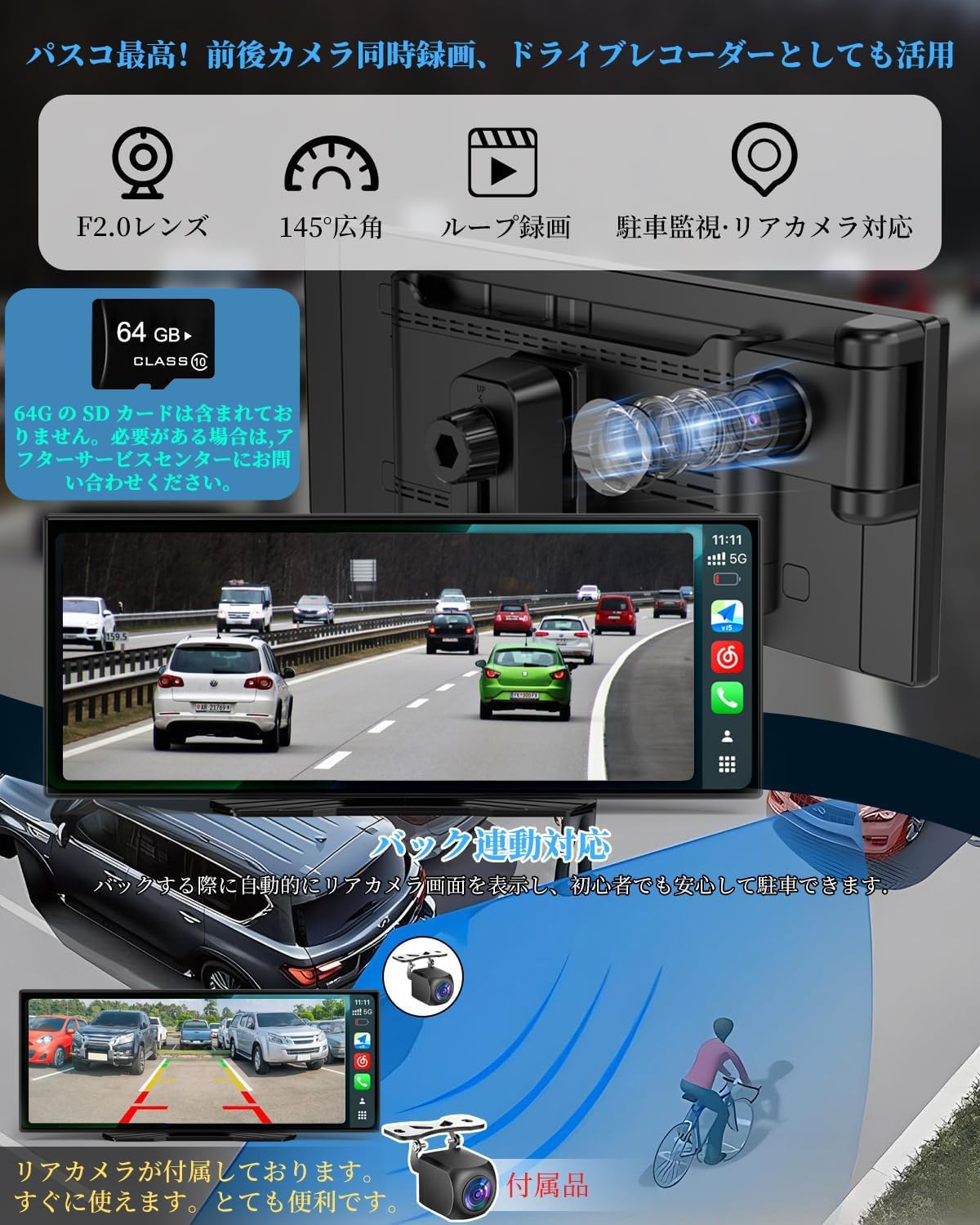
Figure 4.4: Drive recorder and parking assist features.
4.6 Parking Assist Function
When you shift into reverse gear, the monitor automatically switches to the rear camera view, providing a wide 170-degree angle. This helps you easily identify obstacles and blind spots, supporting safe and smooth parking. The rear camera is included as a standard accessory.
4.7 Bluetooth Connectivity (5.0)
Equipped with the latest Bluetooth 5.0, the device ensures stable calls and music playback. Enjoy seamless audio streaming and hands-free communication without connection interruptions.
4.8 Audio Output Options
The system offers multiple audio output methods to customize your in-car sound experience:
- Built-in Speaker: For direct audio output from the unit.
- FM Transmission: Transmit audio to your car's stereo via FM radio.
- Vehicle Bluetooth: Connect to your car's built-in Bluetooth system for high-quality audio.
- AUX Output: Use the AUX cable to connect to your car's AUX input for clear audio.

Figure 4.5: Split-screen display and audio output methods.
4.9 Split Screen Function
The split-screen display allows you to run two applications simultaneously. For example, you can view navigation routes while playing music or watching videos. Note: Split-screen is not available when using CarPlay, Android Auto, or mirroring functions.
5. Maintenance
To ensure the optimal performance and longevity of your VANBAR Display Audio system, follow these maintenance guidelines:
- Regular Cleaning: Use a soft, dry cloth to clean the display screen and exterior. Avoid abrasive cleaners or solvents.
- Storage Management: Periodically delete unnecessary data and applications from the 64GB ROM to prevent storage insufficiency, which can affect app performance.
- Software Updates (OTA): The device supports Over-The-Air (OTA) updates. Ensure your device is connected to Wi-Fi to receive the latest system updates. Updates will be automatically notified upon completion.
- Cable Management: Ensure all cables are securely connected and not pinched or strained to prevent damage.
6. Troubleshooting
If you encounter issues with your VANBAR Display Audio system, refer to the following common troubleshooting steps:
| Problem | Possible Cause | Solution |
|---|---|---|
| Device does not power on. | No power from cigarette lighter socket; loose connection. | Check cigarette lighter fuse; ensure power adapter is securely plugged in. |
| Apps run slowly or crash. | Insufficient storage; poor internet connection. | Delete unnecessary data/apps; ensure stable Wi-Fi connection. |
| Tethering disconnects (iPhone). | "Personal Hotspot" screen not open on iPhone. | Keep the "Personal Hotspot" screen open on your iPhone during use to prevent automatic disconnection after approximately 90 seconds. |
| GPS signal is weak or inaccurate. | GPS antenna obstructed or improperly placed. | Ensure GPS antenna is placed in a location with a clear view of the sky. |
| Rear camera image not displayed. | Rear camera not connected or faulty. | Check rear camera connection; ensure vehicle is in reverse gear. |
If the problem persists after trying these solutions, please contact customer service for assistance.
7. Specifications
| Feature | Specification |
|---|---|
| Screen Size | 10.26 inches |
| Resolution | 1920 x 720 pixels |
| Operating System | Android 14 |
| CPU | 8-Core |
| RAM | 4GB |
| ROM | 64GB |
| Connectivity | Bluetooth 5.0, Wi-Fi |
| Supported Functions | Wireless CarPlay, Wireless Android Auto, Wireless Mirroring, Drive Recorder (Front/Rear), GPS, FM Transmission, AUX Output, Voice Control |
| MicroSD Card Support | Up to 128GB |
| Model Number | CP03pro |
| Dimensions (Packaging) | 31.5 x 14.7 x 9.8 cm; 1.12 kg |
8. Warranty and Support
VANBAR is committed to providing high-quality products and excellent customer service. For any initial defects or issues encountered during use, please do not hesitate to contact our customer service team.
Contact information can be found on the last page of the physical instruction manual included with your product.
You can also reach us via our official LINE account: @645cthlb
We also offer a promotional activity where you may be eligible to receive a free 64GB microSD card. Please contact us for details on how to participate.
Ask a question about this manual
Ask about setup, troubleshooting, compatibility, parts, safety, or missing instructions. Manuals+ will review the question and use this page’s manual context to help answer it.