
Fuers N6708-7
Fuers 8MP 8CH PoE NVR Home Security Camera System
Model: N6708-7
Brand: Fuers
Introduction
This manual provides detailed instructions for the installation, operation, and maintenance of your Fuers 8MP 8CH PoE NVR Home Security Camera System. This system includes a Network Video Recorder (NVR) and two wired 6MP PoE IP cameras with person detection capabilities. Please read this manual thoroughly before using the product to ensure proper setup and functionality.
What's in the Box

Image: Components included in the Fuers security camera system package.
- 1 x 8CH PoE NVR (with 1TB HDD pre-installed)
- 2 x PoE Cameras (Dual Lens)
- 1 x 1.5m HDMI cable
- 2 x 18m Network cables
- 1 x NVR Power Supply
- 1 x USB Mouse
- 1 x Remote Controller
- 2 x Warning stickers
Key Features
- Incredible 6MP UHD Image: The system provides high-resolution 6MP video, ensuring clear and detailed surveillance. The dual-lens cameras offer both a fixed view and a PTZ (Pan/Tilt/Zoom) view for comprehensive coverage.
- Full Color Night Vision: Equipped with spotlights, the 6MP outdoor cameras enable full-color night vision. This feature can be scheduled or motion-activated, working with a siren to deter intruders.
- Smart Person Detection: Advanced PoE IP cameras can distinguish human shapes, reducing false alarms from environmental factors like bugs or leaves. The NVR system allows customization of sensitivity, detection areas, and recording schedules.
- PLUG & PLAY PoE System: Simplifies installation with a single network cable for both power supply and video transmission to the Fuers NVR. The 8-port NVR supports up to 8 PoE cameras, making it suitable for DIY setup.
- 2-Way Talk: The 6MP camera features a built-in speaker for two-way audio communication, allowing interaction with visitors or deterring unwanted individuals via the xmeye pro App or Client.
- Remote Control: The system includes a remote control for convenient and flexible operation of the cameras and NVR.

Image: Illustration of the dual-lens camera providing both bullet and dome lens views, with 270° pan and 90° tilt capabilities.
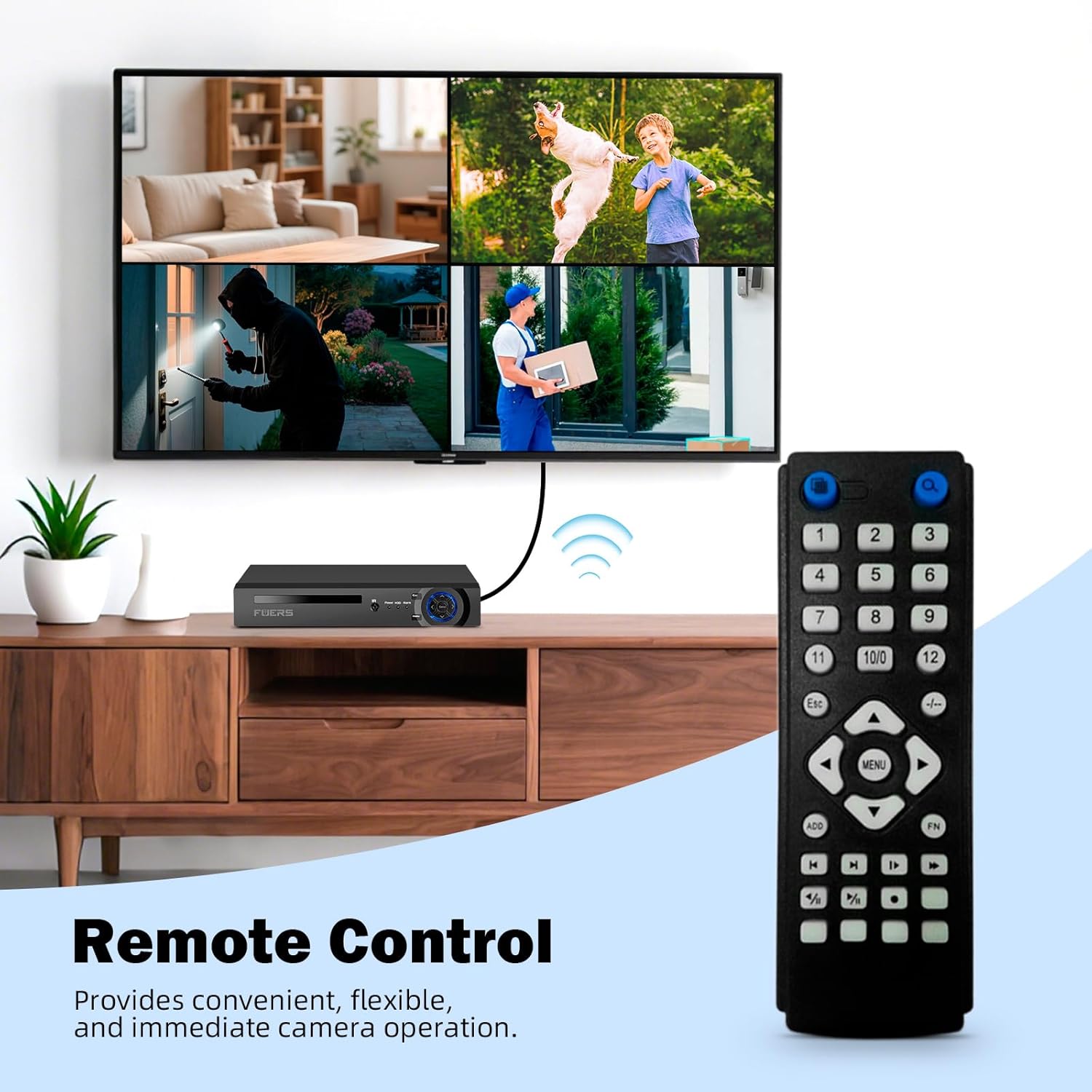
Image: Comparison showing full-color night vision with spotlights versus traditional infrared night vision.

Image: A person detected by the camera, triggering an APP push and email notification.

Image: Diagram illustrating the simple Power over Ethernet (PoE) connection from camera to NVR using a single Ethernet cable.

Image: A person speaking into the camera and another person receiving the audio on a smartphone, demonstrating two-way talk.
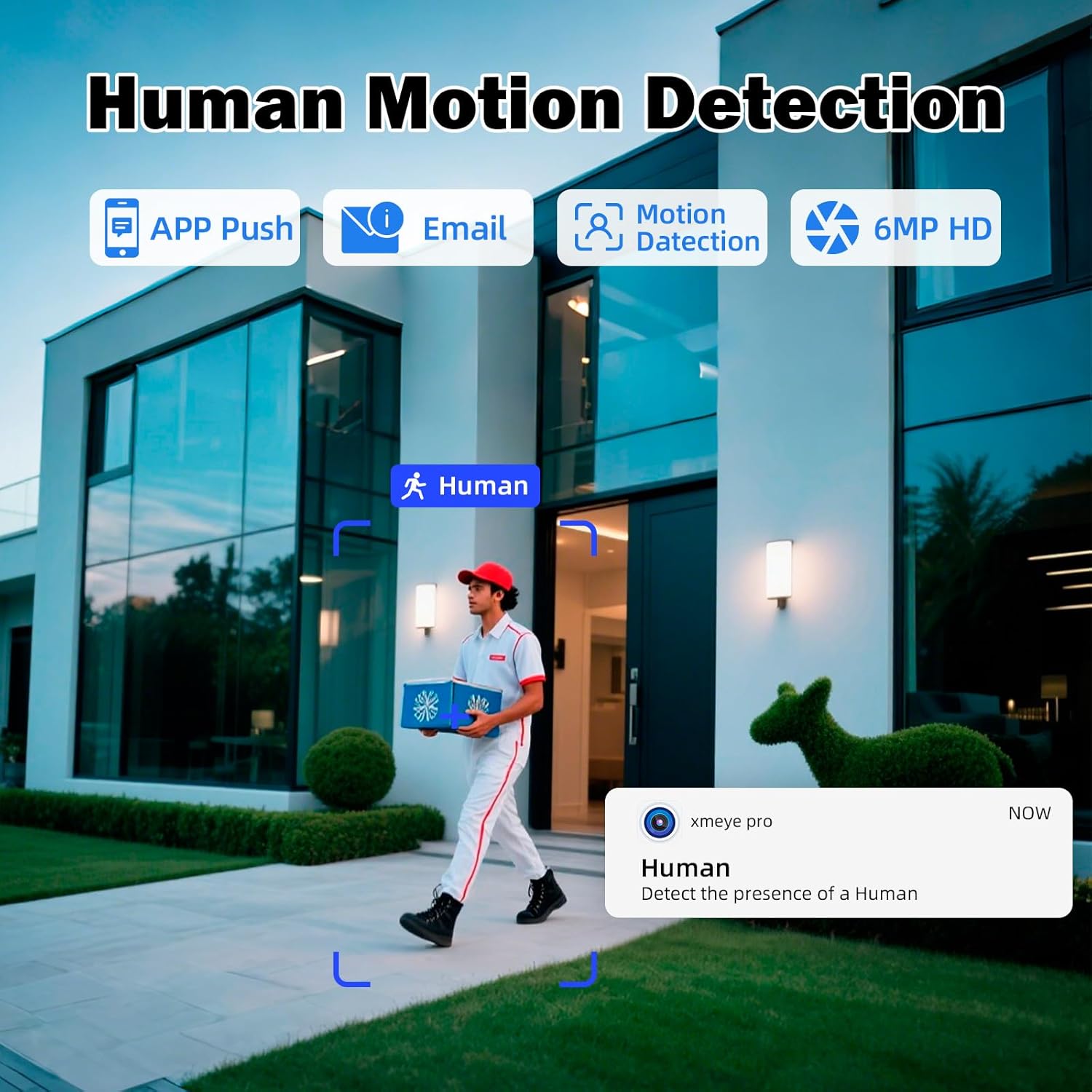
Image: A remote control next to the NVR and a monitor displaying a multi-camera view, highlighting remote operation.
Setup Instructions
Follow these steps to set up your Fuers PoE NVR Home Security Camera System:
- Connect Peripherals:
- Plug a USB mouse into the NVR's USB port.
- Connect your monitor to the NVR using either the VGA or HDMI port.
- Connect the NVR power supply and turn on the switch.
- Connect Cameras:
- Plug one end of the provided network cable into a PoE port on the NVR.
- Connect the other end of the network cable to the camera's network port. The camera will power on and begin startup.
- Repeat for all cameras.
- Network Connection (Optional for Remote Access):
- For remote viewing and advanced features, connect the NVR's LAN port to your router using an Ethernet cable.
Video: A step-by-step guide demonstrating how to connect the NVR, monitor, mouse, and PoE cameras, followed by connecting the NVR to a network for remote access.

Image: Detailed diagram showing the various ports on the NVR (PoE, LAN, VGA, HDMI, USB, Power) and the camera's connections.
Operating Instructions
Once your system is set up, you can operate it via the connected monitor and mouse, or remotely using the mobile application.
- Local Operation: Use the connected USB mouse to navigate the NVR's on-screen interface. You can view live feeds, playback recordings, configure settings, and manage cameras directly from the monitor.
- Remote Access via App:
- Ensure your NVR is connected to your home network (router).
- Download the xmeye pro app from your mobile device's app store (iOS/Android).
- Open the app and follow the on-screen instructions to add your device. This typically involves scanning a QR code displayed on the NVR's monitor or manually entering device details.
- Once connected, you can view live streams, access recorded footage, receive alerts, and control camera functions (like two-way talk or PTZ for compatible cameras) from anywhere.
Image: Diagram showing the NVR connected to a router, and a smartphone displaying the xmeye pro app for remote viewing, illustrating the process for remote access.
Maintenance
- Regular Cleaning: Periodically clean the camera lenses and NVR unit with a soft, dry cloth to ensure optimal performance and image clarity. Avoid abrasive cleaners.
- Software Updates: Check for firmware updates for your NVR and cameras regularly through the system interface or the mobile app. Updates can improve performance, add features, and enhance security.
- Data Backup: Regularly back up important recordings from the NVR's 1TB HDD to an external storage device or cloud service to prevent data loss.
- Cable Management: Ensure all cables are securely connected and protected from environmental damage, especially for outdoor camera installations.
Troubleshooting
- No Video Output:
- Check all video cable connections (HDMI/VGA) between the NVR and monitor.
- Ensure the NVR is powered on and the power indicator light is active.
- Verify the monitor input source is correctly selected.
- Camera Not Displaying:
- Ensure the network cable is securely connected to both the camera and a PoE port on the NVR.
- Check if the PoE port indicator light on the NVR is active for that channel.
- Restart the NVR and the camera.
- No Remote Access:
- Verify the NVR's LAN port is connected to your router and your router has internet access.
- Check network settings on the NVR to ensure it has a valid IP address.
- Ensure the xmeye pro app is updated to the latest version and the device is correctly added.
- Poor Image Quality:
- Clean the camera lens.
- Ensure the camera is securely mounted and not vibrating.
- Check network bandwidth if experiencing lag or pixelation during remote viewing.
Specifications
| Brand | Fuers |
| Model Number | N6708-7 |
| Product Dimensions | 10.08 x 9.45 x 1.73 inches |
| Item Weight | 8.62 pounds |
| Memory Storage Capacity | 1 TB (Hard Disk Size) |
| Connectivity Technology | Ethernet, HDMI, VGA |
| Compatible Devices | Camera |
Warranty and Support
For warranty information or technical support, please contact Fuers customer service. Refer to your purchase documentation for specific warranty terms and contact details. You can typically find support information on the official Fuers website or through the retailer where you purchased the product.
For assistance, you may also contact Fuers via Amazon message or email as mentioned in the product description.
Related documentsN6708-7

Ask a question about this manual
Ask about setup, troubleshooting, compatibility, parts, safety, or missing instructions. Manuals+ will review the question and use this page’s manual context to help answer it.