
1. Introduction
This manual provides detailed instructions for the TECKNET Bluetooth Wireless Mouse (Model: TK-MS058). This versatile mouse offers dual-mode connectivity (Bluetooth 5.2/3.0 and 2.4G USB Receiver), adjustable DPI settings, silent clicks, and a comfortable ergonomic design, making it ideal for various computing environments.
2. Package Contents
Upon unboxing your TECKNET Bluetooth Wireless Mouse, please ensure all the following items are included:
- TECKNET Bluetooth Wireless Mouse (Model: TK-MS058)
- USB-C Charging Cable
- 2.4G USB Receiver (stored inside the mouse)
- User Manual
Video: Unboxing and initial overview of the TECKNET Silent Thin Bluetooth Mouse, showing package contents including the mouse, USB-C charging cable, and user manual.
3. Product Overview
Familiarize yourself with the components of your TECKNET Wireless Mouse:

- Left/Right Click Buttons: Standard mouse buttons.
- Scroll Wheel/Middle Button: For scrolling and middle-click functions.
- DPI/Low Battery Button: Located on the top, below the scroll wheel, for adjusting DPI and indicating low battery.
- Type-C Charging Port: For recharging the mouse.
- BT1/BT2 Indicators: Blue LEDs indicating Bluetooth connection status for two different devices.
- USB Channel Indicator: Green LED indicating 2.4G USB receiver connection status.
- Power Switch: ON/OFF switch for the mouse.
- Switch Mode Button: Located on the bottom, for cycling between 2.4G, BT1, and BT2 modes.
- 2.4G USB Receiver: Stored in a compartment on the bottom of the mouse.
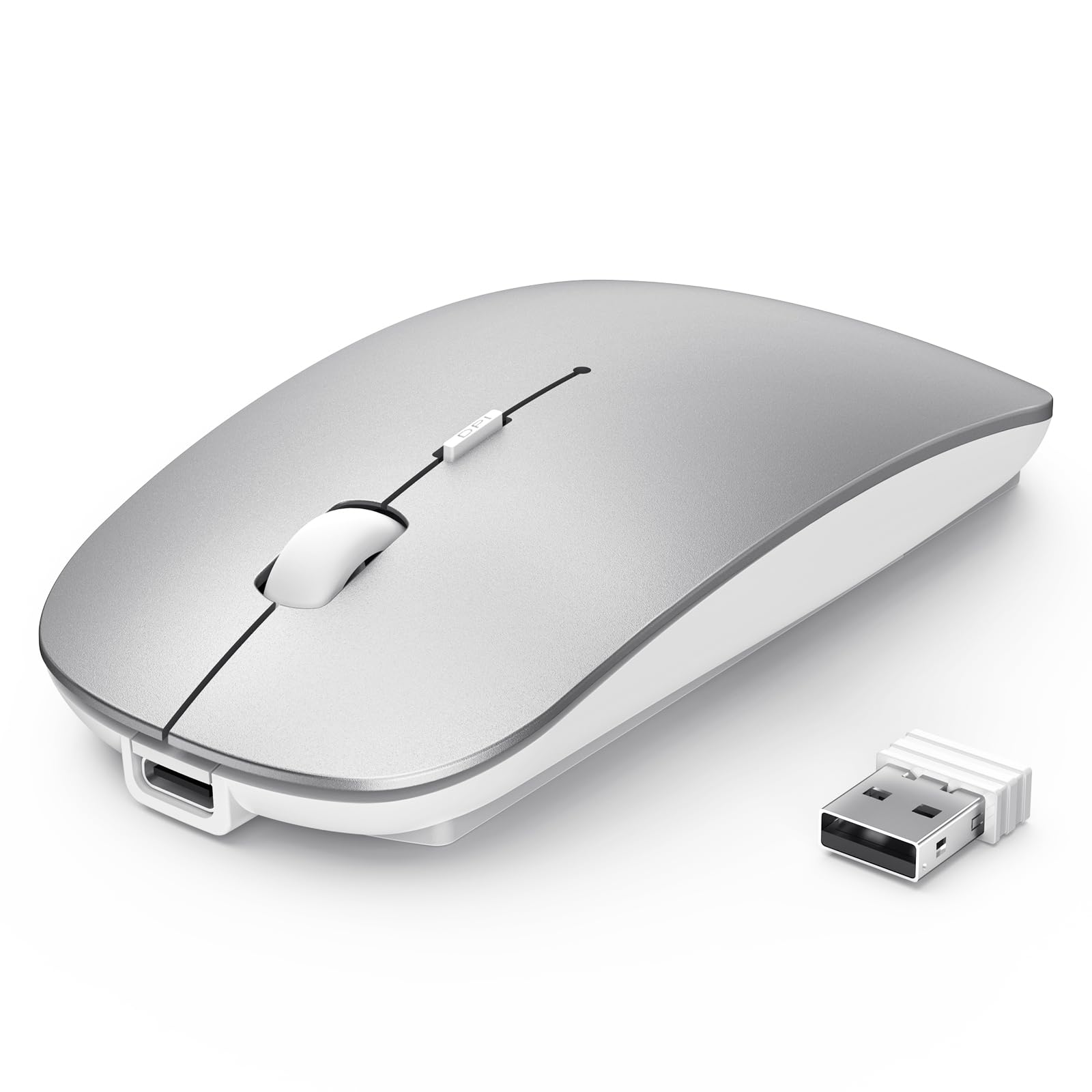
4. Setup
4.1 Charging the Mouse
The mouse features a built-in 500mAh rechargeable battery. To charge:
- Connect the provided USB-C charging cable to the charging port on the front of the mouse.
- Plug the other end of the cable into a USB power source (e.g., computer USB port, USB wall adapter).
- A red light will illuminate on the scroll wheel area while charging.
- The mouse fully charges in approximately 2.5 hours, providing up to 60 days of use (based on 2 hours/day).
- The mouse has a 12-month standby time and an auto-sleep feature after 30 minutes of inactivity to conserve power.

Video: Demonstrates the charging process of the TECKNET Silent Wireless Mouse, showing the USB-C connection and the red indicator light during charging.
4.2 2.4G USB Receiver Connection
For devices with a standard USB-A port:
- Locate the 2.4G USB receiver in the compartment on the bottom of the mouse.
- Plug the USB receiver into an available USB-A port on your computer or device.
- Turn on the mouse using the Power Switch on the bottom.
- Press the Switch Mode Button on the bottom until the green USB Channel Indicator light illuminates.
- The mouse should now be connected and ready for use.
4.3 Bluetooth Connection (BT1 & BT2)
The mouse supports two Bluetooth channels for connecting to multiple devices:
- Turn on the mouse using the Power Switch on the bottom.
- Press the Switch Mode Button on the bottom to select either BT1 or BT2. The corresponding blue indicator light (BT1 or BT2) will flash.
- On your device (laptop, iPad, MacBook, PC, Desktop, Android), go to Bluetooth settings.
- Search for "TECKNET Mouse" or a similar device name and select it to pair.
- Once successfully paired, the blue indicator light will stop flashing and remain solid for a few seconds.
- Repeat these steps to connect to a second Bluetooth device using the other Bluetooth channel (BT1 or BT2).

Video: Demonstrates the multi-mode connection capabilities of the TECKNET Silent Thin Bluetooth Mouse, showing how to switch between 2.4G USB and Bluetooth connections for different devices.
5. Operating Instructions
5.1 Switching Between Connected Devices
To switch between devices connected via 2.4G USB, Bluetooth 1, or Bluetooth 2, simply press the Switch Mode Button on the bottom of the mouse. The corresponding indicator light (green for 2.4G, blue for BT1/BT2) will confirm the active connection.
5.2 Adjusting DPI Sensitivity
The mouse offers 6 adjustable DPI settings (800, 1200, 1600, 2400, 3200, 4800) for precise control. To change the DPI:
- Press the DPI button located on the top of the mouse, below the scroll wheel.
- Each press cycles through the available DPI settings.
- An indicator light on the bottom of the mouse will flash a certain number of times to indicate the current DPI level (e.g., 1 flash for 800 DPI, 6 flashes for 4800 DPI).

5.3 Silent Click Design
The mouse features a silent click design, reducing click noise by approximately 90%. This makes it suitable for quiet environments such as libraries, cafes, or shared workspaces.
5.4 Ergonomic and Portable Design
The ultra-thin and ergonomic design of the mouse ensures comfort during prolonged use and makes it highly portable, fitting easily into bags or pockets.


6. Maintenance
- Clean the mouse regularly with a soft, dry cloth. Avoid using harsh chemicals or abrasive materials.
- Keep the optical sensor clean to ensure accurate tracking.
- Store the mouse in a cool, dry place away from direct sunlight and extreme temperatures.
- Avoid dropping the mouse or subjecting it to strong impacts.
7. Troubleshooting
7.1 Mouse Not Responding
- Ensure the mouse is powered on.
- Check the battery level and charge the mouse if necessary.
- Verify the correct connection mode (2.4G, BT1, or BT2) is selected using the Switch Mode Button.
- For 2.4G connection, ensure the USB receiver is securely plugged into the device. Try a different USB port.
- For Bluetooth connection, ensure Bluetooth is enabled on your device and the mouse is paired correctly. Try re-pairing the mouse.
- Restart your computer or device.
7.2 Intermittent Connection
- Ensure the mouse is within the effective range (15m for 2.4G, 10m for Bluetooth).
- Minimize interference from other wireless devices or large metal objects.
- Ensure the mouse is on a suitable surface for optical tracking.
7.3 DPI Adjustment Not Working
- Ensure the mouse is powered on and connected.
- Press the DPI button firmly. Observe the indicator light on the bottom for flashes to confirm DPI changes.
8. Specifications
| Model Number: | TK-MS058 |
| Product Dimensions: | 4.48 x 2.26 x 0.93 inches |
| Item Weight: | 3.2 ounces |
| Connectivity Technology: | Bluetooth 5.2/3.0, 2.4G USB Wireless |
| DPI Settings: | 800, 1200, 1600, 2400, 3200, 4800 |
| Battery: | 500mAh Rechargeable |
| Charging Time: | Approx. 2.5 hours |
| Battery Life: | Up to 60 days (2 hours/day use) |
| Special Features: | Wireless, Ultra-slim, Silent, Rechargeable, Ergonomic, Lightweight, Portable |
| Movement Detection Technology: | Optical |
| Compatibility: | Windows, MacOS, Android, Linux, iOS, ChromeOS |
9. Warranty & Support
TECKNET products are designed to provide reliable performance. For warranty information, technical support, or customer service inquiries, please refer to the contact details provided in the product packaging or visit the official TECKNET website.
