
1. Introduction
This manual provides detailed instructions for the NEWFAST RE523 WiFi Extender Signal Booster. The RE523 is a dual-band WiFi repeater designed to extend your existing wireless network coverage, eliminate dead zones, and improve signal strength throughout your home or office. It supports speeds up to 1200Mbps (867Mbps on 5GHz and 300Mbps on 2.4GHz) and offers multiple operating modes to suit various networking needs.
2. Package Contents
Please verify that all items are present in your package:
- 1 x NEWFAST AC1200 WiFi Repeater (Model RE523)
- 1 x User Manual
- 1 x RJ-45 Ethernet Cable
3. Product Overview
Familiarize yourself with the device components and indicators.
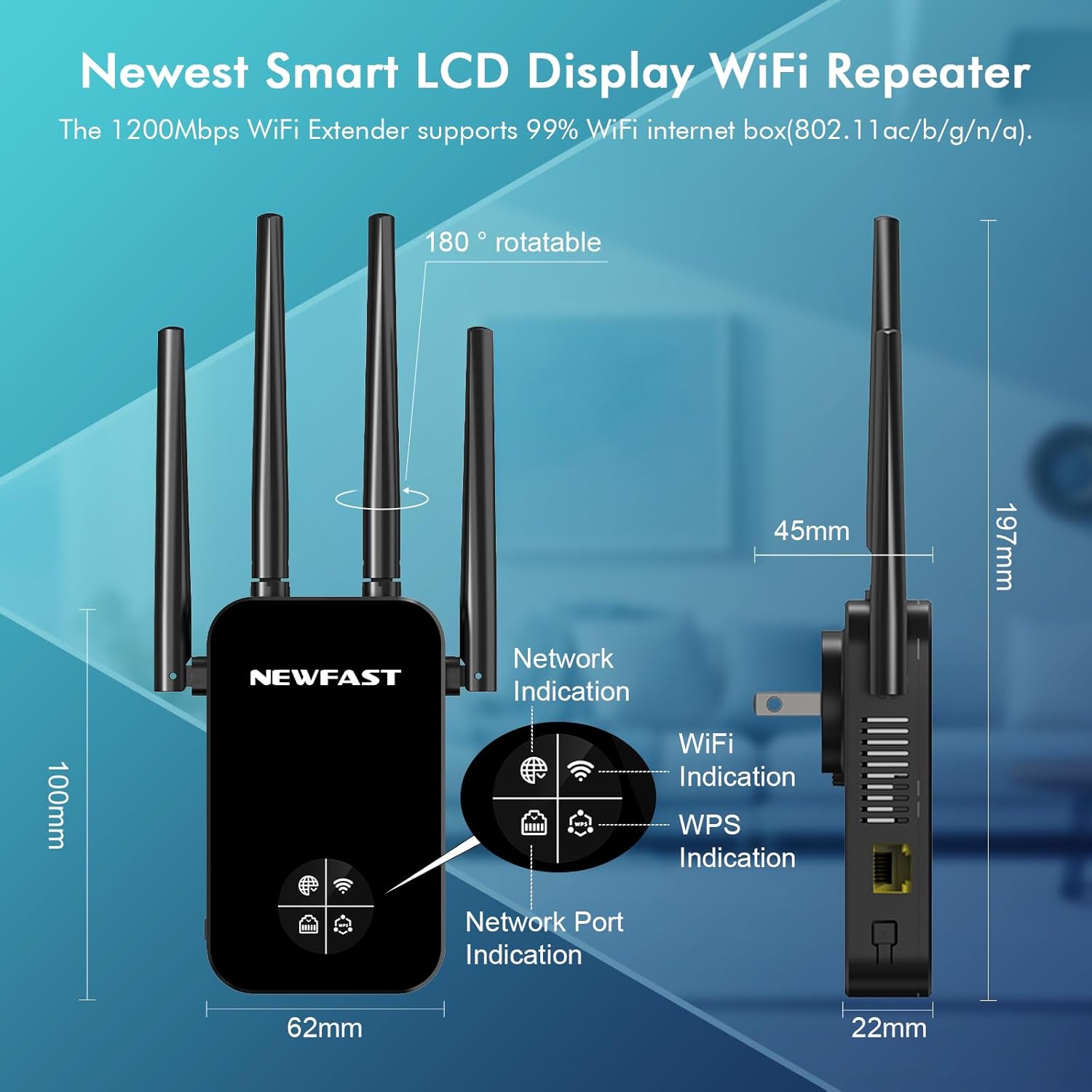
Figure 3.1: Front and side view of the NEWFAST RE523 WiFi Extender, illustrating its dimensions (100mm height, 62mm width, 22mm depth) and the location of the Network Indication, WiFi Indication, WPS Indication, and Network Port Indication lights. The antennas are 180° rotatable.
3.1. Device Components
- Antennas: Four 5dBi high-gain external antennas, 180° rotatable for optimal signal direction.
- Ethernet Port: One RJ-45 port for wired connections (LAN/WAN).
- WPS/Reset Button: Used for quick setup via WPS or to reset the device to factory defaults.
- LED Indicators: Display network status, WiFi activity, and WPS status.

Figure 3.2: Exploded view of the NEWFAST RE523 WiFi Extender, highlighting its high-performance chip, 4 external antennas, heat dissipation design, WPS/Reset button, and Ethernet port.
4. Installation
4.1. Placement Guidelines
For optimal performance, place the WiFi extender in a location that is:
- Midway between your main router and the area with weak WiFi signal.
- Away from obstructions like thick walls, metal objects, or large electronic appliances.
- In an open area to allow for proper heat dissipation.
4.2. WPS (Wi-Fi Protected Setup) Configuration
The WPS method offers a quick way to connect the extender to your main router.
- Plug the NEWFAST RE523 extender into a power outlet near your main router.
- Wait for the power LED to stabilize.
- Press the WPS button on your main wireless router.
- Within 2 minutes, press and hold the WPS/Reset button on the NEWFAST RE523 extender for 2-3 seconds.
- The WPS indicator on the extender will flash, then turn solid when the connection is established.
- Once connected, you can unplug the extender and move it to your desired location within the range of your main router.

Figure 4.1: Visual guide for the One-Tap WPS connection setup, demonstrating pressing the WPS button on the main router and then on the NEWFAST RE523 extender.
4.3. Web Interface Configuration
If your router does not support WPS or for advanced settings, use the web interface.
- Plug the NEWFAST RE523 extender into a power outlet.
- On your computer or mobile device, connect to the extender's default WiFi network (e.g., "NEWFAST_EXT"). No password is required initially.
- Open a web browser and enter the default IP address (usually
192.168.10.1) or the default web address (check the user manual included in the box for exact details). - Follow the on-screen instructions to select your desired operating mode (Repeater, AP, Router, etc.) and configure network settings, including selecting your main WiFi network and setting a password for the extended network.
- Save the settings and restart the extender if prompted.
5. Operating Modes
The NEWFAST RE523 supports multiple operating modes to adapt to various network environments.

Figure 5.1: Overview of the five operating modes: Repeater/Bridge Mode for extending WiFi, AP Mode for converting wired to wireless, and Router/Client Mode for home or office use.
5.1. Repeater Mode (Extend WiFi Signal)
In this mode, the extender wirelessly connects to your existing router's network and re-transmits the signal, extending its coverage. This is ideal for eliminating WiFi dead zones.
5.2. AP Mode (Access Point)
AP mode converts a wired network connection into a wireless one. Connect the extender to your router via an Ethernet cable, and it will create a new WiFi access point, enhancing the wireless capabilities of your wired network.
5.3. Router Mode
In Router mode, the extender functions as a primary router. Connect it to a modem via an Ethernet cable to create a new private wireless network for your home or office.
5.4. Client Mode
Client mode allows wired-only devices (like smart TVs, gaming consoles, or desktop PCs) to connect to a wireless network. The extender receives the wireless signal and provides a wired connection to the device via its Ethernet port.
6. Network Security
The NEWFAST RE523 supports robust security protocols to protect your network from unauthorized access.

Figure 6.1: The NEWFAST RE523 supports WPA, WPA2, WPA-PSK, and WPA2-PSK encryption for network security, along with features like MAC address filtering and domain filtering to prevent unauthorized access and ensure data protection.
Supported security types include:
- WPA
- WPA2
- WPA-PSK
- WPA2-PSK
These protocols help prevent unauthorized access to your network and protect your data.
7. Compatibility
The NEWFAST RE523 WiFi Extender is compatible with a wide range of devices and network standards.
- Wireless Standards: 802.11a/b/g/n/ac
- Devices: Mobile phones, tablets, laptops, smart TVs, security cameras, printers, game consoles, and other WiFi-enabled devices.
- Routers: Compatible with most standard routers and access points.

Figure 7.1: The NEWFAST RE523 WiFi Extender can intelligently connect to various devices such as mobile phones, cameras, TVs, smart sockets, game consoles, and smart bulbs, supporting 802.11ac/a/b/g/n standards.
8. Troubleshooting
If you encounter issues with your NEWFAST RE523 WiFi Extender, refer to the following common problems and solutions:
- No Internet Access After Setup:
- Ensure the extender is within range of your main router.
- Verify that your main router has an active internet connection.
- Reconfigure the extender, ensuring you select the correct main WiFi network and enter the correct password.
- Try resetting the extender to factory defaults and reconfiguring. - Weak Signal or Slow Speed:
- Relocate the extender to a position midway between your router and the weak signal area.
- Adjust the extender's antennas for optimal signal reception.
- Ensure there are no major obstructions (e.g., thick walls, metal objects) between the extender and your devices or router.
- Check for interference from other electronic devices. - Cannot Access Web Management Page:
- Ensure your device is connected to the extender's WiFi network.
- Verify the IP address or web address entered in the browser is correct (refer to the included user manual).
- Clear your browser's cache or try a different browser.
- Temporarily disable any VPN or firewall software on your computer. - WPS Connection Fails:
- Ensure your main router supports WPS.
- Press the WPS button on the router and extender within the specified time frame (usually 2 minutes).
- Try the web interface configuration method instead.
9. Specifications
| Feature | Detail |
|---|---|
| Model | RE523 |
| Product Dimensions | 1.77 x 3.38 x 7.75 inches |
| Item Weight | 8.4 ounces |
| Wireless Communication Standard | 802.11a/b/g/n/ac |
| Data Transfer Rate | Up to 1200 Megabits Per Second (300Mbps 2.4GHz + 867Mbps 5GHz) |
| Frequency Band Class | Dual-Band (2.4GHz & 5GHz) |
| Antennas | 4 x 5dBi High Gain External Antennas |
| Special Features | 1-Tap Setup (WPS), LCD Screen, MU-MIMO |
| Security Protocols | WPA, WPA2, WPA-PSK, WPA2-PSK |
10. Warranty and Support
For warranty information and technical support, please refer to the warranty card included in your product packaging or visit the official NEWFAST website. Contact details for customer service are typically provided in the included user manual or on the manufacturer's support page.


