
Bagotte A21
Bagotte Robot Vacuum and Mop Model A21 User Manual
Your guide to setup, operation, and maintenance
1. Important Safety Instructions
Please read this user manual carefully before using the Bagotte Robot Vacuum and Mop Model A21. Keep this manual for future reference.
- This appliance can be used by children aged 8 years and above and persons with reduced physical, sensory or mental capabilities or lack of experience and knowledge if they have been given supervision or instruction concerning use of the appliance in a safe way and understand the hazards involved.
- Children shall not play with the appliance. Cleaning and user maintenance shall not be made by children without supervision.
- Only use the original power adapter provided by the manufacturer.
- Do not use the robot in environments with open flames or fragile objects.
- Ensure the charging station is placed on a level surface against a wall, with no obstacles within 1 meter on either side and 2 meters in front.
- Before cleaning, remove power cords, small objects, and any items that could entangle the robot.
- Do not immerse the robot or its electronic components in water.
- Turn off the robot and unplug the charging station before performing any maintenance or cleaning.
2. Package Contents
Verify that all components are present and in good condition upon unpacking.

Image: All items included in the Bagotte Robot Vacuum A21 package.
- A21 Robot Vacuum Cleaner * 1
- Charging Station * 1
- Remote Control (2 AAA batteries included) * 1
- Power Adapter * 1
- 2-in-1 Water Tank * 1
- Side Brushes * 2
- Mop Holder * 1
- Mop Cloth * 2
- Hepa Filters * 1
- Cleaning Brush * 1
- User Manual * 1
3. Product Overview
The Bagotte A21 is a 3-in-1 robot vacuum designed for vacuuming, sweeping, and mopping. It features a slim design, powerful suction, and multiple control options.

Image: Bagotte Robot Vacuum A21 main unit and accessories.
Main Unit Components
- Top Cover: Power button, Wi-Fi indicator.
- Front Bumper: Collision sensors.
- Side Brushes: For sweeping edges and corners.
- Driving Wheels: For movement.
- Dustbin/Water Tank: Integrated unit for dry and wet cleaning.
- Charging Contacts: For automatic recharging.
- Bottom Sensors: Cliff sensors to prevent falls.
4. Setup
4.1 Charging Station Placement
Place the charging station against a wall on a hard, level surface. Ensure there are no obstacles within 1 meter (3.3 feet) to the left and right, and 2 meters (6.6 feet) in front of the charging station. This allows the robot to return for charging without obstruction.

Image: Robot vacuum returning to its charging station.
4.2 Initial Charging
Connect the power adapter to the charging station and plug it into a wall outlet. Place the robot onto the charging station, ensuring the charging contacts align. For first-time use, charge the robot for at least 6 hours to ensure the battery is fully conditioned.
4.3 Installing Side Brushes
Attach the side brushes to the corresponding posts on the bottom of the robot until they click into place. Ensure the brushes are securely fastened.
4.4 Installing the 2-in-1 Water Tank/Dustbin
To use the mopping function, fill the water tank with clean water. Attach the mop cloth to the mop holder, then slide the mop holder onto the water tank. Insert the combined 2-in-1 water tank/dustbin unit into the back of the robot until it clicks securely.

Image: Components for 3-in-1 cleaning functionality.
5. Operating Instructions
5.1 Power On/Off
- Power On: Press and hold the power button on the robot for a few seconds until the indicator light turns on.
- Power Off: Press and hold the power button for a few seconds until the indicator light turns off.
5.2 Cleaning Modes
The robot offers four cleaning modes to suit different needs:

Image: Illustration of different cleaning modes.
- Auto Cleaning: The robot automatically cleans in a systematic pattern.
- Spot Cleaning: The robot cleans a specific area in a spiral pattern for concentrated cleaning.
- Edge Cleaning: The robot cleans along walls and furniture edges.
- Manual Cleaning: Control the robot's direction using the remote control or app.
5.3 App Control (Tuya Smart App)
Download the Tuya Smart app from your smartphone's app store. Follow the in-app instructions to connect your robot to your home's 2.4GHz Wi-Fi network. The app allows for advanced control and scheduling.
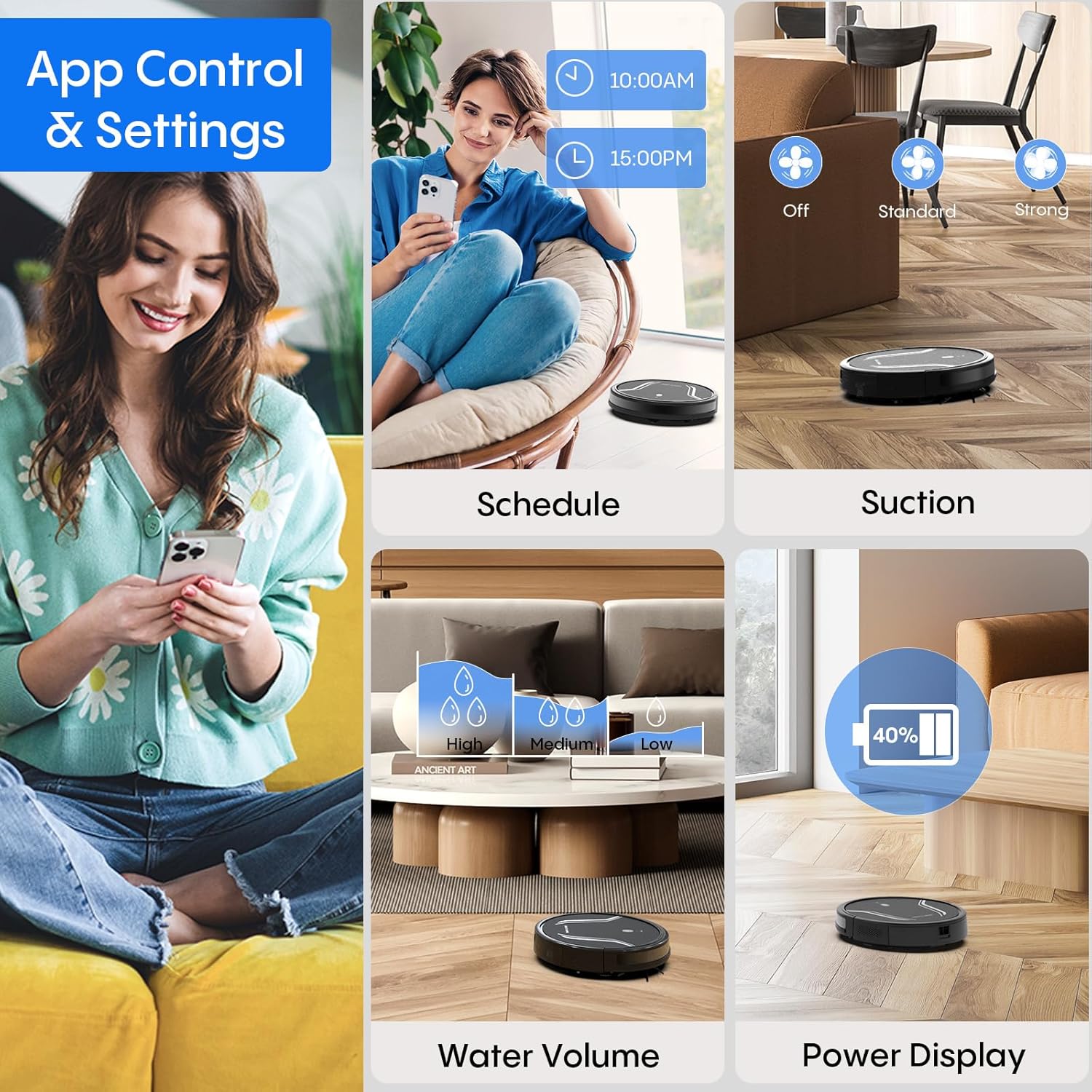
Image: App control interface for the robot vacuum.
- Scheduling: Set specific times for the robot to clean automatically.
- Cleaning Modes: Select desired cleaning modes.
- Suction Power: Adjust suction levels (e.g., Standard, Strong).
- Water Volume: Control water flow for mopping (e.g., Low, Medium, High).
- Battery Status: Monitor the robot's battery level.
- Find My Robot: Locate the robot if it gets stuck or lost.
5.4 Remote Control
Use the included remote control to manually direct the robot, start/pause cleaning, select cleaning modes, and send it back to the charging station.
5.5 Voice Control (Alexa/Google Assistant)
Once connected to the Tuya Smart app, you can link your robot to Amazon Alexa or Google Assistant for voice commands. For example, say "Alexa, turn on the robot."

Image: Robot vacuum controlled via voice command.
5.6 Automatic Recharging
When the battery level is low, the robot will automatically return to its charging station to recharge. You can also manually send it back using the app or remote control.
6. Maintenance
Regular maintenance ensures optimal performance and extends the lifespan of your robot vacuum.
6.1 Emptying the Dustbin
Press the release button to remove the 2-in-1 water tank/dustbin unit. Open the dustbin cover and empty its contents into a trash bin. It is recommended to empty the dustbin after each cleaning cycle.
6.2 Cleaning Filters
Remove the HEPA filter and sponge filter from the dustbin. Tap them gently to remove dust. The filters are not washable and should be replaced every 3-6 months, depending on usage.
6.3 Cleaning Side Brushes
Periodically check the side brushes for tangled hair or debris. Carefully remove any obstructions. If brushes are worn or damaged, replace them with new ones.
6.4 Cleaning Sensors
Wipe the cliff sensors (located on the bottom of the robot) and the charging contacts (on both the robot and charging station) with a clean, dry cloth. This ensures proper navigation and charging.
6.5 Cleaning Mop Cloth and Water Tank
After each mopping session, remove the mop cloth and wash it thoroughly. Allow it to air dry completely before reattaching. Empty any remaining water from the water tank and rinse it out. Ensure the water tank is dry before storage.
7. Troubleshooting
If you encounter issues with your robot vacuum, refer to the following common problems and solutions:
| Problem | Possible Cause | Solution |
|---|---|---|
| Robot does not turn on | Low battery; Power button not pressed correctly | Charge the robot; Press and hold the power button until the indicator lights up. |
| Robot does not charge | Charging contacts are dirty; Charging station not powered | Clean charging contacts on both robot and station; Ensure power adapter is plugged in. |
| Robot gets stuck frequently | Too many obstacles; Cliff sensors are dirty | Clear the cleaning area of loose cables and small objects; Clean cliff sensors. |
| Poor cleaning performance | Dustbin full; Filters clogged; Side brushes worn | Empty dustbin; Clean or replace filters; Clean or replace side brushes. |
| Mopping function not working | Water tank empty; Mop cloth not attached; Water flow setting too low | Fill water tank; Attach mop cloth correctly; Adjust water flow setting in the app. |
| Cannot connect to Wi-Fi | Incorrect Wi-Fi password; Not 2.4GHz network; Robot too far from router | Verify password; Ensure router is 2.4GHz; Move robot closer to router during setup. |
8. Specifications
| Feature | Detail |
|---|---|
| Model Number | A21 |
| Product Dimensions | 15 x 12.5 x 4 inches |
| Item Weight | 7.24 pounds |
| Suction Power | Up to 5000Pa |
| Dust Box Capacity | 250mL (integrated with water tank) |
| Water Tank Capacity | 200mL (integrated with dust box) |
| Control Methods | App, Remote Control, Voice Control (Alexa/Google Assistant) |
| Wi-Fi Compatibility | 2.4GHz only |
| Automatic Features | Auto-recharge, Obstacle avoidance, Fall prevention |
9. Warranty and Support
Bagotte provides a 12-month service warranty for the Robot Vacuum and Mop Model A21. For technical support, warranty claims, or any questions regarding your product, please contact Bagotte customer service through the official website or your purchase platform.
Please have your model number (A21) and purchase information ready when contacting support.
Related documentsA21


Ask a question about this manual
Ask about setup, troubleshooting, compatibility, parts, safety, or missing instructions. Manuals+ will review the question and use this page’s manual context to help answer it.