
1. Introduction
This manual provides essential information for the proper setup, operation, and maintenance of your SANSUI 24 Inch Gaming Monitor. Please read this manual thoroughly before using the product to ensure optimal performance and safety.
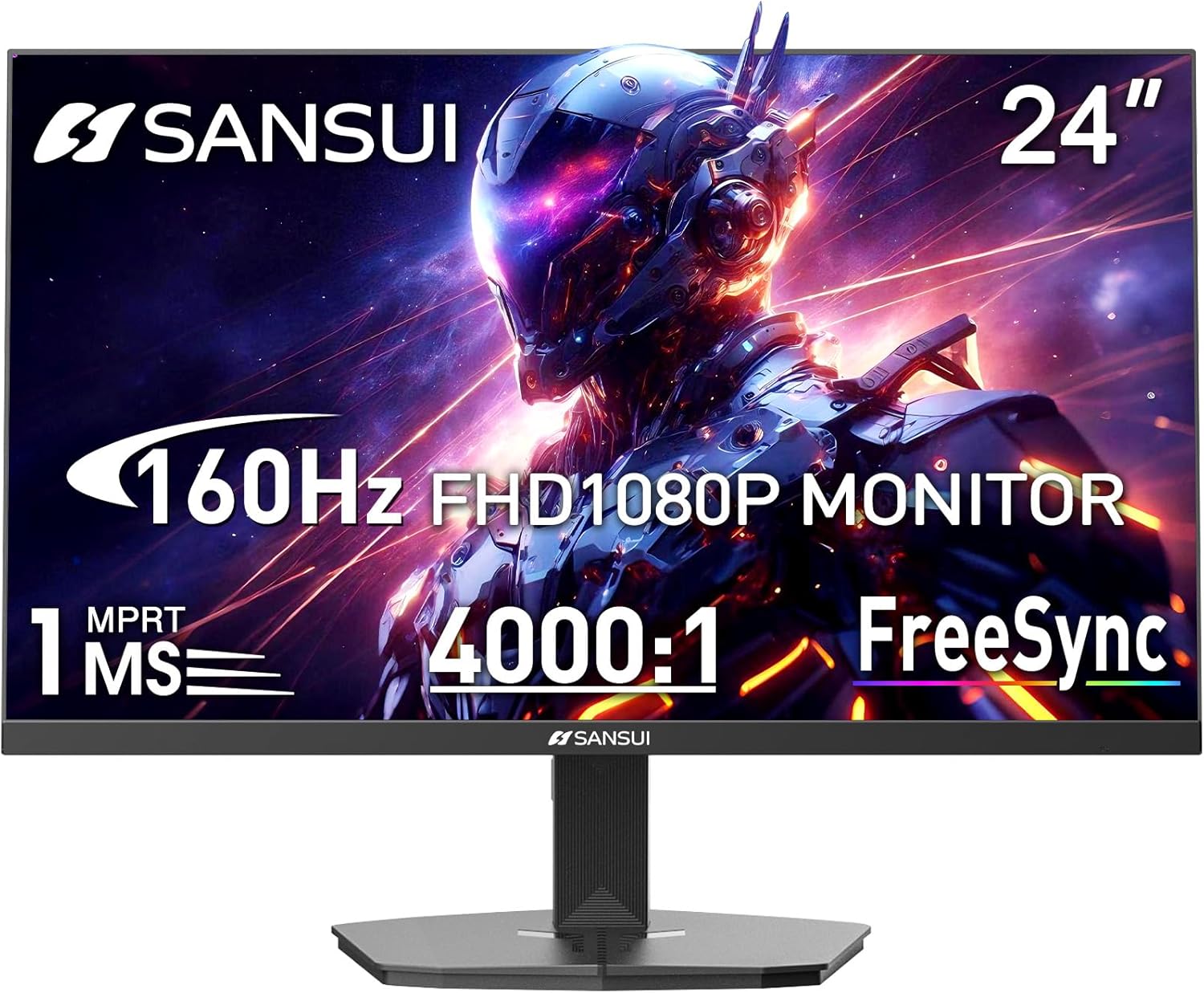
Image 1.1: SANSUI 24 Inch Gaming Monitor (Model ES-G24F4M)
2. Safety Information
- Ensure the monitor is placed on a stable, level surface to prevent accidental falls.
- Do not expose the monitor to rain, moisture, or extreme temperatures.
- Avoid blocking ventilation openings to prevent overheating.
- Use only the power adapter provided with the monitor.
- Disconnect the power cable from the outlet before cleaning or if the monitor will not be used for an extended period.
3. Package Contents
Verify that all items are present in the package:
- SANSUI 24 Inch Gaming Monitor
- HDMI Cable x 1
- Power Adaptor x 1
- Quick Installation Guide
- Warranty Card
4. Product Features
- Display Size: 24 Inches
- Resolution: FHD 1080p (1920 x 1080 Pixels)
- Refresh Rate: 160Hz
- Response Time: 1ms MPRT
- Contrast Ratio: 4000:1
- Brightness: 300 cd/m²
- Color Gamut: 72% sRGB
- Technology: FreeSync, HDR, Anti-flicker, Anti-Glare, Low Blue Light Eye Care
- Ports: HDMI & DP Ports (HDMI Cable Included)
- Mounting: VESA Support (75x75mm)
- Dimensions: 21.2 x 7.95 x 16.28 inches
- Weight: 3.54 pounds
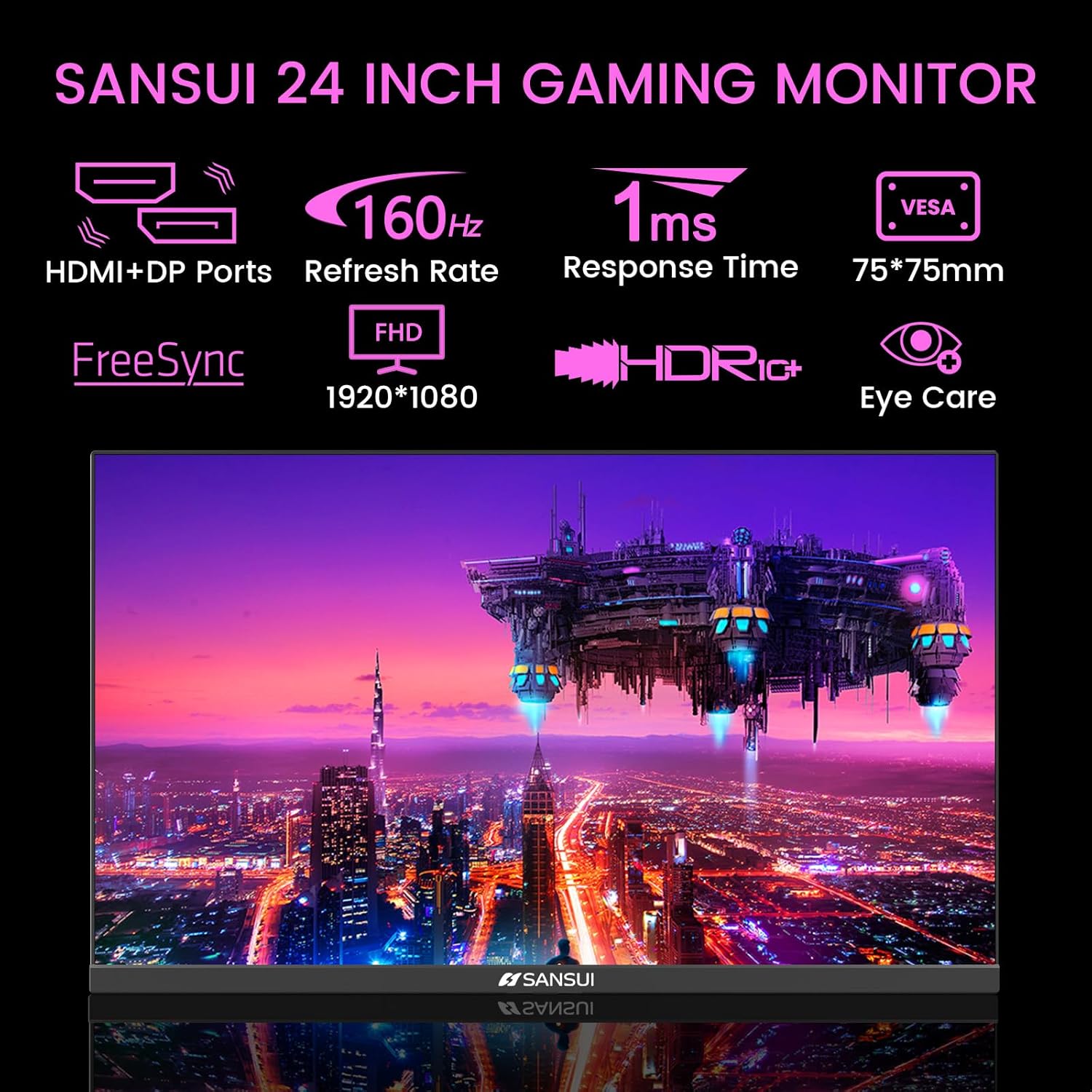
Image 4.1: Key Features of the SANSUI 24 Inch Gaming Monitor.
5. Setup
5.1. Assembling the Stand
- Carefully remove the monitor and stand components from the packaging.
- Attach the stand base to the stand neck using the provided screws.
- Secure the assembled stand to the back of the monitor. Ensure it clicks into place or is fastened securely with screws, depending on the design.
5.2. VESA Mounting (Optional)
The monitor supports VESA 75x75mm mounting. If using a VESA mount, remove the pre-attached stand and follow the instructions provided with your VESA mounting kit.
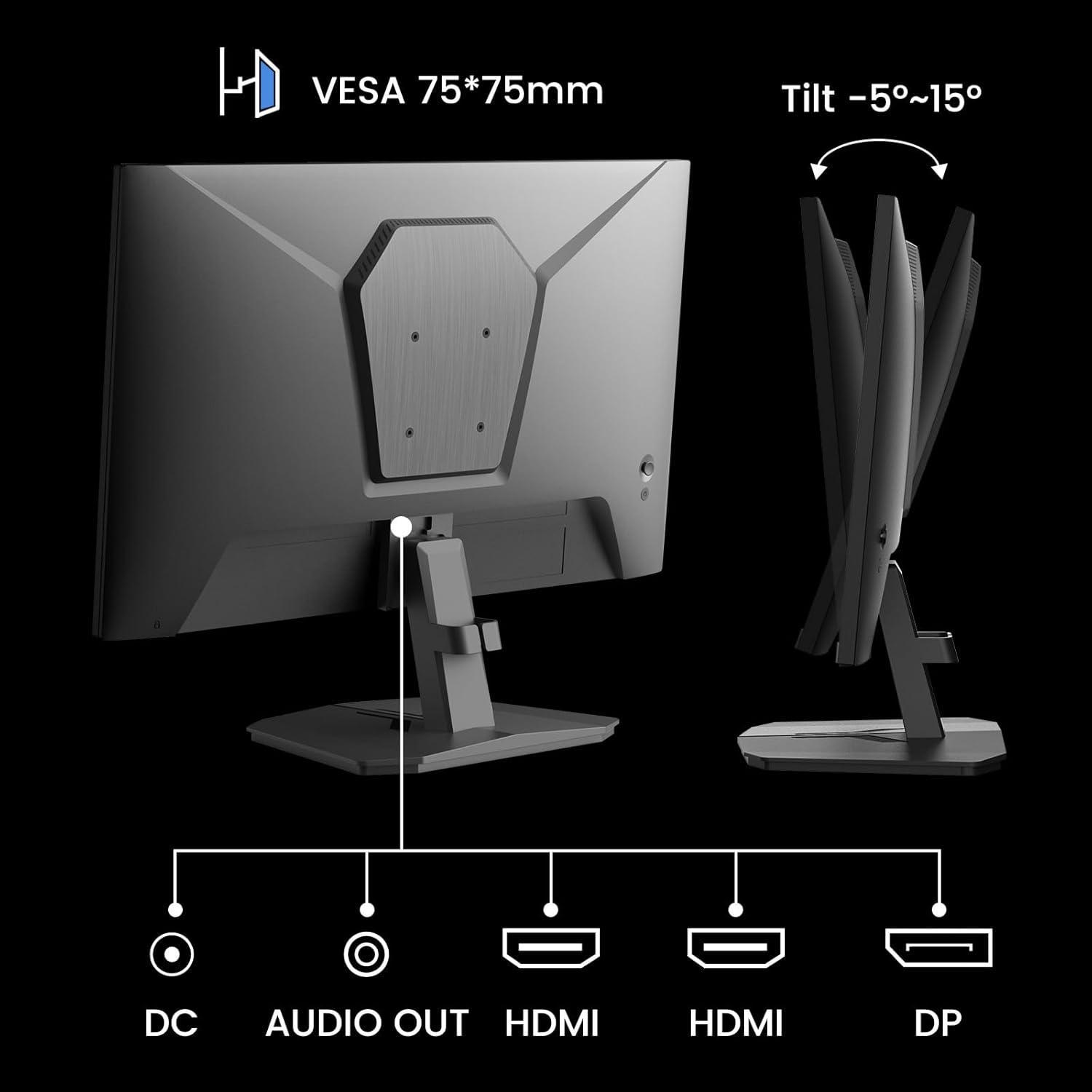
Image 5.1: Rear view showing VESA mount and input ports.
5.3. Connecting to a Device
- Connect one end of the HDMI cable (included) or a DisplayPort (DP) cable to the corresponding port on your computer or gaming console.
- Connect the other end of the cable to the HDMI or DP input port on the SANSUI monitor.
- For audio output, connect external speakers or headphones to the 'AUDIO OUT' port on the monitor.
- Connect the power adapter to the 'DC IN' port on the monitor, then plug the adapter into a power outlet.
5.4. Initial Power On
Press the power button located on the underside of the monitor to turn it on. The monitor will automatically detect the active input source. If not, manually select the input source using the OSD menu.
6. Operating Instructions
6.1. OSD (On-Screen Display) Menu Navigation
The OSD menu allows you to adjust various monitor settings. The control buttons are located on the underside of the monitor:
- Menu Button: Press to open the OSD menu or enter a sub-menu.
- Up/Down Arrows: Navigate through menu options.
- Enter Button: Confirm selection or adjust values.
- Power Button: Turn the monitor on/off.
6.2. Picture Settings
Access the 'Picture' section in the OSD menu to adjust:
- Brightness: Adjusts the overall luminance of the screen.
- Contrast: Adjusts the difference between the brightest and darkest areas.
- Overdrive: Enhances pixel response time for reduced motion blur.
- HDR (High Dynamic Range): When enabled, HDR provides a wider range of colors and contrast. Note: Some settings may be locked when HDR is active.
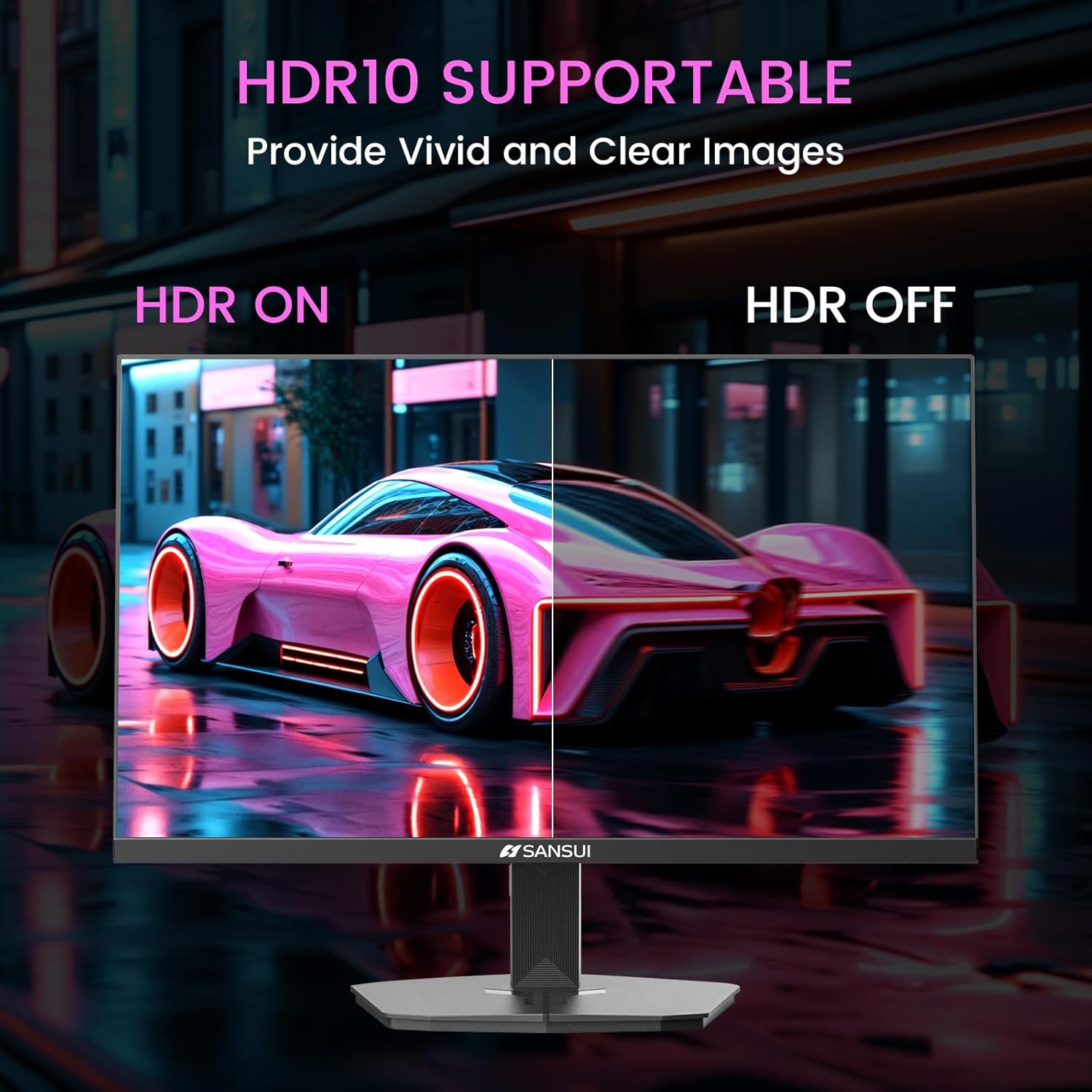
Image 6.1: HDR10 Support for vivid and clear images.
6.3. Color Settings
In the 'Color Setup' menu, you can adjust color temperature and other color-related parameters when HDR is not active.
6.4. Game Modes and Assistants
The monitor includes exclusive gaming modes and assistants to enhance your gaming experience:
- CrossHair: Provides an on-screen crosshair for improved aiming.
- Timer: Displays an on-screen timer.
- RTS/FPS/RACING: Pre-calibrated display modes optimized for specific game genres.
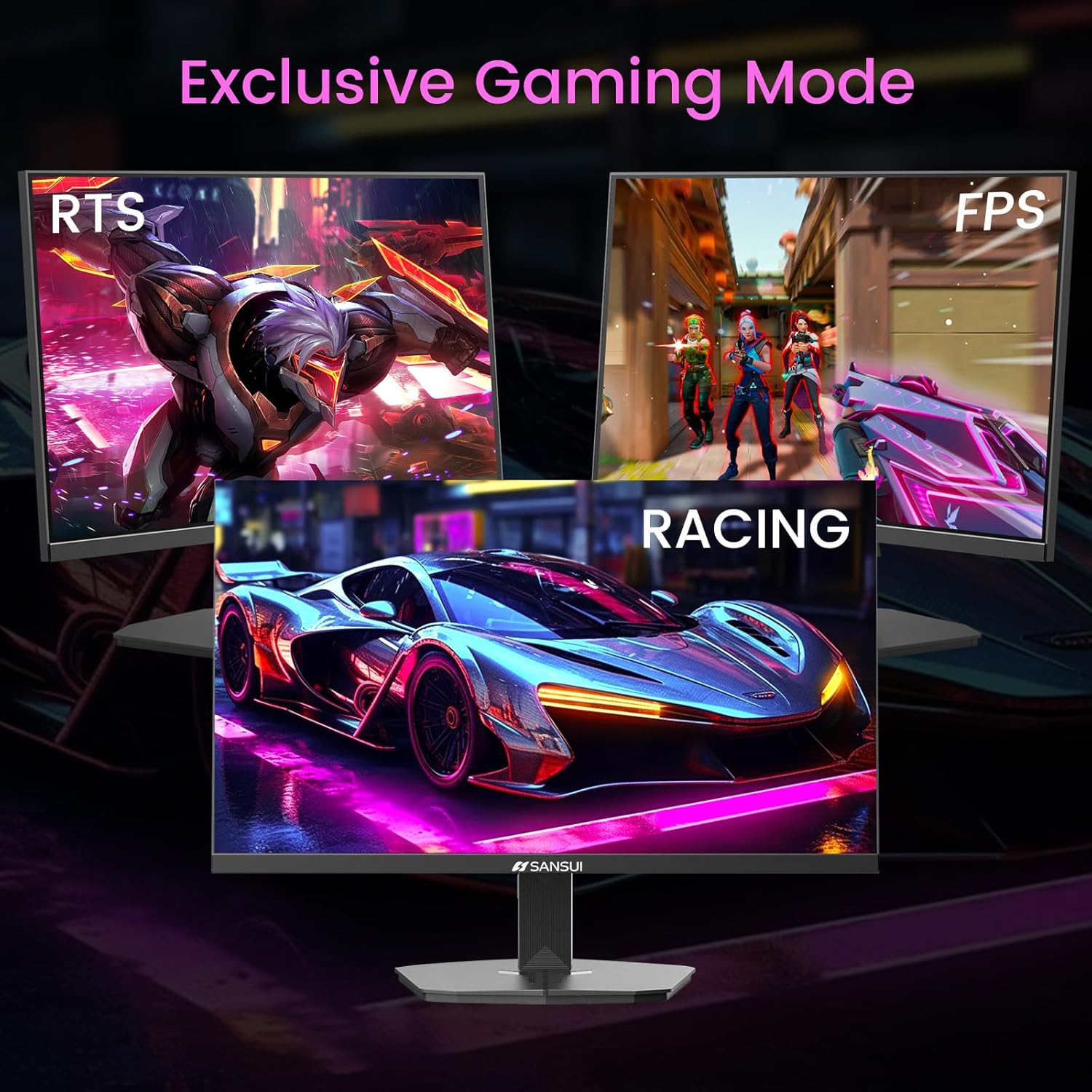
Image 6.2: Exclusive Gaming Modes for optimized visuals.
6.5. FreeSync Technology
FreeSync technology synchronizes the monitor's refresh rate with your graphics card's frame rate, eliminating screen tearing and stuttering for a smoother gaming experience. Enable or disable FreeSync through the OSD menu.
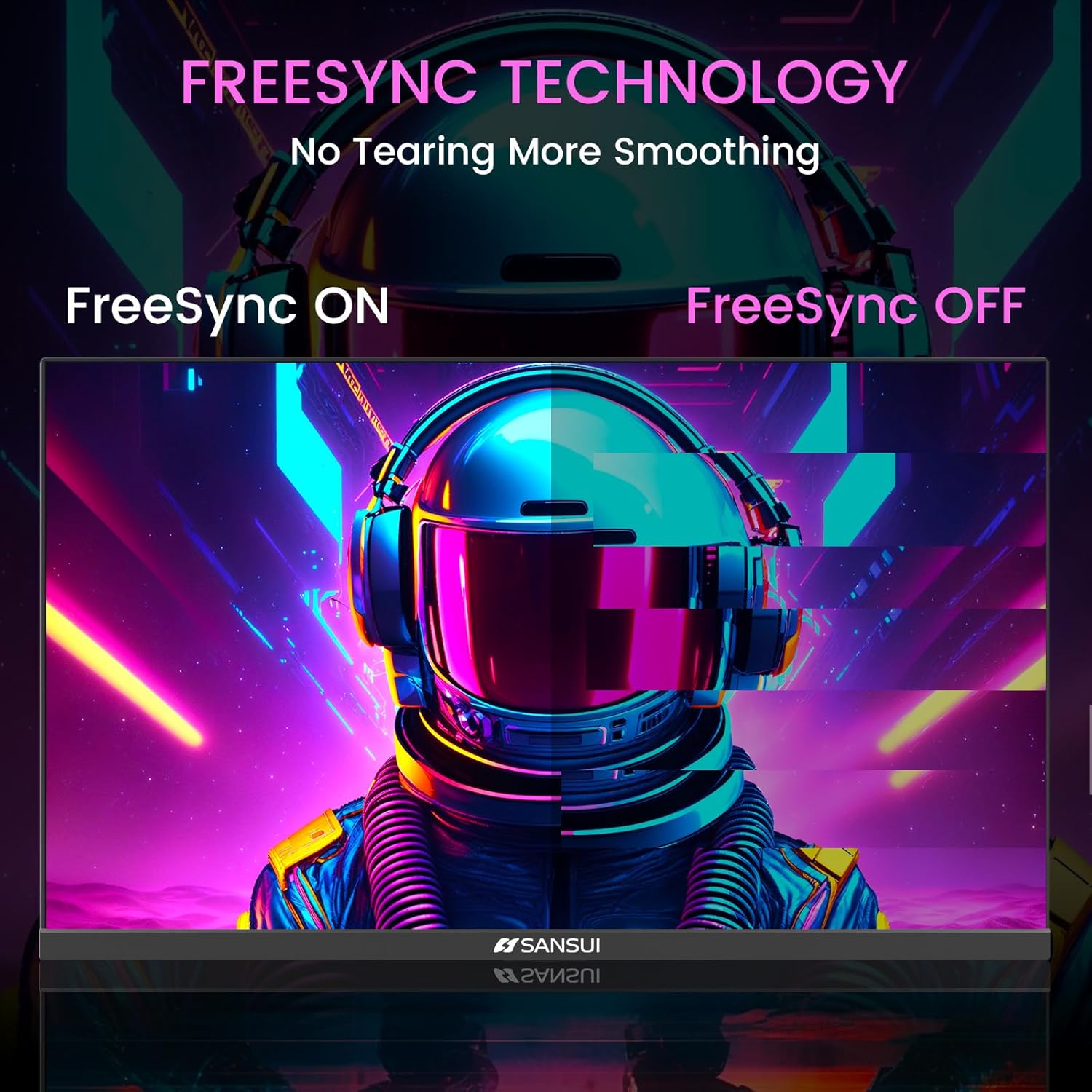
Image 6.3: FreeSync Technology for no tearing and smoother visuals.
6.6. Input Selection
Use the OSD menu to manually select the input source (HDMI or DP) if the monitor does not automatically detect it.
Video 6.1: SANSUI FreeSync - 24-inch Gaming Monitor, 160Hz, FHD. This video demonstrates the monitor's features and performance, including its 160Hz refresh rate and FreeSync technology.
7. Maintenance
- Cleaning the Screen: Use a soft, lint-free cloth slightly dampened with water or a screen cleaner. Do not spray cleaner directly onto the screen.
- Cleaning the Casing: Use a soft, dry cloth to wipe the monitor casing. Avoid abrasive cleaners.
- Storage: If storing the monitor for an extended period, disconnect all cables and store it in a cool, dry place, preferably in its original packaging.
8. Troubleshooting
- No Power: Ensure the power cable is securely connected to both the monitor and the power outlet. Check if the power outlet is functioning.
- No Signal: Verify that the video cable (HDMI/DP) is correctly connected to both the monitor and the source device. Ensure the correct input source is selected in the OSD menu.
- Flickering Screen: Check the video cable connection. Ensure the refresh rate is set correctly in your device's display settings.
- Image Distortion: Reset the monitor to factory settings via the OSD menu. Check your device's display resolution settings.
- Buttons Unresponsive: Disconnect the power for a few minutes, then reconnect. If the issue persists, contact customer support.
9. Specifications
| Feature | Specification |
|---|---|
| Product Dimensions | 21.2 x 7.95 x 16.28 inches |
| Item Weight | 3.54 pounds |
| Manufacturer | EXPRESS LUCK INDUSTRIAL(ZHONGSHAN)LIMITED |
| Item Model Number | ES-G24F4M |
| Standing Screen Display Size | 24 Inches |
| Aspect Ratio | 16:9 |
| Resolution | 1920 x 1080 Pixels (FHD 1080p) |
| Image Brightness | 300 cd/m² |
| Screen Surface Description | Matte |
10. Warranty and Support
SANSUI offers a money-back and free replacement warranty from the order date within 30 days. Additionally, lifetime technical support is provided for the SANSUI 24 inch 160Hz 1ms gaming monitor. For any questions or support needs, please contact SANSUI's after-sales support team.


