
1. Introduction
This manual provides essential information for setting up, operating, maintaining, and troubleshooting your Acer Predator Orion 7000 PO7-660 desktop PC. Please read this guide thoroughly before using your new computer to ensure optimal performance and longevity.
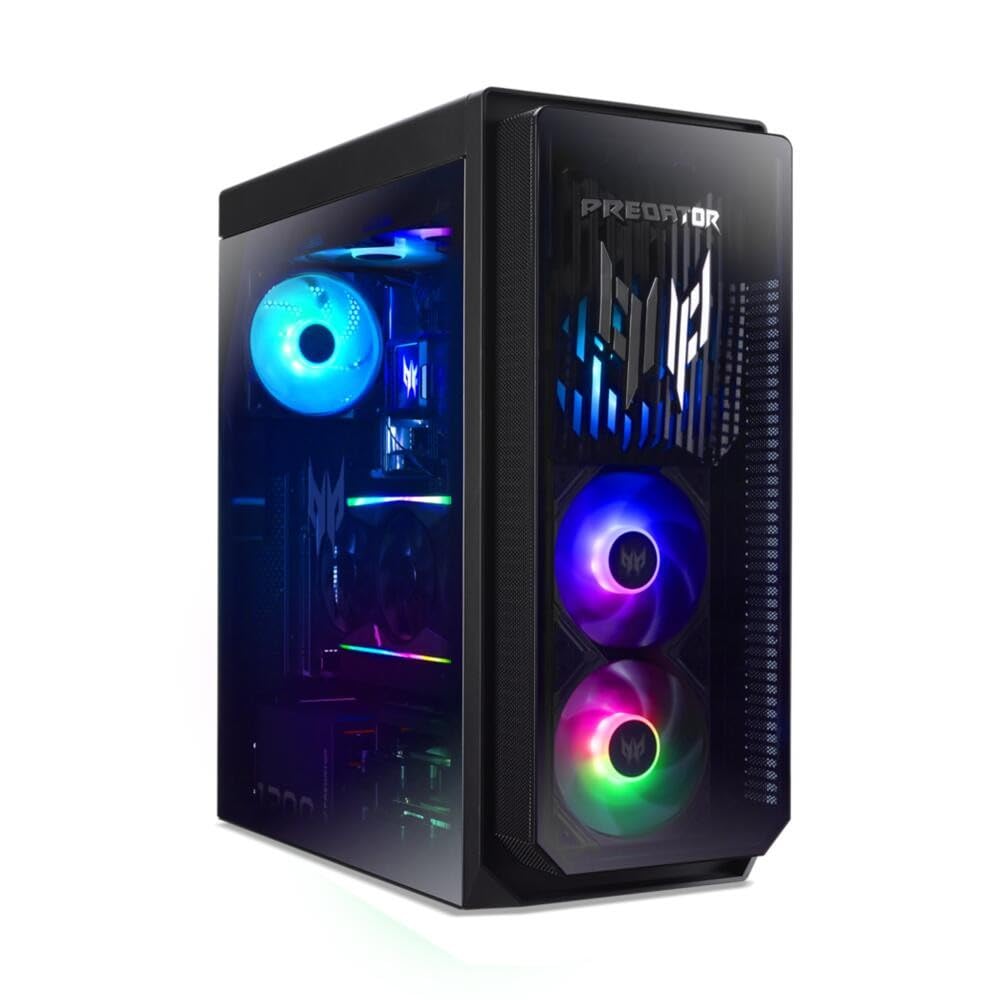
Image 1.1: Front view of the Acer Predator Orion 7000 PO7-660 desktop PC, showcasing its tower design and illuminated elements.
2. Package Contents
Verify that all items listed below are included in your product package:
- Acer Predator Orion 7000 PO7-660 Desktop PC
- Power Cable
- Standard Wired Keyboard
- Wired Mouse
- Documentation (Quick Start Guide, Warranty Card)
3. Setup
Follow these steps to set up your desktop PC:
- Unpack the PC: Carefully remove the PC and all accessories from the packaging.
- Connect Peripherals:
- Connect the wired keyboard to an available USB port.
- Connect the wired mouse to another available USB port.
- Connect your monitor(s) to the graphics card ports (HDMI or DisplayPort). Ensure the monitor is also connected to a power source.
- Connect to Network (Optional):
- For a wired connection, connect an Ethernet cable from your router or modem to the Ethernet port on the back of the PC.
- For a wireless connection, ensure the Wi-Fi antennas (if external) are properly attached. Wi-Fi will be configured during the initial Windows setup.
- Connect Power: Connect the power cable to the PC's power input and then to a grounded electrical outlet.
- Power On: Press the power button located on the front of the PC. The system will boot up, and you will be guided through the initial Windows 11 Home setup process.
4. Operating Your Predator Orion 7000
Your Acer Predator Orion 7000 PO7-660 comes pre-installed with Windows 11 Home, providing a modern and intuitive operating environment. This system is designed for high-performance tasks, including gaming, content creation, and demanding applications.
First Boot and Windows Setup
Upon the first power-on, Windows 11 will guide you through a series of setup steps, including:
- Region and keyboard layout selection.
- Network connection (if not already connected via Ethernet).
- Microsoft account sign-in or creation.
- Privacy settings configuration.
Follow the on-screen prompts to complete the setup. Once finished, your desktop will appear, and you can begin using your PC.
System Performance
The Intel Core Ultra 9 285K processor and NVIDIA GeForce RTX 5090 graphics card provide exceptional processing and graphical power. Ensure your drivers are up to date for optimal performance, especially for gaming and demanding applications. Windows Update will handle most system and security updates automatically.
5. Connectivity
Your Predator Orion 7000 offers a wide range of connectivity options:
Ports
- USB Ports: Multiple USB 2.0, USB 3.2 Gen 2 (10Gb/s), USB 3.2 Gen 1 (5Gb/s), and USB Type-C ports for connecting peripherals and external devices.
- Video Outputs: 1x HDMI port and 3x DisplayPort outputs for connecting multiple monitors.
- Audio Jacks: Standard audio input/output jacks for headphones, microphones, and speakers.
- Ethernet Ports: 1GbE and 2.5GbE ports for high-speed wired network connections.
Wireless
- Wi-Fi 7 (802.11be): Provides the latest and fastest wireless internet connectivity.
- Bluetooth 5.3: For connecting wireless peripherals such as headsets, game controllers, and other Bluetooth-enabled devices.
6. Maintenance
Proper maintenance ensures the longevity and performance of your PC.
- Keep Vents Clear: Ensure that the air intake and exhaust vents are not obstructed to allow for proper airflow and cooling. Dust accumulation can lead to overheating.
- Regular Cleaning: Use compressed air to periodically clean dust from the internal components and vents. Wipe the exterior with a soft, dry cloth.
- Software Updates: Regularly update your operating system (Windows Update) and graphics drivers (NVIDIA GeForce Experience) to ensure security, stability, and optimal performance.
- Data Backup: Periodically back up important data to an external drive or cloud storage to prevent data loss.
7. Troubleshooting
Here are solutions to common issues you might encounter:
| Problem | Solution |
|---|---|
| PC does not power on. | Check if the power cable is securely connected to both the PC and the electrical outlet. Ensure the power outlet is functional. |
| No display on monitor. | Verify that the monitor is powered on and correctly connected to the graphics card ports (HDMI/DisplayPort) on the PC. Try a different cable or monitor if possible. |
| No internet connection. | For wired connections, check the Ethernet cable and router. For Wi-Fi, ensure Wi-Fi is enabled in Windows settings and you are connected to the correct network. Restart your router/modem. |
| System is slow or unresponsive. | Close unnecessary applications. Check Task Manager for high CPU/RAM usage. Ensure drivers are updated and perform a system scan for malware. Consider restarting the PC. |
8. Specifications
Detailed technical specifications for your Acer Predator Orion 7000 PO7-660:
| Feature | Detail |
|---|---|
| Model Number | DG.E4DEG.009 |
| Operating System | Windows 11 Home |
| Processor | Intel Core Ultra 9 285K (up to 5.70 GHz P-Core / 4.60 GHz E-Core) |
| RAM | 64GB DDR5 |
| Storage | 2TB M.2 SSD (NVMe) |
| Graphics Card | NVIDIA GeForce RTX 5090 (32GB GDDR6X) |
| Wi-Fi | Wi-Fi 7 (802.11be) |
| Bluetooth | Bluetooth 5.3 |
| Ethernet | 1GbE, 2.5GbE |
| Video Ports | 1x HDMI, 3x DisplayPort |
| USB Ports | USB 2.0, USB 3.2 Gen 1 (5Gb/s), USB 3.2 Gen 2 (10Gb/s), USB Type-C |
9. Warranty and Support
For warranty information, please refer to the warranty card included in your product package. For technical support, driver downloads, and additional resources, please visit the official Acer support website. You can typically find support contact information and FAQs on their website.
When contacting support, please have your product model (PO7-660) and serial number ready. The serial number is usually located on a sticker on the back or side of the PC chassis.


