1. Introduction
This manual provides detailed instructions for the CORBOBO LINGBAO K98 PRO Mechanical Keyboard. It covers setup, operation, customization, and maintenance to ensure optimal performance and user experience with its tri-mode connectivity, smart display, and customizable RGB lighting.

Image 1.1: The LINGBAO K98 PRO Mechanical Keyboard, featuring a white, blue, and pink color scheme with RGB backlighting and a smart display.
2. What's in the Box
- Keyboard (x1)
- User Manual (x1)
- USB-C Cable (x1)
- Keycap Puller (x1)
3. Setup
3.1 Initial Charging
Before first use, connect the keyboard to a power source using the provided USB-C cable to ensure it is fully charged. The smart display will indicate the battery level.
3.2 System Compatibility
The K98 PRO is compatible with Windows, macOS, Linux, and Android operating systems. Use the following key combinations to switch system modes:
- Fn + Q: Android System
- Fn + E: macOS System
- Fn + W: Windows System

Image 3.1: An overhead view of the LINGBAO K98 PRO keyboard, highlighting its gasket mount, 10000mAh battery, hot-swappable keys, N-key rollover, fine-tuned stabilizers, LCD smart screen, and knob design.
4. Operating Instructions
4.1 Connectivity Modes
The keyboard supports three connection modes: 2.4GHz wireless, Bluetooth 5.0, and USB-C wired. You can switch between modes using the function keys:
- Fn + ~: 2.4GHz Wireless Mode
- Fn + !@#: Bluetooth 5.0 Mode (supports up to 3 connected devices)
- Fn + $: USB-C Wired Mode
To pair via Bluetooth, select one of the three Bluetooth channels (Fn+!, Fn+@, or Fn+#) and initiate pairing on your device. The smart display will indicate the active connection mode.
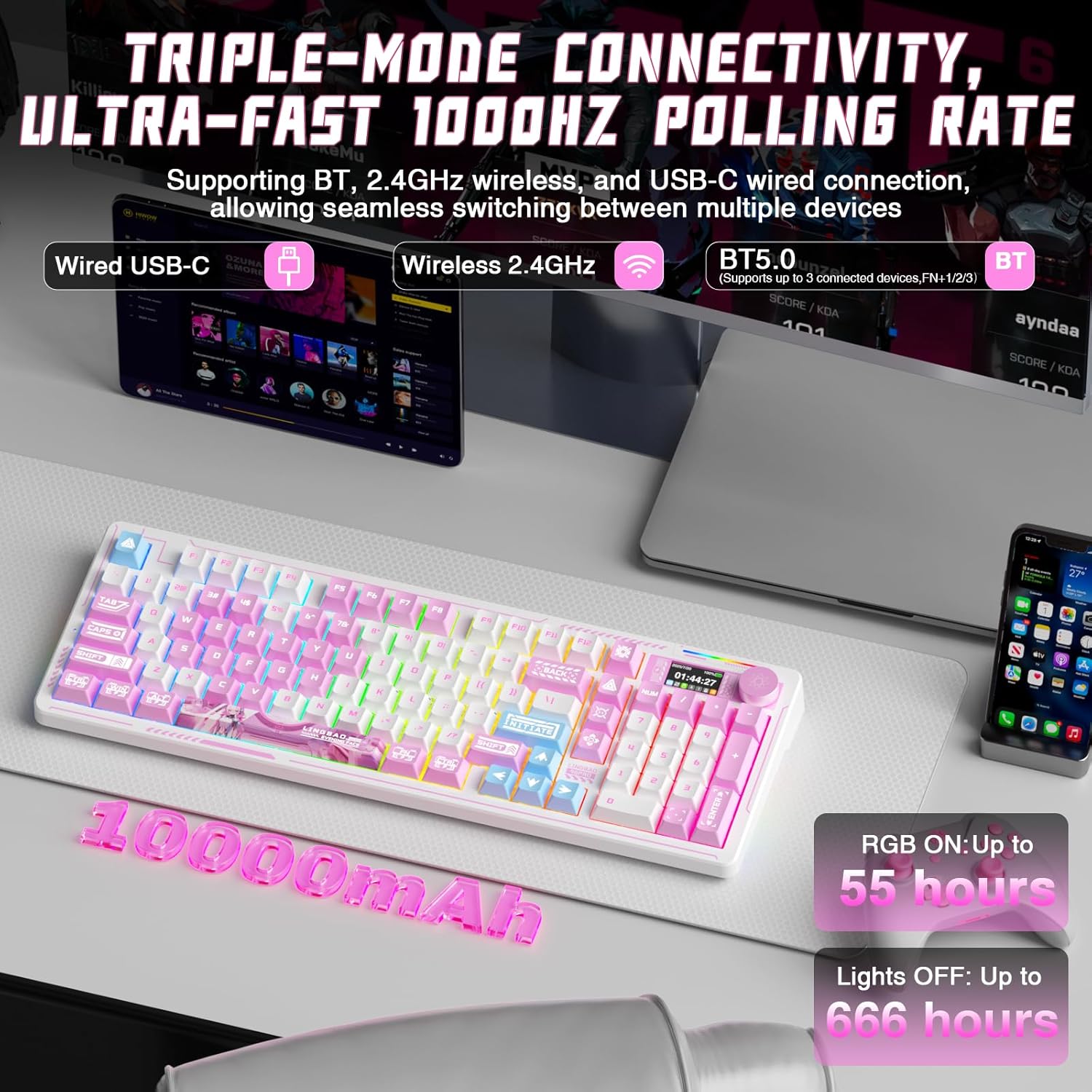
Image 4.1: The LINGBAO K98 PRO keyboard connected via USB-C, 2.4GHz wireless, and Bluetooth 5.0, demonstrating its versatile connectivity options with various devices.
4.2 Smart Display and Multi-Functional Knob
The integrated LCD smart display shows real-time information such as time, date, battery level, and current keyboard settings. The multi-functional knob provides quick control over various features:
- Rotate Knob: Adjust volume (default), browse RGB effects, or navigate display settings.
- Press Knob: Confirm selection or mute/unmute volume.
- Long Press Fn + Knob: Return to default settings.
Note: Time and date must be set via the driver software.

Image 4.2: A close-up of the LINGBAO K98 PRO's smart display showing time, date, and battery, alongside diagrams illustrating knob functions for volume, language, connection, system, brightness, speed, effect, and color settings.
4.3 RGB Lighting Customization
The keyboard features multi-zone RGB lighting with 16 backlighting effects, 6 side-lighting modes, and a dedicated RGB strip. Adjustments can be made directly on the keyboard or through software:
- Knob Control: Rotate the knob to browse 16 vibrant backlight effects when the screen is on.
- Fn + Right Shift: Toggle side lighting modes (Flowing Light, Aurora, Constant Brightness, Breathing Mode) and turn effects on/off.
- Fn + Left Shift: Switch RGB light strip modes (Flowing Light, Aurora, Constant Brightness, Breathing Mode) and turn effects on/off.
For advanced customization, including 16 million colors, music-responsive lighting, and personalized animations, use the dedicated software.
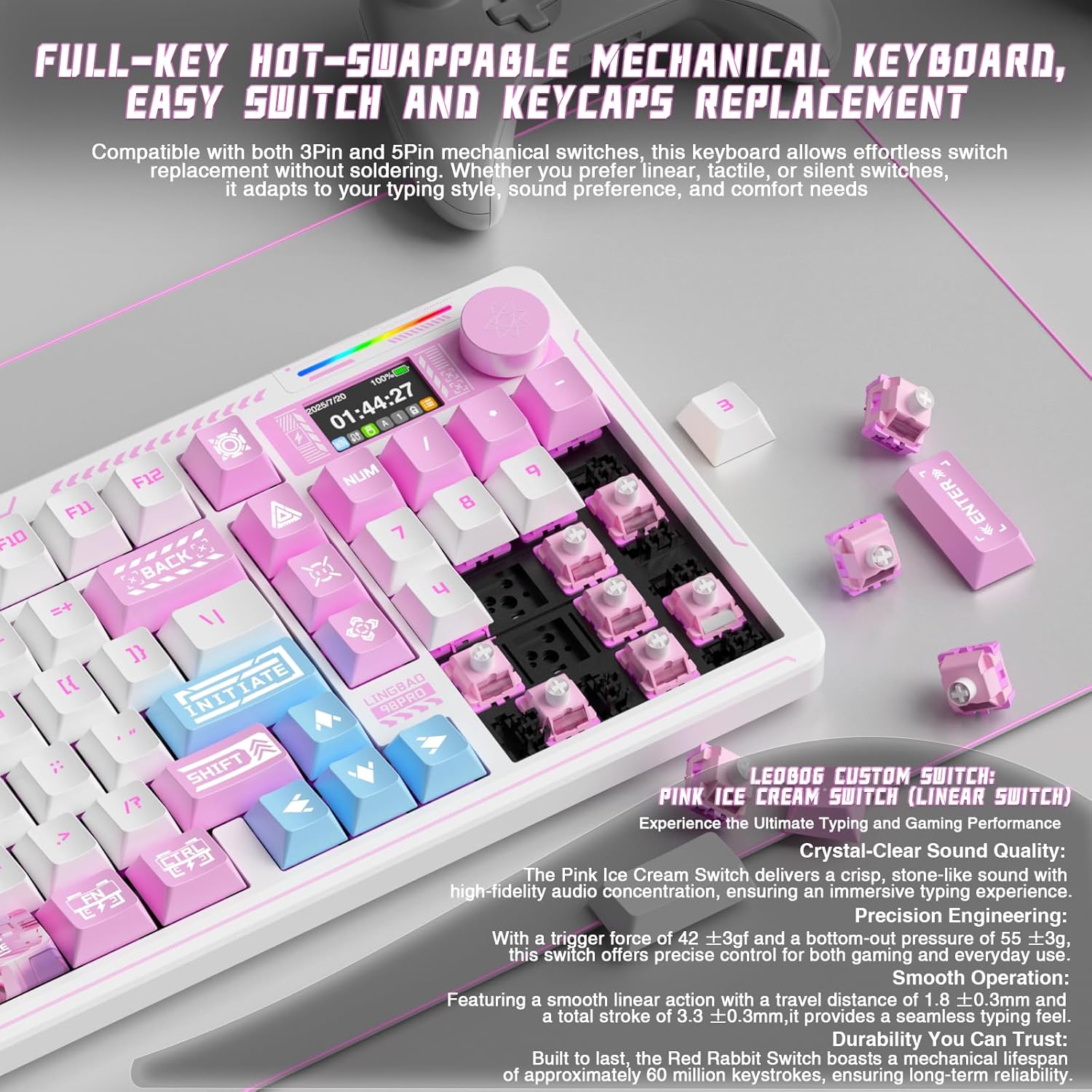
Image 4.3: The LINGBAO K98 PRO keyboard illuminated with vibrant RGB backlighting, showcasing various lighting effects across its keys and side strips.
4.4 Hot-Swappable Switches
The K98 PRO features a gasket-mounted, fully hot-swappable PCB, allowing for easy replacement of 3-pin and 5-pin mechanical switches without soldering. This enables users to customize their typing feel and sound profile.

Image 4.4: A close-up of the LINGBAO K98 PRO keyboard with several keycaps and switches removed, illustrating its hot-swappable design and the included linear switches.
4.5 Software Customization
The included customization software allows for fine-tuning of various keyboard settings, including:
- Lighting: Create custom RGB profiles with over 16 million colors, music-responsive effects, and animations.
- Macros: Set up custom macros for gaming or productivity.
- Key Mapping: Remap keys to suit individual typing habits.
Multiple profiles can be saved for different uses. The software provides an intuitive interface for personalization.

Image 4.5: A screenshot of the LINGBAO K98 PRO customization software interface, showing options for key assignment, macro programming, and RGB lighting effects.
5. Maintenance
5.1 Cleaning
To clean the keyboard, power it off and disconnect it from all devices. Use a soft, lint-free cloth slightly dampened with water or a mild cleaning solution. For keycaps, use the provided keycap puller to remove them and clean separately. Avoid spraying liquids directly onto the keyboard.
6. Troubleshooting
- Keyboard not responding: Ensure the keyboard is charged. Check the connection mode (2.4GHz, BT, USB-C) and ensure it matches your device's connection. For wireless modes, ensure the receiver is properly connected or Bluetooth is paired.
- Smart display shows incorrect time/date: The time and date must be synchronized using the dedicated driver software.
- RGB lighting not working: Check if RGB is enabled via the knob or software. Ensure the keyboard is not in power-saving mode.
- Connectivity issues (lag/disconnection): Ensure the keyboard is within range of the receiver/device. Avoid interference from other wireless devices. For 2.4GHz, try reconnecting the receiver. For Bluetooth, re-pair the device.
- Keys not registering: If specific keys are not working, try removing and re-seating the keycap and switch. If the issue persists, the switch may need replacement (due to hot-swappable design).
7. Specifications
| Feature | Detail |
|---|---|
| Product Dimensions | 16 x 5.63 x 1.61 inches |
| Item Weight | 3.91 pounds |
| Manufacturer | CORBOBO |
| Item Model Number | K98 Pro |
| Batteries | 1 9V battery required (included) |
| Compatible Devices | Gaming Console, Laptop, PC, Smartphone, Tablet |
| Connectivity Technology | 2.4GHz Wireless, Bluetooth, USB-C |
| Keyboard Description | Wireless Mechanical Gaming Keyboard |
| Special Features | 96% Mechanical keyboard, Backlit, Creamy Keyboard with Number Pad, Hot-Swappable, Keyboard with Screen Knob |
| Keyboard Backlighting | RGB |
8. Warranty and Support
For warranty information and technical support, please refer to the documentation included with your purchase or contact CORBOBO customer service through their official channels. Keep your purchase receipt for warranty claims.


