
1. Introduction
This manual provides detailed instructions for the setup, operation, maintenance, and troubleshooting of your CORBOBO LINGBAO K98 PRO Mechanical Keyboard. Please read this manual thoroughly to ensure proper use and to maximize your keyboard's functionality.

Image 1.1: LINGBAO K98 PRO Mechanical Keyboard in Gradient Black Pink.
2. Package Contents
Verify that all items are present in the package:
- LINGBAO K98 PRO Mechanical Keyboard
- User Manual (this document)
- USB-C Cable
- Keycap Puller

Image 2.1: Overview of the LINGBAO K98 PRO keyboard and included accessories.
3. Setup
3.1 Initial Charging
Before first use, it is recommended to fully charge the keyboard. Connect the supplied USB-C cable to the keyboard's USB-C port and the other end to a powered USB port on your computer or a USB wall adapter. The keyboard features a 10,000mAh battery.
3.2 Connecting the Keyboard
The LINGBAO K98 PRO supports three connection modes: 2.4GHz Wireless, Bluetooth 5.0, and USB-C Wired.
3.2.1 USB-C Wired Connection
- Connect the USB-C cable to the keyboard and your computer.
- Ensure the keyboard's mode switch (usually on the back or side) is set to USB-C (often indicated by a cable icon or "Wired").
- The keyboard will be automatically recognized by your operating system.
3.2.2 2.4GHz Wireless Connection
- Locate the 2.4GHz USB receiver (dongle), typically stored in a compartment on the keyboard.
- Plug the USB receiver into an available USB port on your computer.
- Set the keyboard's mode switch to 2.4GHz (often indicated by a wireless icon or "2.4G").
- The keyboard should connect automatically.
3.2.3 Bluetooth 5.0 Connection
The keyboard can pair with up to 3 Bluetooth devices.
- Set the keyboard's mode switch to Bluetooth (often indicated by a Bluetooth icon or "BT").
- On your computer or device, enable Bluetooth and search for new devices.
- On the keyboard, press Fn + 1, Fn + 2, or Fn + 3 to select a Bluetooth channel. The indicator light for the selected channel will flash, indicating pairing mode.
- Select "LINGBAO K98 PRO" from the list of available devices on your computer/device to complete pairing.
- To switch between paired Bluetooth devices, press Fn + 1/2/3.

Image 3.1: Illustration of the keyboard's tri-mode connectivity options (USB-C, 2.4GHz, Bluetooth).
3.3 System Compatibility Switch
The keyboard supports various operating systems. Use the following key combinations to switch modes:
- Fn + Q: For Android System
- Fn + E: For macOS System
- Fn + W: For Windows System
4. Operating Instructions
4.1 Smart LCD Display and Multi-Functional Knob
The keyboard features a smart LCD display and a multi-functional knob for quick adjustments.
- The LCD display shows real-time information such as time, date, battery level, and current keyboard settings.
- Note: Time and date must be set via the driver software.
- The multi-functional knob controls various settings:
- Volume Adjustment: Rotate the knob to adjust volume. Press down to mute/unmute.
- RGB Lighting Control: Rotate the knob to cycle through RGB effects. Press down to confirm.
- LCD Display Settings: Long press the Fn+ knob to enter display settings. Turn the knob to select options (e.g., brightness, speed, effect, color, language) and press to confirm. Long press Fn+ knob again to return to default settings.

Image 4.1: Close-up of the smart digital display and intuitive knob for customization.
4.2 RGB Lighting Customization
The keyboard features multi-zone RGB lighting with 16 backlighting effects, 6 side-lighting modes, and a dedicated RGB strip.
- Backlight Effects: When the screen is on, rotate the knob to "Effect" to browse 16 vibrant backlight effects.
- Fn + Right Shift: Switch side lighting modes (Flowing Light / Aurora / Constant Brightness / Breathing Mode) and toggle the light effects on/off.
- Fn + Left Shift: Switch RGB light strip modes (Flowing Light / Aurora / Constant Brightness / Breathing Mode / Turn Off).
- For deeper customization with over 16 million colors, music-responsive lighting, and personalized animations, use the dedicated software.

Image 4.2: Examples of 16 RGB backlight effects and 6 side-lighting modes.
4.3 Hot-Swappable Switches and Keycaps
The K98 PRO features a gasket mount, fully hot-swappable PCB, supporting both 3-pin and 5-pin mechanical switches. This allows for switch replacement without soldering.
- Switch Replacement: Use the included keycap puller to gently remove the keycap. Then, use a switch puller (not included, but often comes with replacement switches) to carefully remove the switch. Align the pins of the new switch with the holes on the PCB and press firmly until it clicks into place.
- Keycap Replacement: Use the included keycap puller to gently remove keycaps. Press new keycaps onto the switch stems until secure.
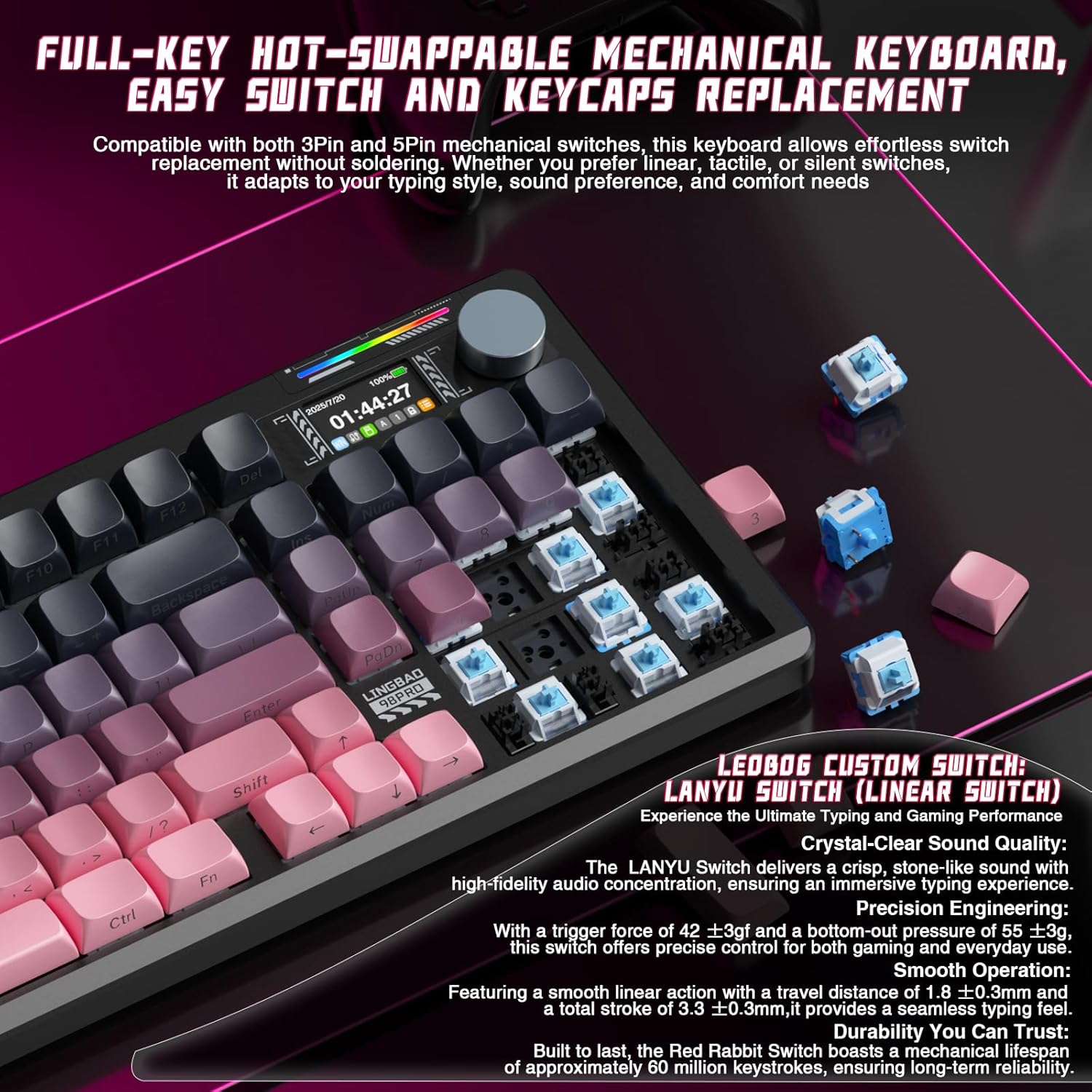
Image 4.3: Illustration of the hot-swappable switch feature, showing switches being removed and inserted.
4.4 Personalization Software
The included customization software allows for fine-tuning of lighting, macros, and key mapping. This software is essential for setting the time and date on the LCD display.
- Software Download: The software can typically be found on the CORBOBO official website or via the link provided in the product documentation. Ensure you download software only from official and trusted sources.
- Features:
- Customize RGB lighting with over 16 million colors.
- Create music-responsive lighting effects.
- Design personalized animated lighting profiles.
- Set up macros for gaming or productivity.
- Remap keys to suit typing habits.
- Save multiple profiles for different uses.
- Calibrate time and date for the LCD display.

Image 4.4: Screenshot of the personalization software interface for key mapping and RGB customization.
5. Maintenance
5.1 Cleaning the Keyboard
- Disconnect the keyboard from all power sources before cleaning.
- Use a soft, lint-free cloth slightly dampened with water or a mild cleaning solution to wipe the keycaps and keyboard surface.
- For dust and debris between keycaps, use compressed air or a small brush.
- Avoid using harsh chemicals, abrasive materials, or excessive moisture.
5.2 Battery Care
- To prolong battery life, avoid fully discharging the keyboard frequently.
- Store the keyboard in a cool, dry place when not in use for extended periods.
- The keyboard features a smart sleep mode to extend battery life when idle.
6. Troubleshooting
If you encounter issues with your LINGBAO K98 PRO keyboard, refer to the following common problems and solutions:
| Problem | Possible Cause | Solution |
|---|---|---|
| Keyboard not responding (Wired) | Loose USB-C cable connection; incorrect mode switch setting. | Ensure USB-C cable is securely connected. Verify mode switch is set to USB-C. Try a different USB port or cable. |
| Keyboard not responding (2.4GHz Wireless) | USB receiver not plugged in; incorrect mode switch setting; low battery. | Plug in the USB receiver. Verify mode switch is set to 2.4GHz. Charge the keyboard. |
| Keyboard not responding (Bluetooth) | Bluetooth not enabled on device; not paired; incorrect channel selected; low battery. | Enable Bluetooth on your device. Ensure keyboard is in pairing mode (Fn + 1/2/3 flashing). Re-pair if necessary. Select the correct Bluetooth channel. Charge the keyboard. |
| LCD Display shows incorrect time/date | Time/date not calibrated via software. | Download and install the personalization software. Use the software to set the correct time and date. |
| RGB lighting not working or incorrect | Lighting effects turned off; incorrect settings. | Check lighting settings using the knob or personalization software. Ensure lighting is enabled. |
| Keys not registering or double-typing | Faulty switch; debris under keycap/switch. | Remove keycap and switch, clean the area. Replace the switch if it is faulty (due to hot-swappable design). |
If the problem persists after trying these solutions, please contact CORBOBO customer support for further assistance.
7. Specifications
| Feature | Detail |
|---|---|
| Model | K98 Pro |
| Layout | 96% Layout, 97 Keys |
| Connectivity | Tri-Mode: 2.4GHz Wireless, Bluetooth 5.0, USB-C Wired |
| Polling Rate | 1000Hz (in wired mode, typically) |
| Battery Capacity | 10,000mAh |
| Battery Life | Up to 55 hours (RGB on), Up to 666 hours (power-saving mode) |
| Switches | Lubricated Linear Switches (Hot-Swappable, supports 3-pin and 5-pin) |
| Keycaps | High-quality PBT Keycaps |
| Mounting Style | Gasket Mount |
| Display | Smart LCD Display (shows time, date, battery, settings) |
| Knob Functionality | Multi-functional (volume, RGB, display settings) |
| RGB Lighting | 16 Backlighting Effects, 6 Side-lighting Modes, Dedicated RGB Strip, 16 Million Colors (via software) |
| Compatibility | Windows, macOS, Linux, Android |
| Product Dimensions | 16 x 5.63 x 1.61 inches (40.64 x 14.30 x 4.09 cm) |
| Item Weight | 3.65 pounds (1.66 kg) |
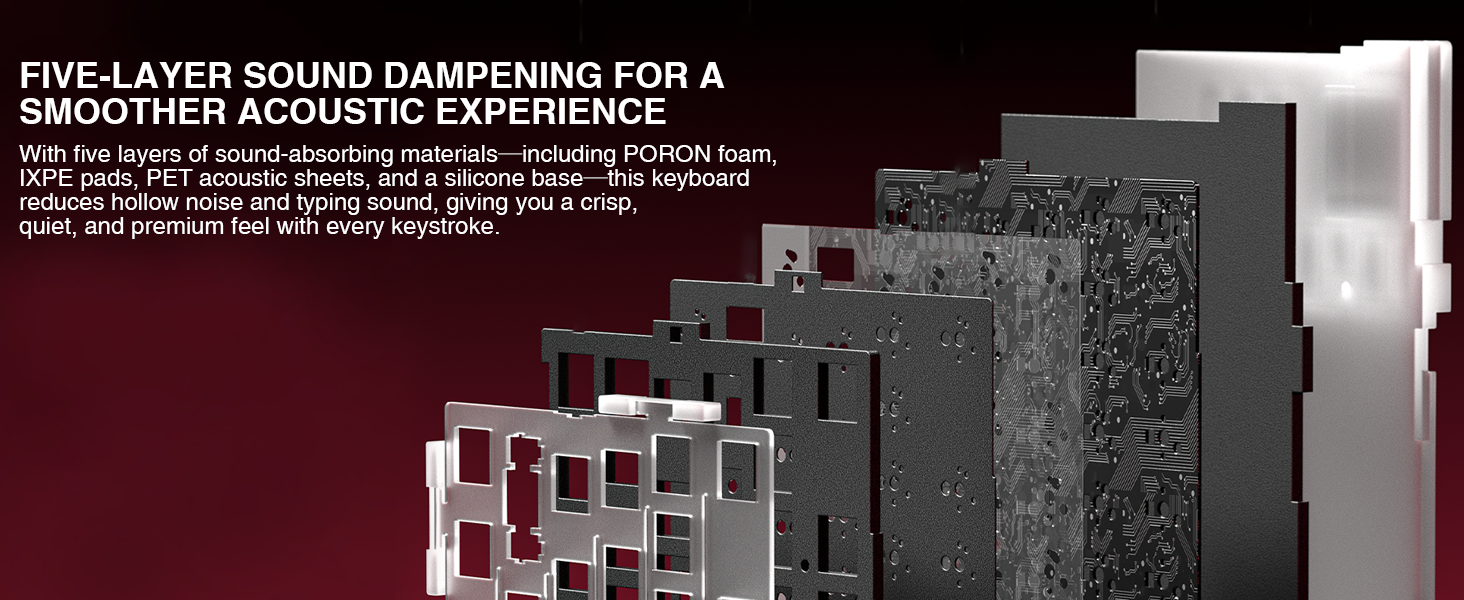
Image 7.1: Diagram illustrating the five-layer sound dampening structure of the keyboard.
8. Warranty and Support
For warranty information, please refer to the documentation included with your purchase or visit the official CORBOBO website. Warranty terms and conditions may vary by region and retailer.
For technical support, troubleshooting assistance beyond this manual, or inquiries about replacement parts, please contact CORBOBO customer service through their official website or the retailer where the product was purchased.
Manufacturer: CORBOBO
Brand Store: CORBOBO Store on Amazon